My work dashboard
The purpose of the EDC system is to collect, store, and process subject data. In order to maintain all the processes, different user roles are responsible for performing various tasks, such as CRF completion, source data verification (SDV), query resolution, and more. For your convenience, all the tasks that you have to perform in the system are presented on a single interactive dashboard called My Work.
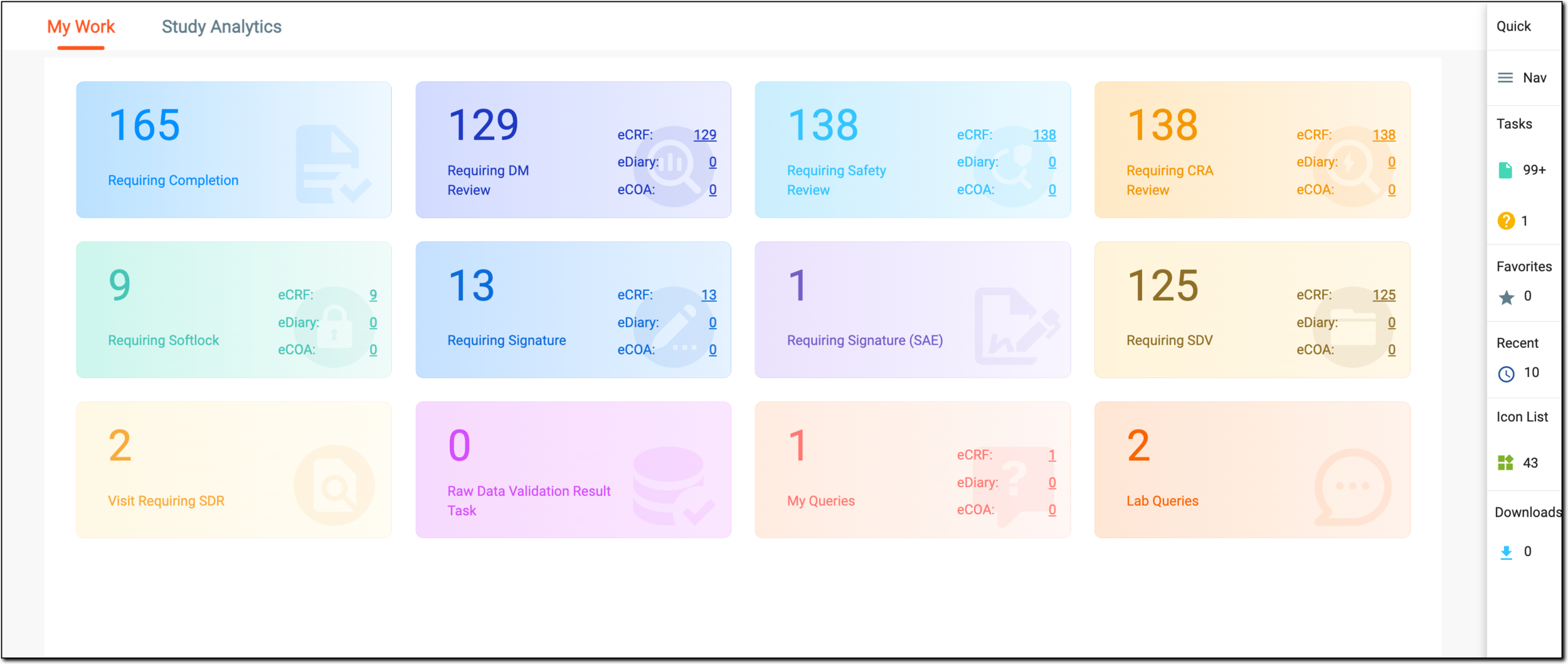
The number of task categories you see on the My Work dashboard depends on your field of responsibilities according to your organization's structure.
For instance, the clinical research coordinator (CRC) users have their CRF completion tasks and queries to resolve, while the data manager (DM), clinical research associate (CRA), and principal investigator (PI) users have their respective review tasks displayed under My Work.
Moreover, to facilitate the search, you can filter out the My Work dashboard by site. This way, you only see the tasks pertinent to forms or visits of a single site.

Task categories available in EDC and how you can work on these tasks are discussed in the following sections.
EDC is your clinical database for recording subject data collected in the course of your study through case report forms (CRFs). For most studies, data entry is performed by clinical research coordinator (CRC) users. Thus, if you are responsible for form completion In EDC, as soon as there is a new CRF that requires data entry, you are assigned a respective system task. All such tasks you can access via the My Work dashboard.
-
In the EDC application header, select the DASHBOARD tab.
-
On the My Work page that opens, select the Requiring Completion tile.
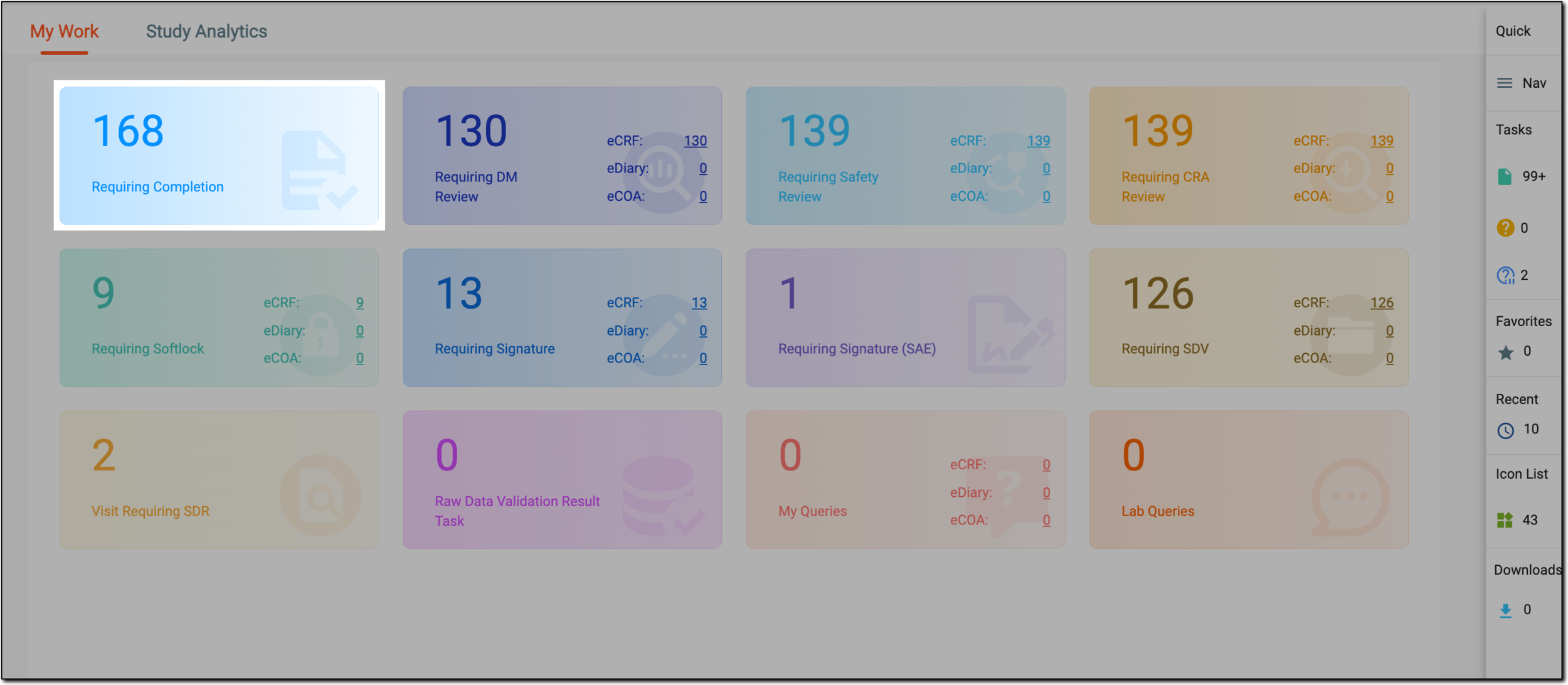 Figure 1. Selecting requiring completion
-
In the Requiring Completion table that appears, locate the form that you want to complete, and from the Form Name column, select an active link.
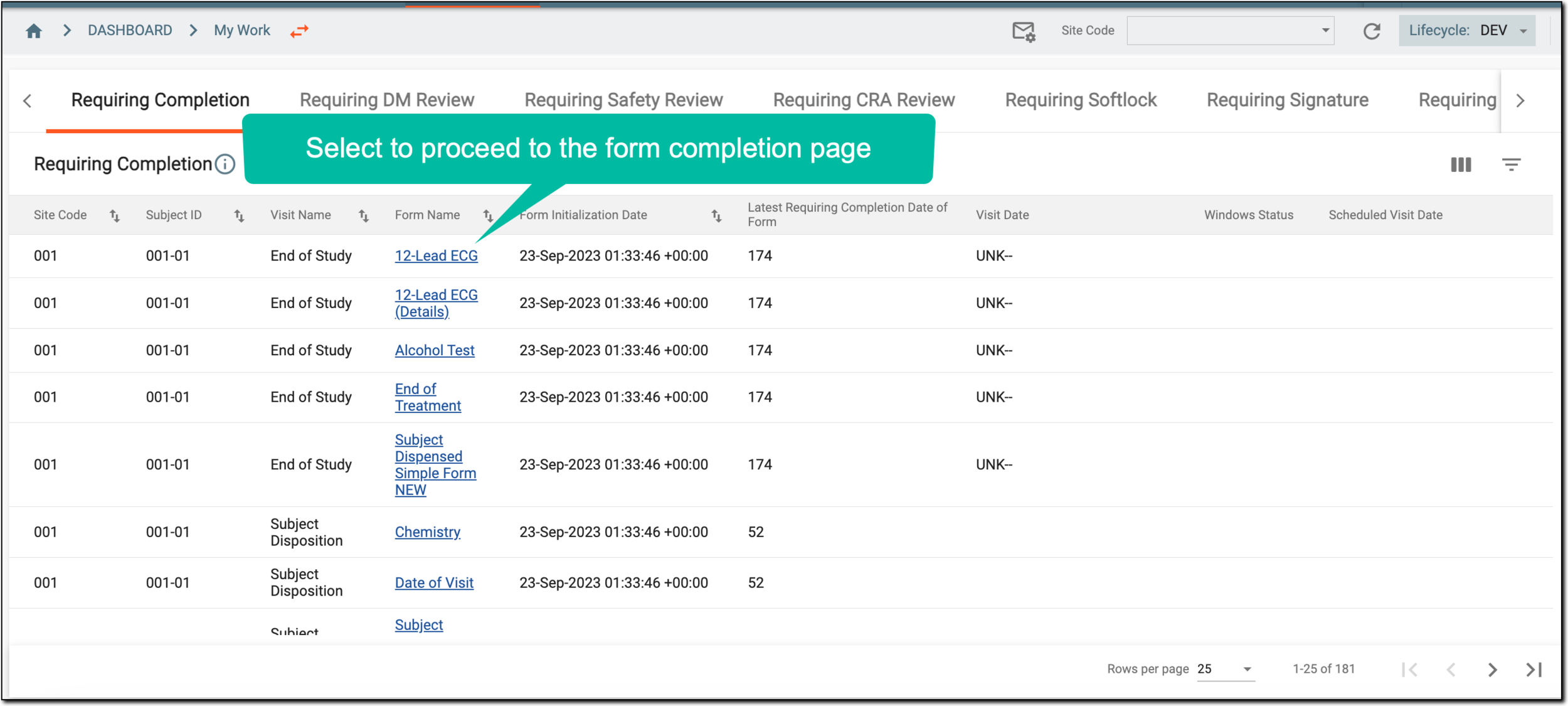 Figure 2. Accessing forms requiring completion
Tip
To facilitate the search, you can filter out the My Work dashboard by site using the Site Code menu. This way, you only see the tasks pertinent to forms of a single site.
The respective CRF completion page opens where you can perform the data entry. You can use the task panel at the bottom of your screen to navigate between forms requiring completion or select Back to My Work  to return to your other task categories.
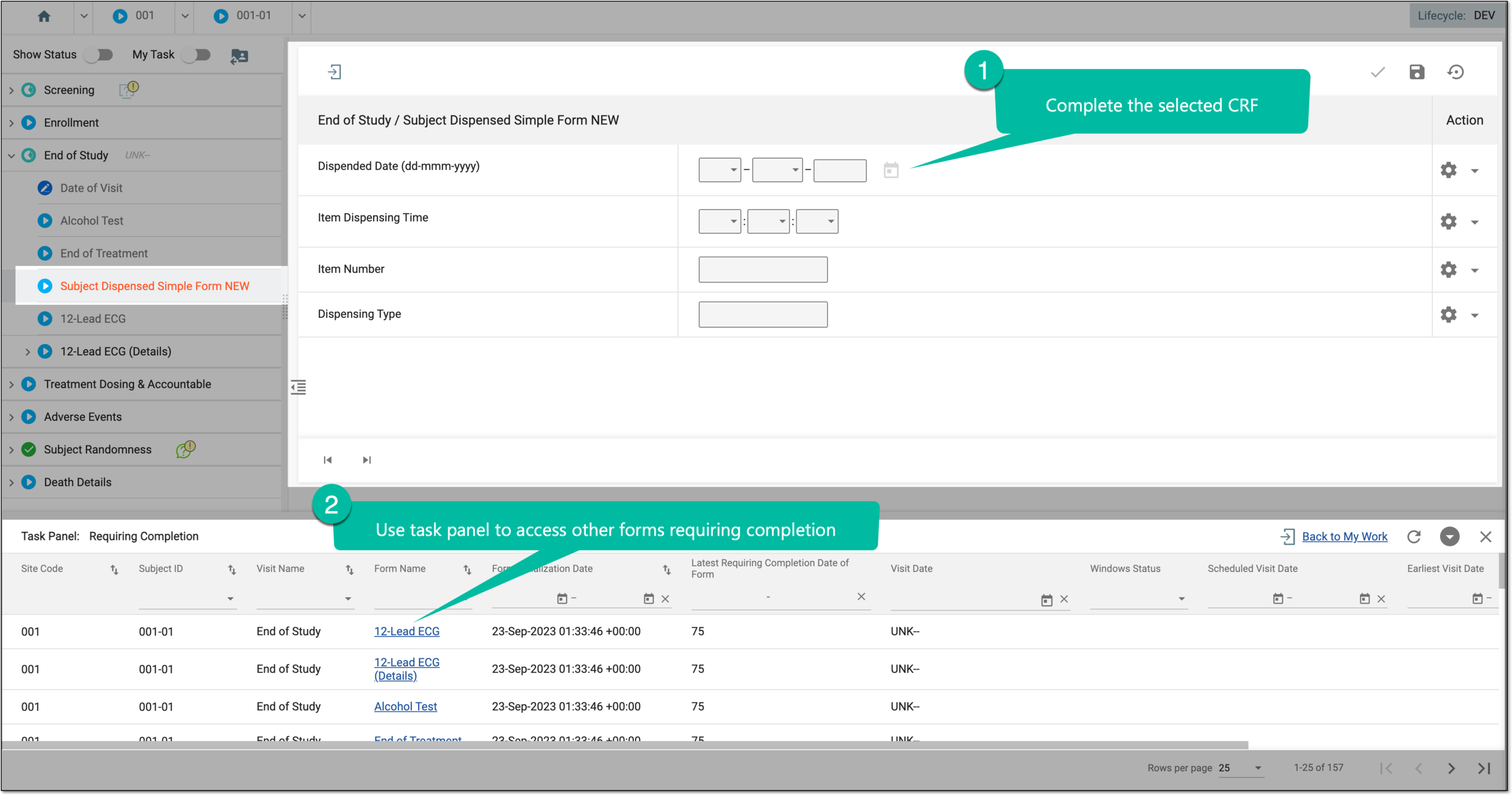
Tip
You can also refresh  , collapse
  , or close
  the panel if not needed.
A data manager (DM) is a person who is mainly responsible for reviewing CRFs, cleaning the data, making sure the data is entered correctly according to all requirements and industry standards, and creating manual queries for CRC users on any questionable data pieces.
In EDC, it can be configured for your study CRFs if they must undergo the DM review stage, and to set the dependencies of this operation based on other review stages and the lock status of the CRFs. If the DM review applies, then all the forms that require such review appear on the My Work dashboard of the respective users.
-
In the EDC application header, select the DASHBOARD tab.
-
On the My Work page that opens, select the Requiring DM Review tile to open a complete list of forms awaiting your review.
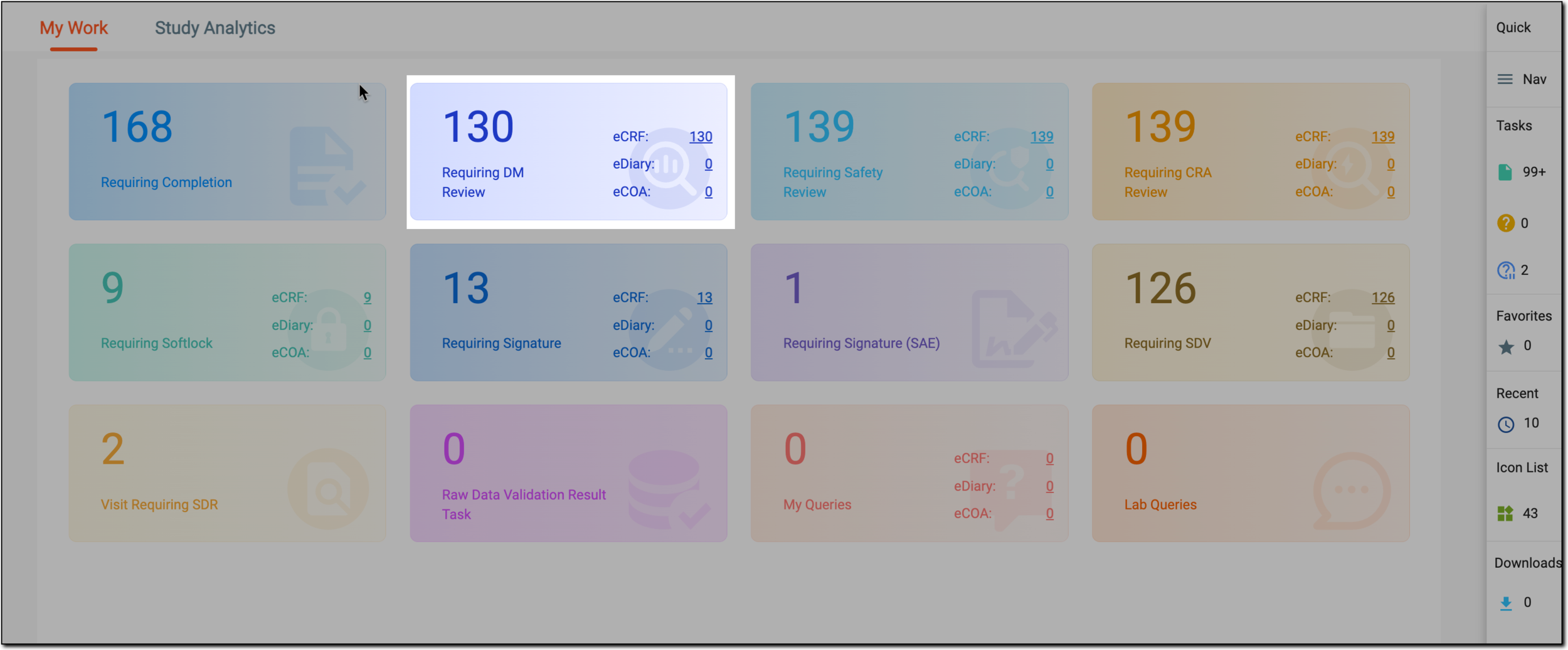 Figure 1. Selecting requiring DM review
-
In the Requiring DM Review table that appears, locate the form that you want to review, and from the Form Name column, select an active link.
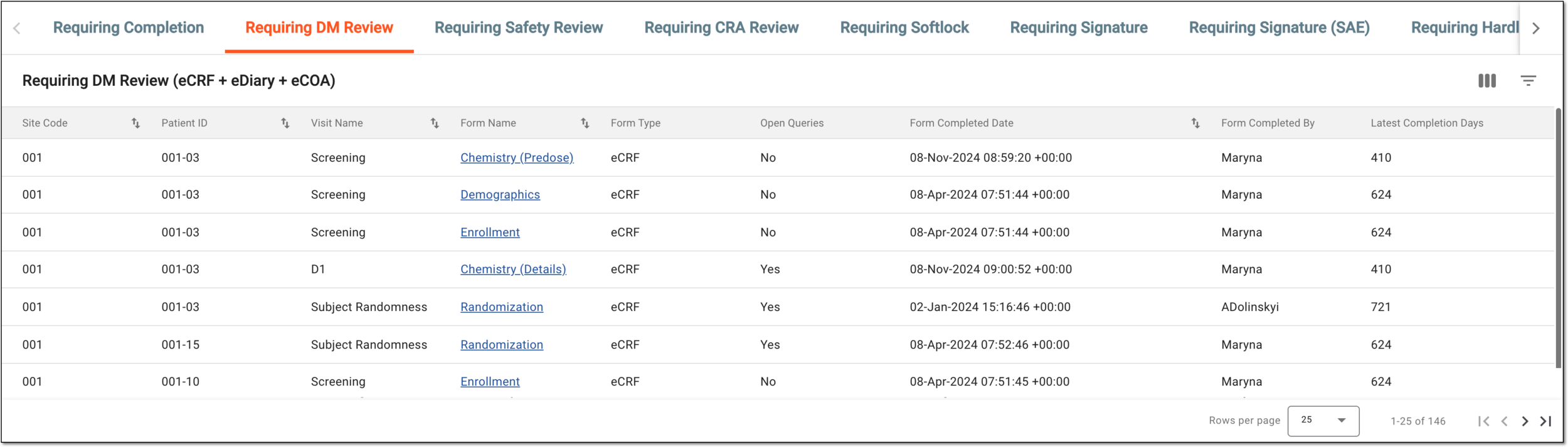 Figure 2. Accessing forms requiring DM review
Tip
To facilitate the search, you can filter out the My Work dashboard by site using the Site Code menu. This way, you only see the tasks pertinent to forms of a single site.
-
On the form page that opens, review the data and perform one of the following actions:
-
On the visit and form panel, turn on the My Task toggle to see the review functionality. Then next to your form, select the DM Review
 checkbox to complete the DM review for the entire CRF data.
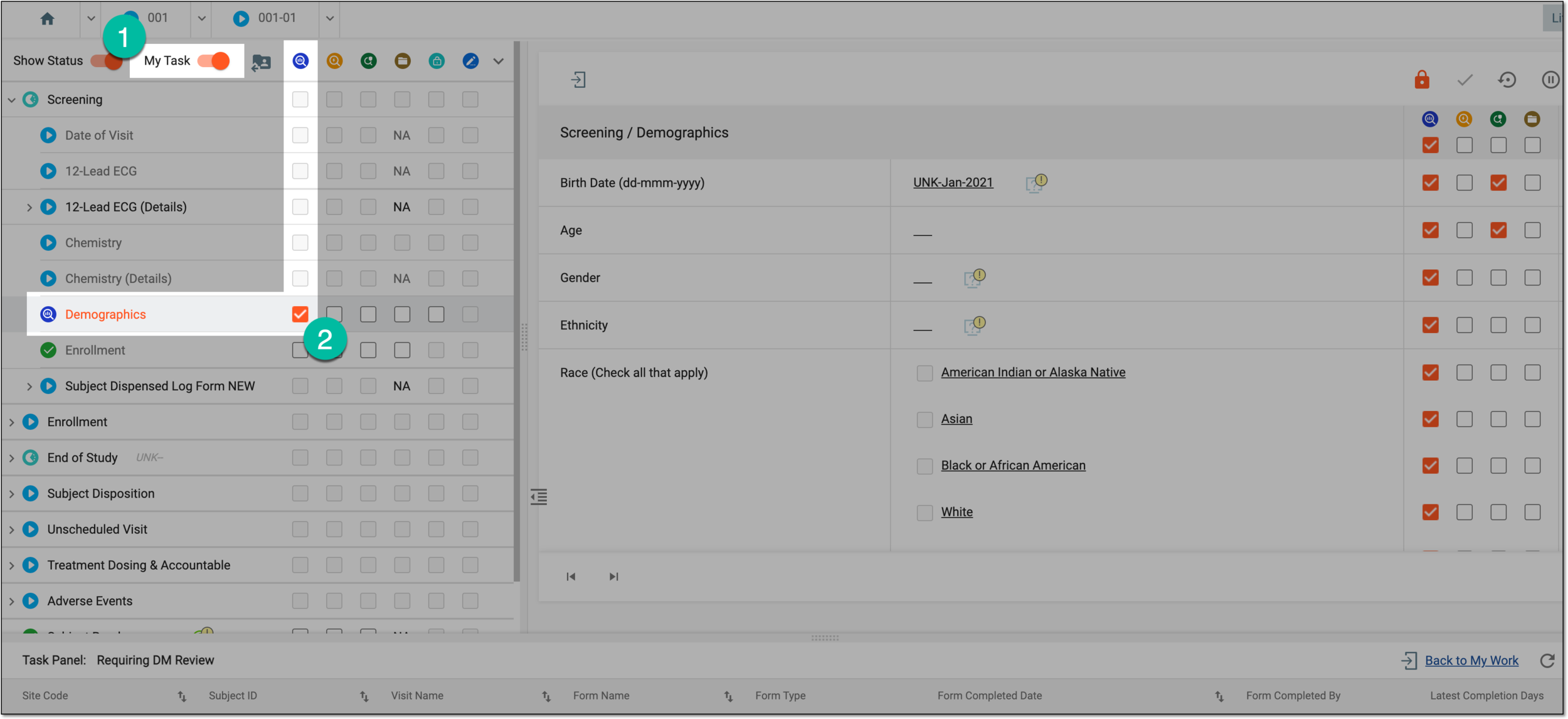 Figure 3. Performing DM review for CRF
-
In the form, next to reviewed and verified data items, select the DM Review
checkbox to complete the DM review
for individual form fields only. Note that all fields must be selected for an entire CRF to become reviewed.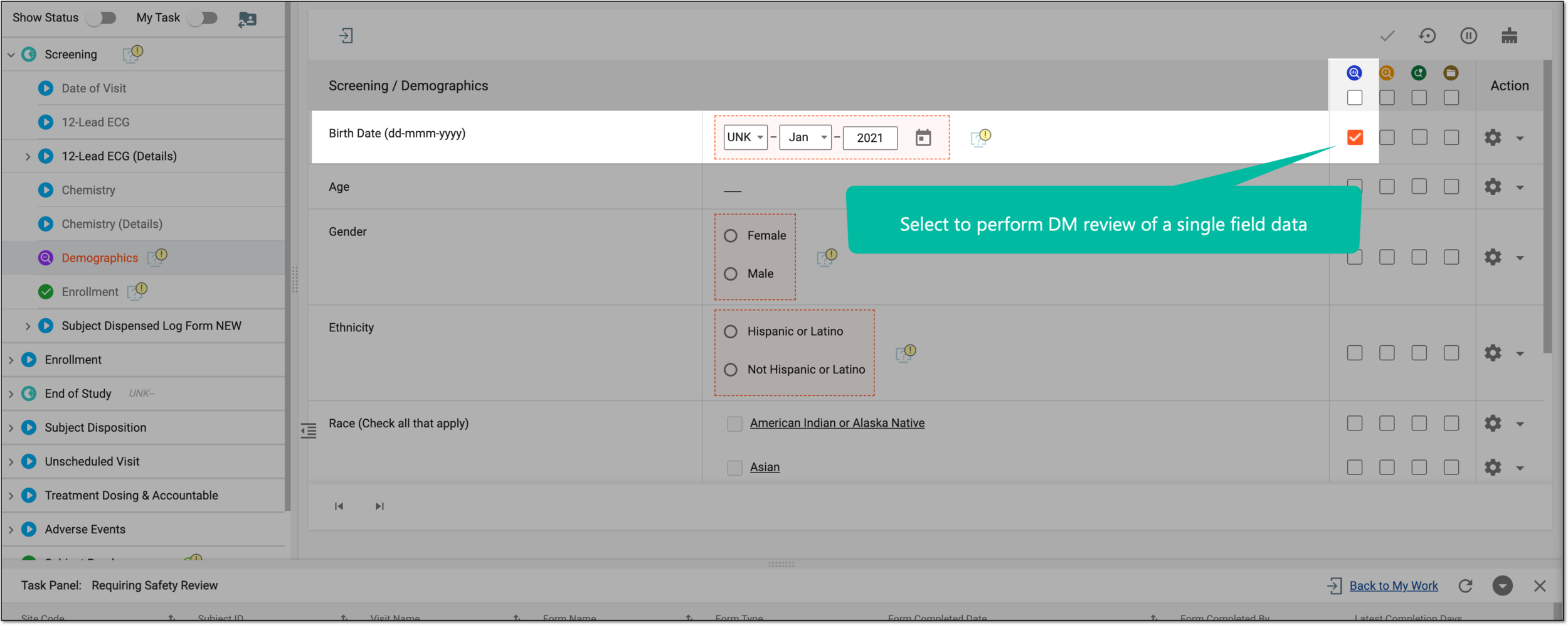 Figure 4. Performing DM review for form field
-
You have performed the DM review for a CRF. You can now use the task panel at the bottom of your screen to navigate between forms requiring DM review or select Back to My Work to return to your other task categories.
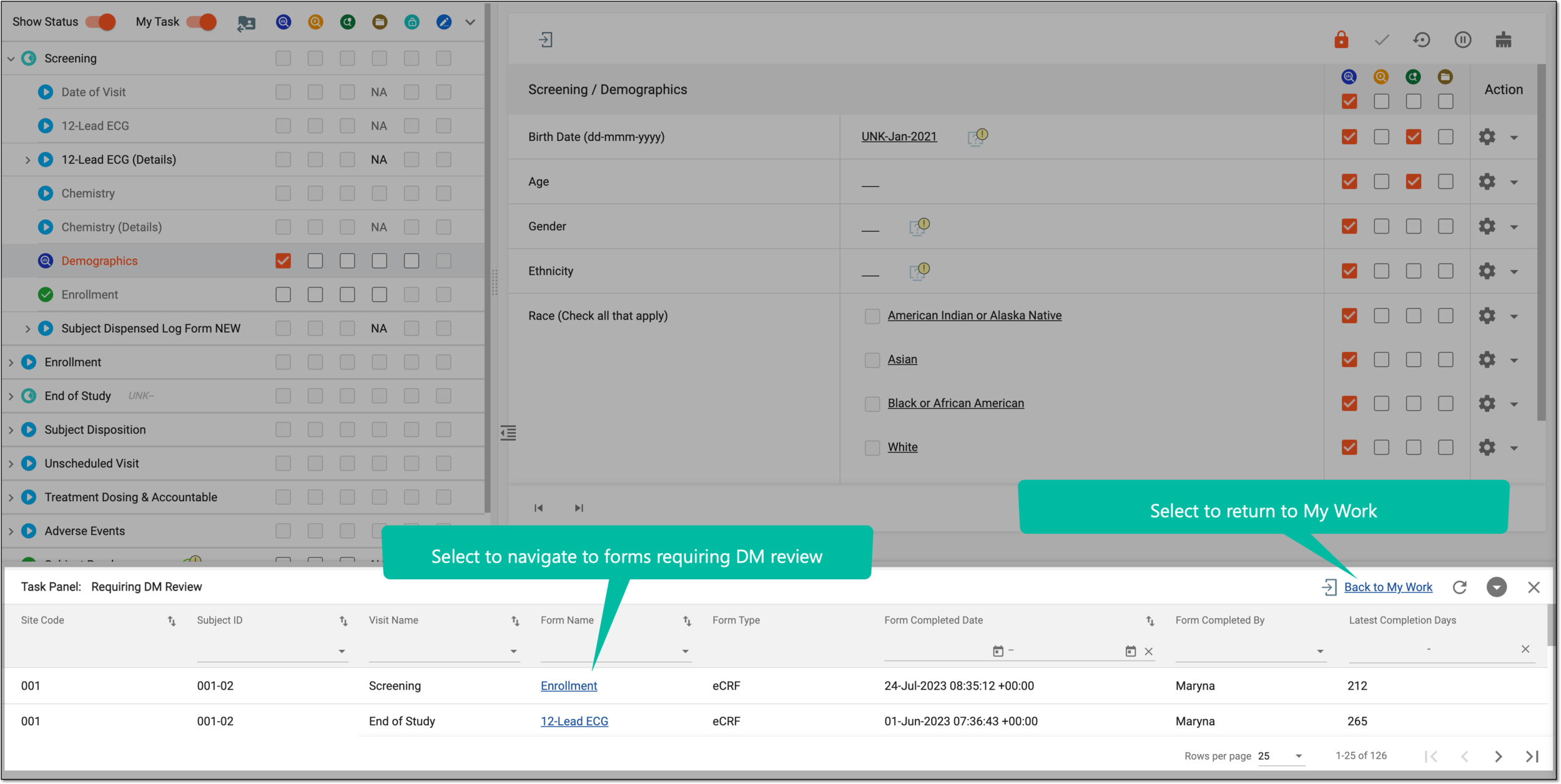
Tip
You can also refresh , collapse , or close the panel if not needed.
In a clinical trial, the responsibility for the safety review of entered data typically falls under clinical data management or the pharmacovigilance teams. These teams must ensure the accuracy, completeness, and quality of the data entered into the case report forms (CRFs). They often conduct regular reviews of the data to identify any safety concerns or adverse events reported by the participants.
In EDC, it can be configured for your study CRFs if they must undergo the safety review stage, and to set the dependencies of this operation based on other review stages and the lock status of the CRFs. If the safety review applies, then all the forms that require such review appear on the My Work dashboard of the respective users.
-
In the EDC application header, select the DASHBOARD tab.
-
On the My Work page that opens, select the Requiring Safety Review tile to open a complete list of forms requiring safety review.
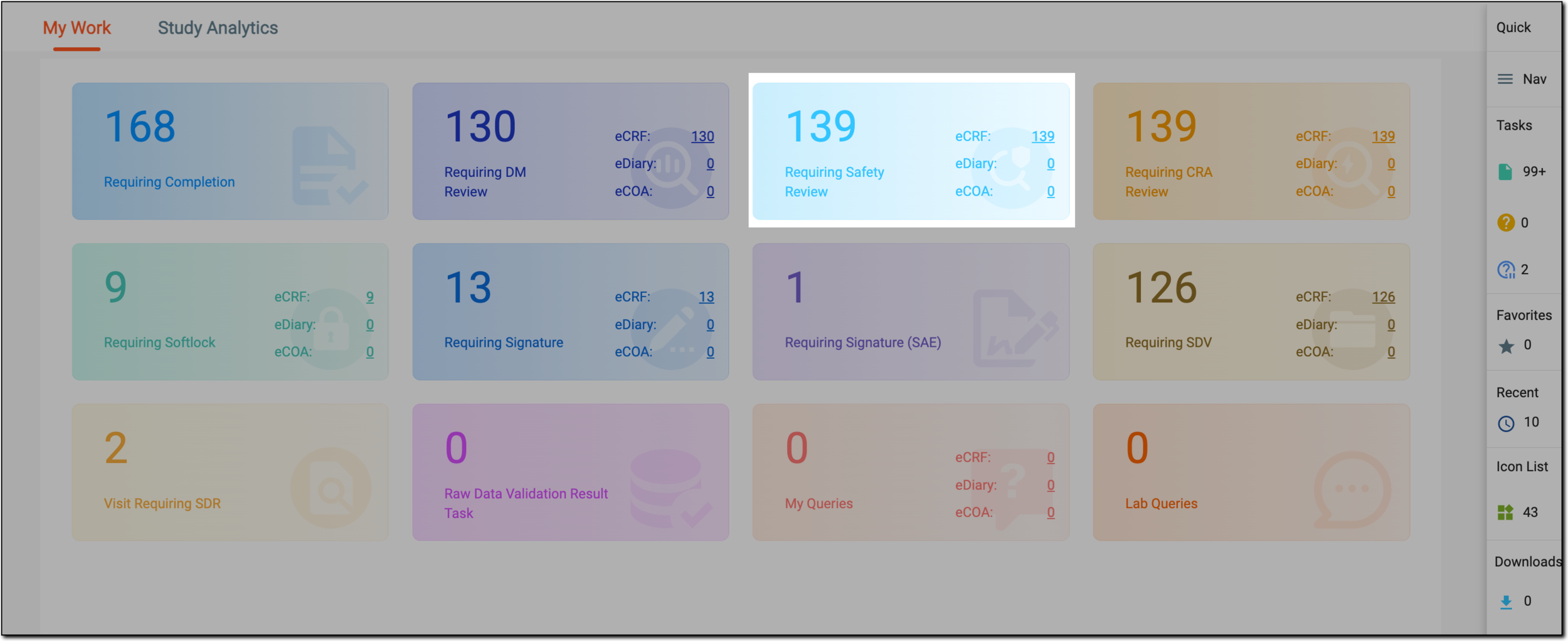 Figure 1. Selecting requiring safety review tile
-
In the Requiring Safety Review table that appears, locate the form that you want to review, and from the Form Name column, select an active link.
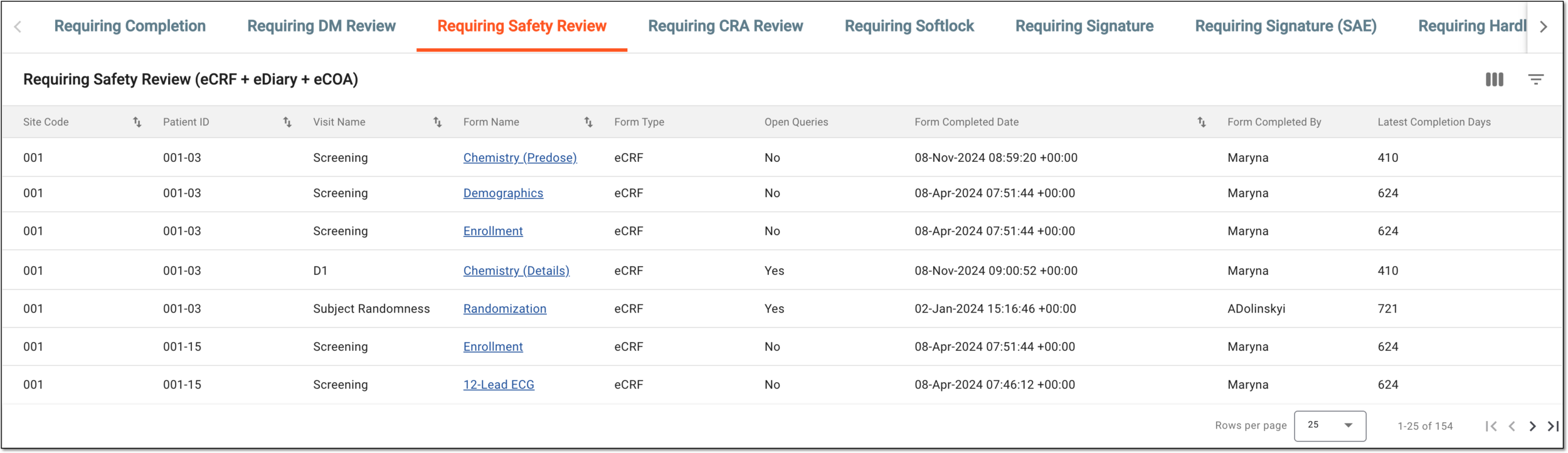 Figure 2. Accessing forms requiring safety review
Tip
To facilitate the search, you can filter out the My Work dashboard by site using the Site Code menu. This way, you only see the tasks pertinent to forms of a single site.
-
On the form page that opens, review the data and perform one of the following actions:
-
On the visit and form panel, turn on the My Task toggle to see the review functionality. Then next to your form, select the Safety Review
 checkbox to complete the safety review for the entire CRF data.
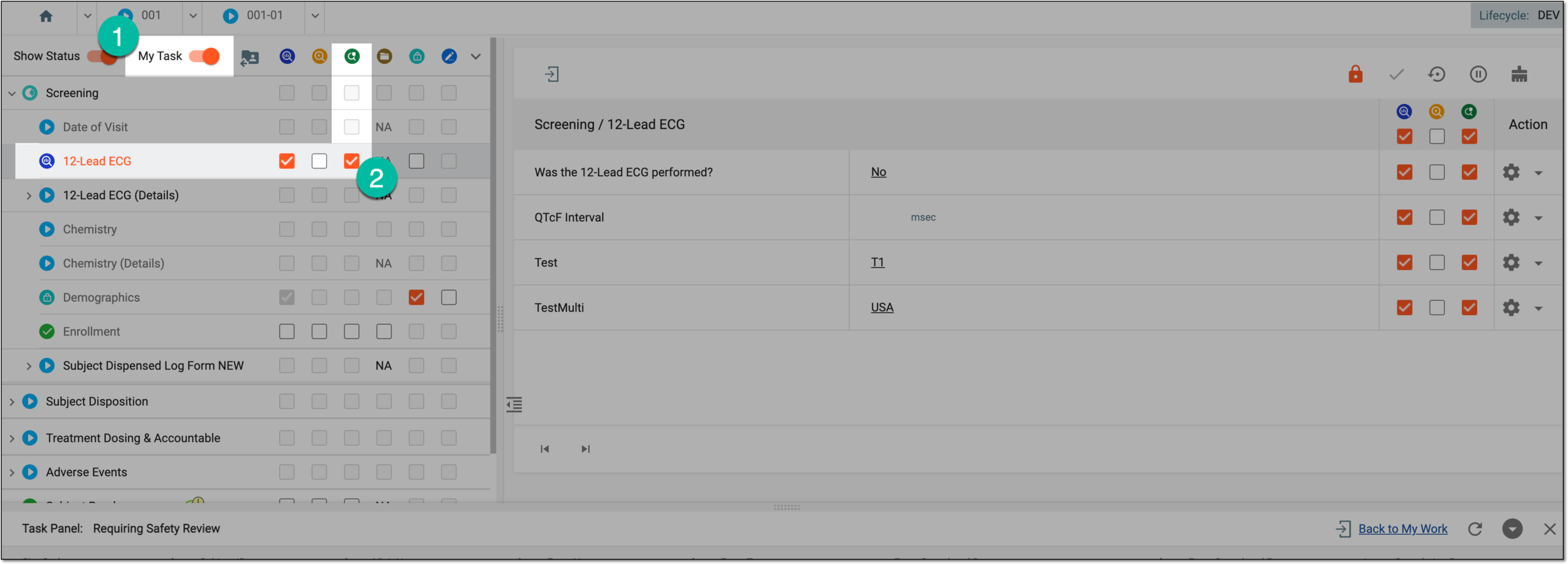 Figure 3. Performing DM review for CRF
-
In the form, next to reviewed and verified data items, select the Safety Review
checkbox to complete
the safety review for individual form fields only. Note that all fields must be selected for an entire CRF to become reviewed.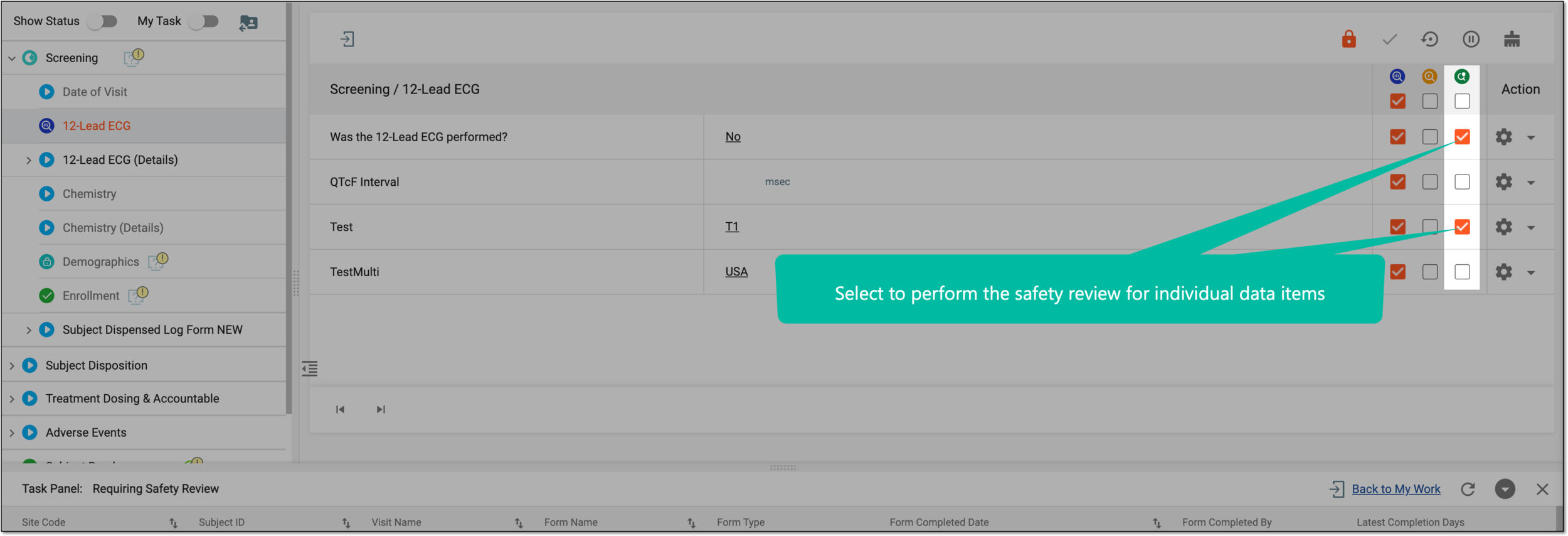 Figure 4. Performing DM review for form field
-
You have performed the safety review for a CRF. You can now use the task panel at the bottom of your screen to navigate between forms requiring safety review or select Back to My Work to return to your other task categories.
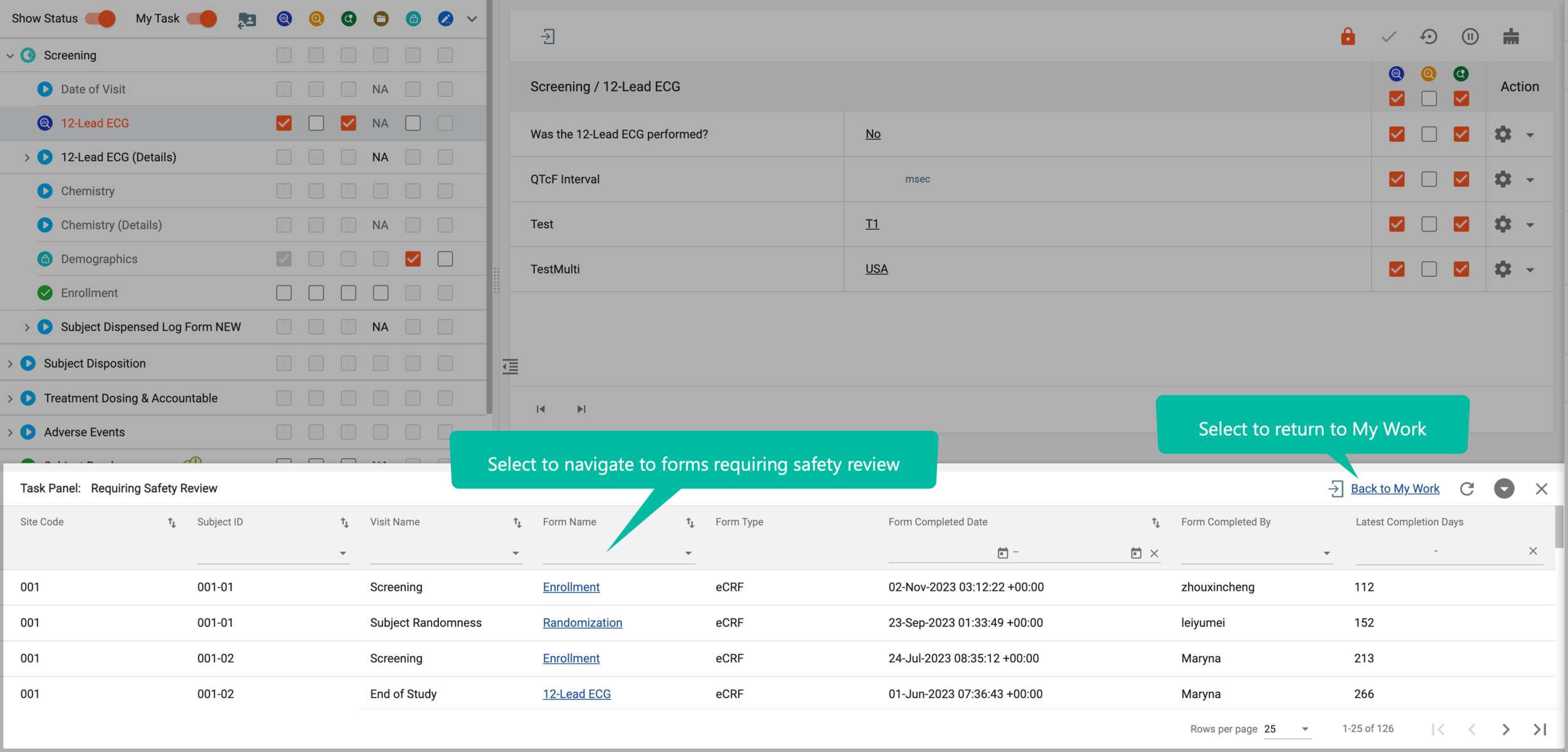
Tip
You can also refresh , collapse , or close the panel if not needed.
A clinical research associate (CRA) is a person who has a monitoring role and works with the sites. In EDC, CRA mainly has to make sure that the entered data is valid against the source document. CRA also checks the source document in a process called SDV (source data verification) and ensures that everything entered by the clinical research coordinator (CRC) is valid to avoid any discrepancies.
In EDC, it can be configured for your study CRFs if they must undergo the CRA review stage, and to set the dependencies of this operation based on other review stages and the lock status of the CRFs. If the CRA review applies, then all the forms that require such review appear on the My Work dashboard of the respective users.
-
In the EDC application header, select the DASHBOARD tab.
-
On the My Work page that opens, select the Requiring CRA Review tile to open a complete list of forms awaiting your review.
-
In the Requiring CRA Review table that appears, locate the form that you want to review, and from the Form Name column, select an active link.
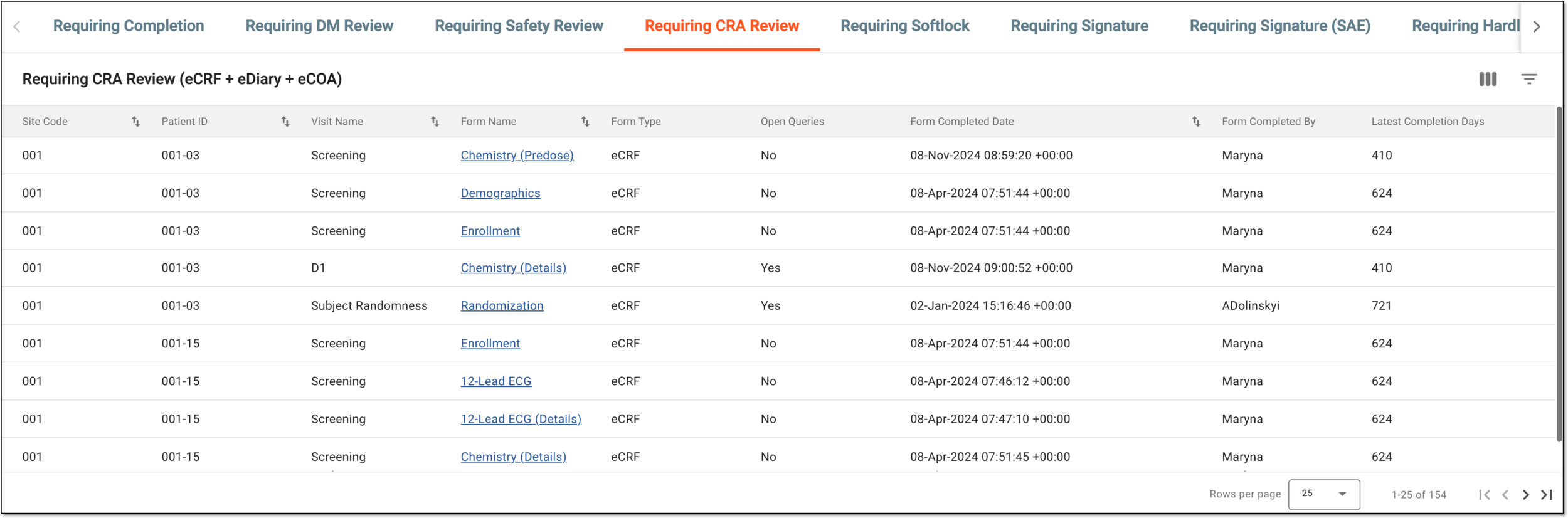 Figure 1. Accessing forms requiring CRA review
Tip
To facilitate the search, you can filter out the My Work dashboard by site using the Site Code menu. This way, you only see the tasks pertinent to forms of a single site.
-
On the form page that opens, review the data and perform one of the following actions:
-
On the visit and form panel, turn on the My Task toggle to see the review functionality. Then next to your form, select the CRA Review
 checkbox to complete the CRA review for the entire CRF data.
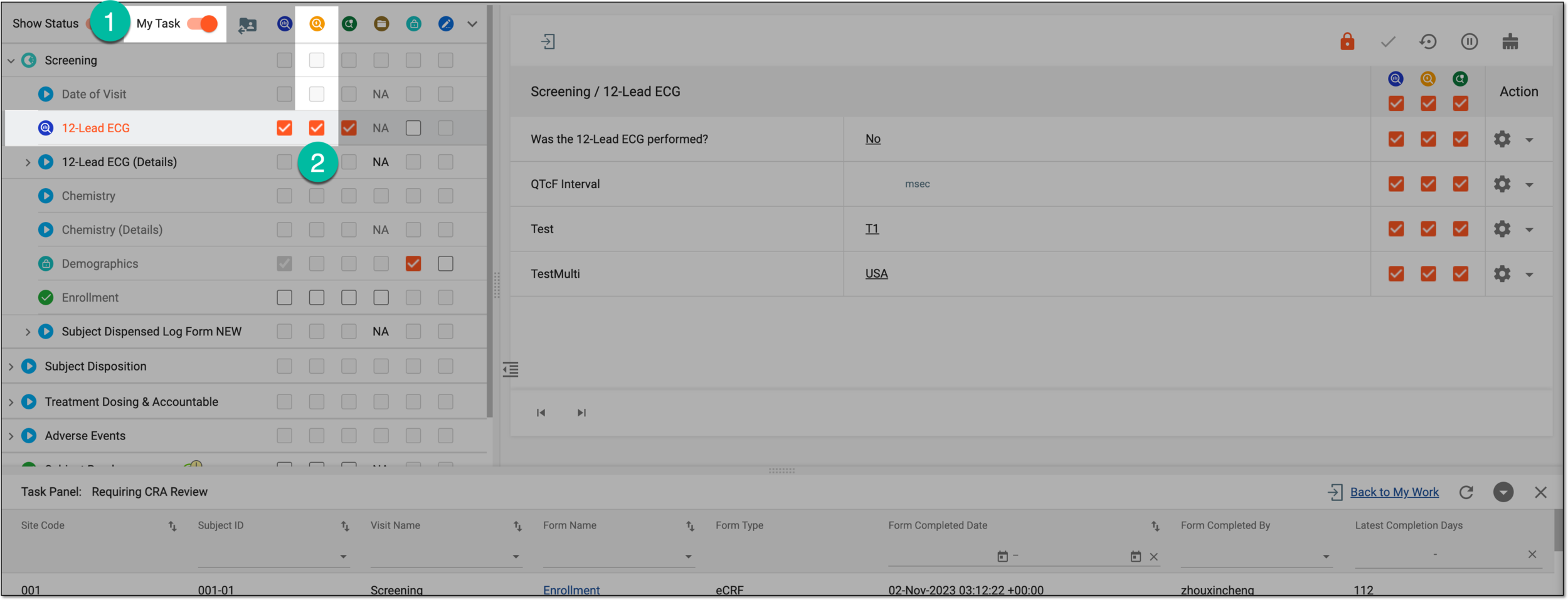 Figure 2. Performing CRA review for CRF
-
In the form, next to reviewed and verified data items, select the CRA Review
checkbox to complete the CRA
review for individual form fields only. Note that all fields must be selected for an entire CRF to become reviewed.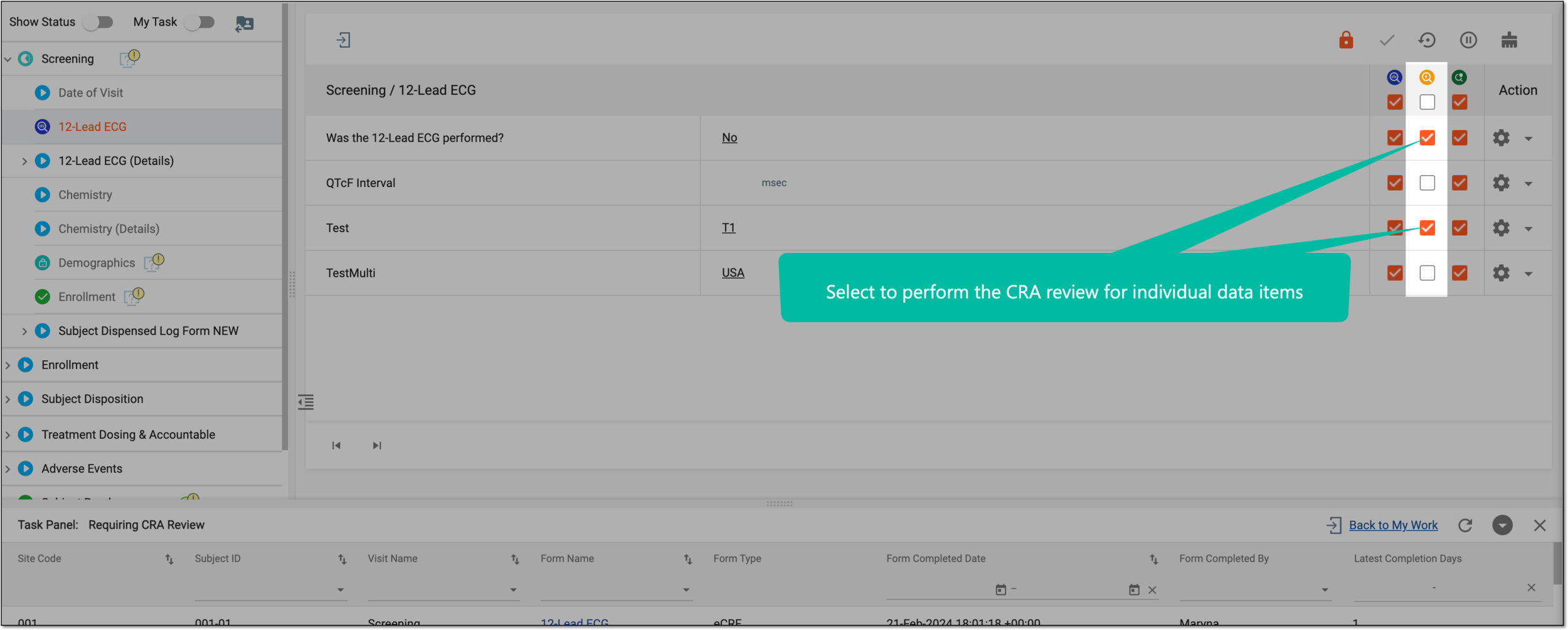 Figure 3. Performing CRA review for form field
-
You have performed the CRA review for a CRF. You can now use the task panel at the bottom of your screen to navigate between forms requiring CRA review or select Back to My Work to return to your other task categories.
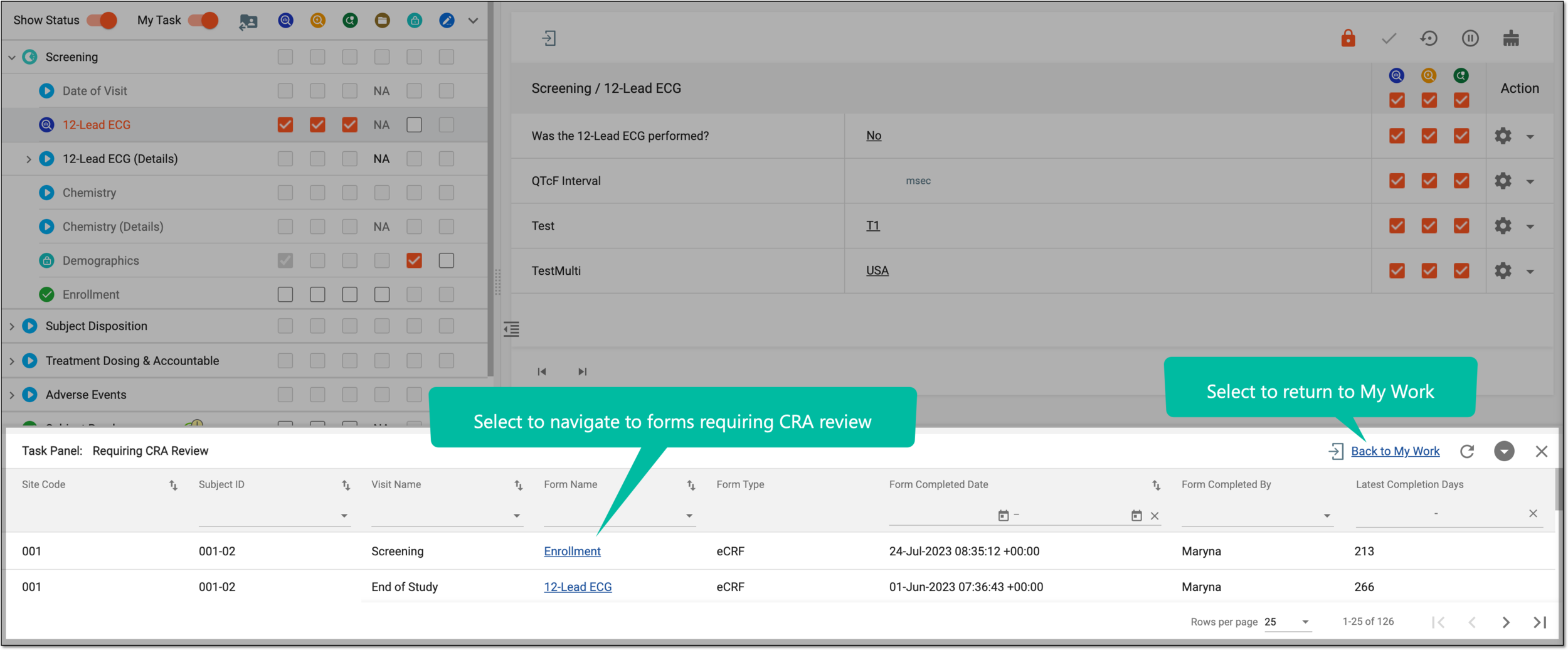
Tip
You can also refresh , collapse , or close the panel if not needed.
EDC is your clinical database for recording subject data collected in the course of your study at patient visits through case report forms (CRFs). Once all the data is entered into CRFs, it undergoes various reviews in order to ensure its accuracy, validity, compliance with established industry standards, and so on. A review cycle can involve multiple stages, such as data manager (DM), clinical research associate (CRA), principal investigator (PI), safety review, and more.
In the EDC application, to ensure that data is not modified between different review stages, there is an option to soft-lock individual forms which prevents any amendments or data changes.
If you are entitled to perform the soft-lock procedure in EDC, each time there is a form requiring such an action, the system generates a respective task for you that can be accessed via the My Work dashboard.
Tip
Only the form soft-lock tasks can be accessed via the My Work dashboard. To learn how to soft-lock an entire site altogether, refer to the Soft-lock/Unlock site section.
-
In the EDC application header, select the DASHBOARD tab.
-
On the My Work page that opens, select the Requiring Softlock tile to open a complete list of forms that you need to lock.
-
In the Requiring Softlock table that appears, locate the form that you want to lock, and from the Form Name column, select an active link.
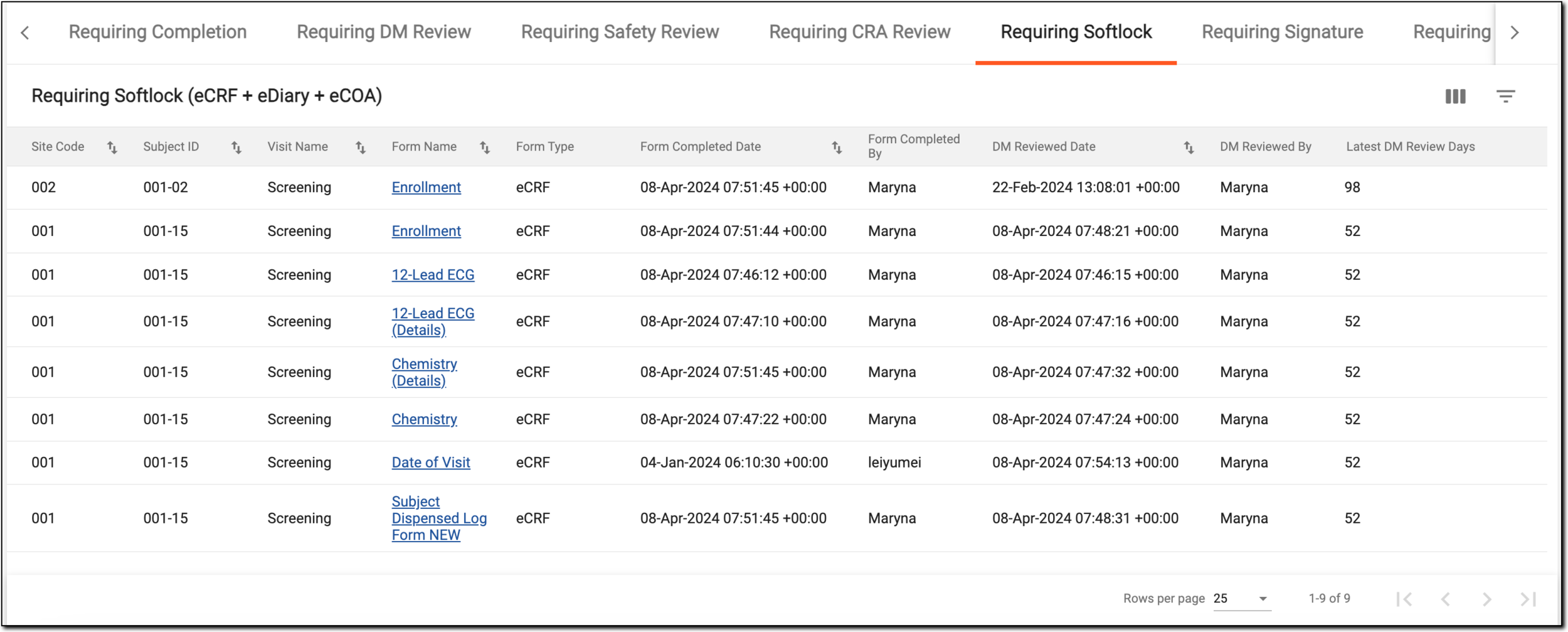 Figure 1. Accessing forms requiring soft-lock
Tip
To facilitate the search, you can filter out the My Work dashboard by site using the Site Code menu. This way, you only see the tasks pertinent to forms of a single site.
-
On the form page that opens, from the workspace toolbar, select Softlock
 .
. Figure 2. Soft-locking form
You have soft-locked a CRF. You can now use the task panel at the bottom of your screen to navigate between forms requiring soft-lock or select Back to My Work to return to your other task categories.
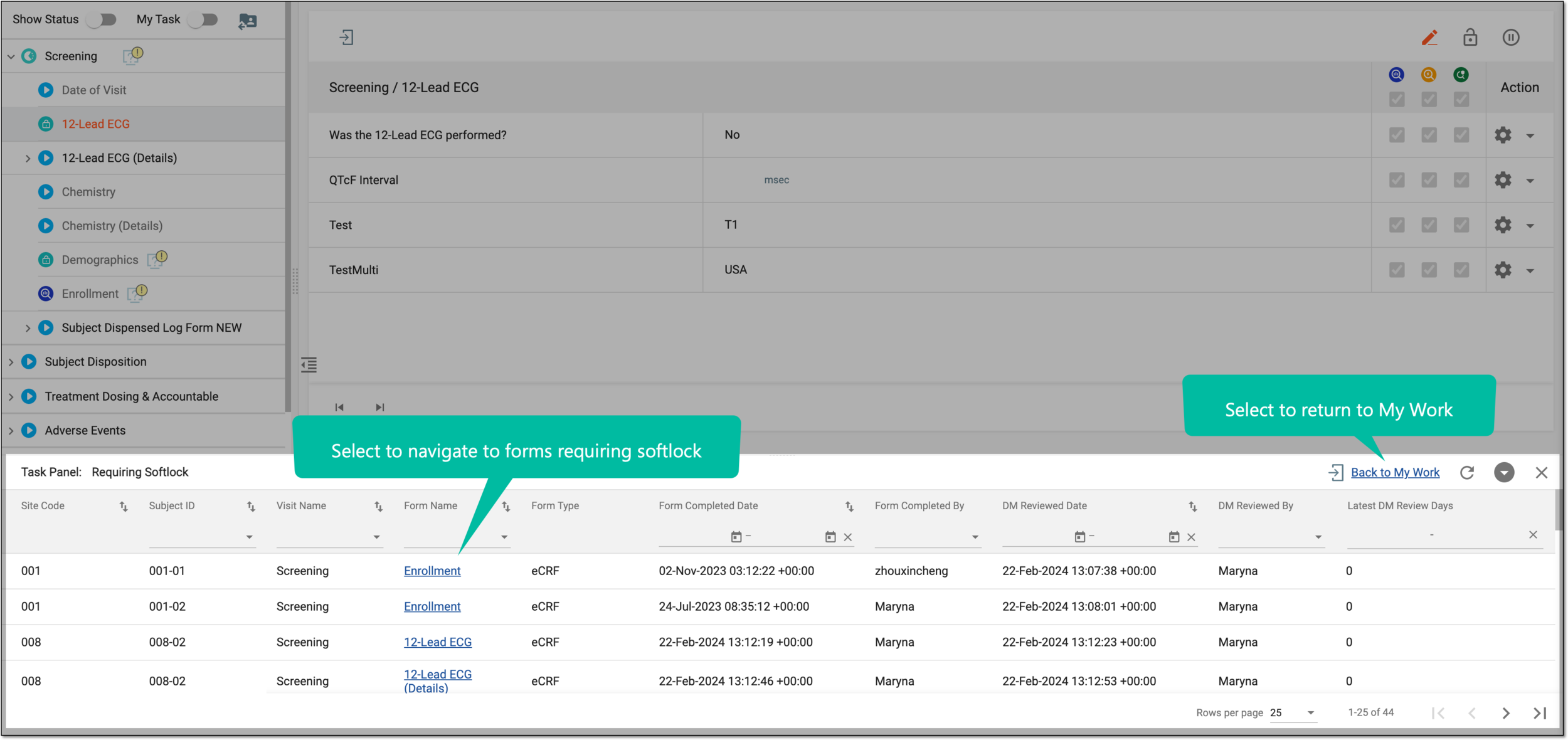
Tip
You can also refresh , collapse , or close the panel if not needed.
In the EDC application, during the data entry and management activities, there is a stage of signing the case report form (CRF) in order to ensure that the entered data and changes made to the form are accurate.
Important
A form can only be signed or the signature removed when it adheres to the conditions for the PI signature set at the study or at the site level in the STUDY INFO module.
If you are entitled to sign forms in EDC, each time there is a form requiring a signature, the system generates a respective task for you that can be accessed via the My Work dashboard.
-
In the EDC application header, select the DASHBOARD tab.
-
On the My Work page that opens, select the Requiring Signature tile to open a complete list of forms that you need to sign.
-
In the Requiring Signature table that appears, locate the form that you want to sign, and from the Form Name column, select an active link.
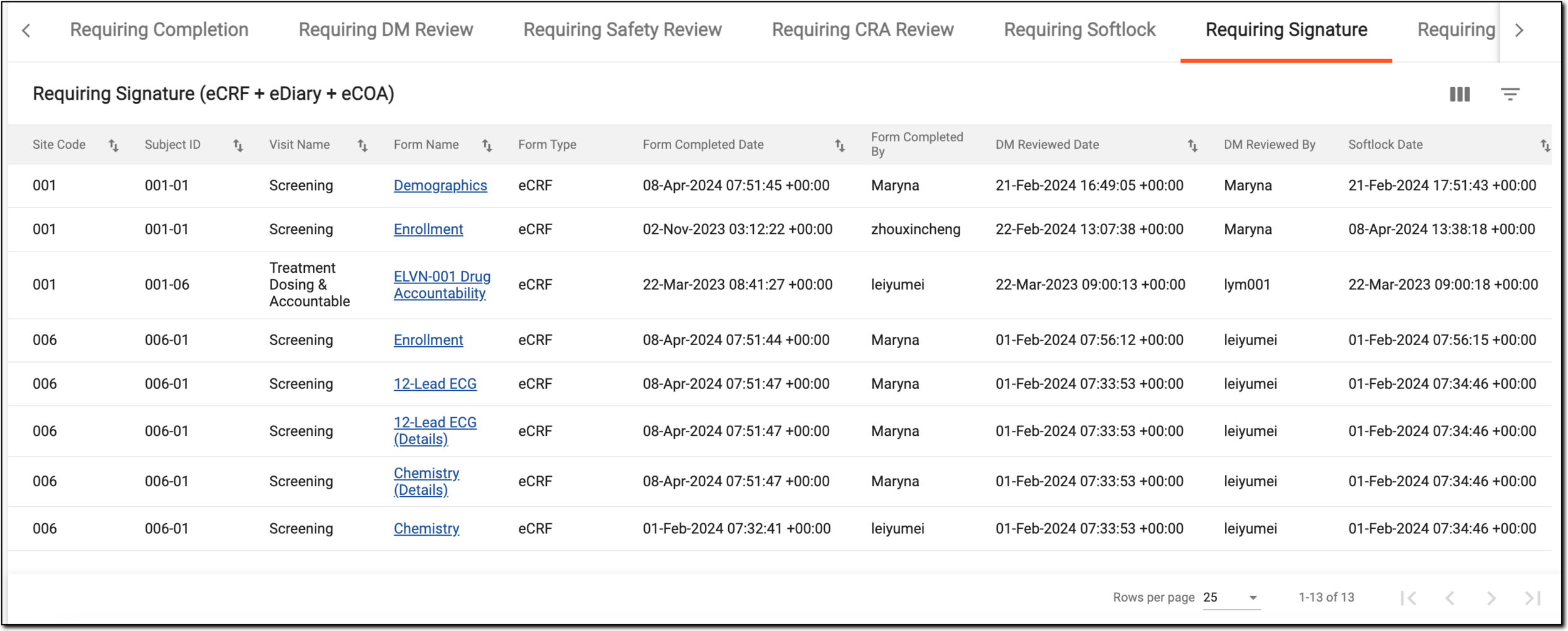 Figure 1. Accessing forms requiring signature
Tip
To facilitate the search, you can filter out the My Work dashboard by site using the Site Code menu. This way, you only see the tasks pertinent to forms of a single site.
-
On the form page that opens, from the workspace toolbar, select Sign
 .
. Figure 2. Signing form
-
In the Enter User Signing Password Information dialog that appears, in the Password field, enter your password and select
 .
.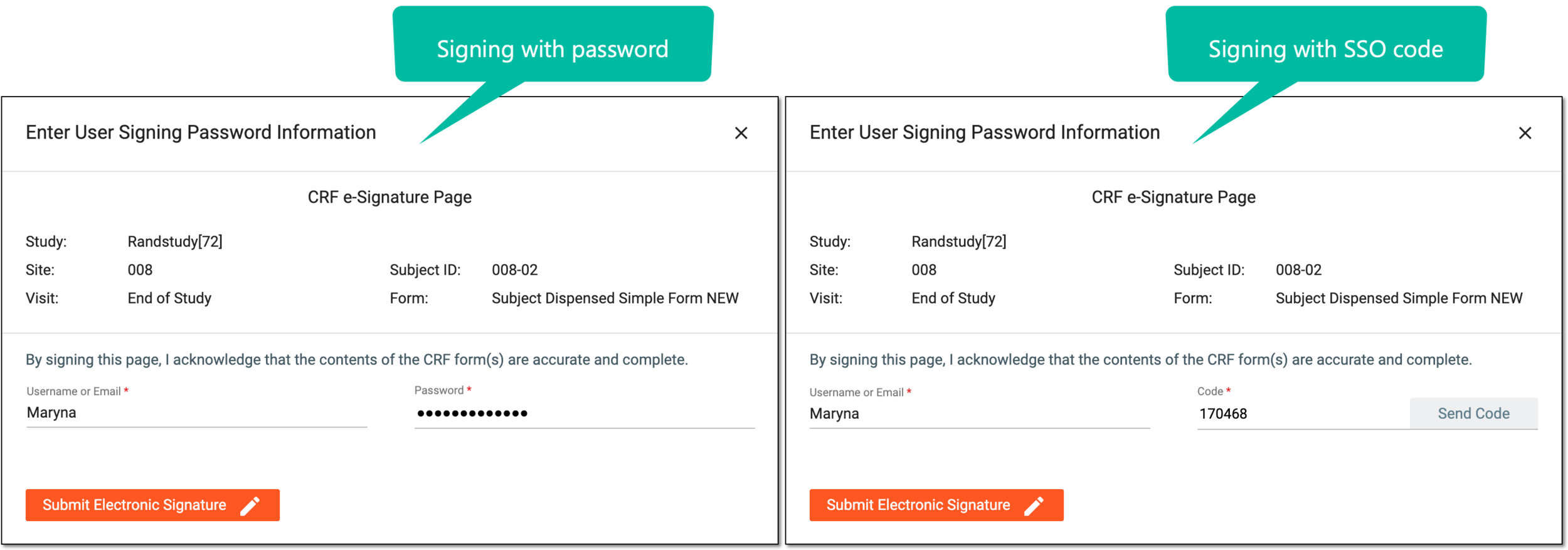 Figure 3. Entering signature credentials
You have signed a CRF. You can now use the task panel at the bottom of your screen to navigate between forms requiring signature or select Back to My Work to return to your other task categories.
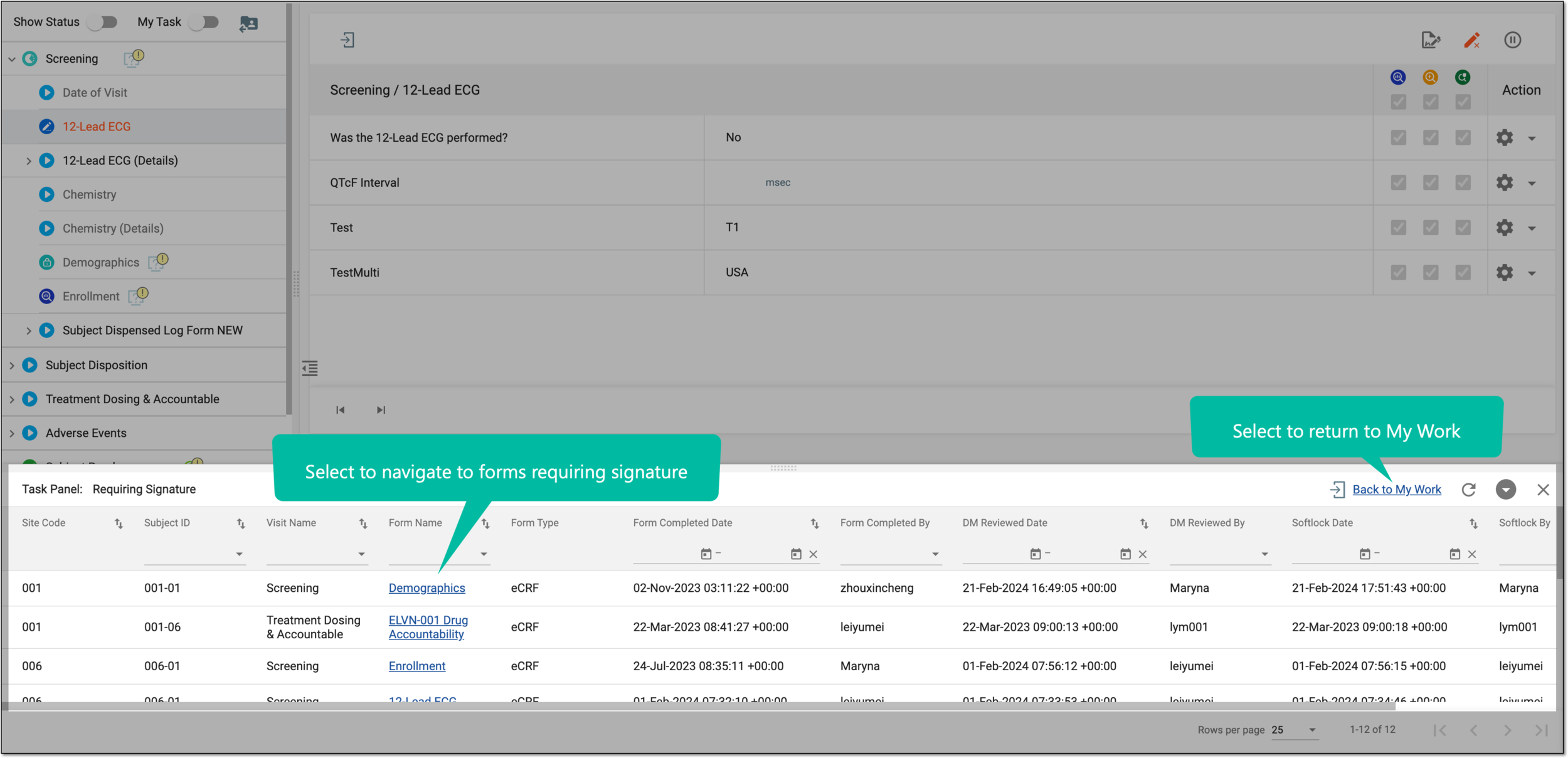
Tip
You can also refresh , collapse , or close the panel if not needed.
EDC is your clinical database for recording subject data collected in the course of your study at patient visits through case report forms (CRFs). Once all the data is entered into CRFs, it undergoes various reviews to ensure its accuracy, validity, compliance with established industry standards, and so on.
Once all the needed review stages are passed and the principal investigator (PI) has validated the data and signed the form, you need to ensure the data integrity by hard-locking the CRF and preventing any further amendments.
If you are entitled to perform the hard-lock procedure in EDC, each time there is a form requiring such an action, the system generates a respective task for you that can be accessed via the My Work dashboard.
Important
In EDC, you can enable and configure the conditions of the CRF hard lock for your study from the Status Configuration module. If the functionality is disabled, the hard-lock tasks category is not available under My Work.
-
In the EDC application header, select the DASHBOARD tab.
-
On the My Work page that opens, select the Requiring Softlock tile to open a complete list of forms that you need to lock.
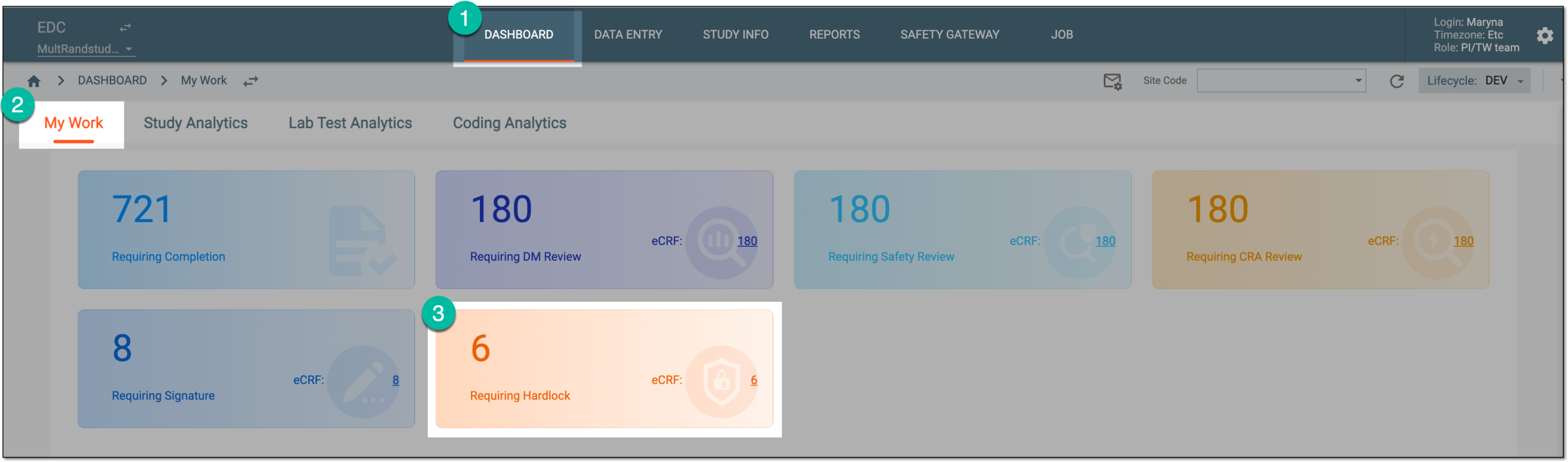 Figure 1. Accessing hard-lock tasks from dashboard
-
In the Requiring Hardlock table that appears, locate the form that you want to lock, and from the Form Name column, select an active link.
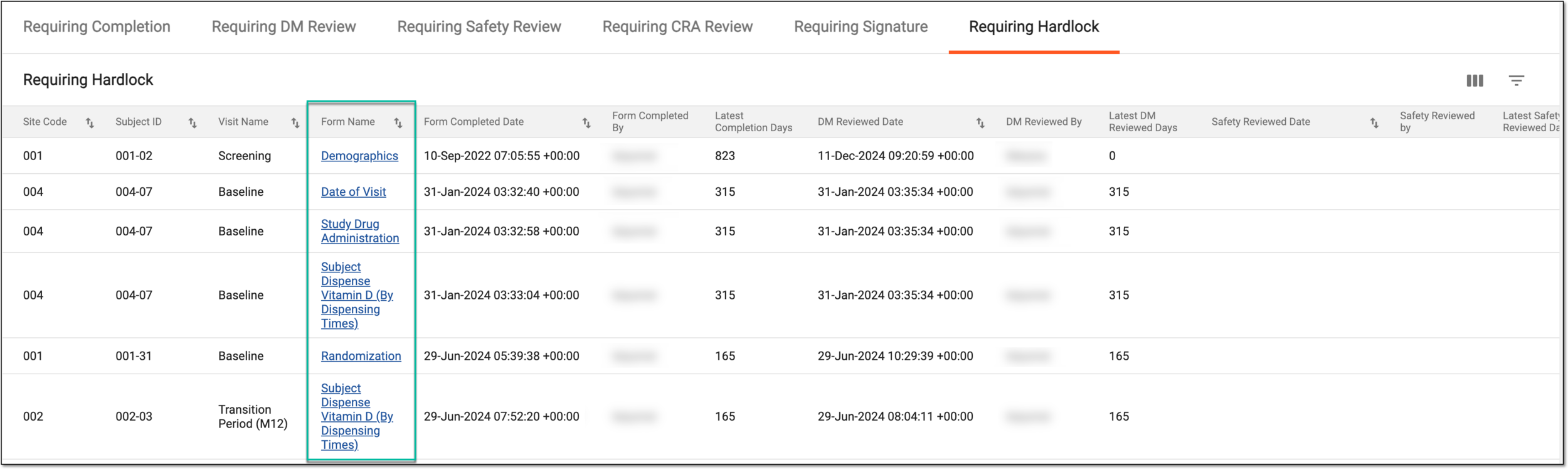 Figure 2. Accessing forms requiring hard lock
Tip
To facilitate the search, you can filter out the Requiring Hardlock table by site using the Site Code menu. This way, you only see the tasks pertinent to forms of a single site.
-
On the form page that opens, from the workspace toolbar, select Hardlock
 .
.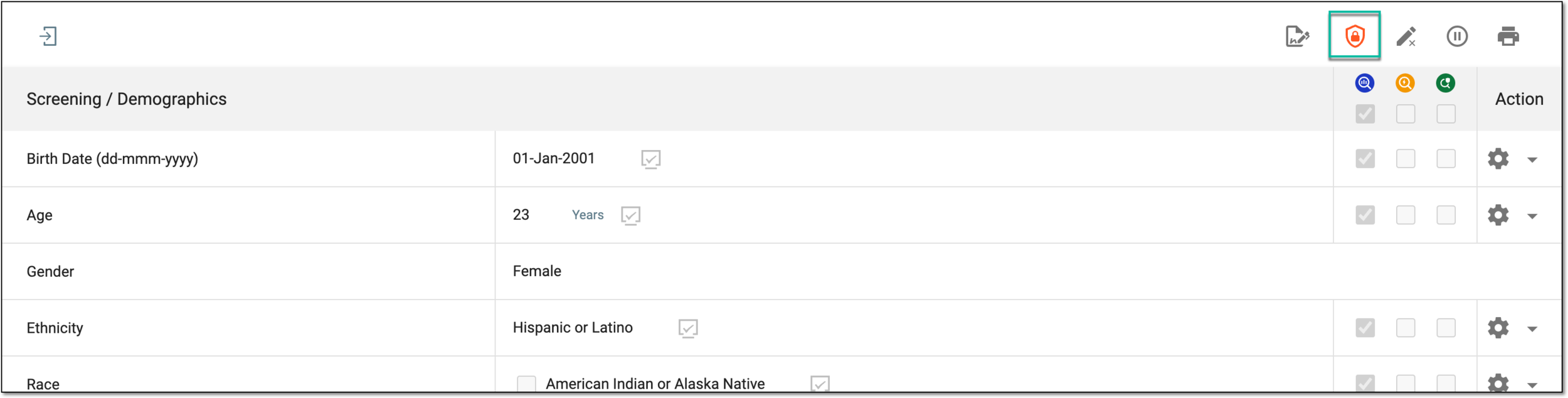 Figure 3. Hard-locking CRF
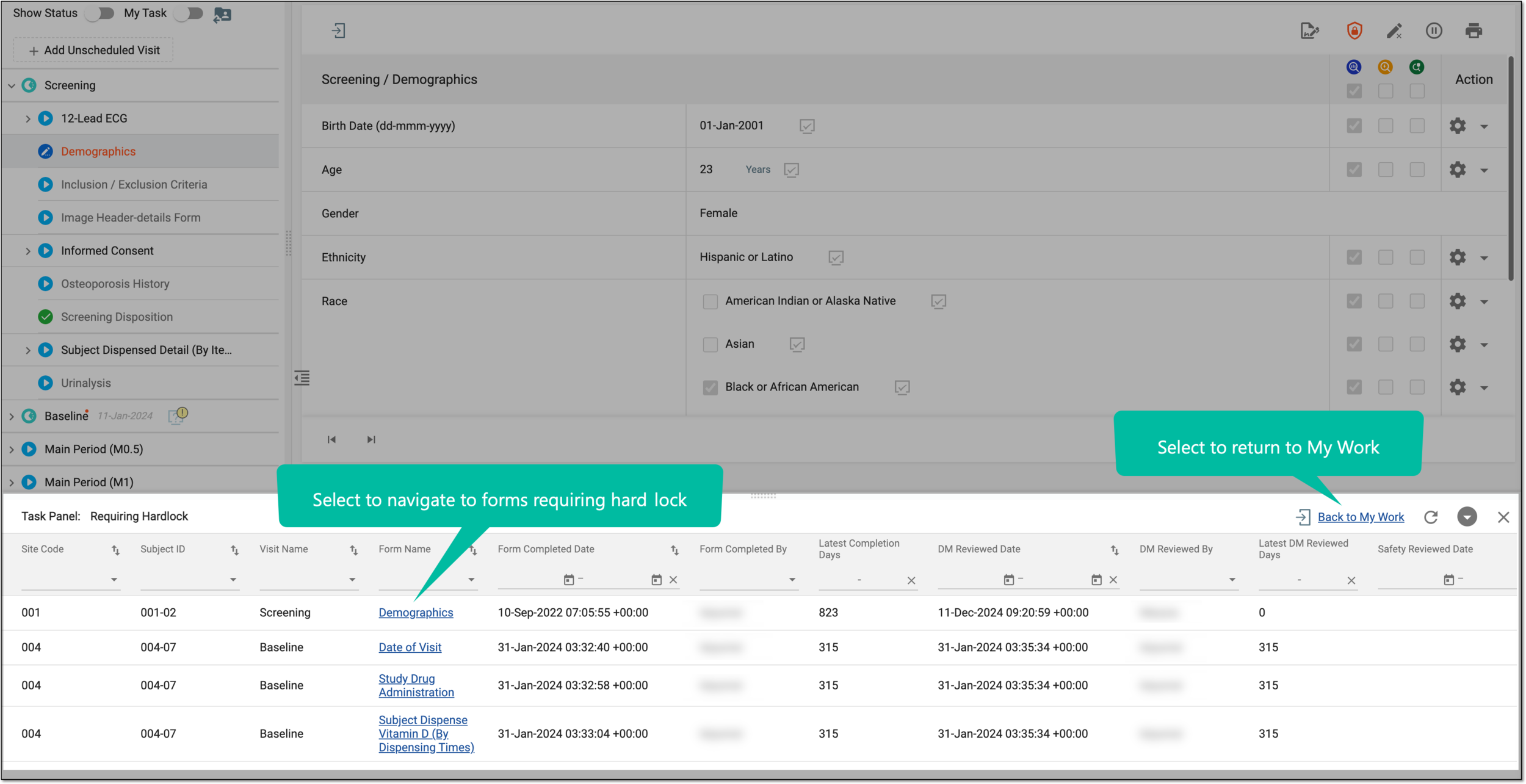
You have hard-locked a CRF. You can now use the task panel at the bottom of your screen to navigate between forms requiring hard-lock or select Back to My Work to return to your other task categories.
Tip
You can also refresh , collapse , or close the panel if not needed.
In EDC, during the data entry and management activities for the serious adverse event (SAE) forms, there is a stage of signing the form to ensure that the entered data and changes made to the form are accurate.
If you are entitled to sign SAE forms in EDC, each time a new SAE form is submitted, the system generates a respective signature task for you that can be accessed via the My Work dashboard.
-
In the EDC application header, select the DASHBOARD tab.
-
On the My Work page that opens, select the Requiring Signature (SAE) tile to open a complete list of forms that you need to sign.
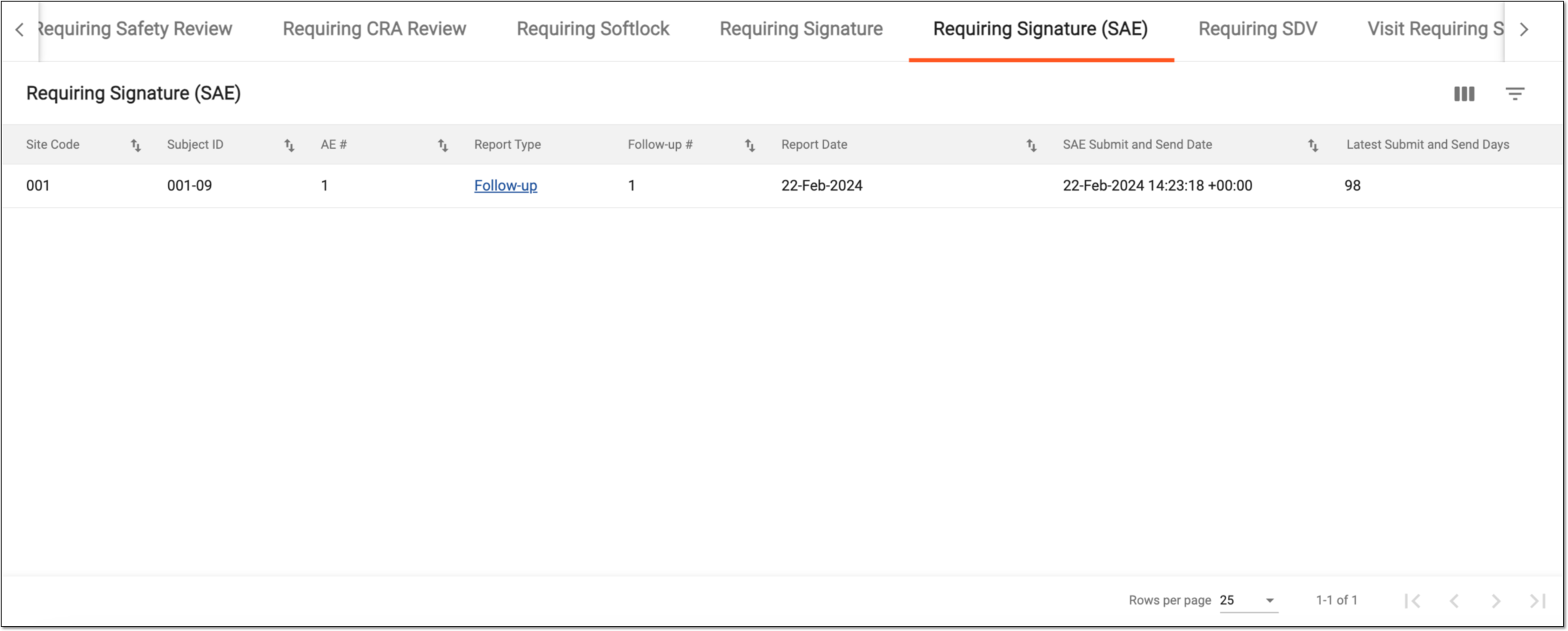 Figure 1. Accessing SAE forms requiring signature
Tip
To facilitate the search, you can filter out the My Work dashboard by site using the Site Code menu. This way, you only see the tasks pertinent to forms of a single site.
-
In the Visit Requiring SDR table that appears, locate the record that you want to review, and from the Visit Name column, select an active link.
-
On the SAE form page that opens, from the workspace toolbar, select Sign
. Figure 2. Signing form
-
In the Enter User Signing Password Information dialog that appears, in the Password* field, enter your password and select
.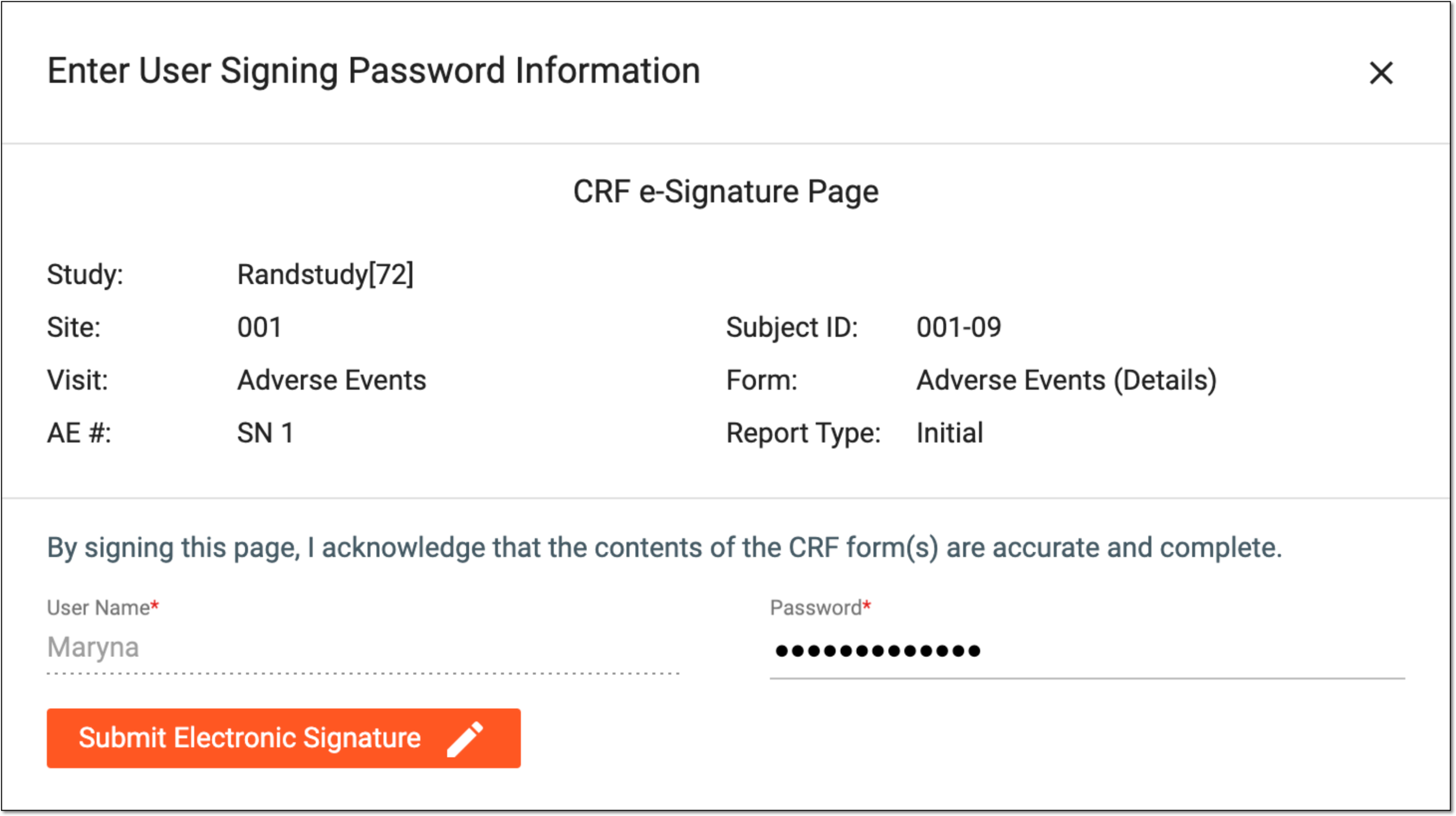 Figure 3. Entering signature credentials
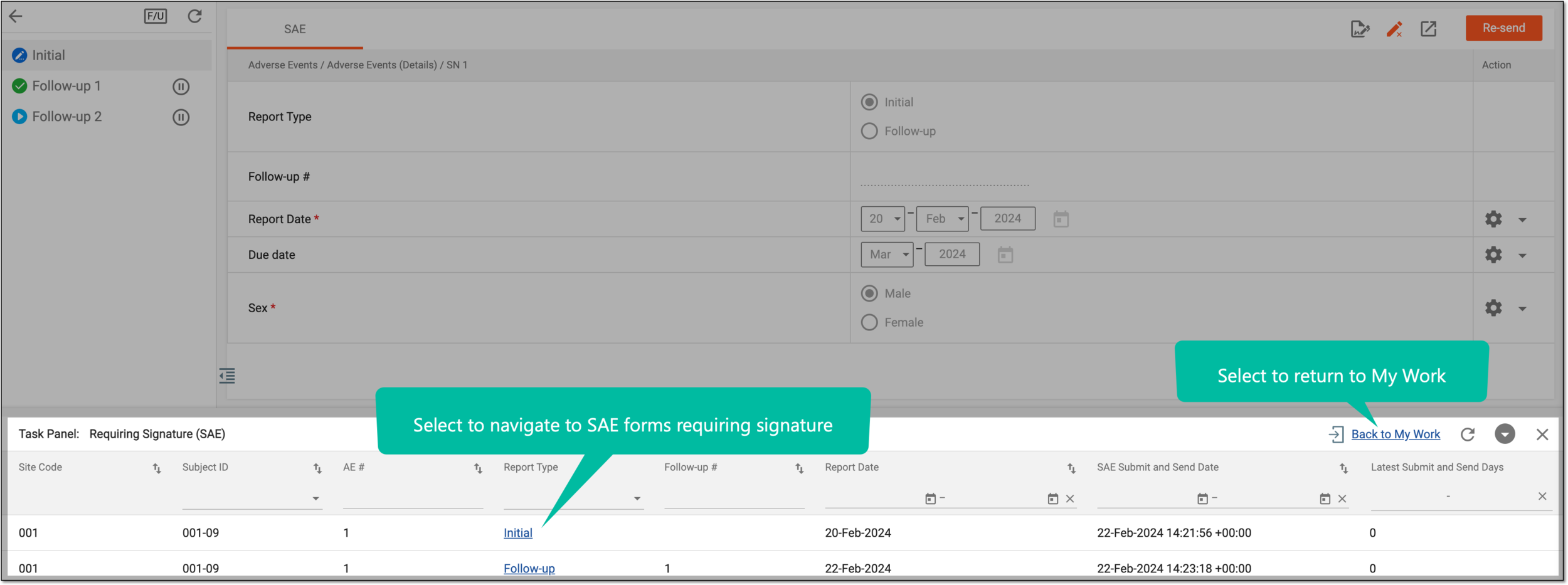
You have signed an SAE form. You can now use the task panel at the bottom of your screen to navigate between forms requiring a signature or select Back to My Work to return to your other task categories.
Tip
You can also refresh , collapse , or close the panel if not needed.
Source Data Verification (SDV) involves reviewing and comparing data recorded in the source documents against the data captured on the case report forms (CRFs). During SDV, a trained monitor or clinical research associate (CRA) compares the source data to the CRFs to identify discrepancies or errors. They may review laboratory results, medical history, adverse event records, and other relevant information. Discrepancies found during SDV are usually documented and resolved through data clarification or query processes with the site personnel responsible for data collection.
Tip
In EDC, you can set the dependencies of the SDV operation based on other review stages and the lock status of the CRFs.
If you are entitled to perform SDV in EDC, each time a CRF requires such review, the system generates a task for you that can be accessed via the My Work dashboard.
-
In the EDC application header, select the DASHBOARD tab.
-
On the My Work page that opens, select the Requiring SDV tile to open a complete list of forms that you need to sign.
-
In the Requiring Signature table that appears, locate the form that you want to sign, and from the Form Name column, select an active link.
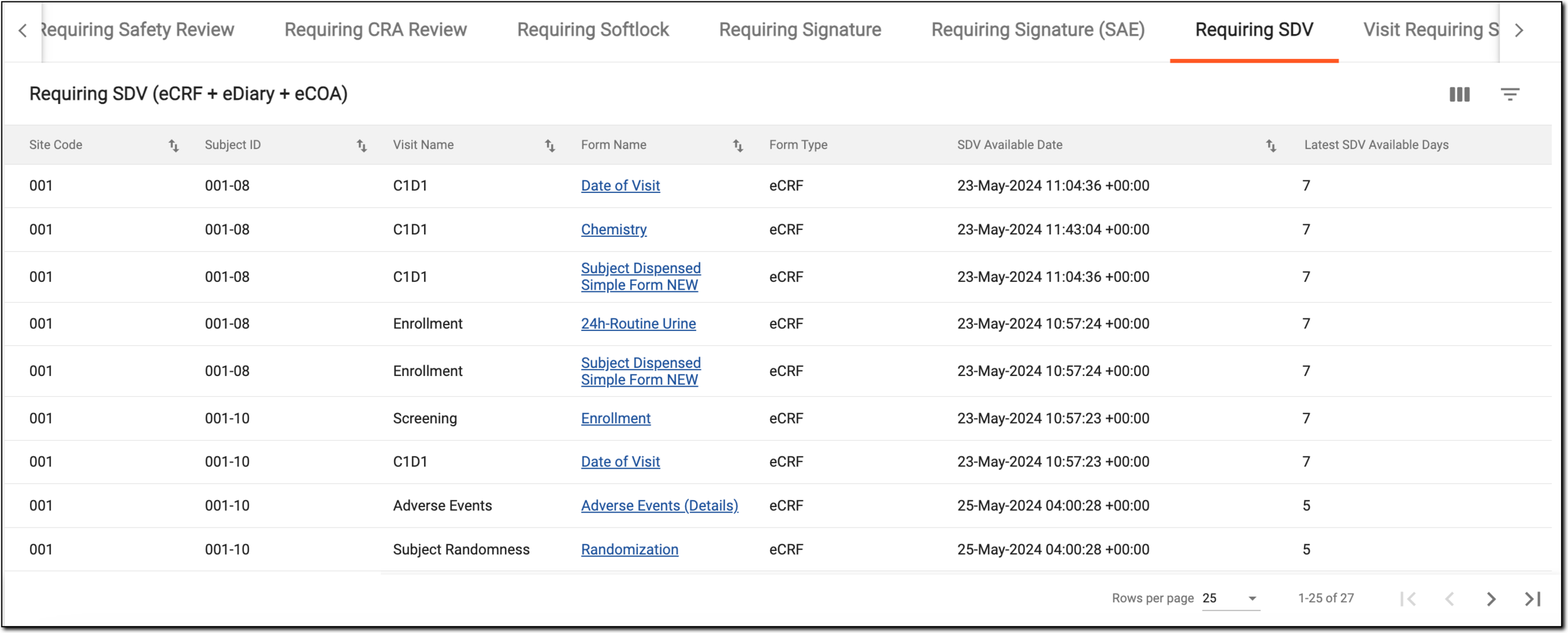 Figure 1. Accessing forms requiring signature
Tip
To facilitate the search, you can filter out the My Work dashboard by site using the Site Code menu. This way, you only see the tasks pertinent to forms of a single site.
-
On the form page that opens, review the data and perform one of the following actions:
-
On the visit and form panel, turn on the My Task toggle to see the review functionality. Then next to your form, select the SDV
 checkbox to complete the SDV review for the entire CRF data.
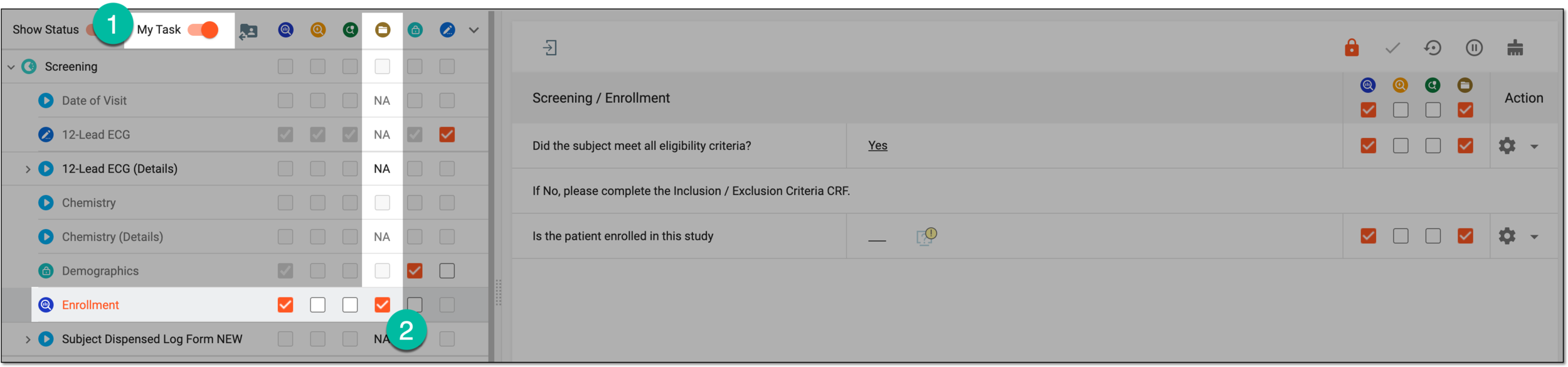 Figure 2. Performing SDV for CRF
-
In the form, next to reviewed and verified data items, select the SDV
checkbox to complete the SDV review for individual
form fields only. Note that all fields must be selected for an entire CRF to be reviewed.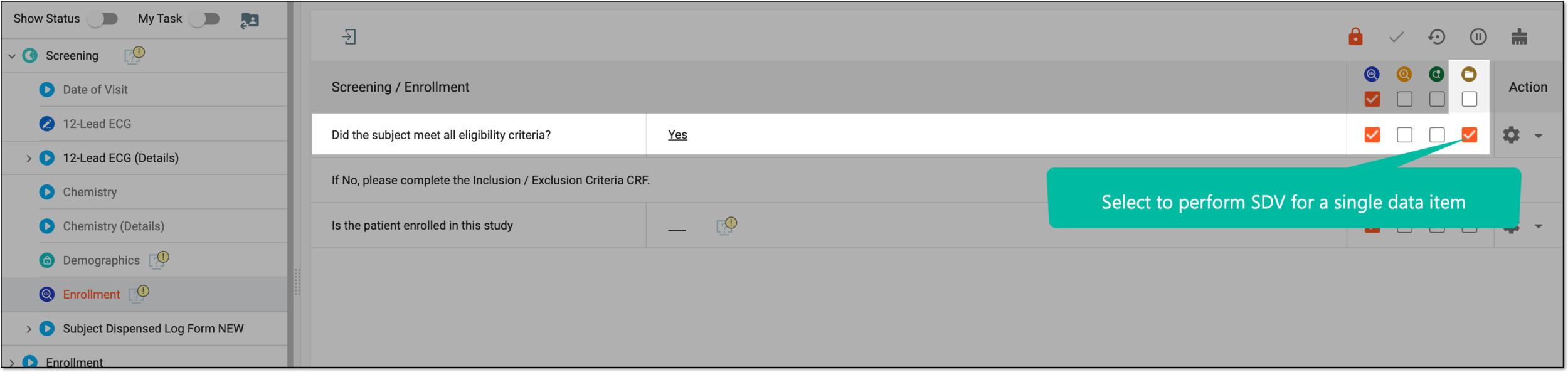 Figure 3. Performing SDV for form field
-
You have completed SDV for a CRF. You can now use the task panel at the bottom of your screen to navigate between forms requiring SDV or select Back to My Work to return to your other task categories.
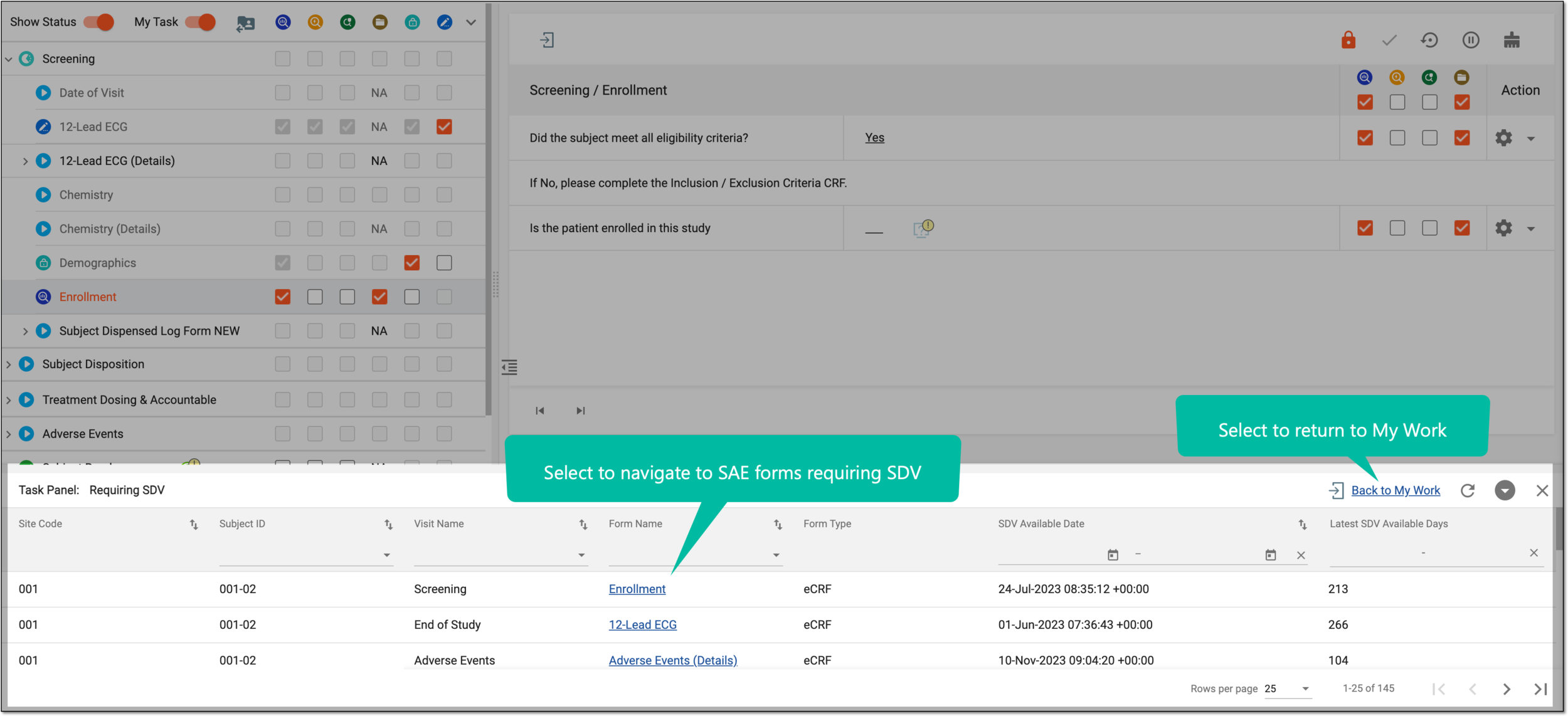
Tip
You can also refresh , collapse , or close the panel if not needed.
Source Data Review (SDR) refers to an assessment and review of the source data beyond a simple verification process. It involves a comprehensive review of the collected data to evaluate its quality, consistency, and compliance with the study protocol, standard operating procedure, and regulatory requirements. During SDR, the CRA or data management team examines the data for completeness, accuracy, and compliance with the established criteria. They analyze trends, perform data reconciliations, and identify any potential anomalies or issues that may require further investigation or data clarification.
If you are responsible for handling SDR for your study, once the SDR setting records have been added and the SDR workload has been defined for all visits, you can start to review source documents. For your convenience, the tasks for SDR review appear under the My Work dashboard.
-
In the EDC application header, select the DASHBOARD tab.
-
On the My Work page that opens, select the Visit Requiring SDR tile to open a complete list of visits that you need to review.
Tip
To facilitate the search, you can filter out the My Work dashboard by site using the Site Code menu. This way, you only see the tasks pertinent to visits of a single site.
-
In the Visit Requiring SDR table that appears, locate the record that you want to review, and from the Visit Name column, select an active link.
-
On the SDR Result page that opens, the SDR result record is displayed and preselected for submission. From the workspace toolbar, select Submit
 .
.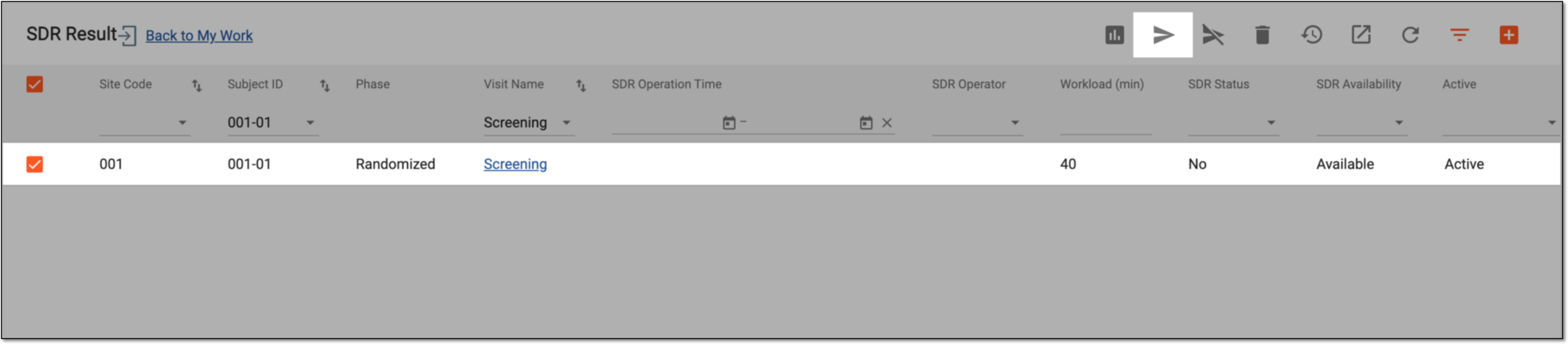 Figure 1. Submitting SDR result
Tip
Select the Visit Name value to open and review the source documents pertinent to the visit.
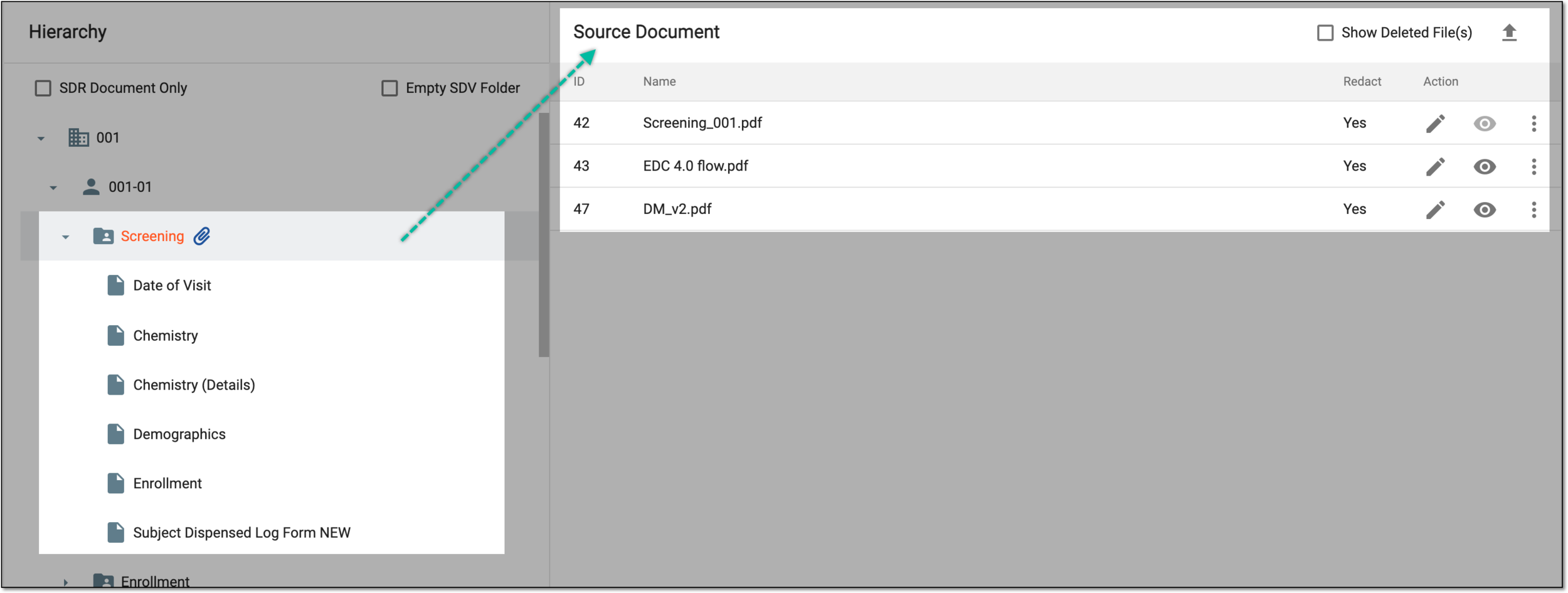 Figure 2. Reviewing source documents for visit
You have submitted the SDR result for a visit.
Data validation refers to the process of ensuring the accuracy, reliability, and integrity of CRF data collected during the study. It involves a series of checks and procedures that aim to identify and resolve data inconsistencies.
In EDC, once the data validation is executed, the system generates validation result tasks if some CRF data fails to pass validation rules. Each task is assigned to a specific user role so the corresponding users need to review these tasks and confirm whether to open queries based on them or cancel the tasks.
For your convenience, if you are responsible for raw data validation task resolution, you can find all such tasks under a single interactive My Work dashboard.
-
In the EDC application header, select the DASHBOARD tab.
-
On the My Work page that opens, select the Raw Data Validation Result Task tile to open a complete list of tasks you need to address.
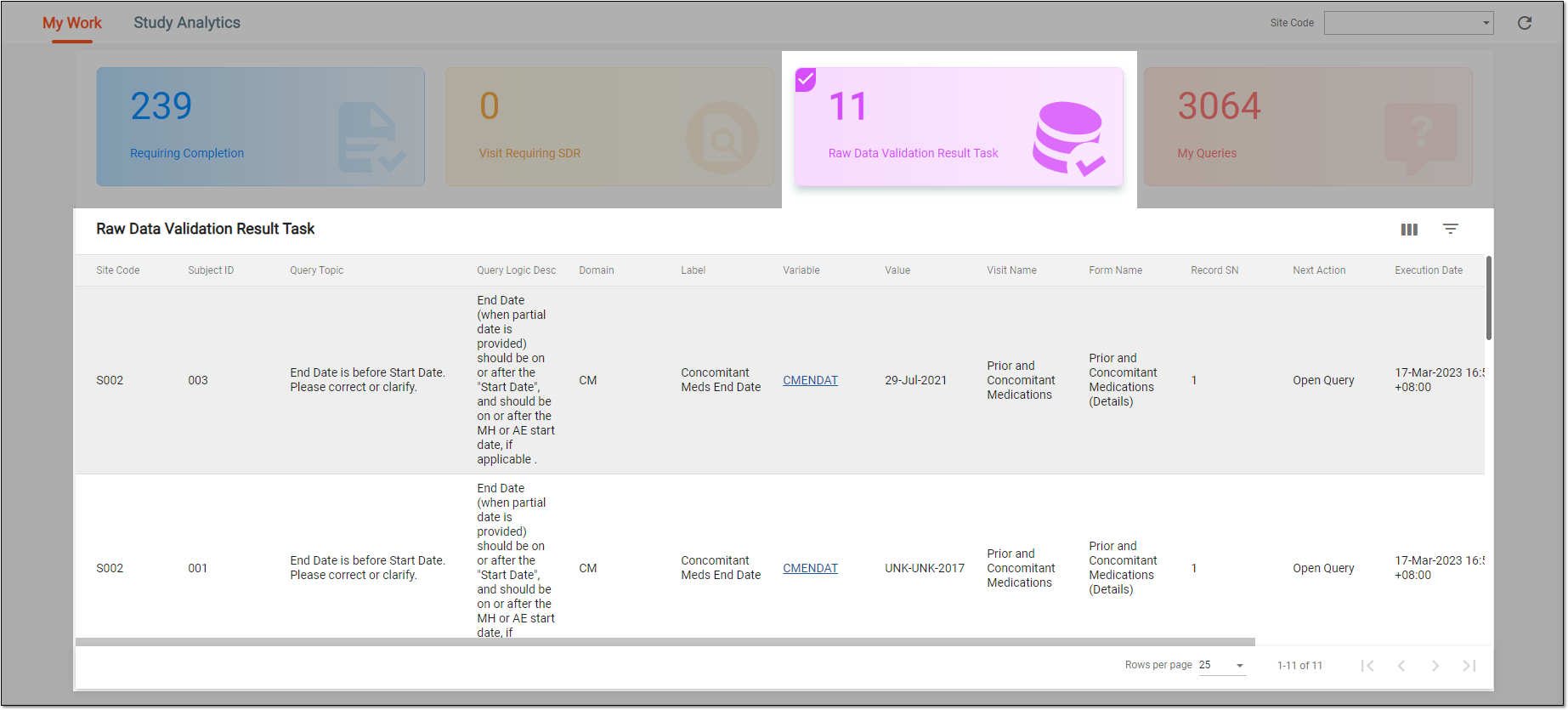 Figure 1. Accessing raw data validation result tasks
Tip
To facilitate the search, you can filter out the My Work dashboard by site using the Site Code menu. This way, you only see the tasks pertinent to the data of a single site.
-
In the Raw Data Validation Result Task table that appears, locate the record that you want to address, and from the Variable column, select an active link.
-
On the Validation Result Tasks page that opens, the validation result task record is displayed and preselected for you to address. Review the issue and from the Confirm panel, select one of the resolutions as explained in the following table.
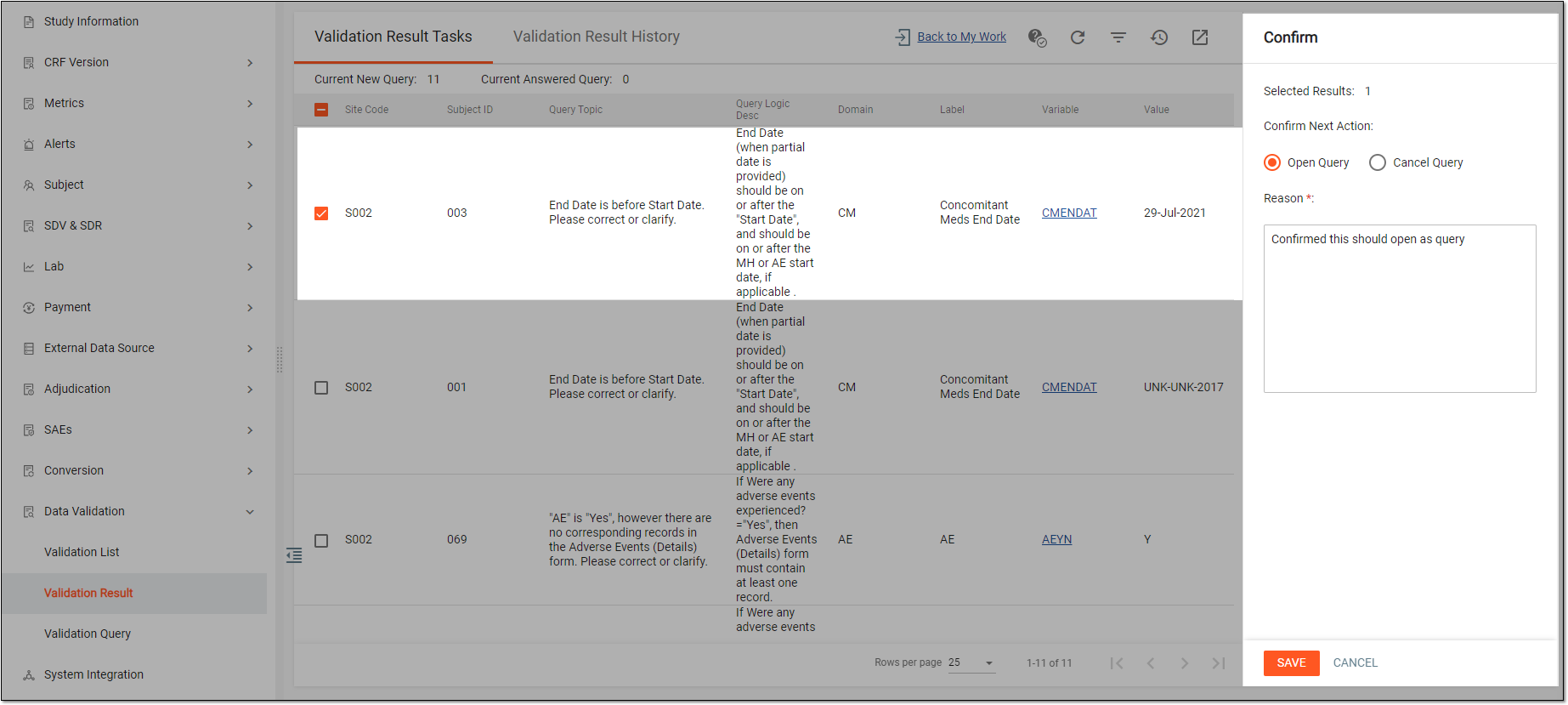 Figure 2. Confirming query creation
Tip
In the following table, mandatory elements are marked with an asterisk (*).
Element
Details
Selected Results
Represents the number of raw data validation result tasks currently selected for you to address. If opened via the My Work > Raw Data Validation Result Task dashboard, then only one record is preselected for you to address.
Open Query
Select this option if the issue needs further clarification or fixing by responsible users, for instance, CRC or DM.
Cancel Query
Select this option if the issue is exhausted and does not need further addressing.
Reason*
Enter the reason for opening or canceling the query. Here, you can provide additional comments on the issue or notes for the next reviewer.
SAVE
Select
 to save the implemented changes.
CANCEL
Select
 to discard the changes without saving.
You have addressed the raw data validation result task.
While working with forms in EDC and finding some inaccurate or missing data, you can create queries for responsible users to address the issues and either correct them or confirm the data's accuracy. A query is a request to fix the encountered discrepancy in the study data.
Typically, in the EDC system, queries are created by the data manager (DM) or clinical research associate (CRA) during data review and addressed by the clinical research coordinator (CRC) working at sites and having access to original data for check-ups. Queries can also be automatically created by the system when the data is missing or does not match the expected criteria. System queries must also be addressed by CRC.
If you are responsible for addressing queries in EDC, each time a new query is created, the system generates a respective task for you. All such tasks can be found on the My Work dashboard.
-
In the EDC application header, select the DASHBOARD tab.
-
On the My Work page that opens, select the My Queries tile to open a complete list of queries that you need to address.
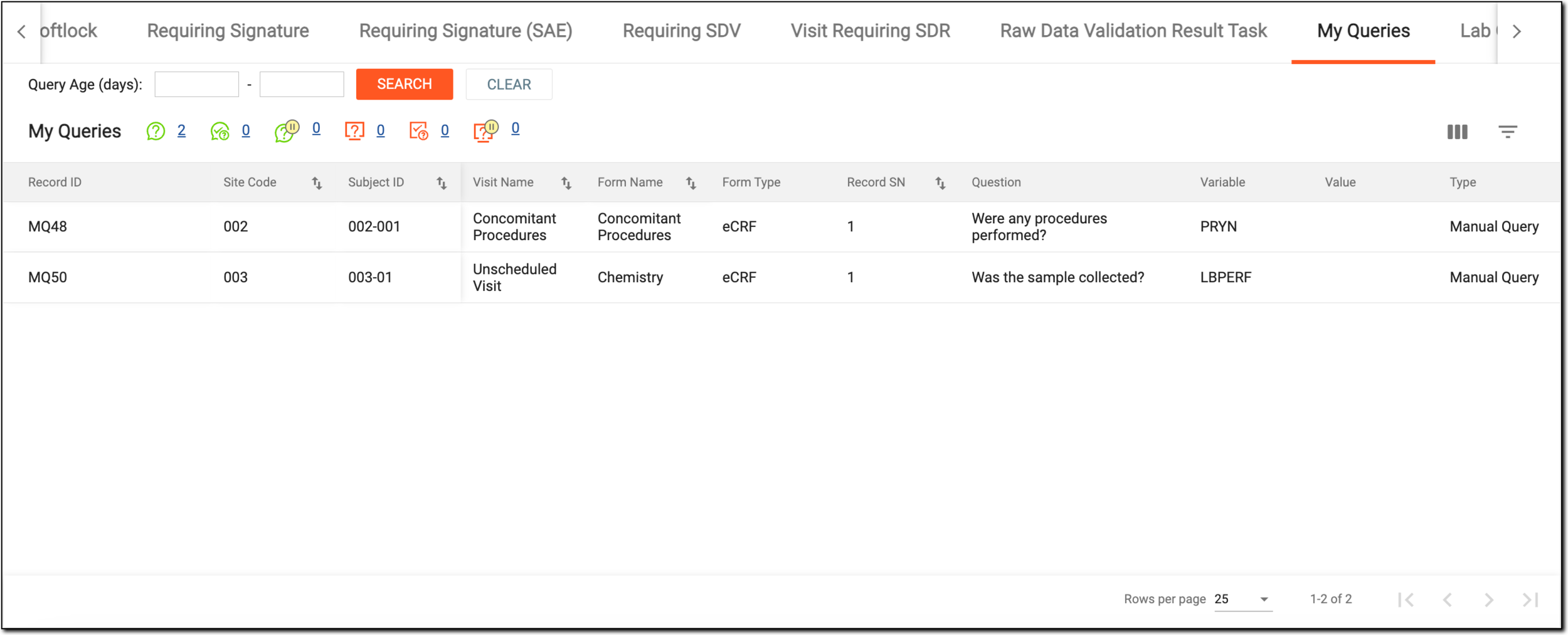 Figure 1. Accessing queries requiring your attention
Tip
To facilitate the search, you can filter out the My Work dashboard by site using the Site Code menu. This way, you only see the tasks pertinent to forms of a single site.
-
In the My Queries table that appears, locate the query that you want to address, and from the Query Topic column, select an active link. To locate the query faster, you can use the Query Age (days) filter or select a link next to a query status of your interest.
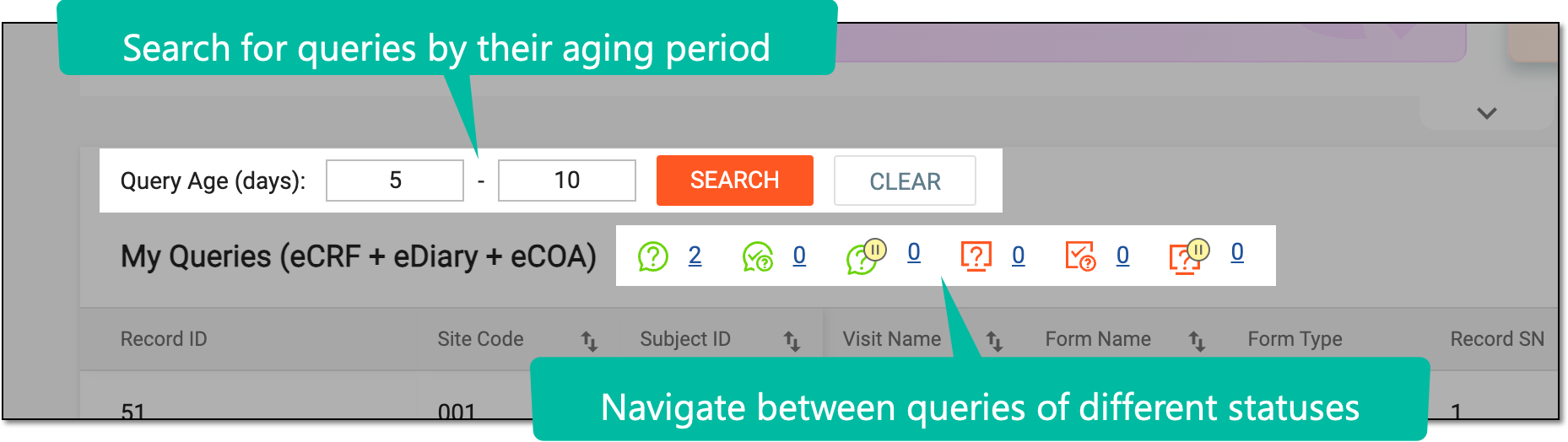 Figure 2. Locating queries
-
On the form page that opens, perform one of the following actions:
-
In the Manual Query or System Query panel, enter your reply to the query issue and select Submit
 .
.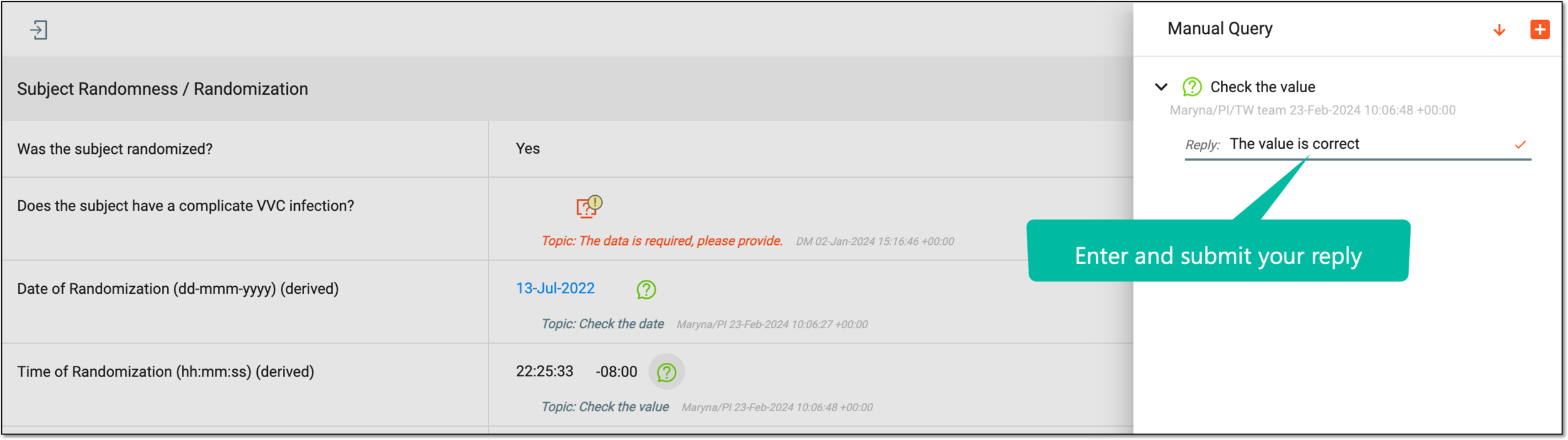 Figure 3. Resolving queries by answering it
Upon replying to the query, it is considered answered, and the respective comment is added to the system. The query icon changes to Answered Manual Query
 or Answered System Query
  , respectively.
 -
Fix the issue of the query by updating the form data and submitting the form.
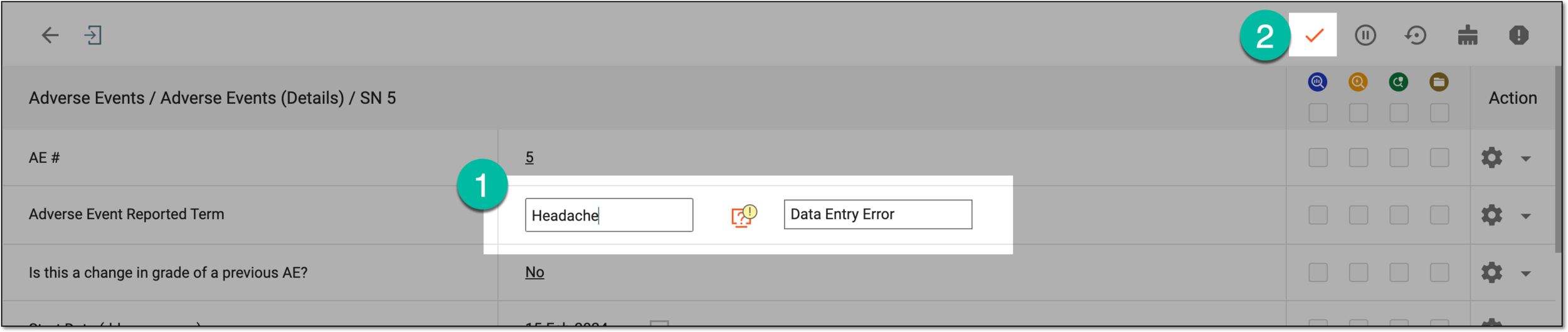 Figure 4. Resolving queries by updating data
Upon fixing the issue of the query, it is considered closed and the respective comment is added to the system. The query icon changes to Closed Manual Query
 or Closed System Query
  , respectively.
-
You have resolved a query. You can now use the task panel at the bottom of your screen to navigate between queries awaiting resolution or select Back to My Work to return to your other task categories.
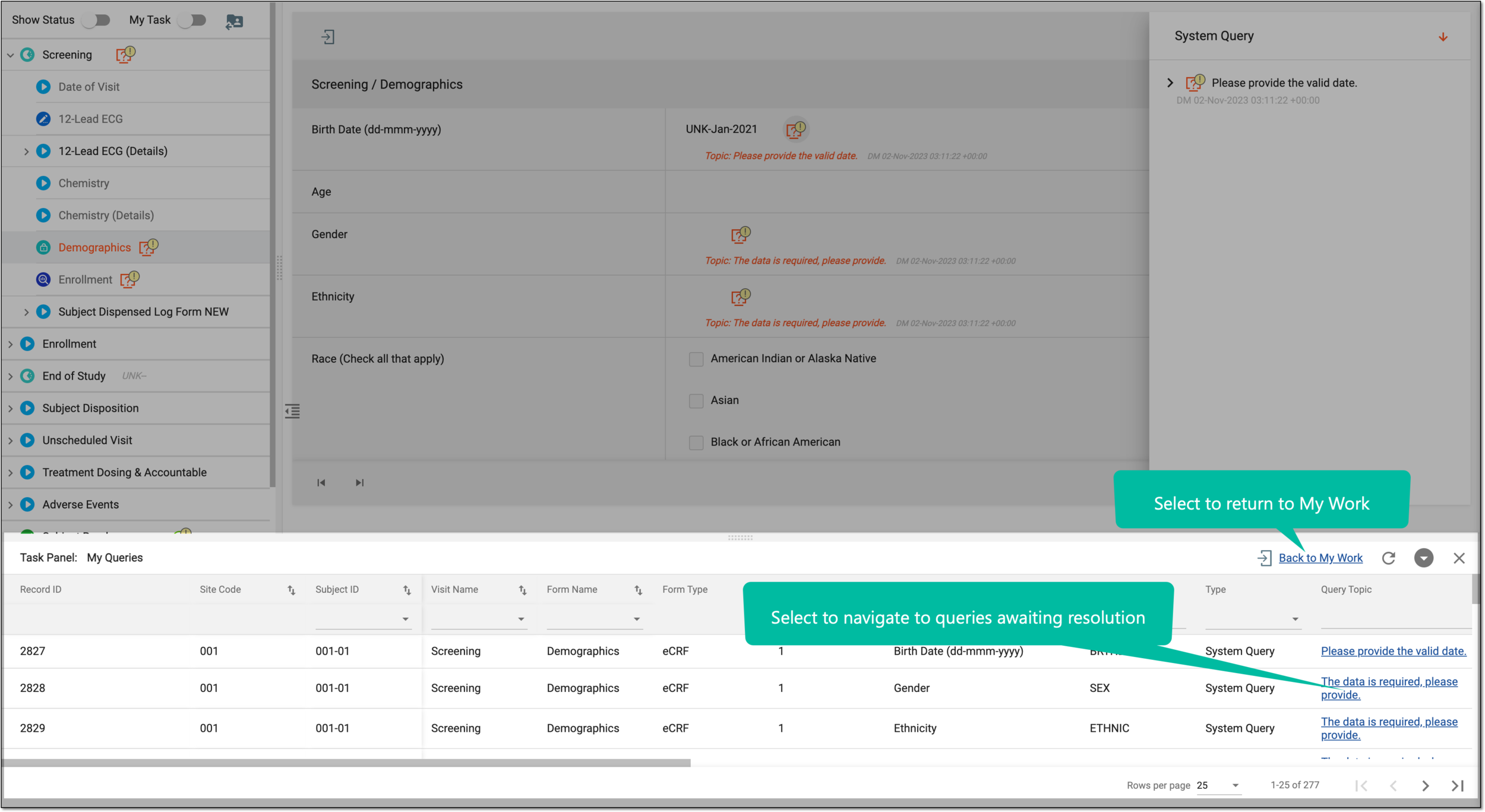
Tip
You can also refresh , collapse , or close the panel if not needed.
A lab query is a request for clarifying, fixing, or otherwise addressing discrepancies in the data collected from the lab. The lab queries are generated from the site normal range page. The site normal range page that depicts the reference ranges that are compared with patient tests to interpret results. These normal ranges are configured in the system and are addressed upon data validation in CRFs under the DATA ENTRY module.
A lab query can be resolved or answered by the personnel to whom the query has been assigned. The assigned personnel investigate the issue and study the concern in detail before answering the query. A resolved query is marked as closed.
In this section, you can learn how to view the details of the lab queries generated for site normal ranges and perform various actions with these queries, such as, reply a lab query, pause or continue a lab query, and so on.
-
In the EDC application header, select the DASHBOARD tab.
-
On the My Work page that opens, select the Lab Queries tile.
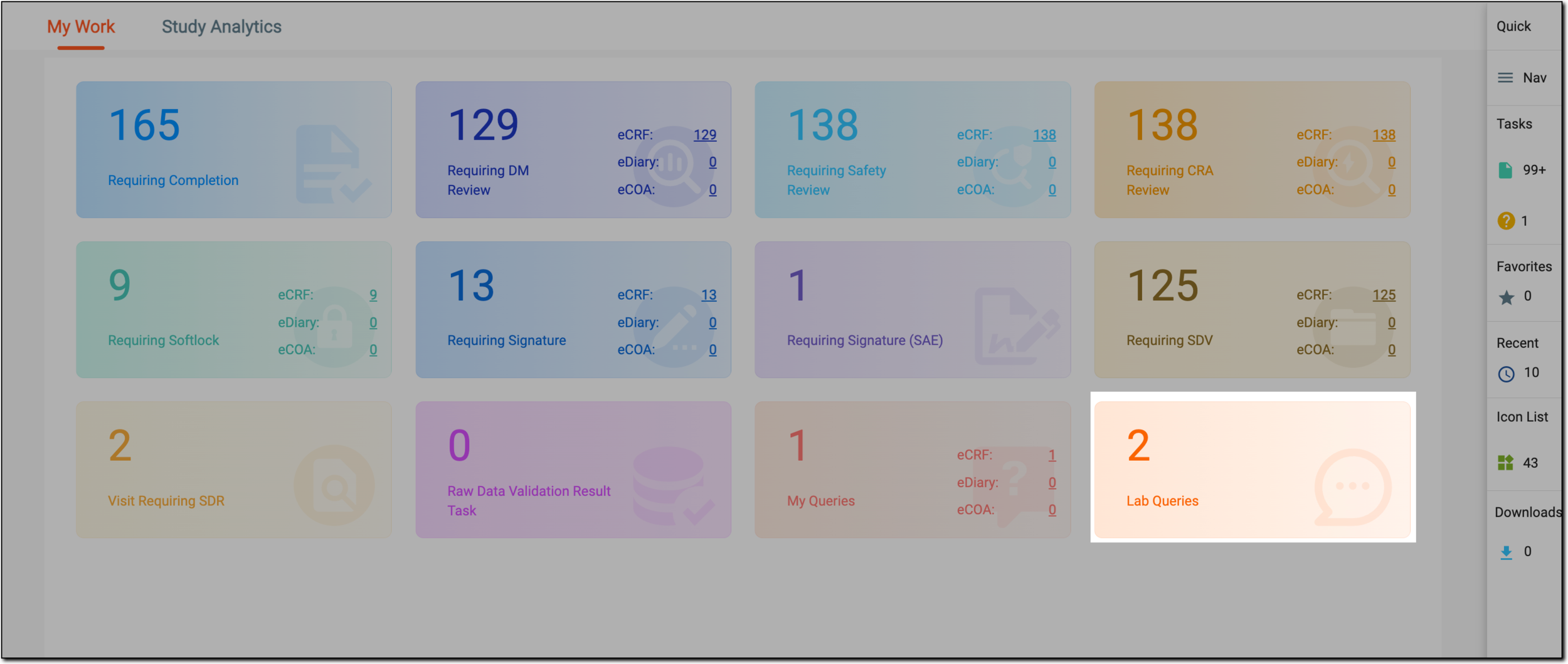 Figure 1. Selecting lab queries
-
In the Lab Queries table that appears, locate the query that you want to address, and from the Query Topic column, select an active link.
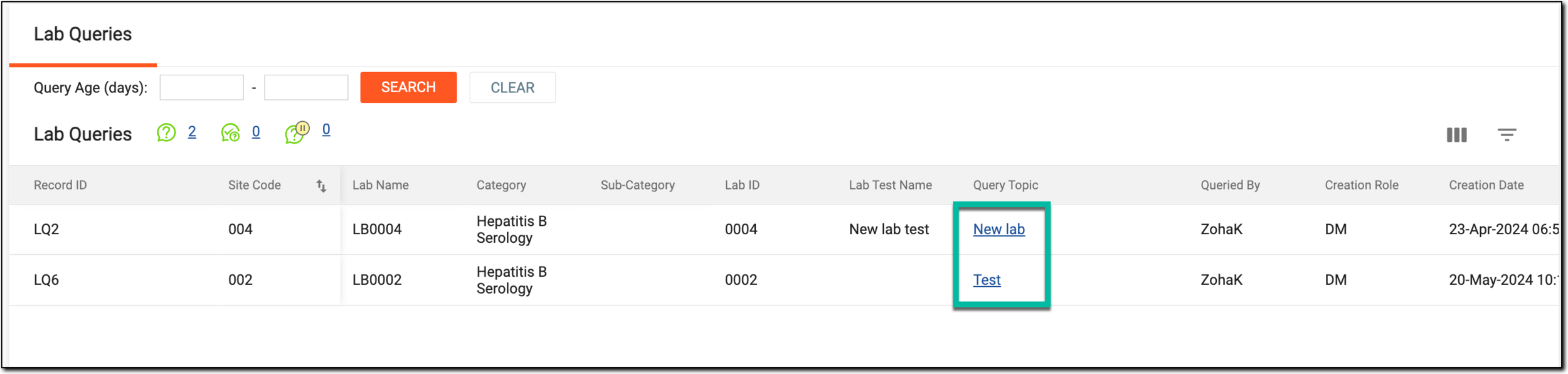 Figure 2. Accessing lab queries requiring your attention
Tip
To locate the query faster, you can use the Query Age(days) filter, or search by query status by selecting the respective hyperlink.
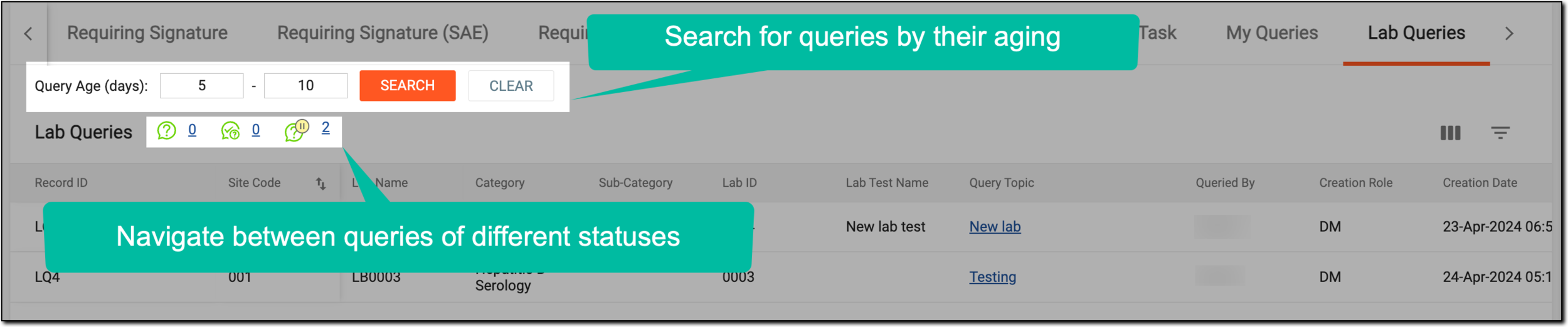 Figure 3. Locating queries
-
On the Normal Range List page that opens, from the Lab Query panel, you can edit, pause or re-activate, and close the query.
Important
You can only perform any of these actions if the query is assigned to you or your user role.
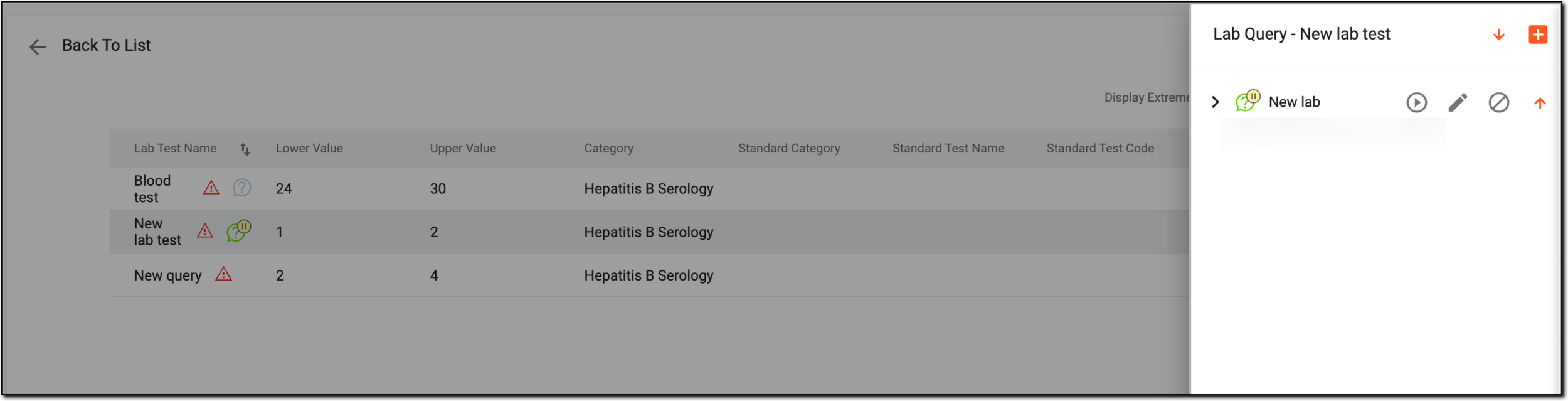 Figure 4. Performing actions on query
You have performed an action on the lab query.
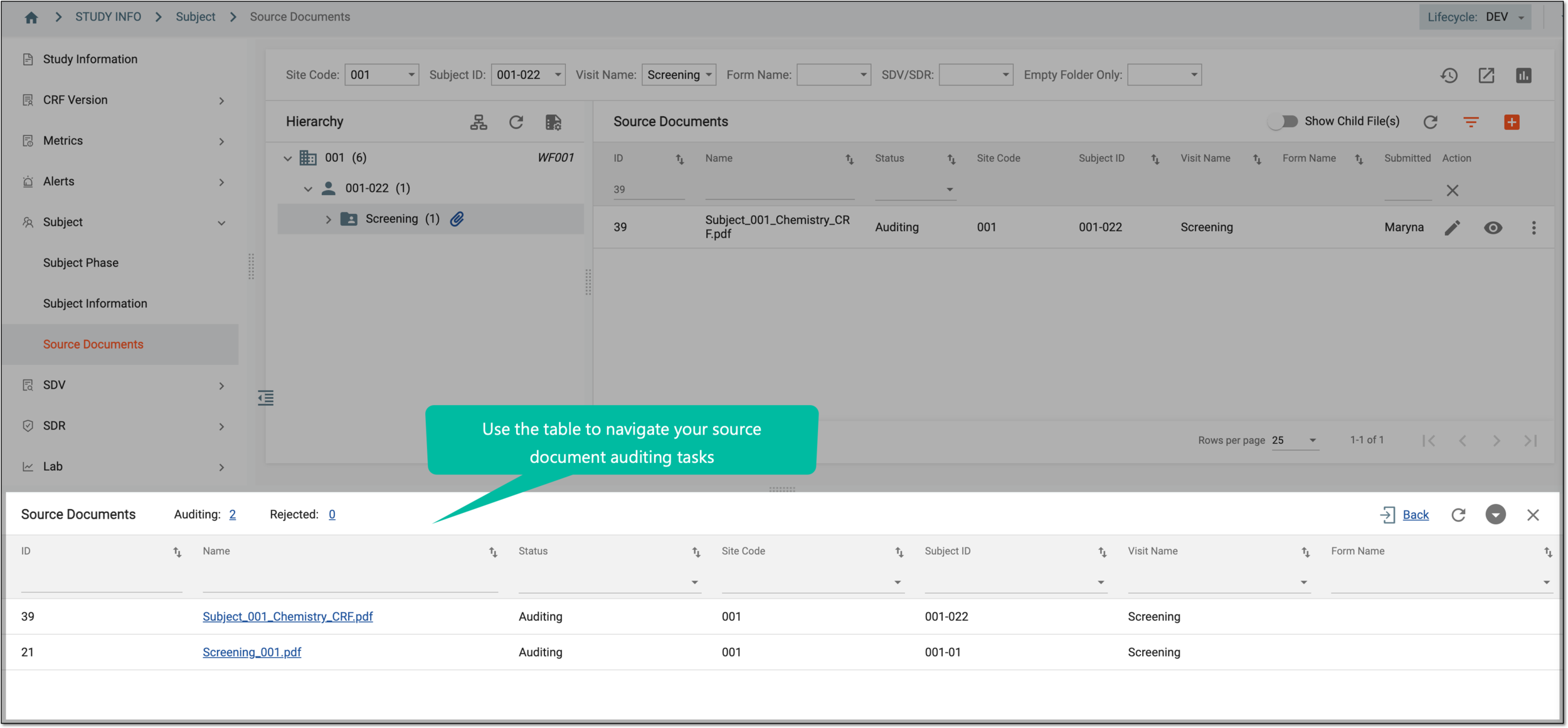
Source documents are original records or certified copies of records that provide evidence of the existence, activities, and results of a clinical trial or study. Some of the source documents that can be related to data verification and documentation review are case report forms (CRFs), medical records, informed consent forms, pharmacy records, adverse event reports, regulatory documents, and so on.
The source documents can be susceptible due to the information they comprise, so they require special handling and controlled maintenance. In EDC, this is achieved via the introduction of documentation auditing workflows established per site.
As a source document auditor, you might receive various tasks, such as approval or signature. All such tasks assigned to you can be found and completed via the comprehensive My Work dashboard.
-
In the EDC application header, select the DASHBOARD tab.
-
On the My Work page that opens, select the Source Documents tile.
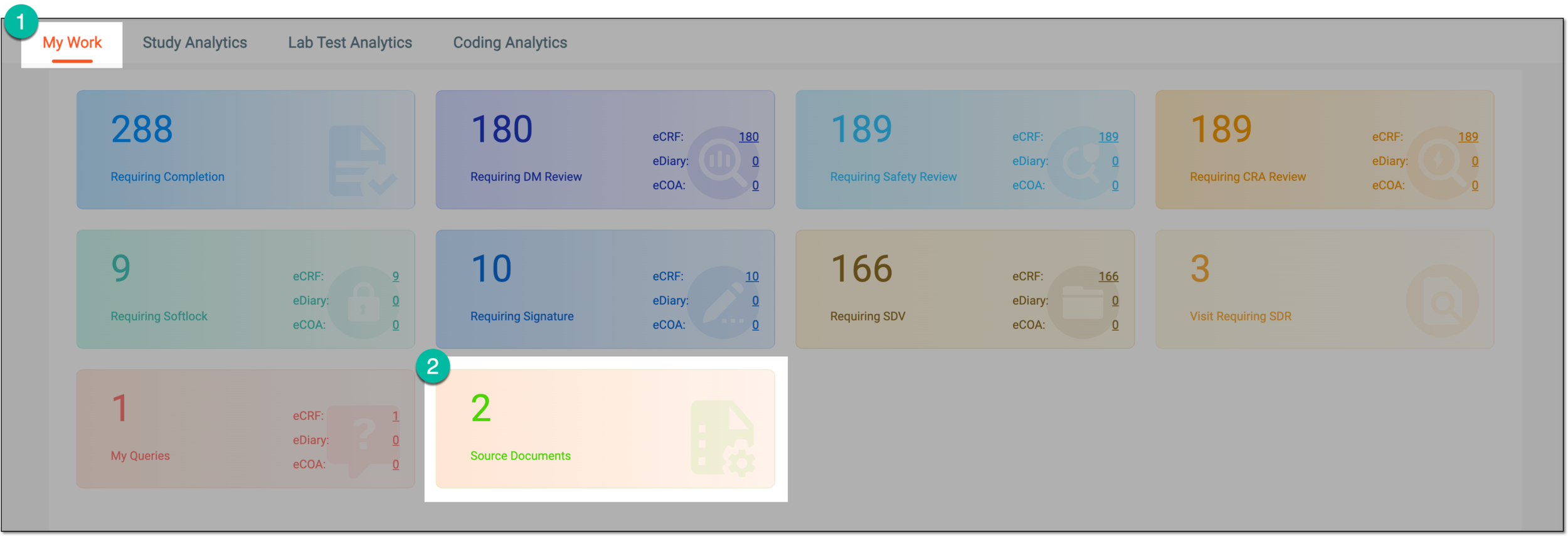 Figure 1. Accessing source document audit tasks
-
In the Source Documents table that opens, select the name of the file you want to audit.
Tip
To locate the needed document faster, you can search by the current file status by selecting the respective hyperlink—Auditing or Rejected.
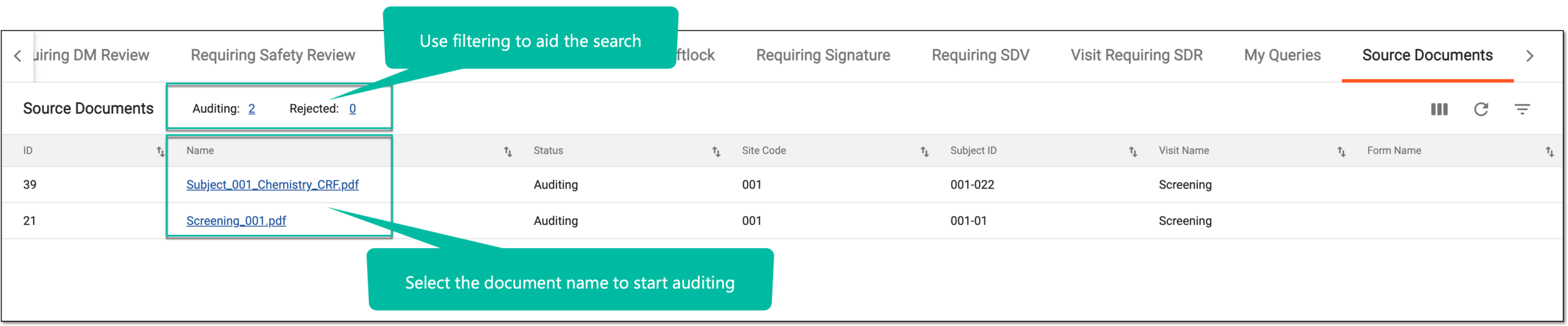 Figure 2. Selecting source document to audit
-
In the dialog that opens, perform the operation assigned to you as the file auditor as follows.
Verify the source document by selecting the Approve option and providing your credentials to submit the electronic signature as explained in the following table.
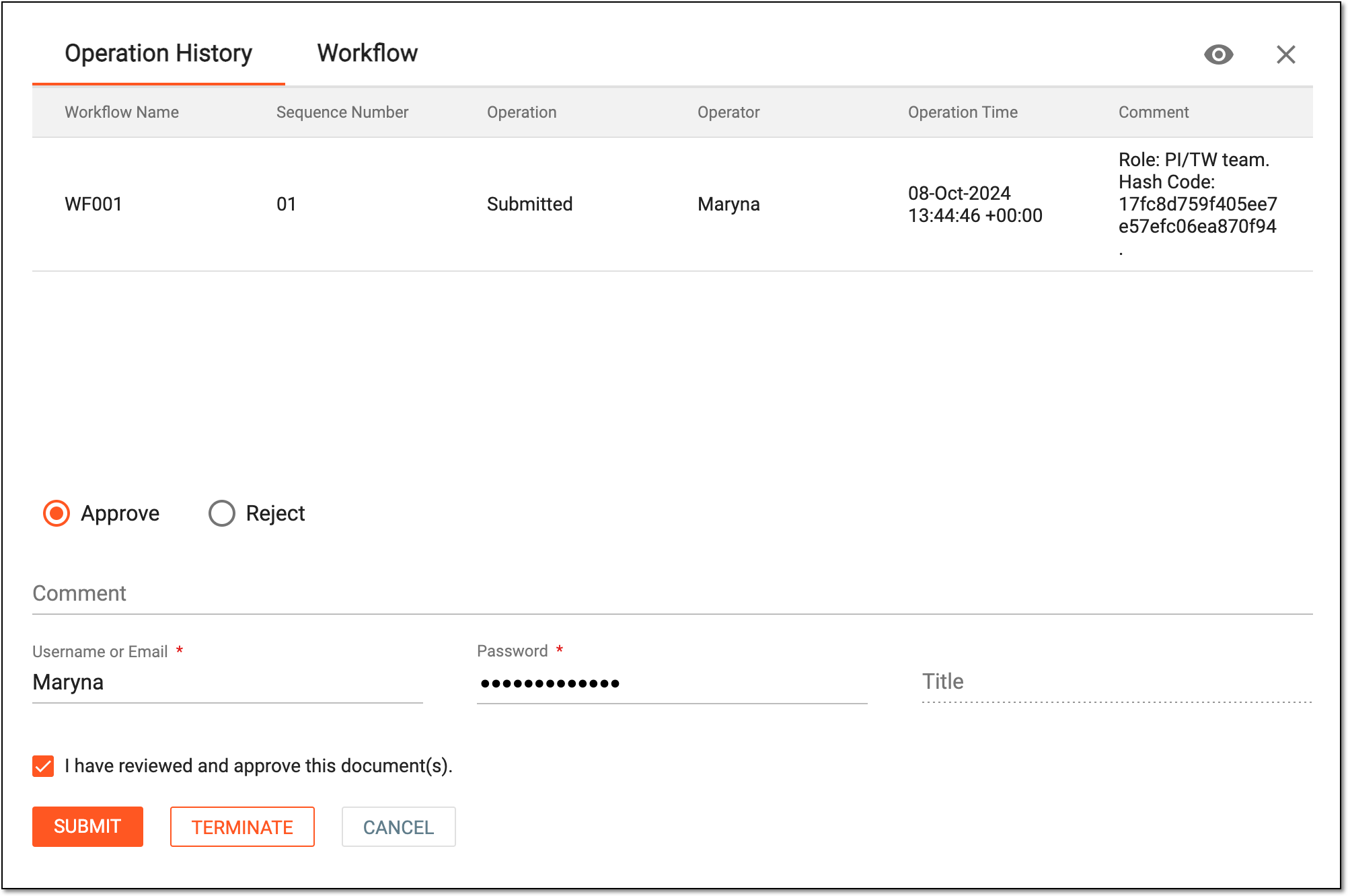 Figure 3. Approving source document
Tip
Here are some tips to aid the audit process:
-
Under the Operation History tab, review the log of all actions performed with the document, who performed them, and when.
-
Switch to the Workflow tab to preview the associated document management schema.
-
Select View
 to open the document contents preview in the new browser
tab.
to open the document contents preview in the new browser
tab.
Element
Details
Username or Email*
Enter your username or email that you use to log in to the eClinical system.
Send Code
Select
 to send the temporary PIN code to your email for which the SSO method is configured.
The button is only available if you use the authorization method via SSO.Code*
Enter the temporary PIN code that you received via email.
The field is only available if you use the authorization method via SSO.Password*
Enter the password that you use to log in to the eClinical applications.
The field is only available if you use the authorization method by providing your login and password.Title
Represents the title of the user assigned to them via the ADMIN application. The field is autopopulated by the system and cannot be entered manually.
I have reviewed and approve this document(s)
Select this checkbox to confirm that you have reviewed the source document and verified that it is valid.
SUBMIT
Select
 to confirm your action with your signature and save the implemented changes.
TERMINATE
Select
 to terminate the workflow for the document and abort all the following review and approval stages.
CANCEL
Select
to discard the changes, close the dialog, and return to the Upload
File(s) page.Dismiss the source document by selecting the Reject option and providing the mandatory reason for your action. This becomes useful if you find any discrepancies or issues in the uploaded file and cannot verify for it. Based on the assigned workflow, rejected file returns to some previous stage of processing.
For instance, if the workflow dictates that after the approver's rejection, the document returns to the submission stage, then the user who uploaded (submitted) the file receives a notification that they have file submission duties. Thus, they know they must log in to the system and check the file in question.
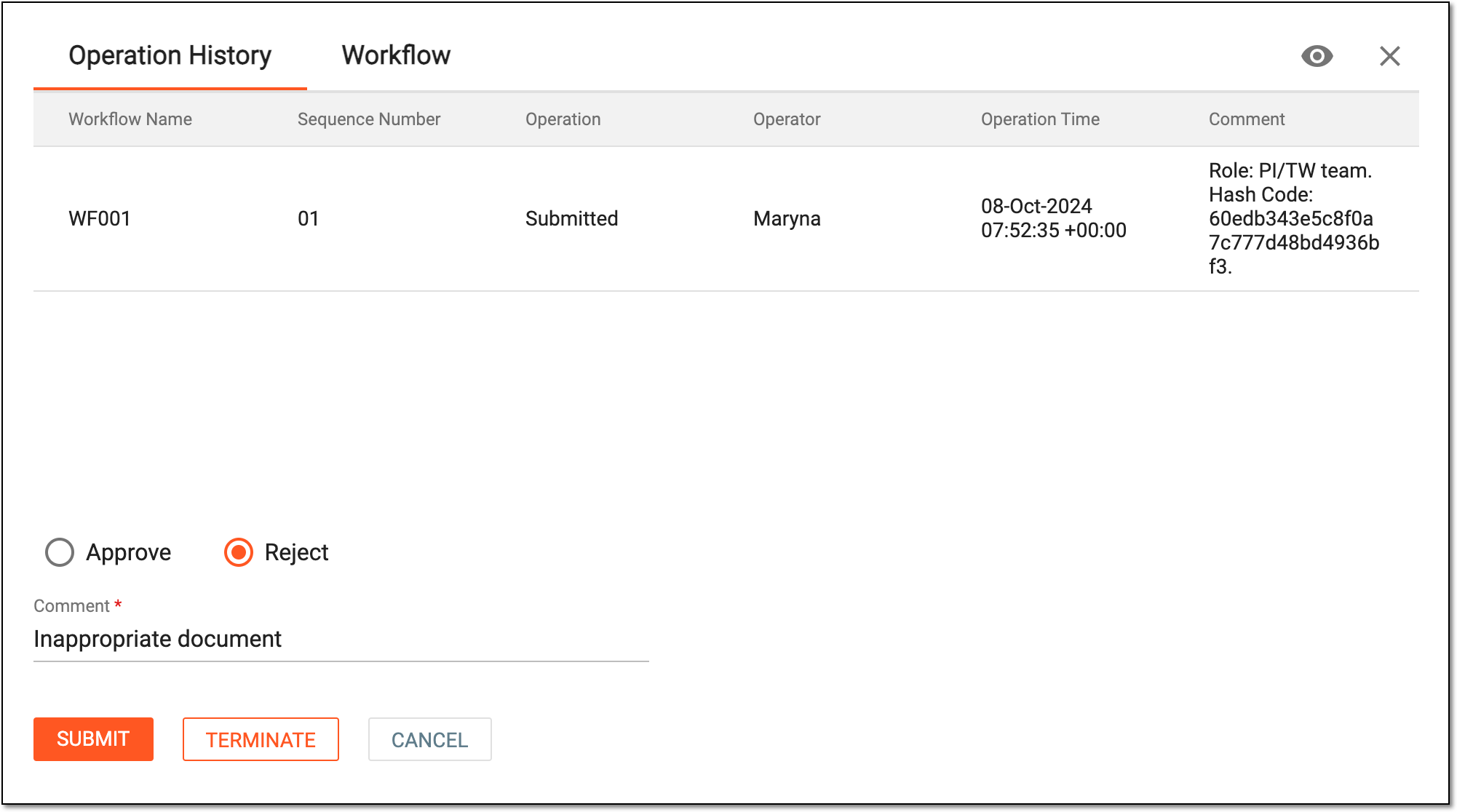 Figure 4. Rejecting source document
Tip
Here are some tips to aid the audit process:
-
Under the Operation History tab, review the log of all actions performed with the document, who performed them, and when.
-
Switch to the Workflow tab to preview the associated document management schema.
-
Select View
to open the document contents preview in the new browser
tab.
Abort the auditing process and all the following workflow stages for the source document by selecting
. Then in the Comment dialog that appears, provide the mandatory reason for your action. This becomes useful if you find the source document invalid and cannot verify it, moreover, you see no reason to forward its maintenance to the following users.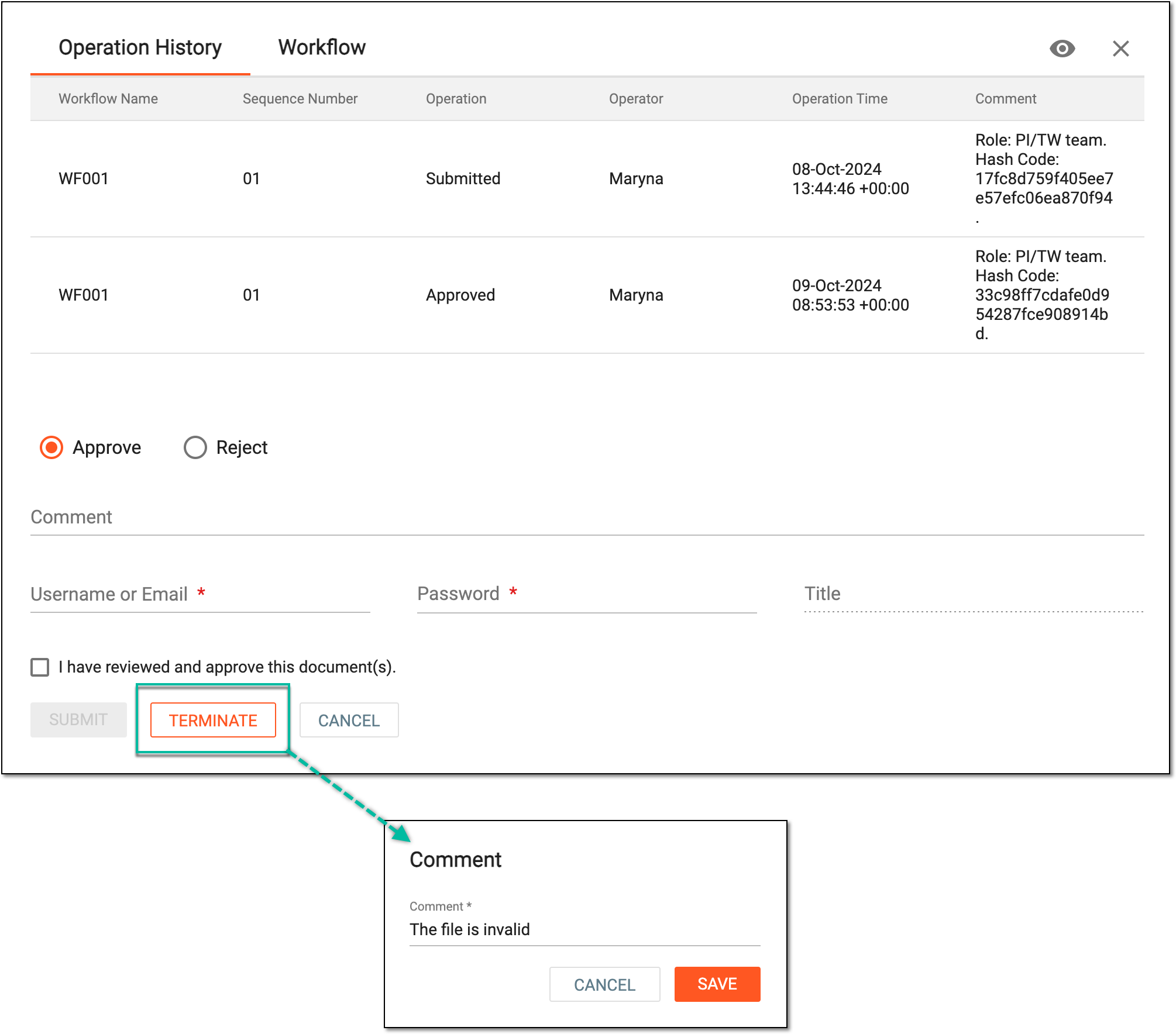 Figure 5. Terminating source document
Tip
Here are some tips to aid the audit process:
-
Under the Operation History tab, review the log of all actions performed with the document, who performed them, and when.
-
Switch to the Workflow tab to preview the associated document management schema.
-
Select View
to open the document contents preview in the new browser
tab.
-
You have completed the audit for the source document. Based on the performed action, the source document status changes:
-
For files that require further user review and approval, the status is Auditing.
-
For rejected files, the status is Rejected.
-
For files whose audit is terminated, the status is Dropped.
-
For files with completed audits that do not require further user review and approval, the status is Final.
Important
All files uploaded to EDC that went through auditing and have their status as Final are automatically forwarded to the eTMF storage and can be accessed in the EDC > Source Document directory of your study.
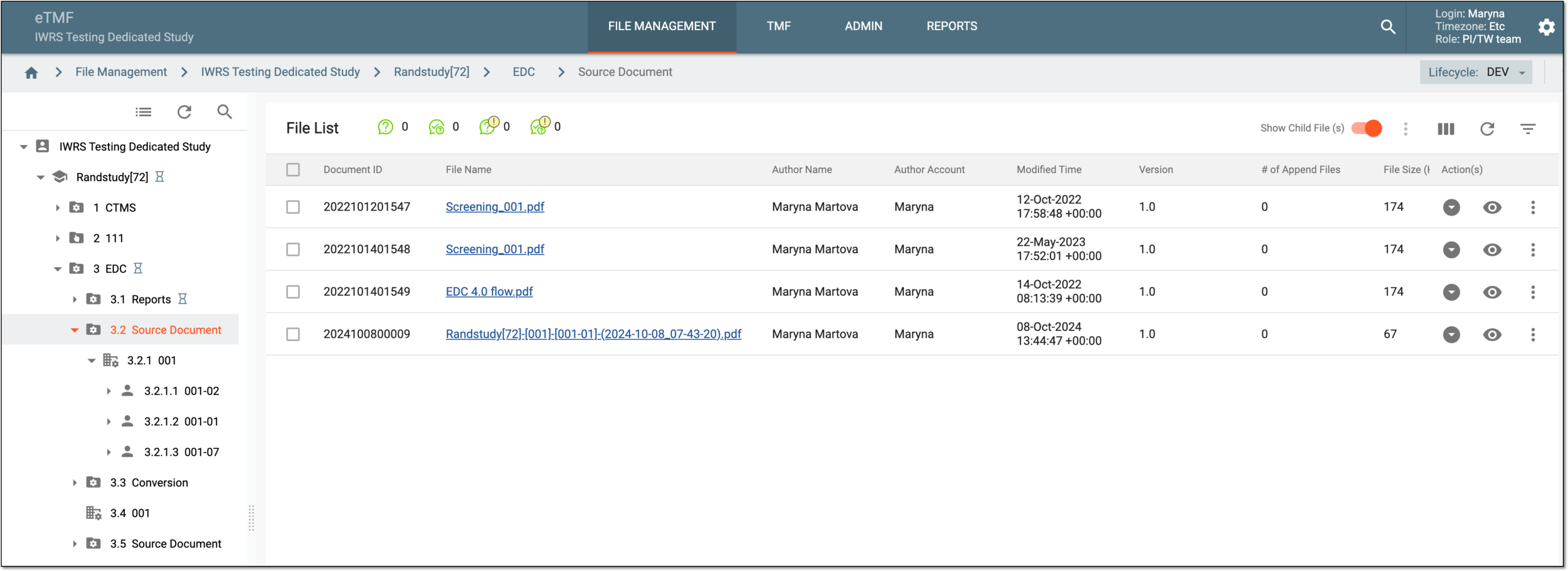 Figure 6. Accessing EDC source files from eTMF
Once the dialog closes, the Source Document storage page appears. Use the task panel at the bottom to navigate between documents awaiting audit. Alternatively, select Back to return to My Work and all the task categories.