Update form data
Sometimes, you may need to update the previously entered form data. For example, if the data was entered incorrectly or if the source documents contained incorrect data.
Important
To update the data, you need to have respective permissions granted to you by the system administrator via the ADMIN application.
-
In the EDC application header, select the DATA ENTRY tab.
-
On the site list page that opens, select the tile representing the site with which you want to work.
 Figure 1. Accessing site
-
In the Subject ID column, select the needed subject.
 Figure 2. Selecting subject
-
In the subject visit tree of the page that opens, expand the needed visit to select the required form.
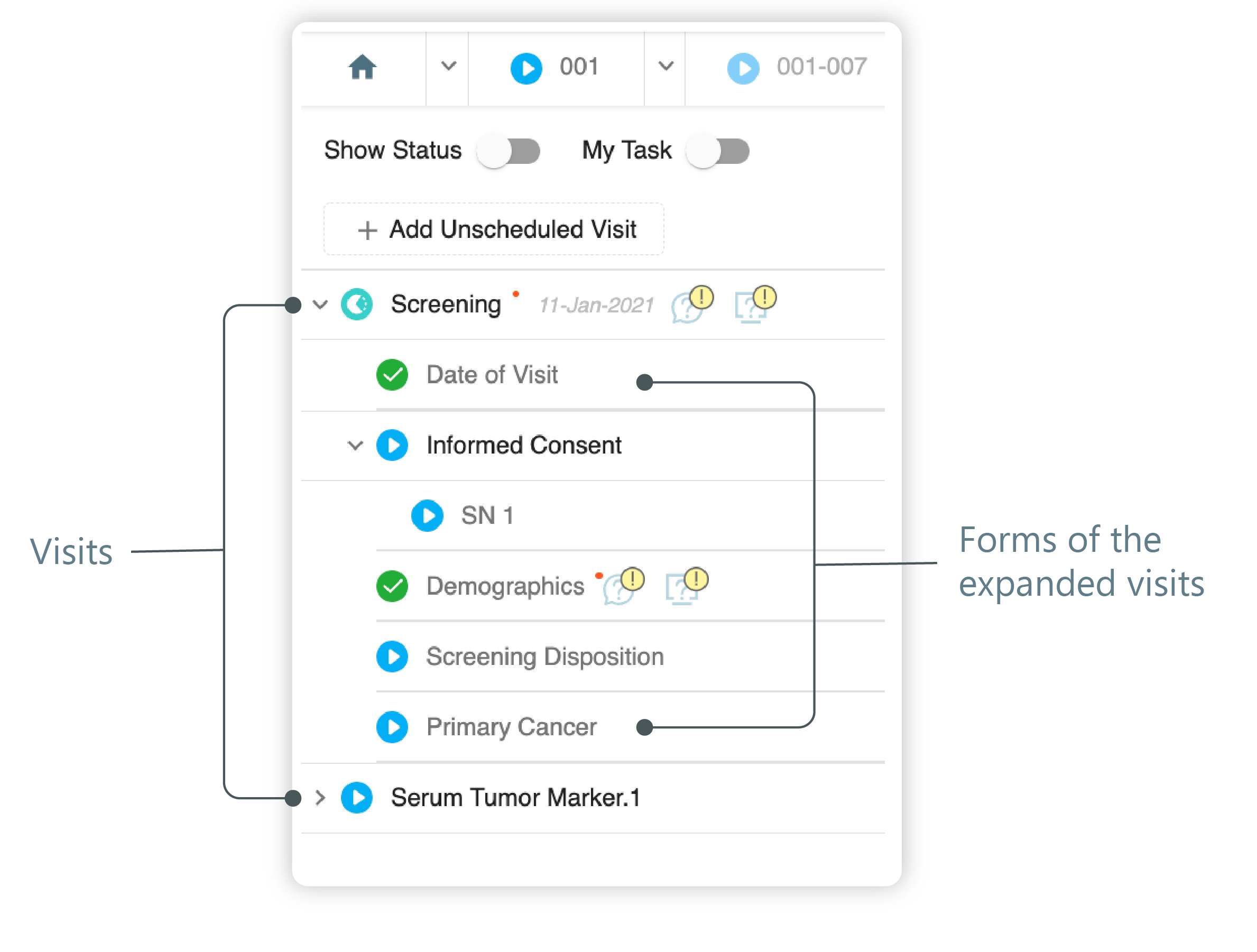 Figure 3. Left panel. Visits and their forms
-
Select the form you need to update.
-
On the right, the form with already entered data is displayed. Find the field of the form the data of which you want to update, select it, and then make the desired changes.
-
In the field that appears, select or enter the reason for changing the form data, as follows:
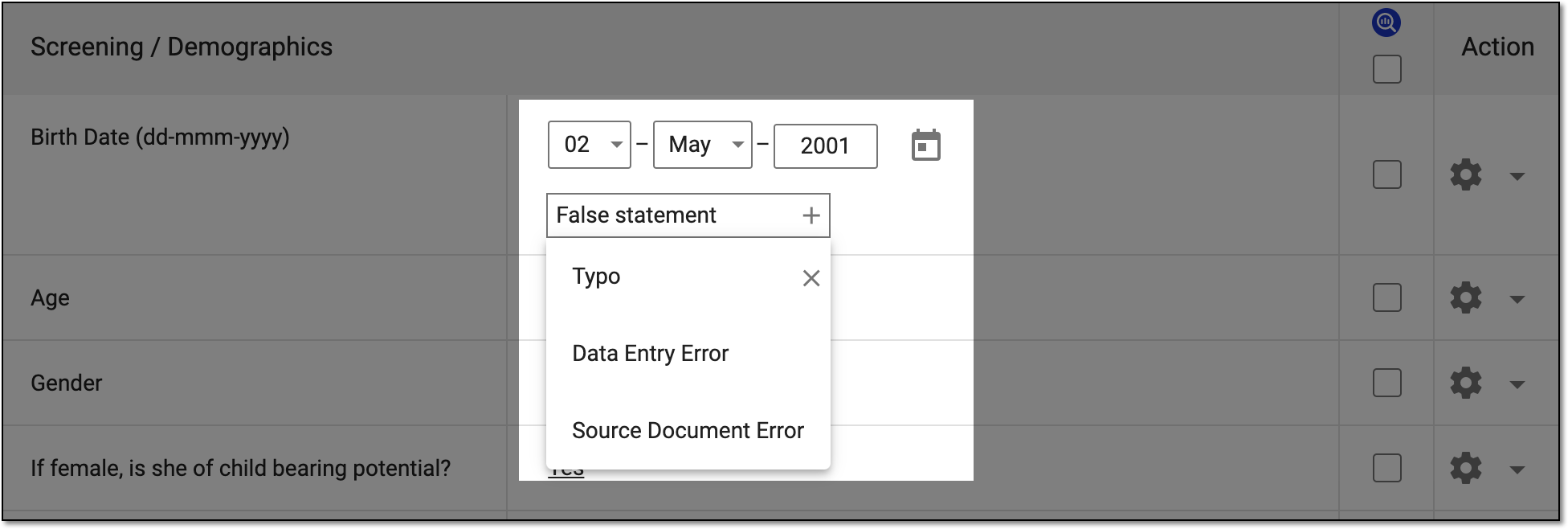 Figure 4. Providing reason to update form data
-
Data Entry Error: select this reason if an error occurred upon entering data from the source document into the EDC system.
-
Source Document Error: select this reason if an error has been discovered in the source document itself.
-
Custom reason: enter any custom reason for updating the form data. You can save the custom reason for your personal use by selecting
 next to it. The custom
reasons are only available for the user who adds them. Select
next to it. The custom
reasons are only available for the user who adds them. Select  next to your custom reason to delete it from the list.
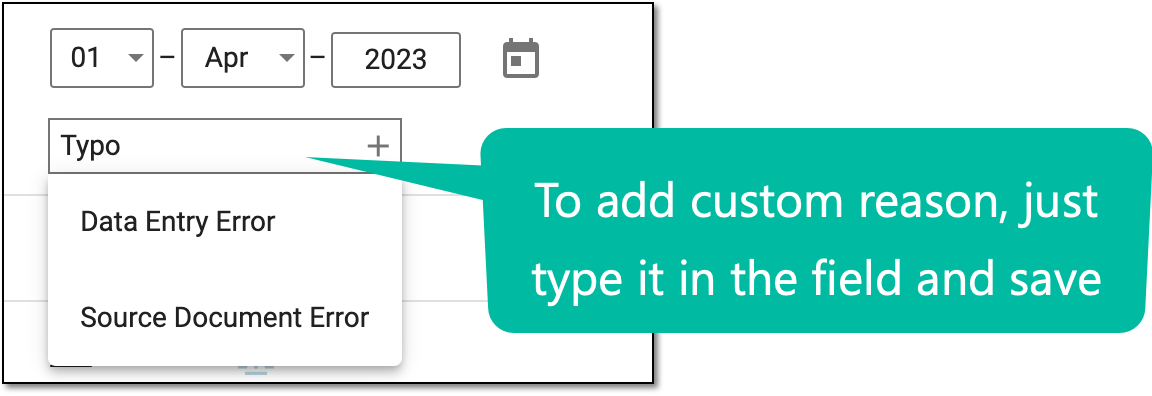 Figure 5. Entering custom reason
-
-
In the top toolbar, select
 to submit your changes.
Tip
If you do not want to save the changes and want to return the form to the state it was before you started editing it, select Restore
 . Then in the dialog that opens, select YES to confirm.
Now that the changes are submitted, the data in the form has been updated.