View form item audit trail
In a clinical trial, you are dealing with sensitive data. It is vital to keep track of all changes and updates in the system. Thus, with EDC capabilities, you can review the audit trail of each form item (field) and account for all user actions with the data in it.
Tip
The audit trail is recorded in the site's primary language to ensure a unified language for all data intended for analysis and regulatory review.
-
In the EDC application header, select the DATA ENTRY tab.
-
On the site list page that opens, select the tile representing the site with which you want to work.
 Figure 1. Accessing site
-
In the Subject ID column, next to the needed subject, select the link representing the subject data to be entered.
 Figure 2. Locating your subject
-
On the Visit Overview page that opens, on the left, a panel with all subject visits is displayed. Expand the needed visit to open the forms associated with that visit.
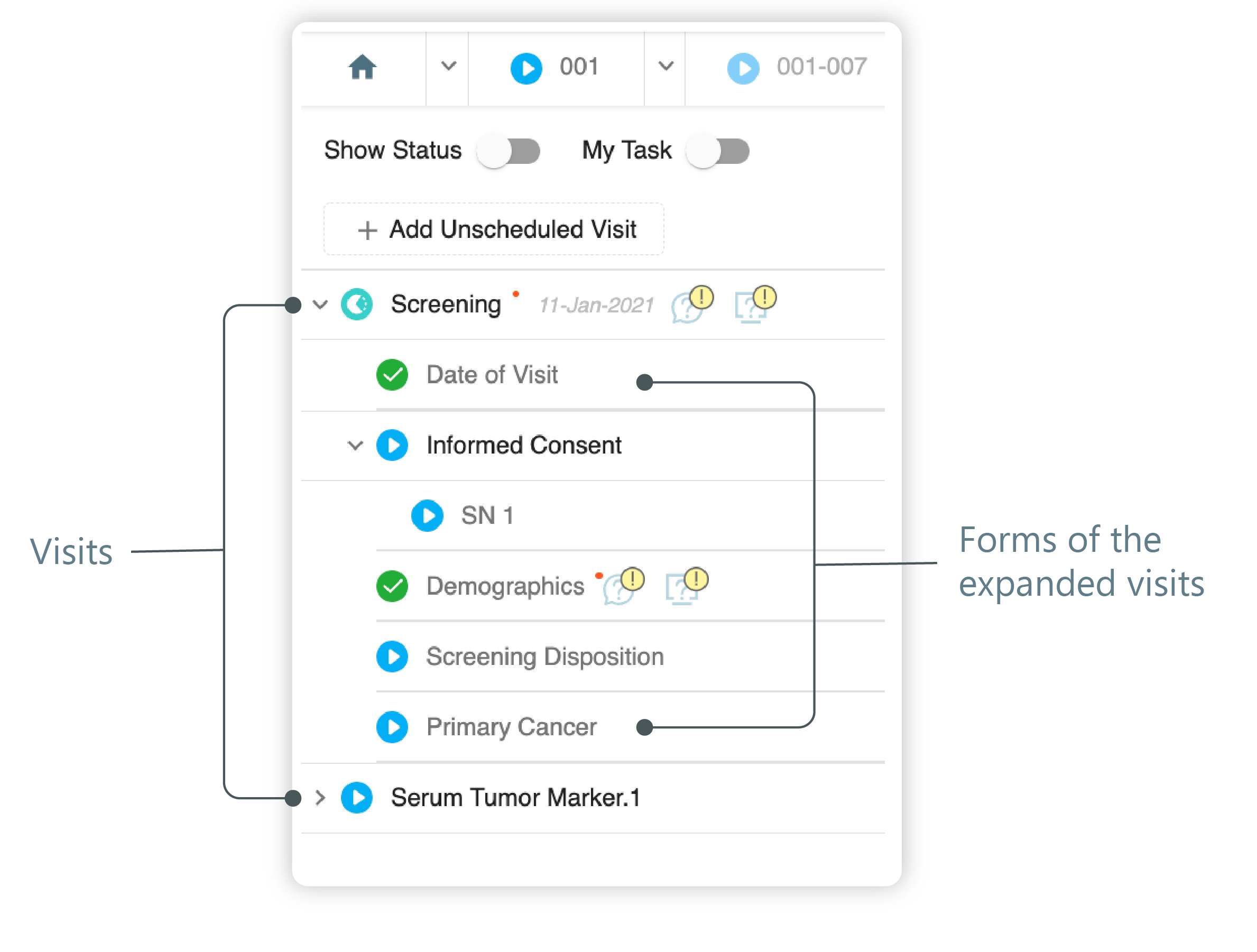 Figure 3. Left panel. Visits and their forms
-
From the list of forms that expands, select the one of your interest.
-
On the form page that opens, in the Actions column next to the item of your interest, select
 and in the resulting menu, select
the Audit Trail option
and in the resulting menu, select
the Audit Trail option  .
.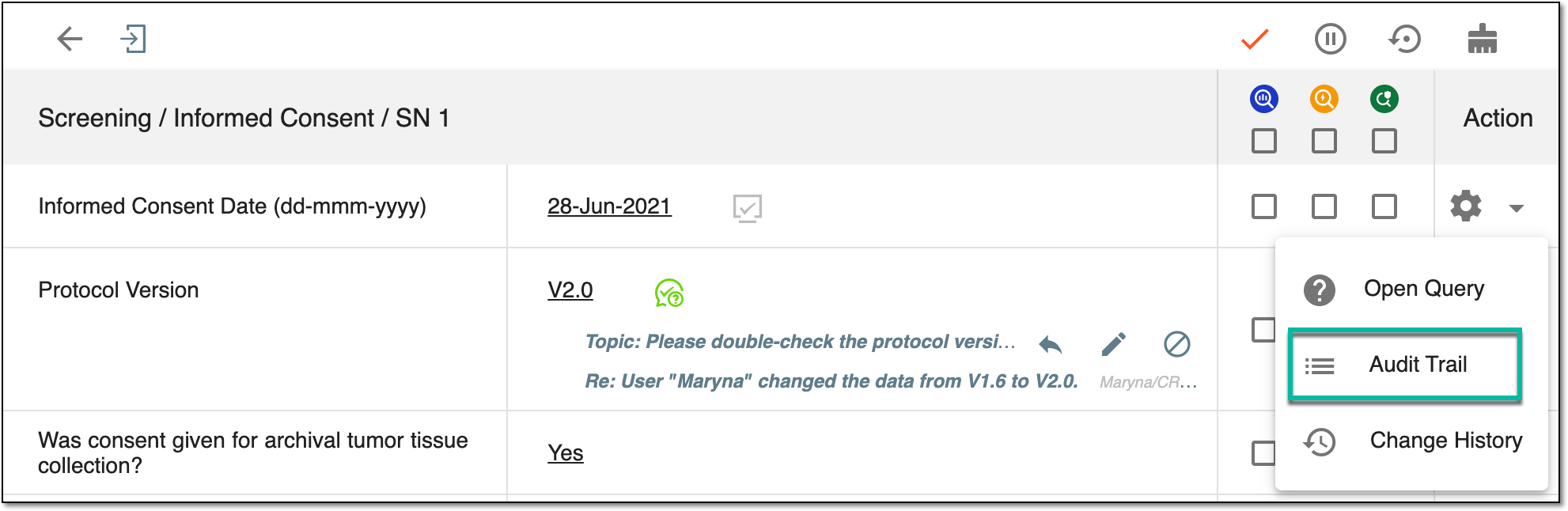 Figure 4. Locating Audit Trail option
-
In the Audit Trail dialog that appears, review the history of all the changes, queries, and other actions with data of the selected item.
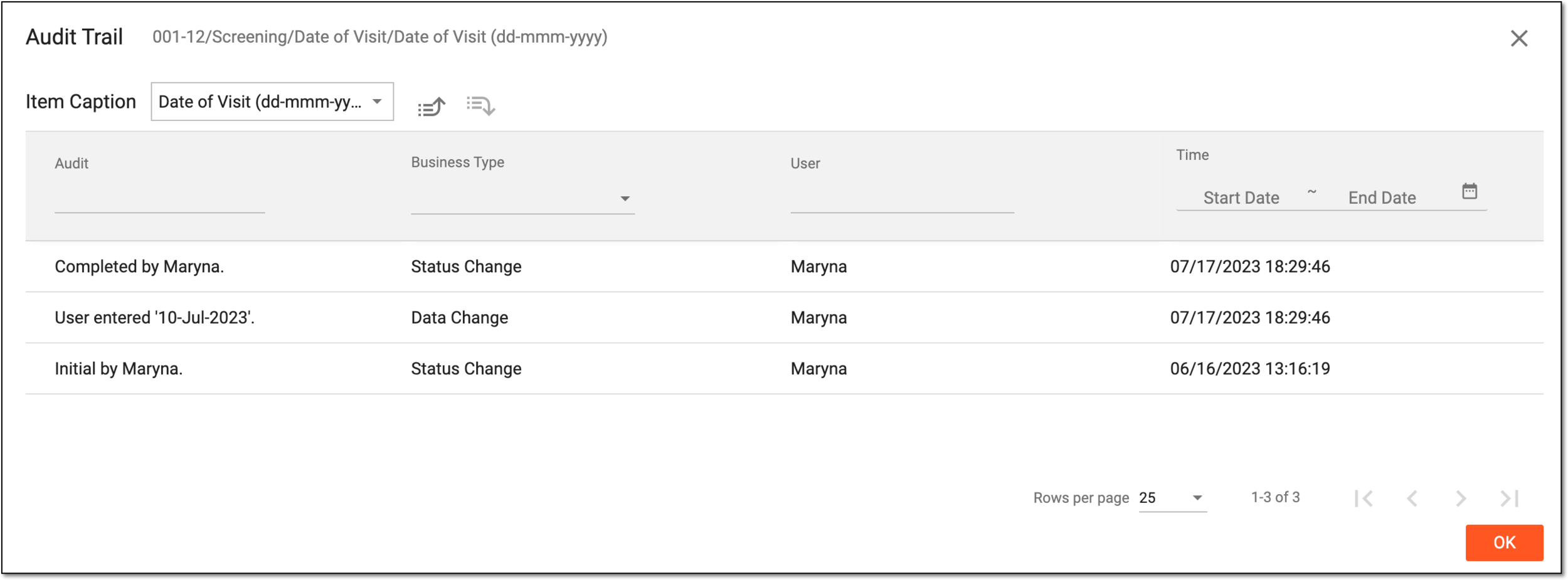 Figure 5. Viewing form audit trail
Tip
Use the Next Level
 and Prev Level
  options to switch between the form, visit, and subject levels of the audit trail. You can learn more about different levels of data available for audit trail review in the
Audit trail and history of actions section.
options to switch between the form, visit, and subject levels of the audit trail. You can learn more about different levels of data available for audit trail review in the
Audit trail and history of actions section.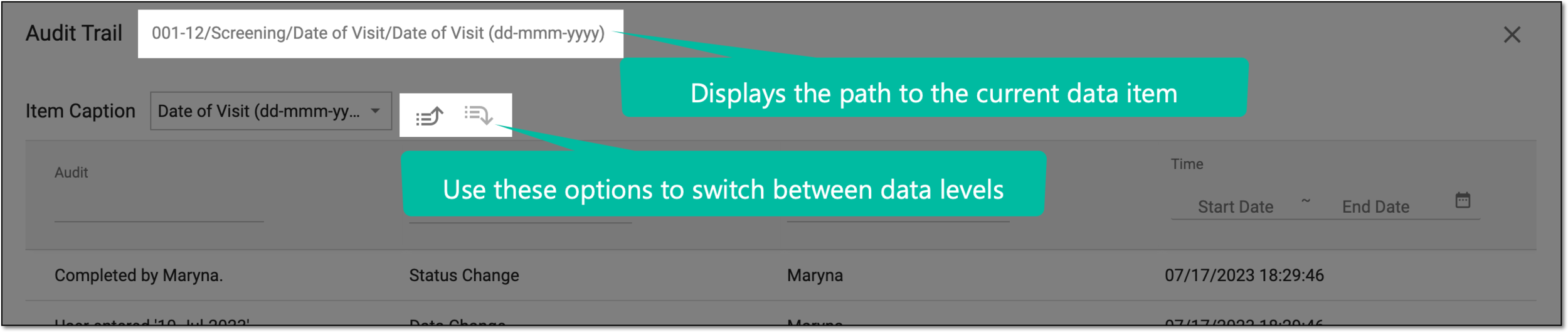 Figure 6. Switching to another data level
-
Select
 to close the dialog.
Once the dialog is closed, you return to the form page.