Audit trail and history of actions
In a clinical trial, the subject management and data entry processes involve working with sensitive information and any action may have its consequences.
In EDC, to minimize the risk of unintended impairment or harmful behavior, all the actions with subjects, visits, forms, and individual fields are recorded by the system. The history of such actions can be traced via the Audit Trail functionality.
You can learn how to view audit trail for different data levels from the following sections.
In EDC, all the actions with subjects, visits, CRFs, and individual form fields are recorded by the system. The history of such actions can be traced via the Audit Trail functionality.
In this section, you can learn how to review the history of actions performed on a specific subject, such as phase or site change, activation or inactivation, discontinuation, and so on.
Tip
You can also view the audit trail of subjects via the STUDY INFO > Subject functionality.
The audit trail is recorded in the site's primary language to ensure a unified language for all data intended for analysis and regulatory review.
-
In the EDC application header, select the DATA ENTRY tab.
-
On the site list page that opens, select the tile representing the site with which you want to work.
 Figure 1. Accessing site
-
In the Subject List table, next to the needed subject, select More
 >
Audit Trail
>
Audit Trail  .
. -
In the Audit Trail dialog that opens, view the history of actions applied to a subject, as explained in the following table.
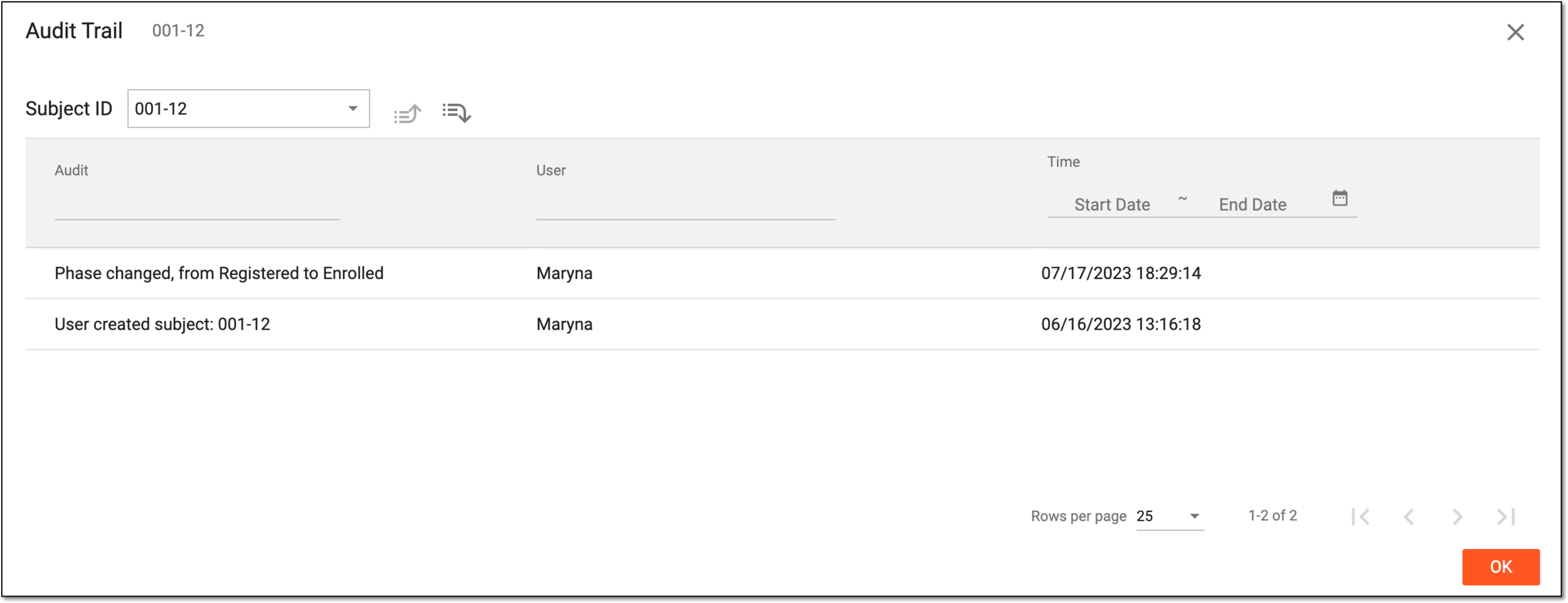 Figure 2. Viewing audit trail for subject
Tip
From the Subject ID field, you can select another subject to view their audit trail. Also, you can use the Next Level
 and Prev Level
  options to switch between the visit, form, and item levels of the audit trail.
Element
Details
Audit
Represents the description of an action performed to the subject.
User
Represents the name of the user who has performed the action.
Time
Represents the exact time and date when the action has been performed.
OK
Select
 to close the dialog.
Once the dialog is closed, you return to the Subject List page.
In EDC, all the actions with subjects, visits, CRFs, and individual form fields are recorded by the system. The history of such actions can be traced via the Audit Trail functionality.
In this section, you can learn how to review the history of actions performed on a specific visit, for instance, its completion.
Tip
The audit trail is recorded in the site's primary language to ensure a unified language for all data intended for analysis and regulatory review.
-
In the EDC application header, select the DATA ENTRY tab.
-
On the site list page that opens, select the tile representing the site with which you want to work.
Figure 1. Viewing site tile
-
In the Subject List table, next to the needed subject, select More
>
Audit Trail . -
In the Audit Trail dialog that opens, next to the subject ID, select Next Level
.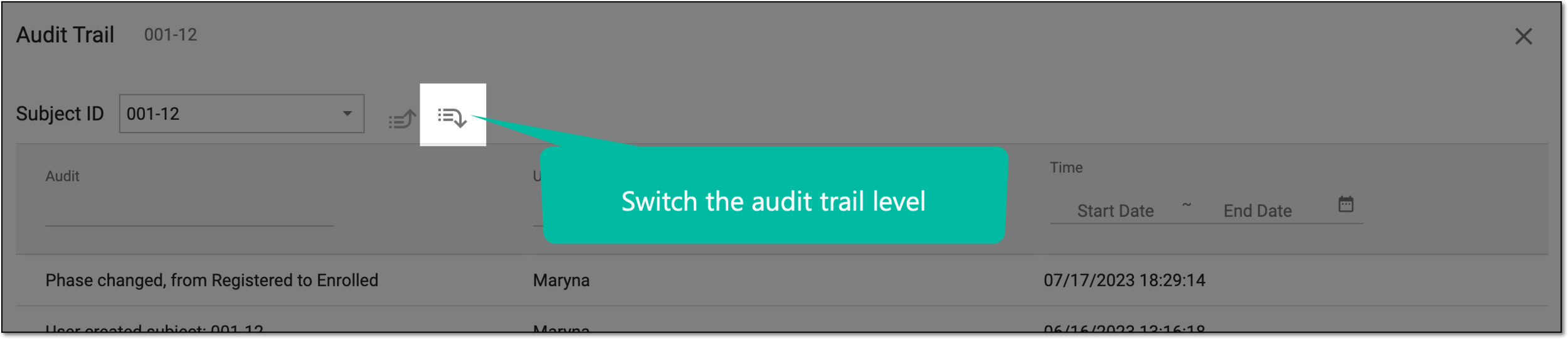 Figure 2. Switching from subject to visit audit trail
-
From the Visit Name field that appears, select the visit for which you want to review the history of actions.
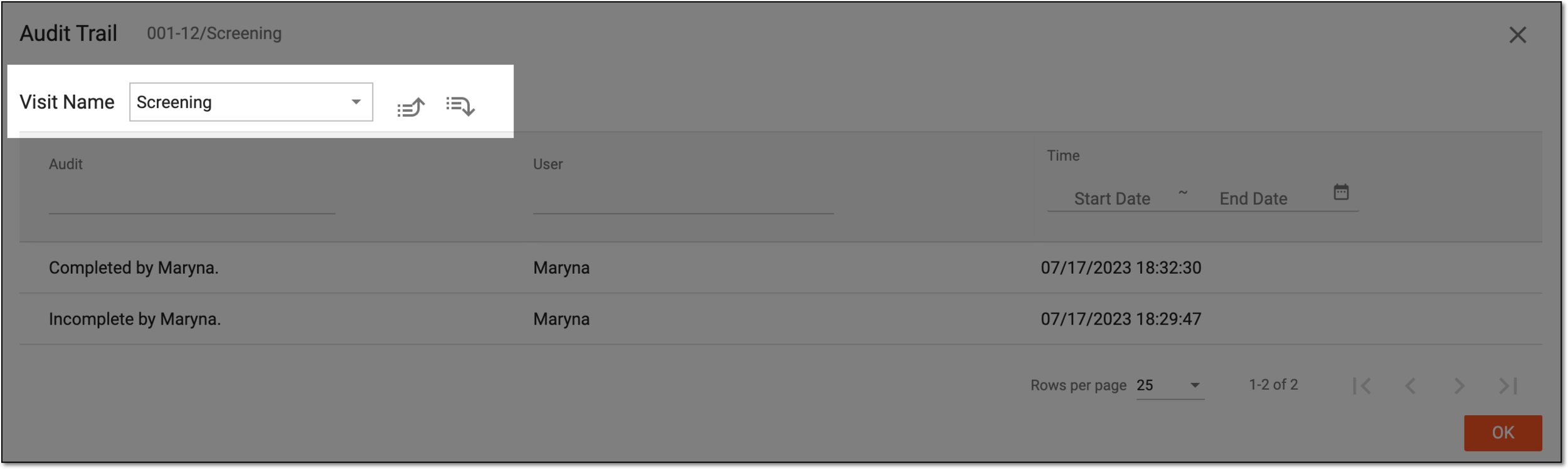 Figure 3. Selecting visit to view audit trail
-
In the table that appears, view the audit trail as explained in the following table.
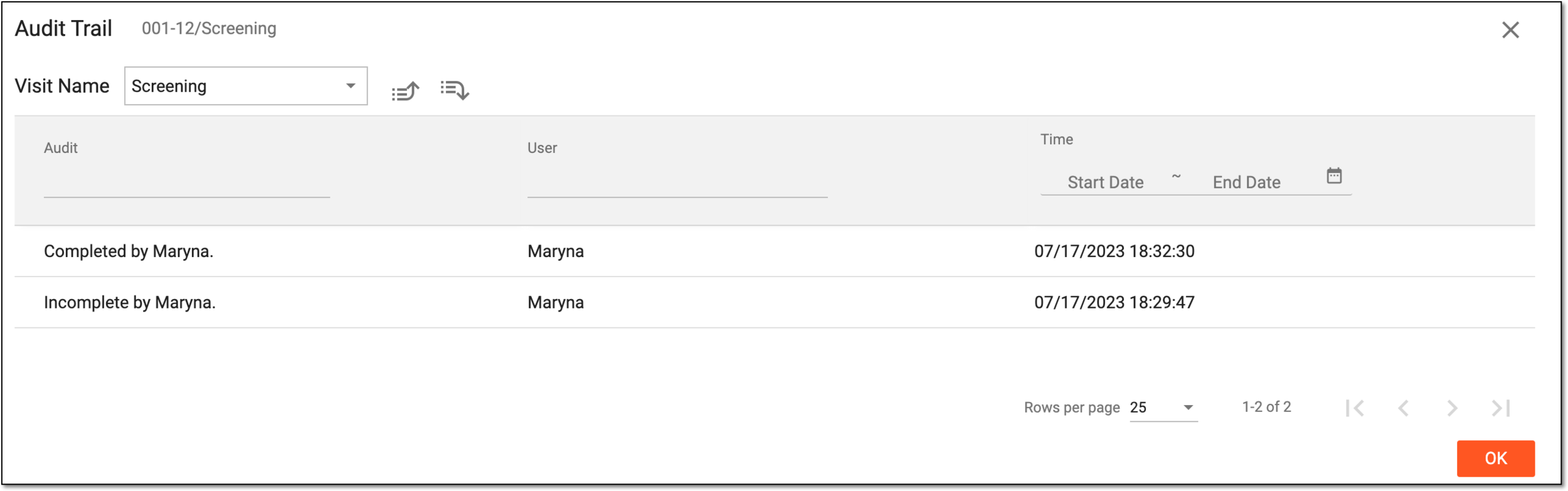 Figure 4. Viewing visit audit trail
Element
Details
Audit
Represents the description of an action performed on the visit.
User
Represents the name of the user who has performed the action.
Time
Represents the exact time and date when the action has been performed.
OK
Select
to close the dialog.
Once the dialog is closed, you return to the Subject List page.
In EDC, all the actions with subjects, visits, CRFs, and individual form fields are recorded by the system. The history of such actions can be traced via the Audit Trail functionality.
In this section, you can learn how to review the history of actions performed on a specific form, for instance, its completion, data change, and so on.
Tip
The audit trail is recorded in the site's primary language to ensure a unified language for all data intended for analysis and regulatory review.
-
In the EDC application header, select the DATA ENTRY tab.
-
On the site list page that opens, select the tile representing the site with which you want to work.
Figure 1. Viewing site tile
-
In the Subject List table, next to the needed subject, select More
>
Audit Trail . -
In the Audit Trail dialog that opens, next to the subject ID, select the Next Level
option until the Form Name field appears instead of the subject ID.Figure 2. Switching from subject to form audit trail
-
From the Form Name field, select the form for which you want to review the history of actions.
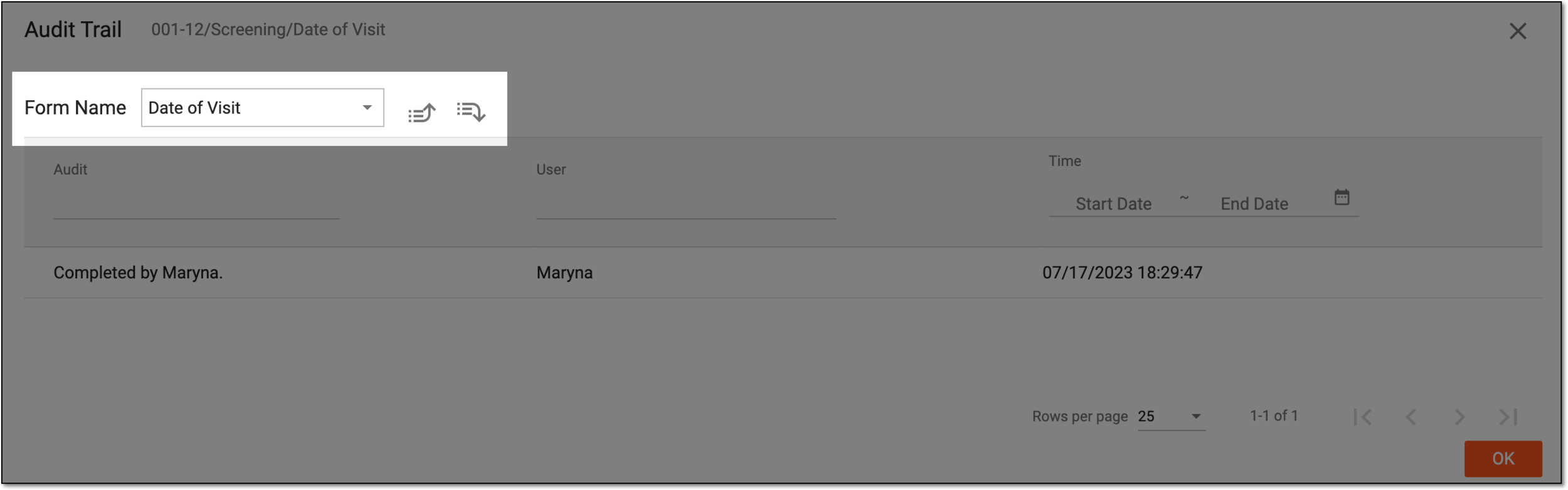 Figure 3. Selecting form to view audit trail
-
In the table that appears, view the audit trail as explained in the following table.
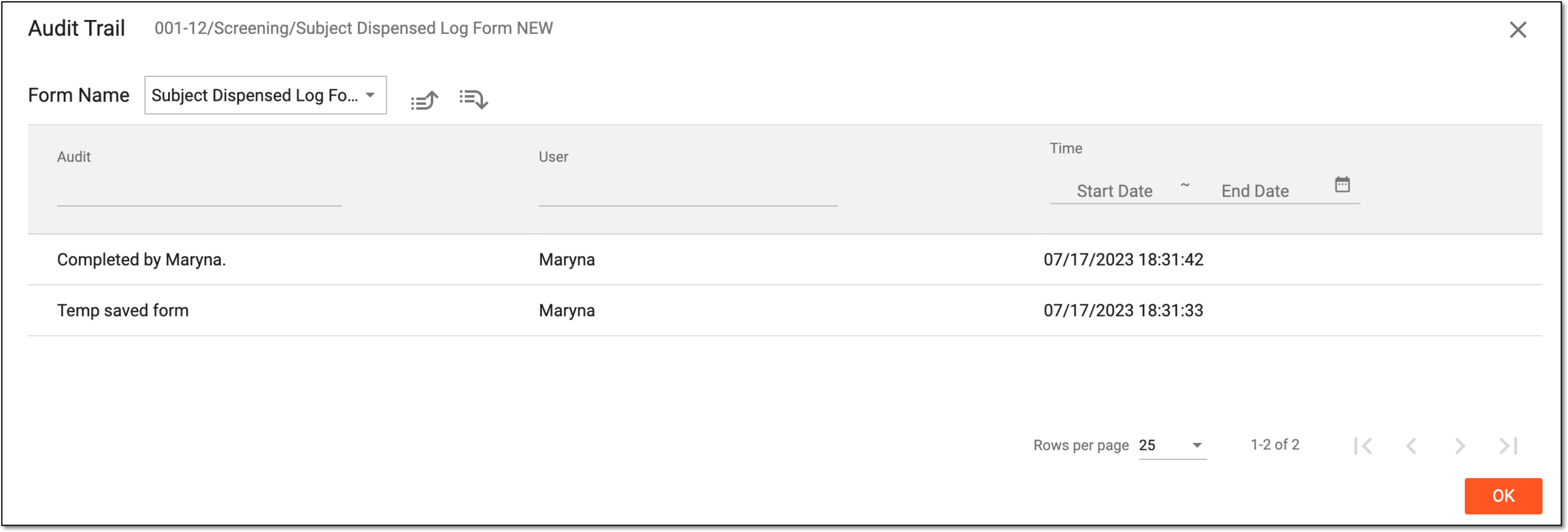 Figure 4. Viewing form audit trail
Element
Details
Audit
Represents the description of an action performed on the form.
User
Represents the name of the user who has performed the action.
Time
Represents the exact time and date when the action has been performed.
OK
Select
to close the dialog.
Once the dialog is closed, you return to the Subject List page.
In EDC, all the actions with subjects, visits, CRFs, and individual form fields are recorded by the system. The history of such actions can be traced via the Audit Trail functionality.
In this section, you can learn how to review the history of actions performed on a record that belongs to a specific CRF, for instance, its completion, data change, and so on.
Important
The record audit trail level is only available for the log forms as they have multiple records within one form.
The audit trail is recorded in the site's primary language to ensure a unified language for all data intended for analysis and regulatory review.
-
In the EDC application header, select the DATA ENTRY tab.
-
On the site list page that opens, select the tile representing the site you want to work with.
Figure 1. Viewing site tile
-
In the Subject List table, next to the needed subject, select More
>
Audit Trail . -
In the Audit Trail dialog that opens, next to the subject ID, select the Next Level
option until the Record Name field appears.Figure 2. Switching from subject to form audit trail
-
From the Record Name field, select the form for which you want to review the history of actions.
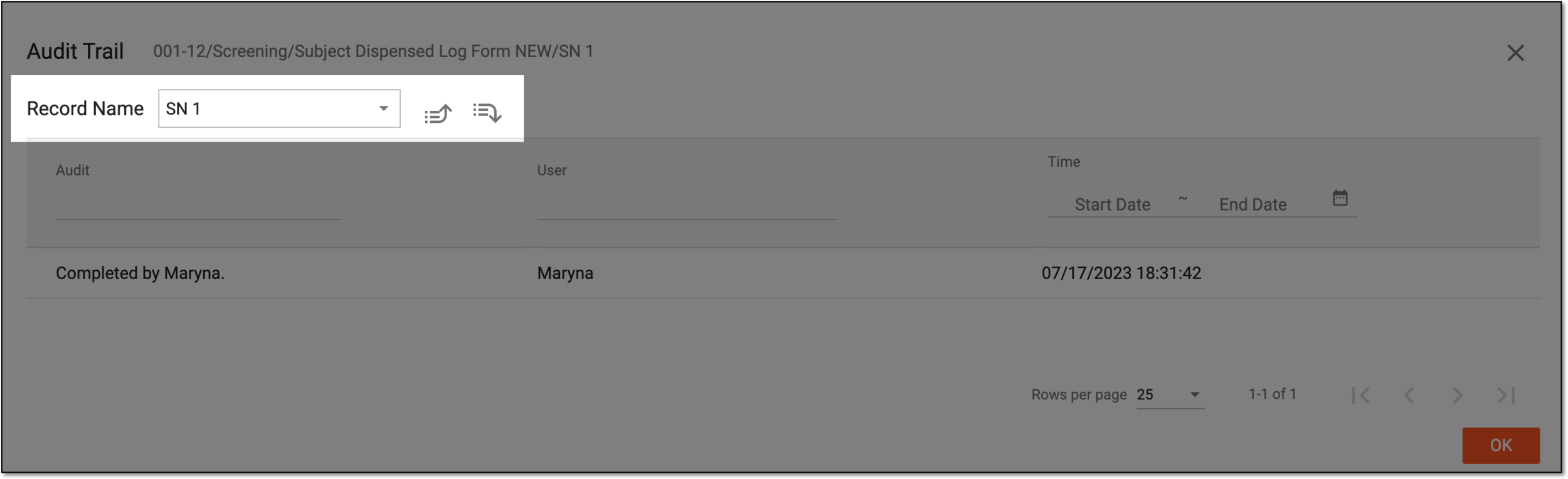 Figure 3. Selecting record to view audit trail
-
In the table that appears, view the audit trail as explained in the following table.
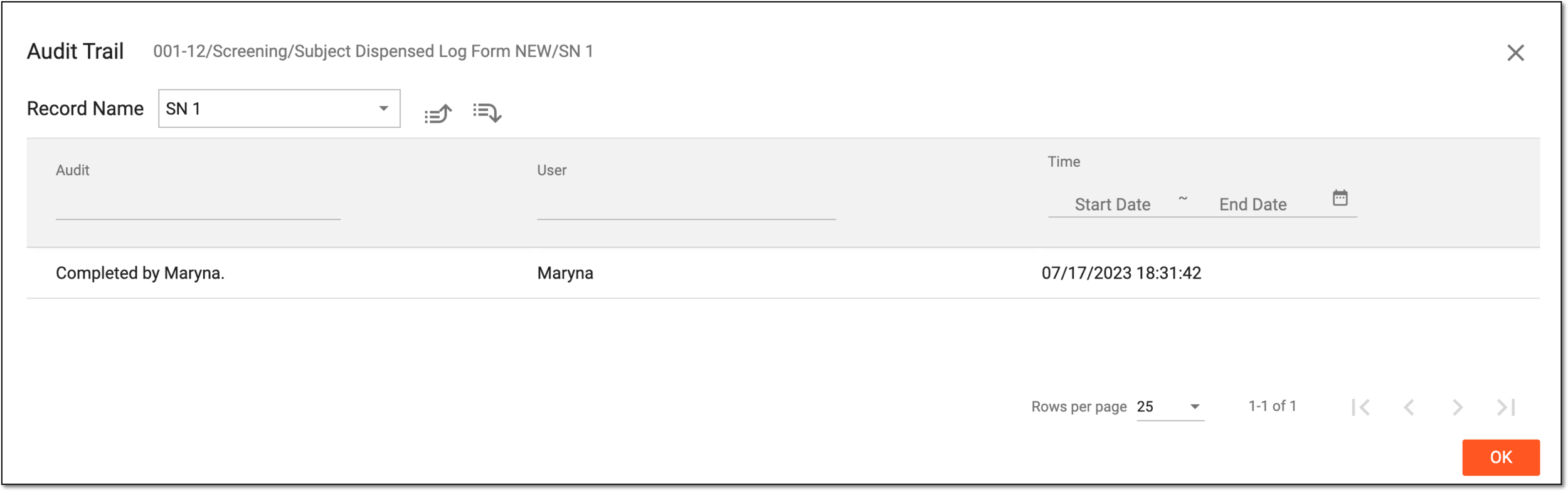 Figure 4. Viewing record audit trail
Element
Details
Audit
Represents the description of an action performed on the form record.
User
Represents the name of the user who has performed the action.
Time
Represents the exact time and date when the action has been performed.
OK
Select
to close the dialog.
Once the dialog is closed, you return to the Subject List page.
In EDC, all the actions with subjects, visits, CRFs, and individual form fields are recorded by the system. The history of such actions can be traced via the Audit Trail functionality.
In this section, you can learn how to review the history of actions performed on a specific form item, for instance, when the data has been entered, if it has been modified, and so on.
Tip
You can also view the audit trail of each individual item while working within the form.
The audit trail is recorded in the site's primary language to ensure a unified language for all data intended for analysis and regulatory review.
-
In the EDC application header, select the DATA ENTRY tab.
-
On the site list page that opens, select the tile representing the site with which you want to work.
Figure 1. Viewing site tile
-
In the Subject List table, next to the needed subject, select More
>
Audit Trail . -
In the Audit Trail dialog that opens, next to the subject ID, select the Next Level
option until the Item Caption field appears instead of the subject ID.Figure 2. Switching from subject to form audit trail
-
From the Item Caption field, select the item for which you want to review the history of actions.
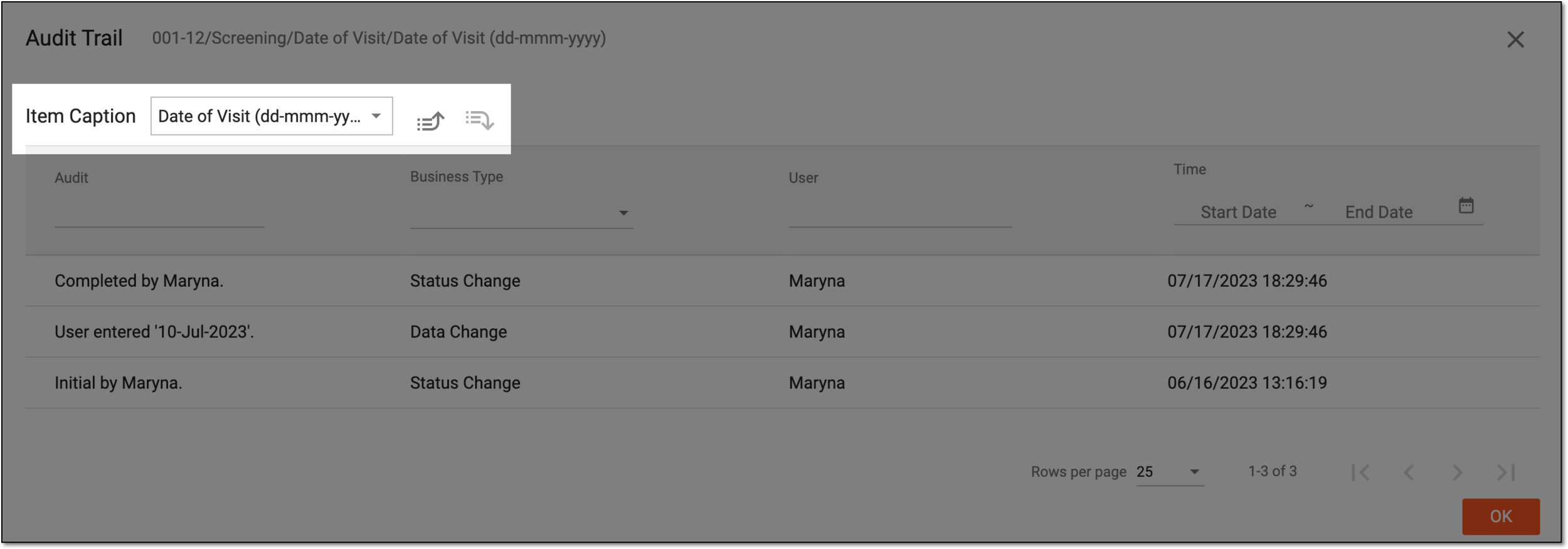 Figure 3. Selecting item to view audit trail
-
In the table that appears, view the audit trail as explained in the following table.
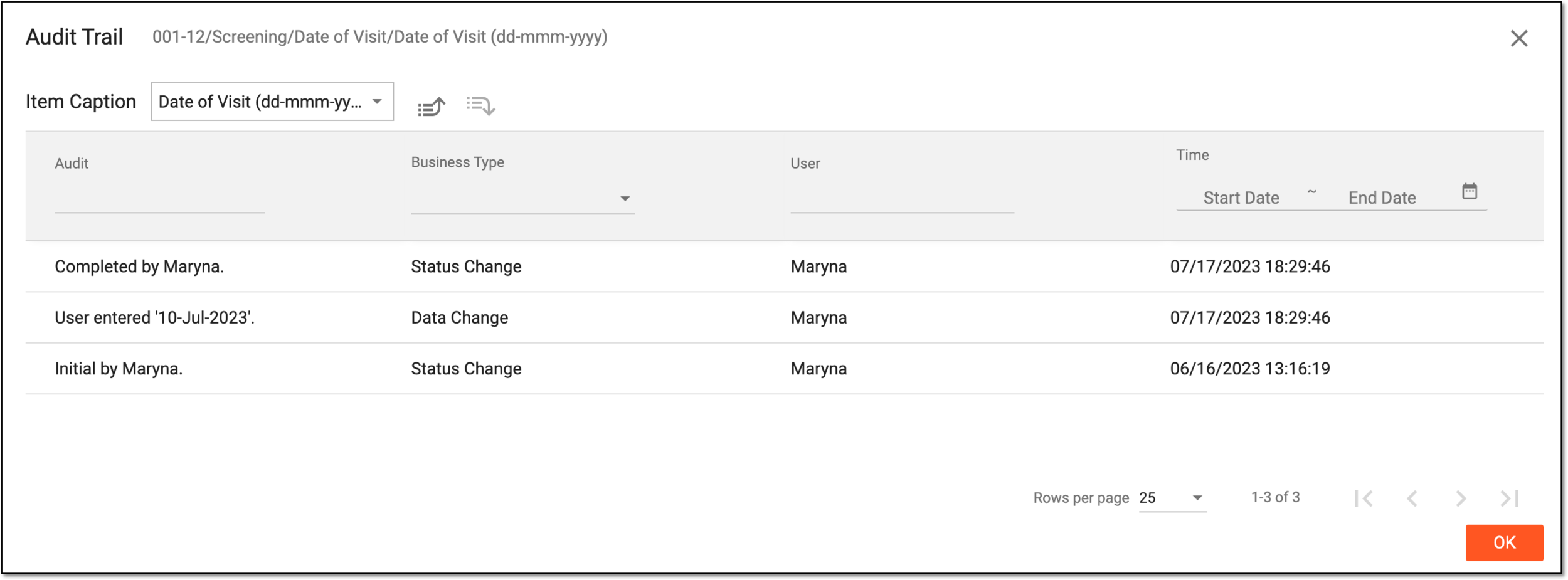 Figure 4. Viewing form item audit trail
Element
Details
Audit
Represents the description of an action performed on the form item.
Business Type
Represents the type of action performed on the form item, such as Status Change, Data Change, System Query, or Manual Query.
User
Represents the name of the user who has performed the action.
Time
Represents the exact time and date when the action has been performed.
OK
Select
to close the dialog.
Once the dialog is closed, you return to the Subject List page.
An occurrence in a clinical trial in which the subject comes to a site to receive treatment, undergo some tests, or complete other required procedures.
A specialized document in a clinical trial designed to collect the subject data.
See also eCRF.
A specific phase that a subject has to complete in the course of a clinical trial to move further to the next phase. For instance, Screening, Enrolled, Randomized, and others.
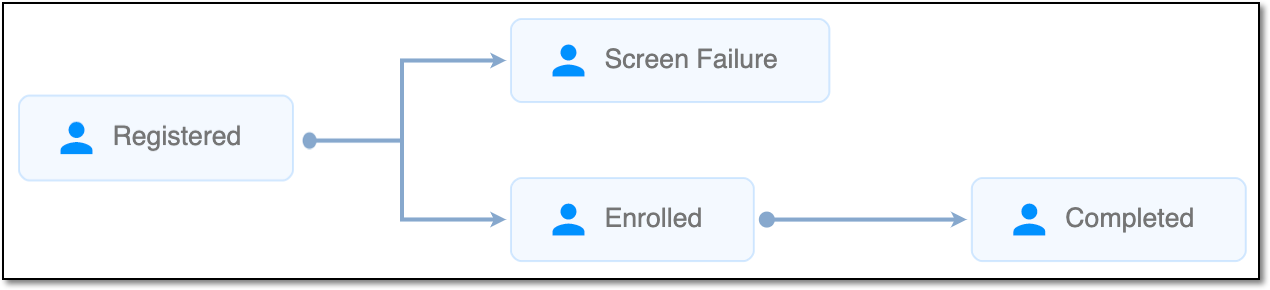 |
In eClinical, subject phases are designed individually for each study via the SD application, although they are referenced in others, like IWRS or EDC.
In a clinical trial, a location where the subject treatment and drug dispensation occur. It can be a hospital, a private laboratory, or other institutions.