Edit form relation to records
The functionality of Related Forms provides the option to connect the forms that have associated details, allowing for direct linking between data elements and helping to avoid discrepancies.
Important
The form relation is preconfigured for your study via the SD application, where you can establish which forms are interconnected and map their respective data elements for exhaustive precision of the final data output.
Upon data entry to the related form, you specify the interconnected records, and once submitted, they can be conveniently accessed directly from the CRF. Also, if the initial data entry has to be changed, you can remove the relation or add more records as needed.
-
In the EDC application header, select the DATA ENTRY tab.
-
On the site list page that opens, select the tile representing the site with which you want to work.
 Figure 1. Accessing site tile
-
In the Subject ID column, select the ID of a subject to open their visit overview.
 Figure 2. Selecting subject
-
In the subject visit tree of the page that opens, expand the needed visit that contains the related form you want to edit.
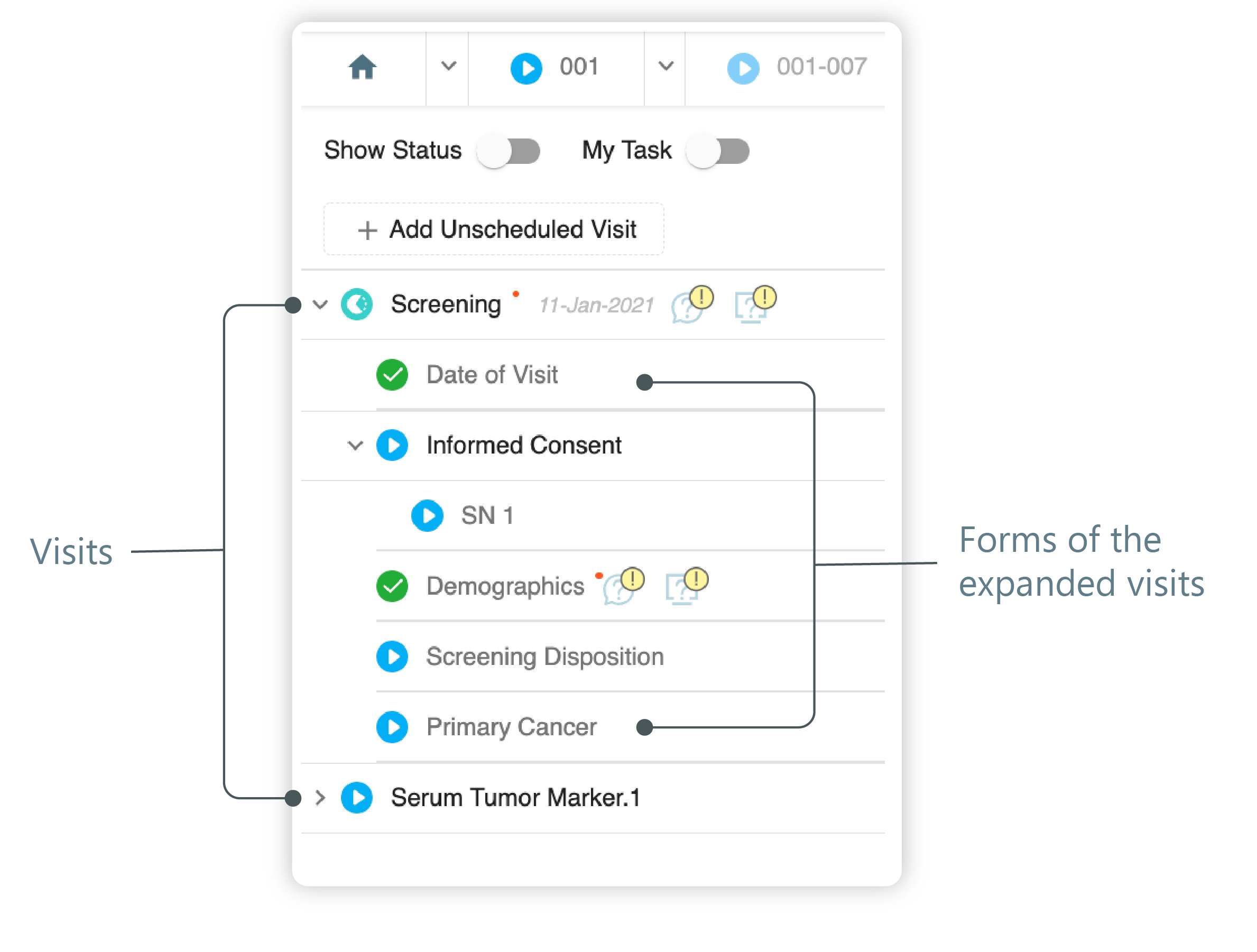 Figure 3. Left panel. Visits and their forms
Tip
The expanded list contains visits and forms in different statuses marked distinctly. You can access the visit and forms according to their status. The visits and forms are marked with:
-
 : the visit/form is in the initial state.
 -
 : the visit/form is incomplete.
 -
 : the visit/form is completed.
-
-
From the expanded list of forms, select the form that you know to contain the related records that need to be updated. Mostly, these are the forms on the subject's medication.
-
On the form page that opens, for the question that is configured to be related to another form, select the sequential number that is already input there and then select the relation option
 to open the list of records that are already selected and those available for linking.
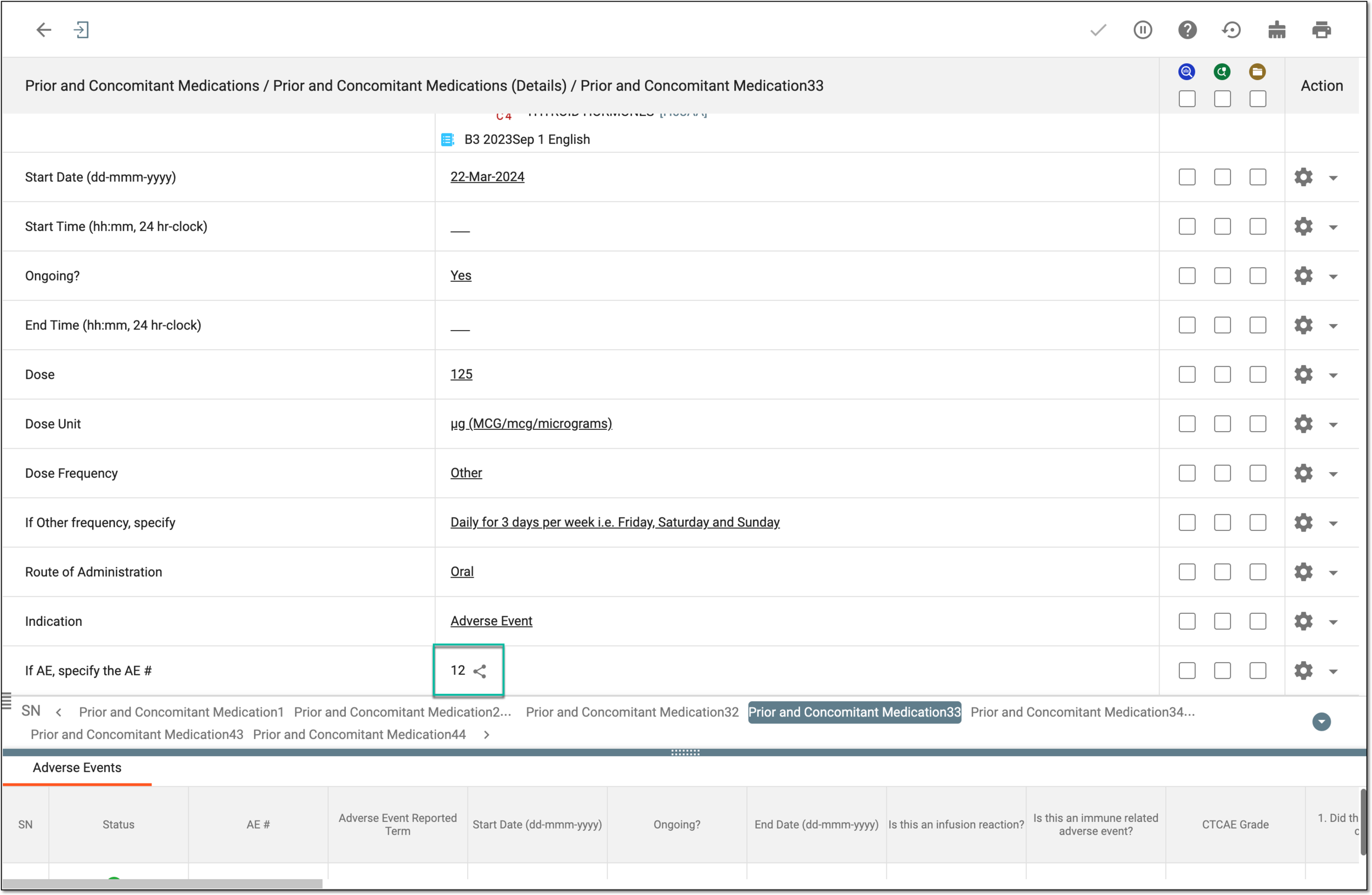 Figure 4. Selecting to edit form relation
Tip
Another option that might be available for record linking in forms is Reference Item
 . Utilizing this option results in the same dialog for related record selection. The difference between related forms and reference items is in their SD configuration specifics. To learn more, refer to the Edit related form settings and Add reference
item to question sections.
. Utilizing this option results in the same dialog for related record selection. The difference between related forms and reference items is in their SD configuration specifics. To learn more, refer to the Edit related form settings and Add reference
item to question sections. Figure 5. Updating referenced item
-
In the dialog that appears, review the list of records available. The selected are the ones currently related. Clear or select the checkboxes to establish the relation as needed. Then click
 .
.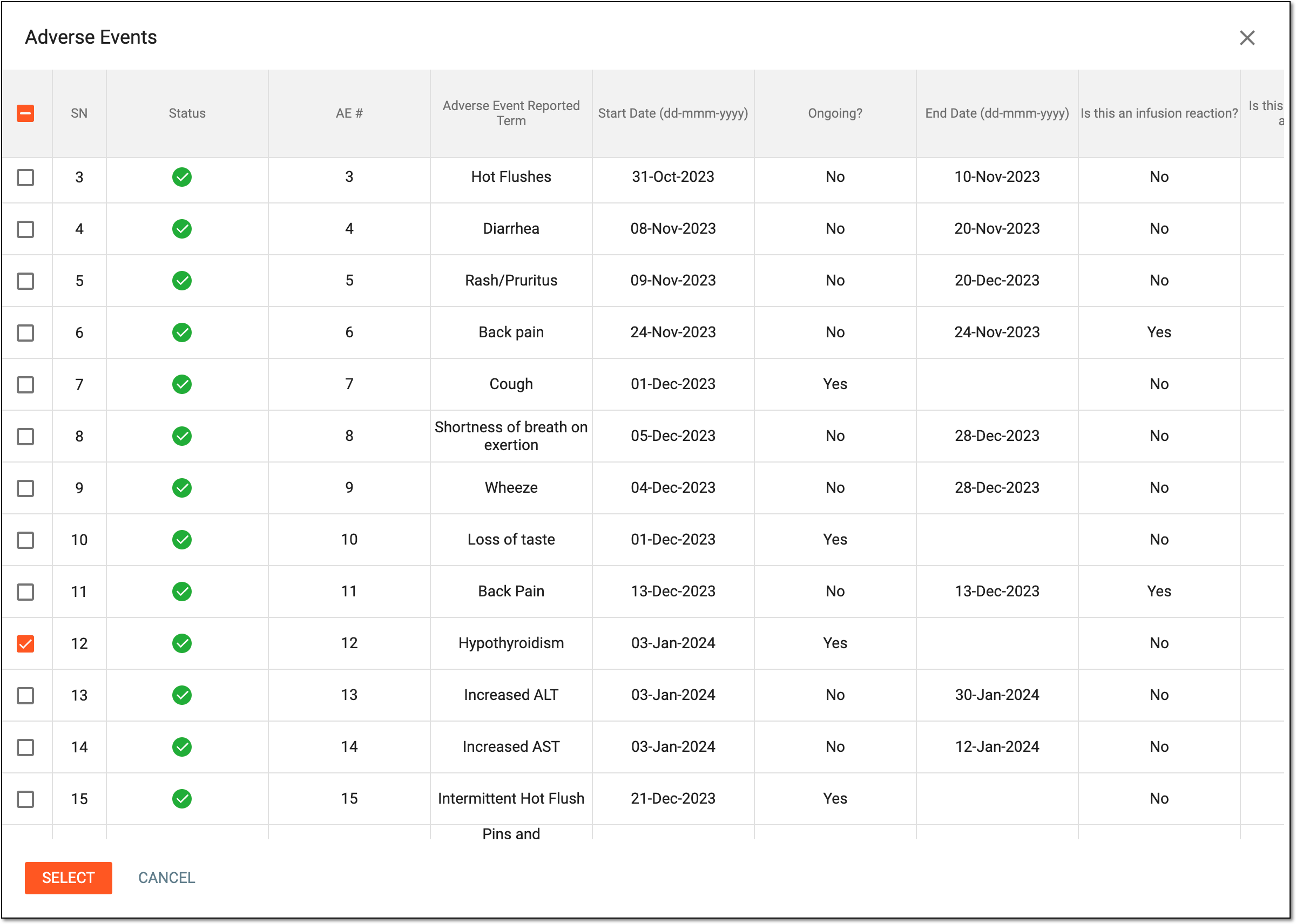 Figure 6. Selecting related records for form
-
To complete the amendment, in the text field that appears, enter the reason for changing previously submitted data—due to an entry error, source document error, or else—and press ENTER on your keyboard.
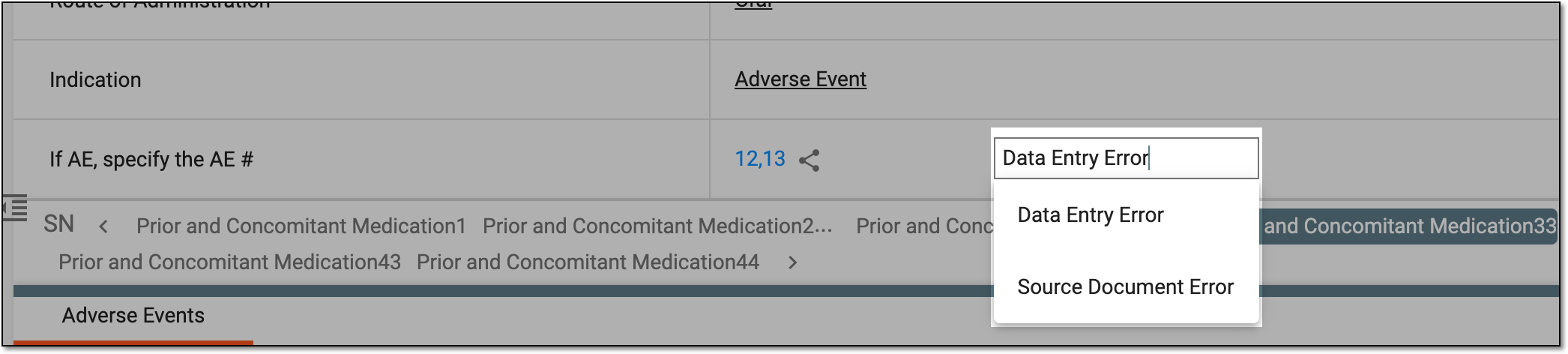 Figure 7. Entering reason for data change
-
The selected records' sequential numbers are now displayed in the respective field. If the data entry is completed, select Submit
 .
.
Once the form is submitted, the data becomes updated and the new relation between the form and respective records is established. The Record Changed  indicator appears next to the updated data element on the form.
 |