Review related form records
The functionality of Related Forms provides the option to connect the forms that have associated details, allowing for direct connection between data elements and helping to avoid discrepancies. The form relation is preconfigured for your study via the SD application, where you can establish which forms are interconnected and map their respective data elements for exhaustive precision of the final data output.
Upon data entry to the related form, you specify the interconnected records, and once submitted, they can be conveniently accessed directly from the CRF.
For instance, to the Concomitant Medication form, you have added related records of the subject's adverse events—from their respective Adverse Events form—to specify exactly for which symptoms the drug was taken.
Now, all users who access the form for review or further management can see the data of the Concomitant Medication form along with the complete list of AE records related to it.
-
In the EDC application header, select the DATA ENTRY tab.
-
On the site list page that opens, select the tile representing the site with which you want to work.
 Figure 1. Accessing site tile
-
In the Subject ID column, select the ID of a subject to open their visit overview.
 Figure 2. Selecting subject
-
In the subject visit tree of the page that opens, expand the needed visit that contains the related form you want to access.
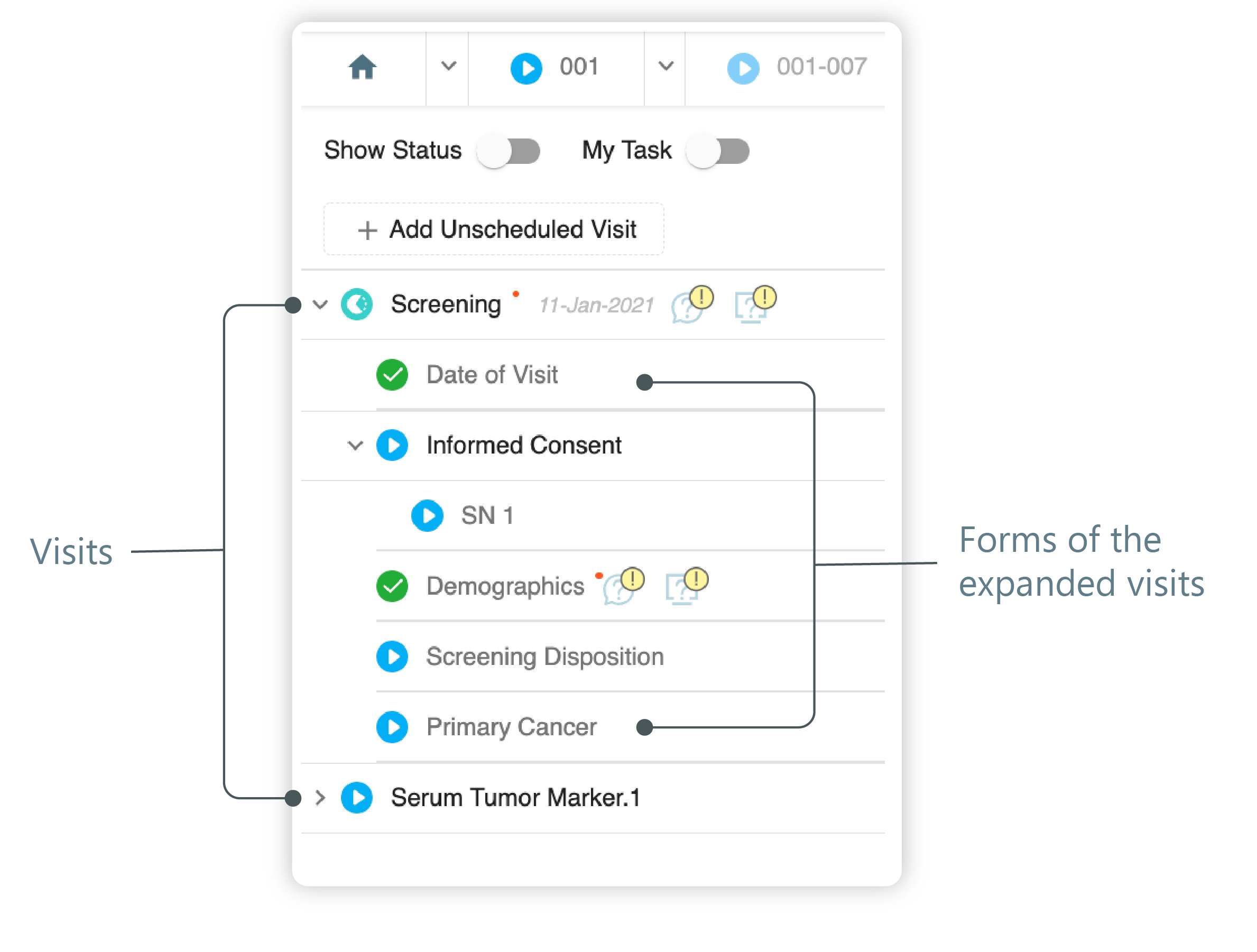 Figure 3. Left panel. Visits and their forms
Tip
The expanded list contains visits and forms in different statuses marked distinctly. You can access the visit and forms according to their status. The visits and forms are marked with:
-
 : the visit/form is in the initial state.
 -
 : the visit/form is incomplete.
 -
 : the visit/form is completed.
-
-
From the expanded list of forms, select the form that you know to contain the related records. Mostly, these are the forms on the subject's medication.
-
On the CRF page that opens, the related records' sequential numbers are displayed in the respective field. You can also review the list of related records and their details via the interactive panel below the form window.
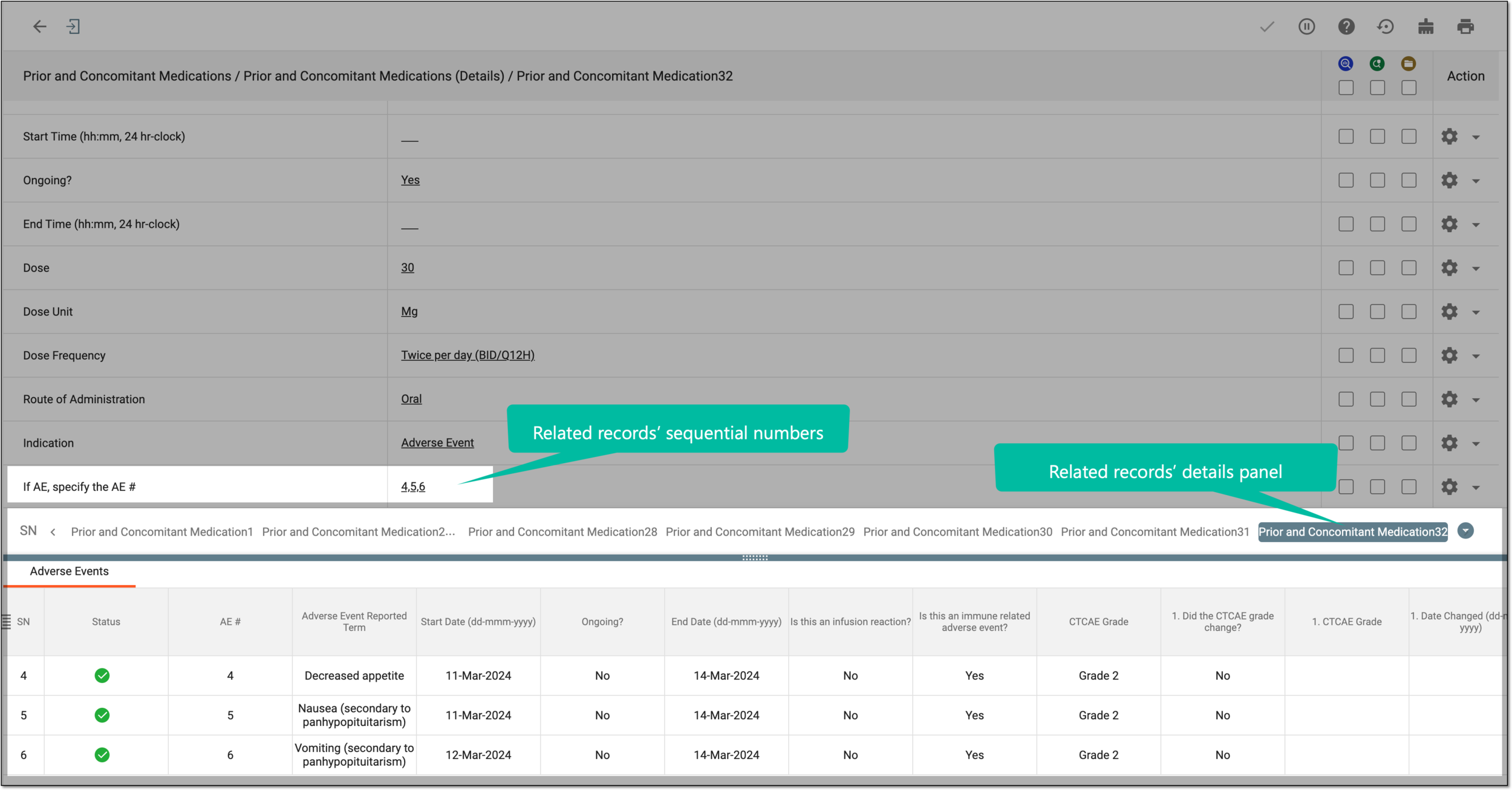 Figure 4. Reviewing related record numbers and details
You have reviewed the records related to your form. If needed, you can also edit the form relation to records.