Edit related form settings
The Study Designer application has various tools to maintain different form settings. One such setting includes the configuration of visit form relations in terms of cross-referencing. In complex studies, data from multiple CRFs may be interrelated or dependent on each other during data entry in EDC. By referencing another form in a specific text field, you can establish a link to this form's entire details. The reference to the relevant CRF provides a summary or indication of where to find the complete information on another form.
There is a similar feature in the Study Designer application that enables the creation of cross-references to specific fields on the needed forms. However, this functionality limits you to view the details only of the referenced items and not the entire form details.
Important
This feature is available only for visit forms of the Simple  , Log
, Log  , and Simple-Log
  types.
-
In the Study Designer application header, select the CRF DESIGN tab.
-
In the toolbar, select the latest draft CRF version marked with the respective unlock symbol
 , otherwise, you cannot perform any actions.
 Figure 1. Selecting latest draft CRF version
-
In the left pane that appears, select the needed visit form.
Tip
To locate the needed forms faster, use Search
 on the workspace toolbar of the
left pane.
on the workspace toolbar of the
left pane. -
On the form content page that opens, select the Related Form Settings tab.
Important
If this tab is not available, then open the tabs menu
 and select the Related Form Settings
checkbox.
and select the Related Form Settings
checkbox. -
In the table that appears, configure forms relations as explained in the following table.
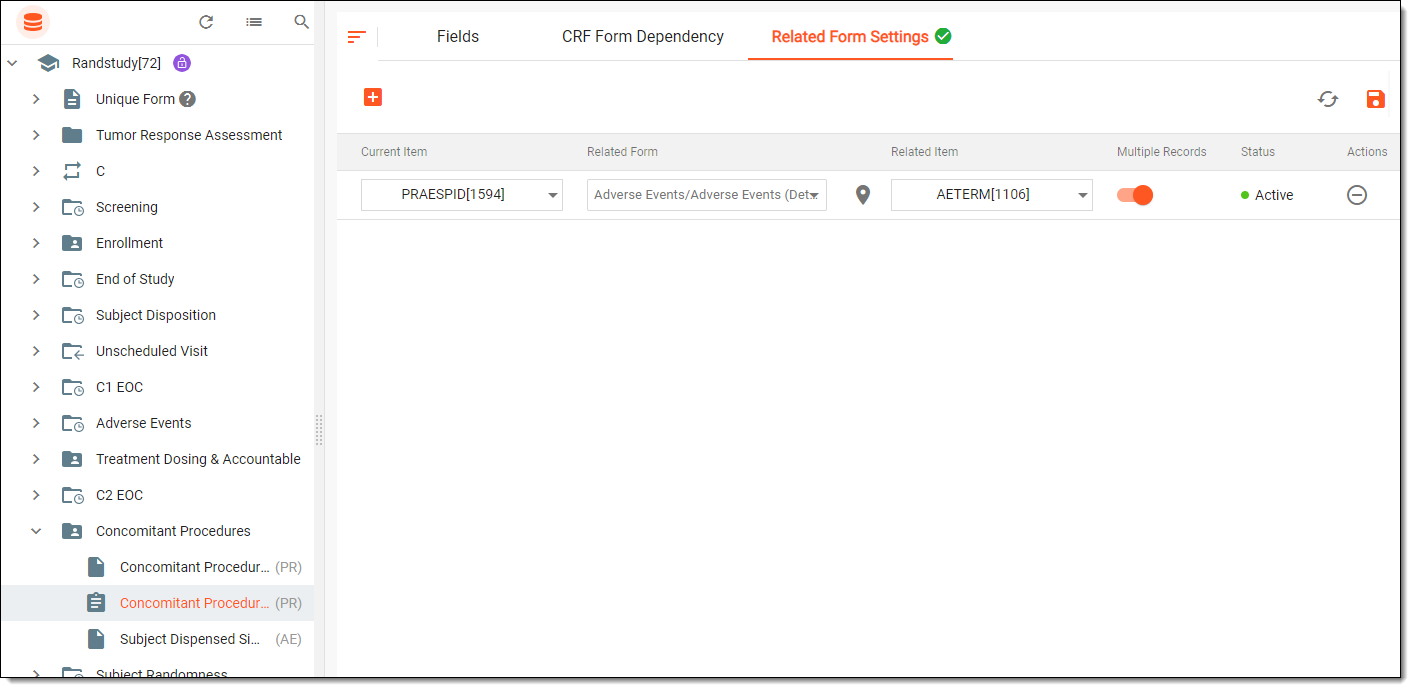 Figure 2. Configuring forms relations
Element
Details
New Item
Select
 to add a new related setting entity. Once added, fill in the fields that become available to make the configuration viable. You can add as many
related setting entities as needed.
to add a new related setting entity. Once added, fill in the fields that become available to make the configuration viable. You can add as many
related setting entities as needed.Current Item
From the dropdown list, select the needed variable representing the text field that is to contain the cross-reference. Bear in mind, the variables available on the list are associated only with text items.
Related Form
From the dropdown tree, select the visit form that is to be referenced.
Go to CRF Form Fields
Select
 to navigate to the form selected as a reference.
Related Item
From the dropdown list, select the field variable that is to represent the ID or a term to specify the occurred event pertaining to the related form.
Multiple Records
Switch this toggle on if you want the cross-reference to the related form to include the reference to all its form records in EDC. If switched off, the reference only to the first form record will be provided.
Status
Represents the current status of the related configuration. If all the previous fields have been filled in, the status becomes Active.
Delete
Select
 to remove the needed related setting entity.
 -
Then from the workspace toolbar, select
 to save the configuration.
Once saved, the related settings of a visit form are done.