Populate form settings
The Study Designer application has various tools to maintain different form settings. One such setting includes the configuration of how the baseline data needs to be populated between visit forms during data entry in EDC. Baseline data represents the initial measurements or subjects' characteristics at the start of a study. By populating baseline data from one CRF to another, you ensure consistency and accuracy in data entry. This avoids redundant data entry efforts and minimizes the risk of data discrepancies or errors that may arise from manual duplication.
Important
This feature is available only for visit forms of the Log  and Simple-Log
  types.
-
In the Study Designer application header, select the CRF DESIGN tab.
-
In the toolbar, select the latest draft CRF version marked with the respective unlock symbol
 , otherwise, you cannot perform any actions.
 Figure 1. Selecting latest draft CRF version
-
In the left pane that appears, select the needed visit form.
Tip
To locate the needed forms faster, use Search
 on the workspace toolbar of the
left pane.
on the workspace toolbar of the
left pane. -
On the form content page that opens, select the Populate Form Settings tab.
Important
If this tab is not available, then open the tabs menu
 and select the Populate Form Settings
checkbox.
and select the Populate Form Settings
checkbox. -
In the table that appears, select the assessment form by, first, selecting the visit and then selecting the log form that is to serve as a baseline.
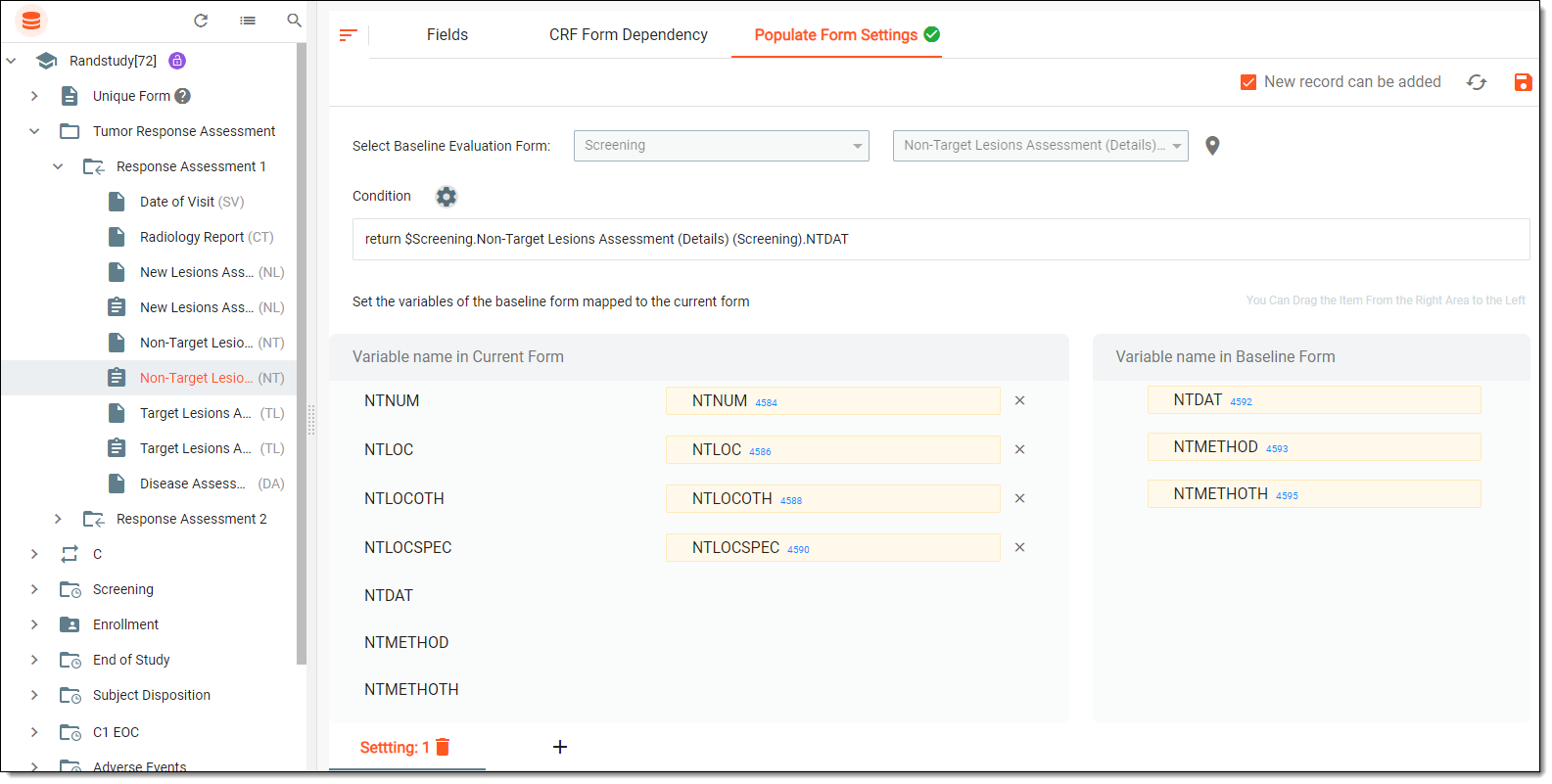 Figure 2. Configuring populate settings
-
Specify the condition, if needed, by selecting
 and entering the expression. This condition defines how the data from the baseline form is to populate on the
selected log form in EDC during the data entry process.
and entering the expression. This condition defines how the data from the baseline form is to populate on the
selected log form in EDC during the data entry process.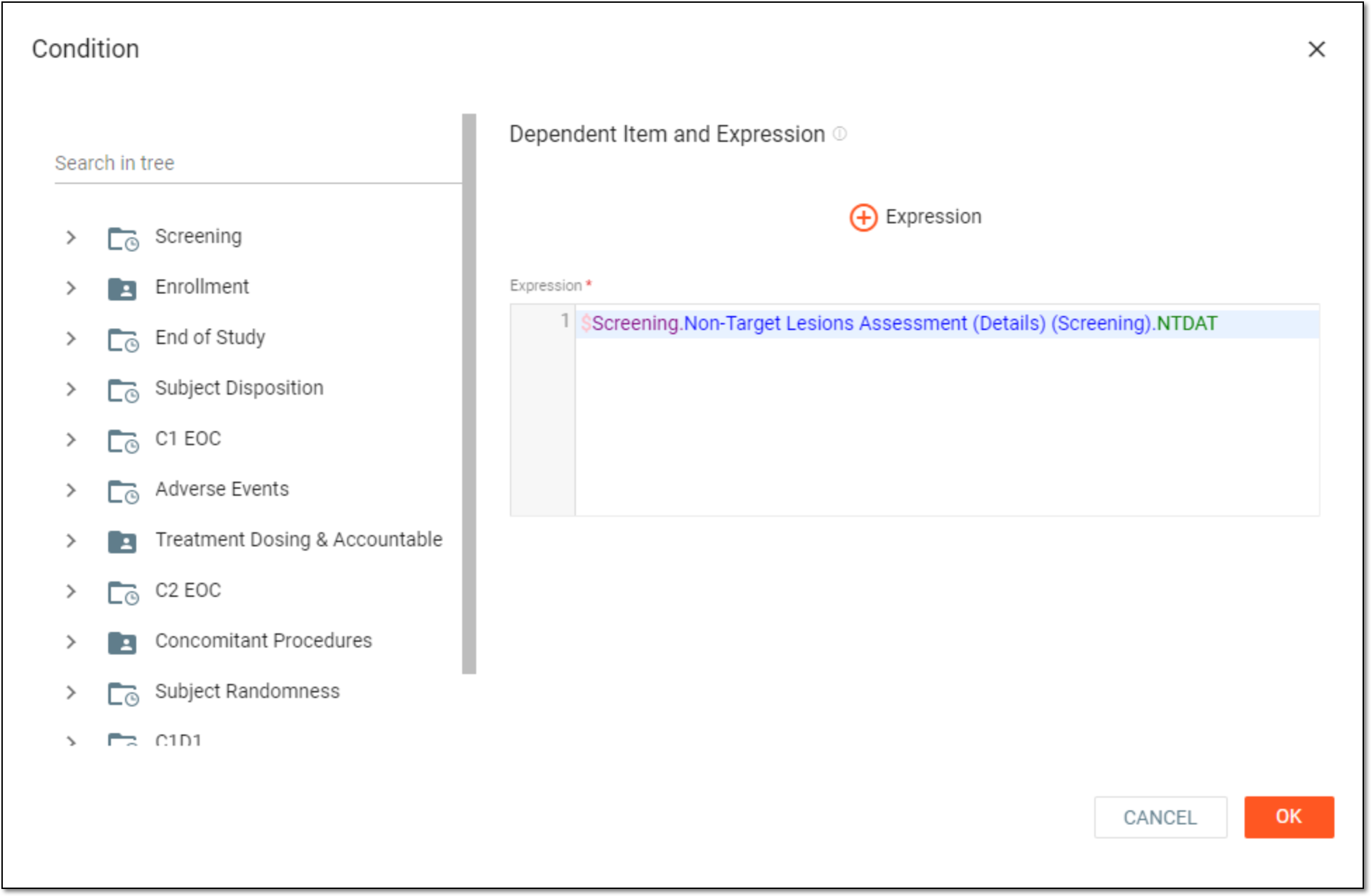 Figure 3. Defining condition for baseline data population
-
Once configured, select and drag baseline form variables to the variables of the current form to establish the mapping.
-
From the workspace toolbar, select or clear the New record can be added checkbox. If selected, it will allow users to add multiple form records to the populated log form in the EDC system.
-
From the same workspace toolbar, select
 to save the configuration.
Tip
Upon saving the configuration, you can select
 to add another baseline form with the condition to populate data in some other fields on
the same log form. Select
to add another baseline form with the condition to populate data in some other fields on
the same log form. Select  next to the setting number to delete it from the configuration.
Once saved, the populate setting of the log form is created.