Edit dispensing form settings
The Study Designer application has various tools to maintain different form settings. One such setting includes the indication of forms as intended for dispensation. The purpose of having dispensing forms is to streamline and automate the process of recording medication or treatment administration in the EDC system based on data generated from IWRS.
By integrating the dispensing case report form (CRF) with IWRS, data regarding the items administered to subjects can be automatically populated to EDC, reducing the likelihood of human error or manual data entry mistakes. As medications or treatments are dispensed to subjects, the relevant data is immediately captured on the form, providing up-to-date information on the dispensation status. This ensures that the recorded information is accurate, reliable, and consistent with the dispensation data stored in IWRS.
Important
This feature is available for any form of any type except for Grid  and Simple-Grid
  .
.
-
In the Study Designer application header, select the CRF DESIGN tab.
-
In the toolbar, select the latest draft CRF version marked with the respective unlock symbol
 , otherwise, you cannot perform any actions.
 Figure 2. Selecting latest draft CRF version
-
In the left pane that appears, select the needed form.
Tip
To locate the needed forms faster, use Search
 on the workspace toolbar of the
left pane.
on the workspace toolbar of the
left pane. -
On the form content page that opens, select the Dispensing Form Settings tab.
Important
If this tab is not available, then open the tabs menu
 and select the Dispensing Form Settings
checkbox.
and select the Dispensing Form Settings
checkbox.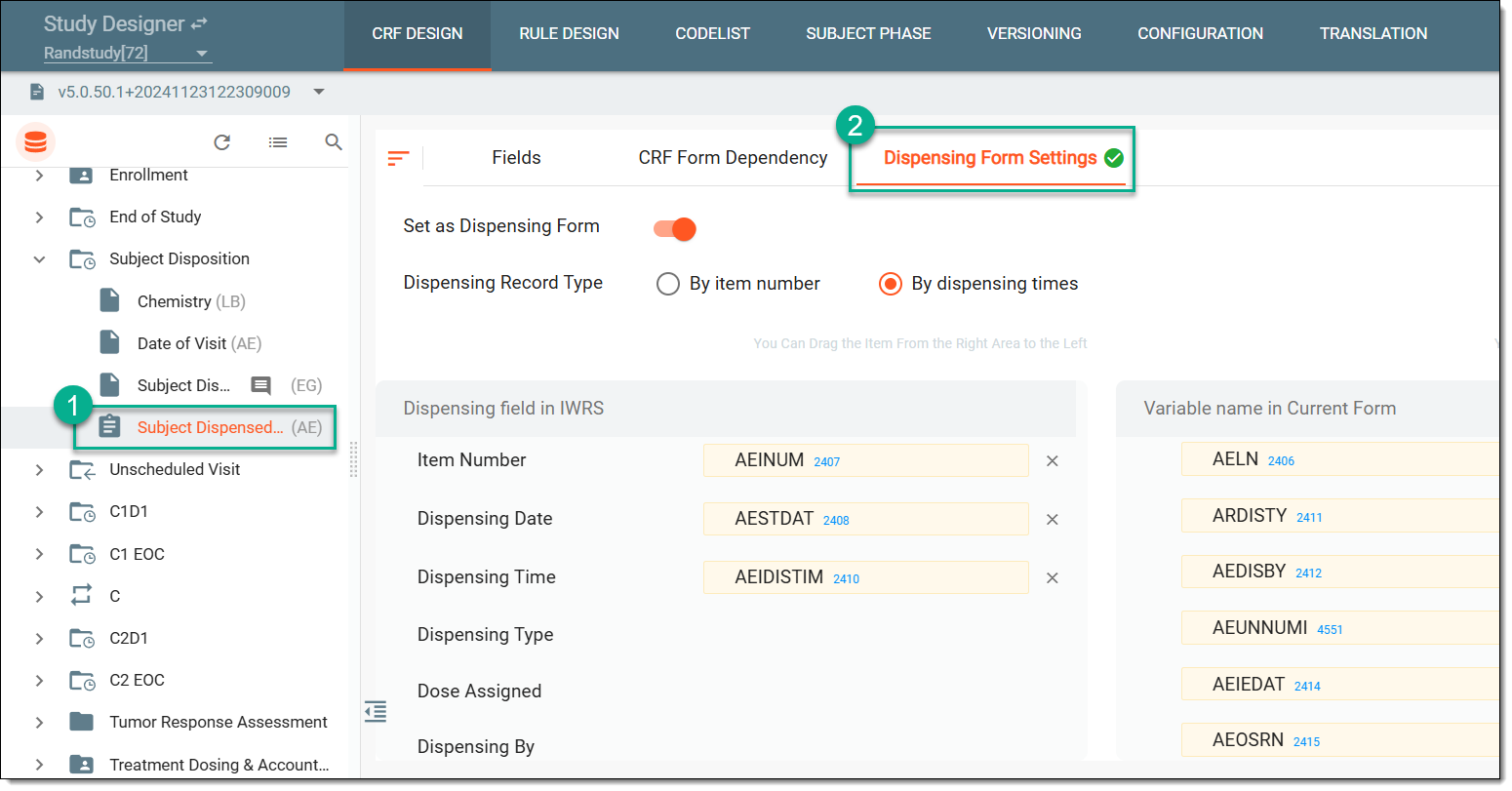 Figure 3. Viewing dispensing form settings
-
In the table that appears, you need to switch the Set as Dispensing Form toggle on to start configuring a form as dispensing.
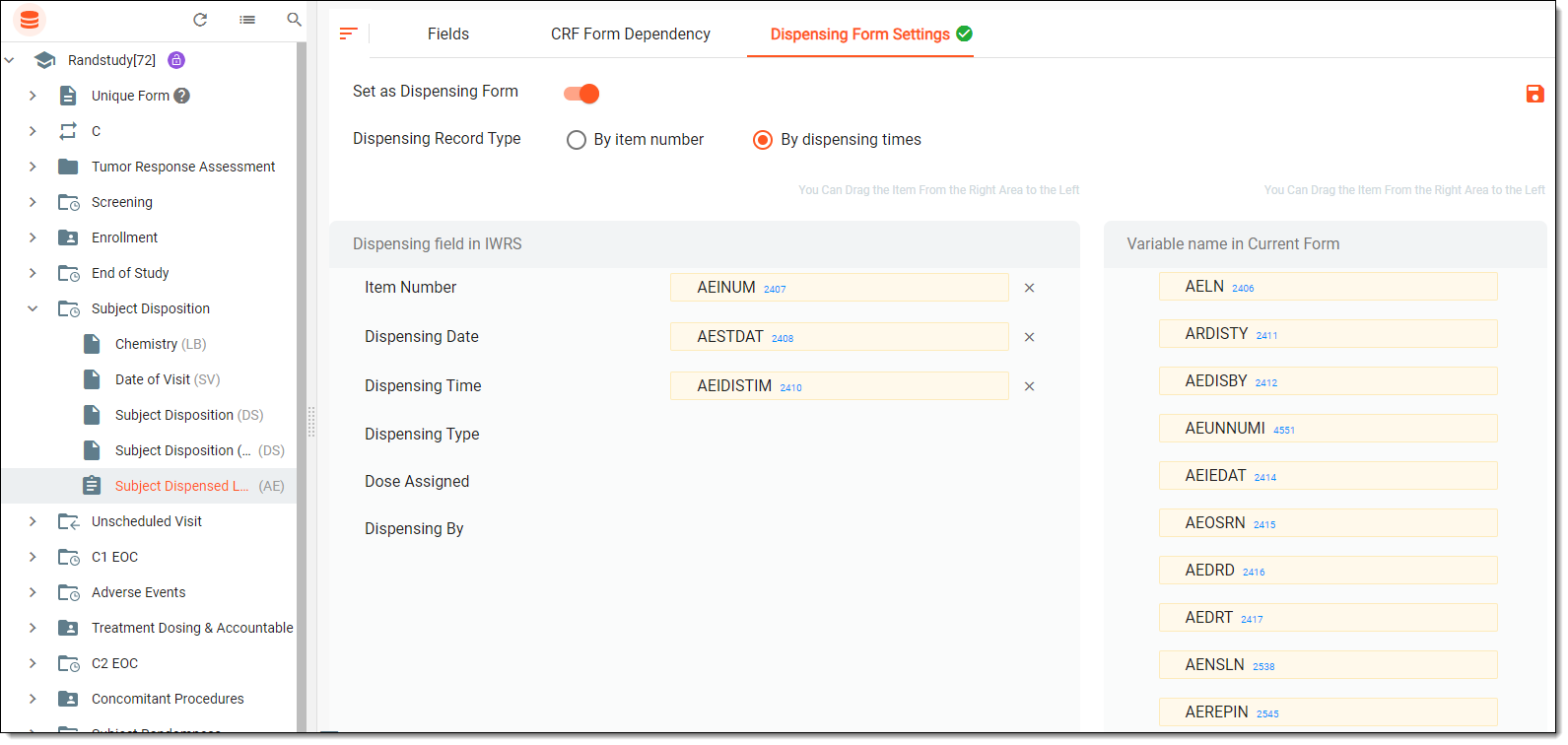 Figure 4. Configuring form as dispensing
-
Then set a Dispensing Record Type by selecting one of the following options:
-
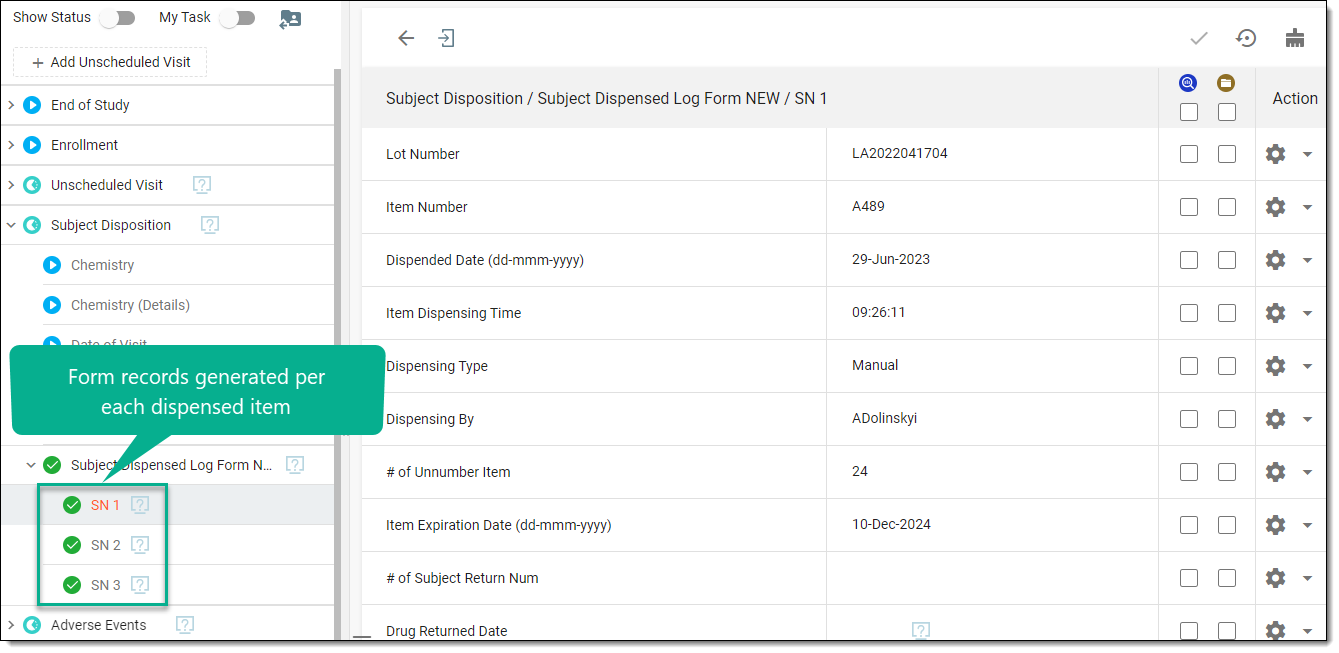
By item number: the form records will be generated in EDC for each separate item dispensed in IWRS.
-
By dispensing times: the form records will be generated in EDC for each time a bunch of items is dispensed in IWRS.
-
-
Once the dispensing record type is specified, select and drag variables of the current form to dispensing field names available in IWRS to establish the mapping. This is done so the dispensing data in IWRS can be captured in corresponding fields on the form in EDC.
The variables available for mapping are explained in the following table.
Variable
Details
Item Number
Represents the item number (also known as "labels") of the drug.
Dispensing Date
Represents the date when the drug was dispensed as recorded in IWRS.
Dispensing Time
Represents the time when the item was dispensed as recorded in IWRS.
Dispensing Type
Represents the dispensing type selected by the user while dispensing medication to the subject. The types are as follows: Manual, Scheduled, Unscheduled, and Replacement (when the drug item has been replaced with another one for some reason).
Dose Assigned
Represents the dispensing package assigned to the subject for the visit.
Dispensing By
Represents the name of the user who has dispensed items to the selected subject.
# of Unnumbered Item
Represents the total number of subitems or unnumbered items that you want to return.
For instance, in this context, a subitem can refer to the pill if an item is a medication bottle. The subitems are referred as unnumbered items because they aren't assigned ID numbers. Only the items have ID numbers.
# of Subject Returned
Represents the total number of items returned by the subjects during the visit.
This information appears in this field only when user registers the return of items in IWRS.Return Date
Represents the date when the item is returned by the subject.
Return Time
Represents the time when the item is returned by the subject.
Lot Number
Represents the lot number of the dispensed item.
Expiration Date
Represents the expiration date of the lot dispensed as recorded in IWRS.
Replacement Item Number
Represents the item number of the item replacement. This is only applicable if Replacement is chosen as the dispensing type.
# of Subject Lost
Represents the number of items lost by the subjects during the visit.
Item Type
Represents the type of the item, such as bottles, vials, and so on.
Unnumbered Item Unit
Represents the unit of the unnumbered items, such as tablets, capsules, and so on.
-
From the workspace toolbar, select
 to save the dispensing form configuration.
Once saved, the form is set as dispensing and will collect data populated from IWRS after it is published to EDC.