Publish CRF version to EDC
A CRF stands for case report form, a document used in clinical trials to collect and record study data. As the trial evolves, new insights or challenges may emerge, requiring changes to the CRF. These modifications, especially after data collection has commenced in the EDC system, lead to what is known as versioning. This process involves adapting the CRF to new protocol requirements or data collection processes during the clinical trial.
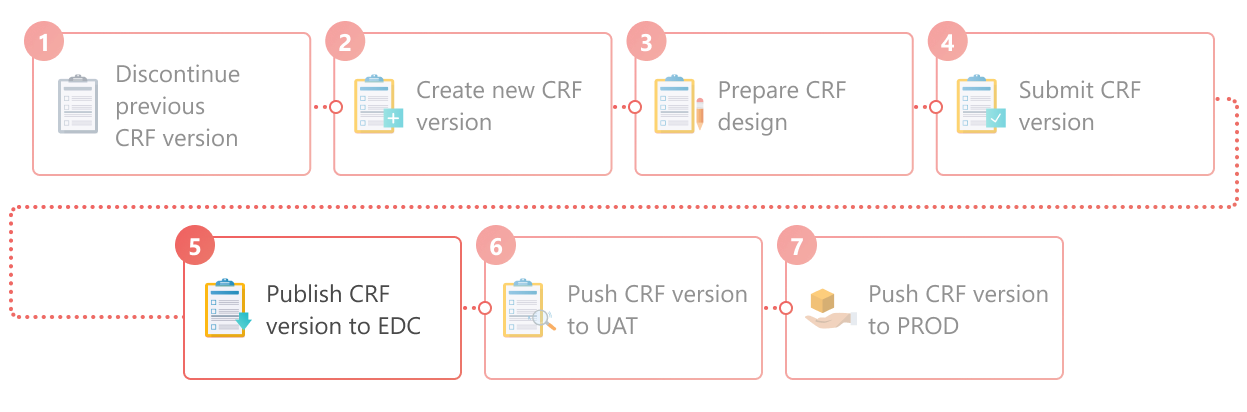
When maintaining CRF versions, you can publish the most recently submitted one to EDC. The version publication marks the transition of the CRF from the design and testing phase to active use, enabling the collection of subject data in the EDC system in line with the latest approved protocol amendments. The CRF version can be published in either of the lifecycles depending on the current status of your study.
Important
To publish the CRF version to EDC in the UAT or PROD lifecycle, it has to be first pushed to UAT and pushed to PROD in SD.
-
In the Study Designer application header, select the VERSIONING tab.
 Figure 2. Accessing CRF versions
-
From the workspace toolbar of the Version Information table that appears, select the needed lifecycle and role.
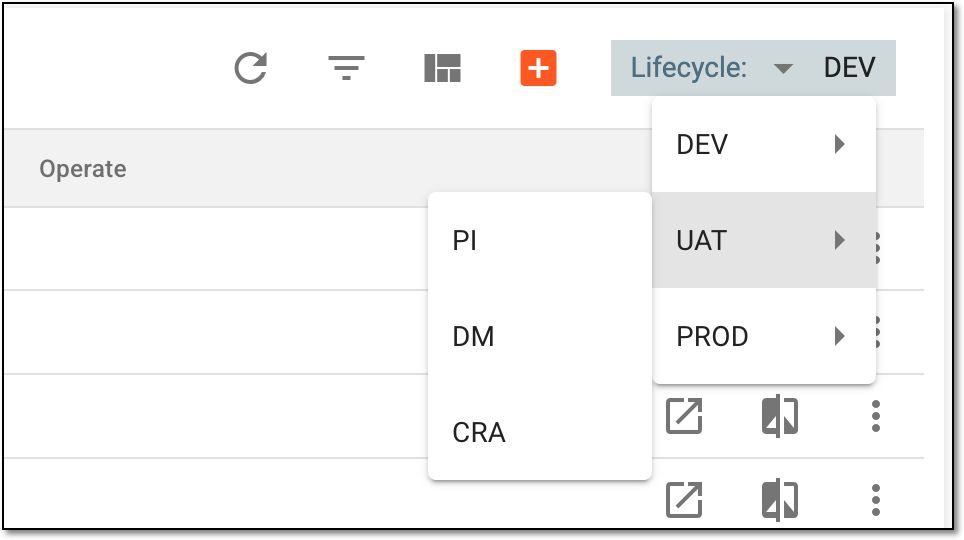 Figure 3. Selecting lifecycle and role
-
In the Version Information table, next to the submitted CRF version, select
 .
.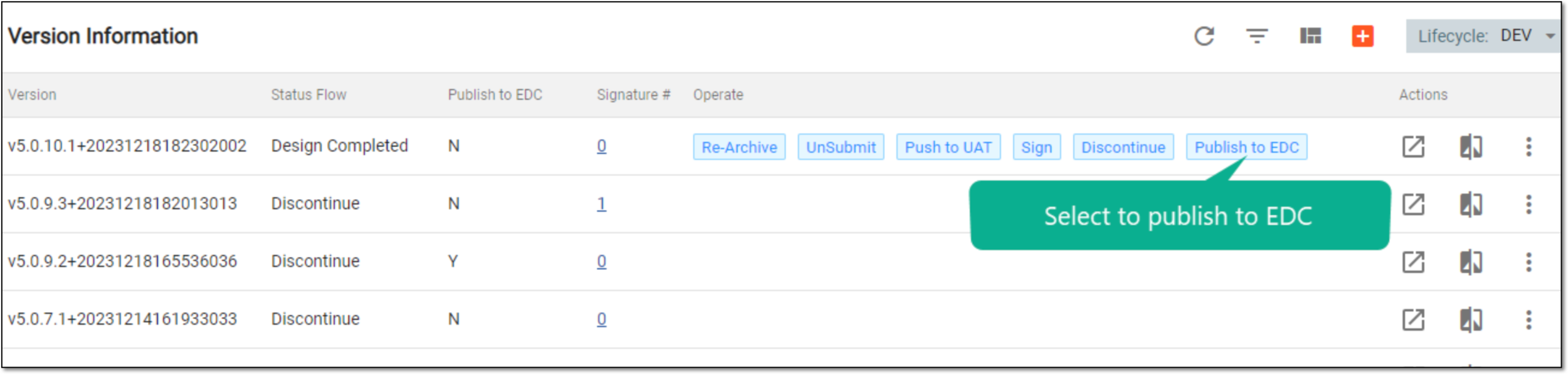 Figure 4. Selecting to publish CRF version to EDC
-
In the Publish dialog that appears, provide the necessary details as explained in the following table.
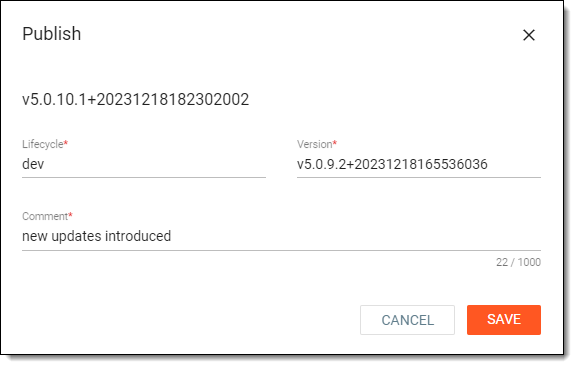 Figure 5. Publishing CRF version to EDC
Tip
In the following table, mandatory elements are marked with an asterisk (*).
Element
Details
Lifecycle*
View the current lifecycle where the CRF version is to be published.
Version*
View the CRF version currently active in the EDC system.
Comment*
Enter a reason for publishing this CRF version to EDC.
SAVE
Select
 to publish the CRF version to EDC.
CANCEL
Select
 to avoid publishing the CRF version to EDC.
Once saved, the CRF version is published to EDC in the selected lifecycle. This version is now used for data collection in the EDC system.