Return dispensed item
When it comes to drug dispensation to subjects, the rules may vary depending on the study protocol and local regulations. In general, if a subject has any unused study medication at the end of their participation in the study, the investigator needs to follow the procedures specified in the study protocol for disposing of that medication. If the protocol allows for it, the medication is still within its expiration date, and has been properly stored, the unused medication can be returned to the study site for proper disposal.
Important
This section explains the process of how to return items with the Hide Item Number (H.I.N.) permission granted. If you are not granted the H.I.N. permission, then the process of returning items is different.
-
In the IWRS application header, select the SUBJECT tab.
-
From Subject List that opens, select the needed site and subject.
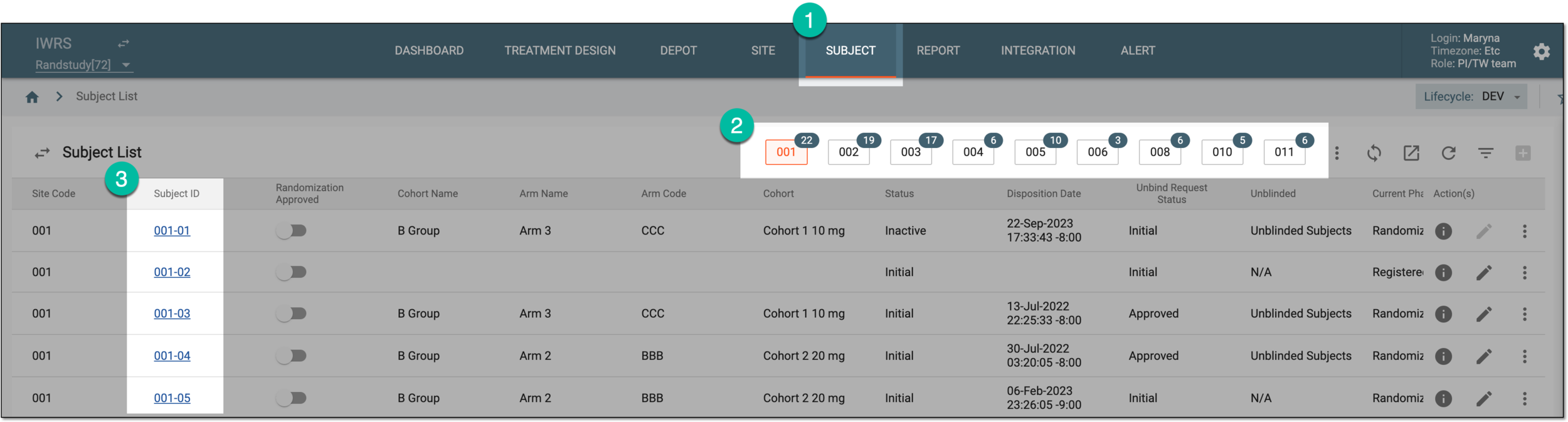 Figure 1. Selecting site and subject
-
In the left pane of the page that opens, select the Subject Dispensing tab.
-
In the Subject Dispensing table that appears, select Subject Return
 next to the
needed subject dispensing visit.
next to the
needed subject dispensing visit.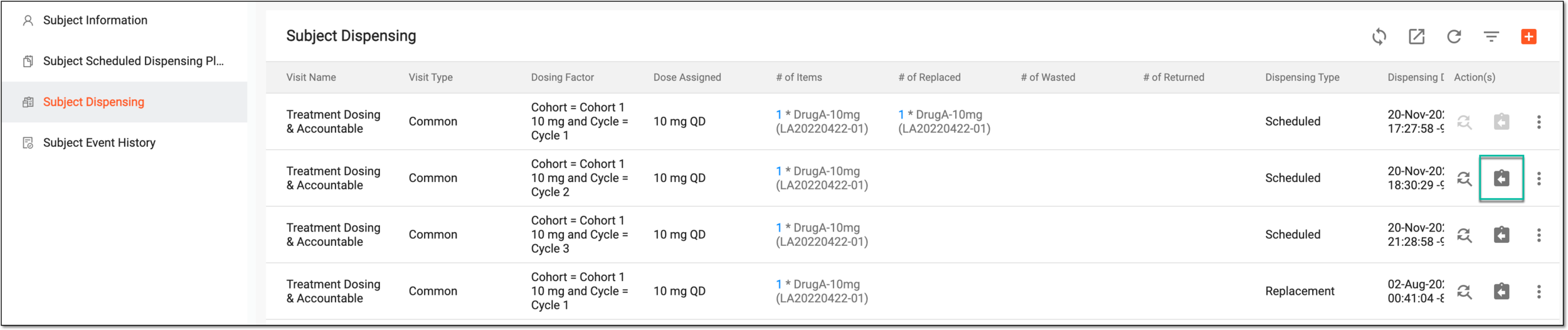 Figure 2. Accessing item return
-
In the Subject Return dialog that appears, provide the item returning details as explained in the following table.
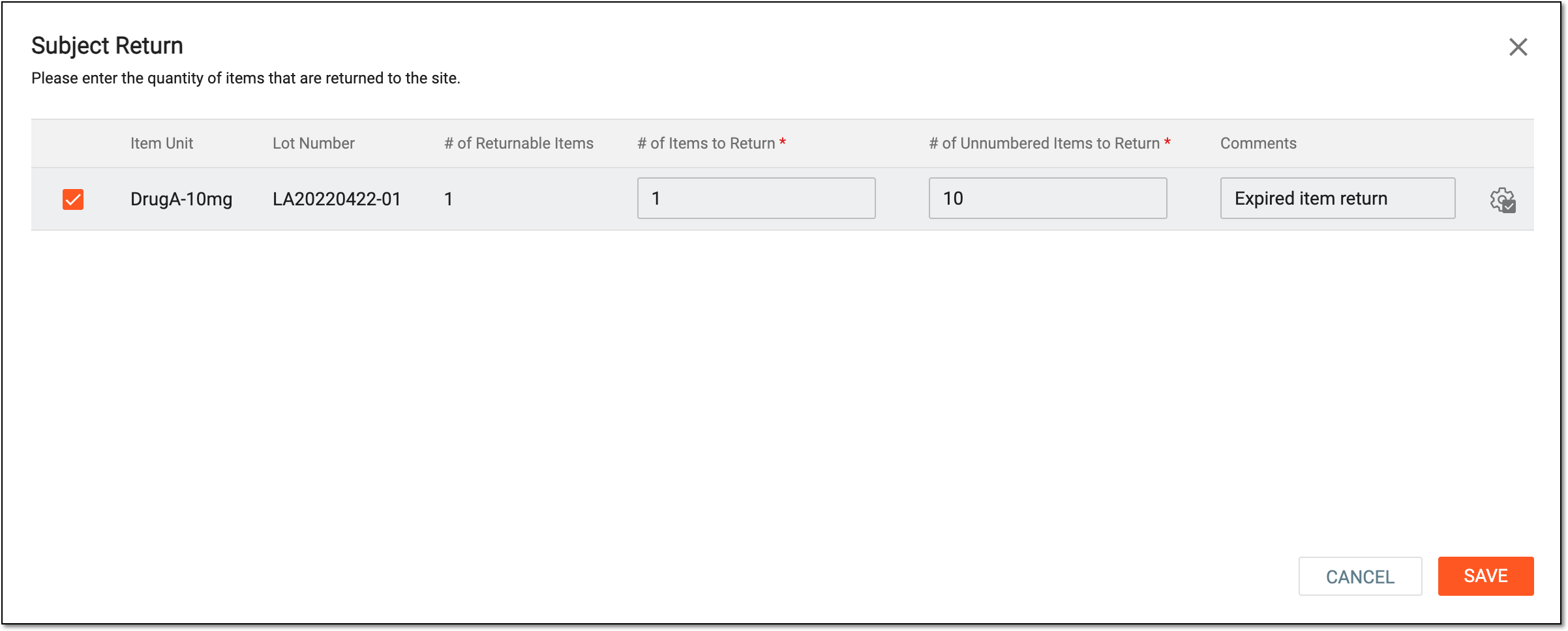 Figure 3. Returning dispensed item
Tip
In the following table, mandatory elements are marked with an asterisk (*).
Element
Details
Item Unit
This field is disabled and it represents the name of the item (for instance, Aspirin 5mg, Aspirin 10mg, and so on).
Lot Number
This field is disabled and it represents the identifier of the lot to which the particular item belongs.
# of Returnable Items*
This field is disabled and it represents the total number of items available for return.
# of Items to Return*
Enter the number of items that you want to return. This number cannot be greater than the number of available items.
# of Unnumbered Items to Return*
Enter the number of subitems that you want to return. This number cannot be greater than the number of available subitems.
For instance, in this context, a subitem can refer to the pill if an item is a medication bottle.
Comments*
Enter a reason for returning the items.
Apply to All
Select Apply to All
 to apply the limit to all values. Then in the confirmation dialog that appears, select
 to save changes.
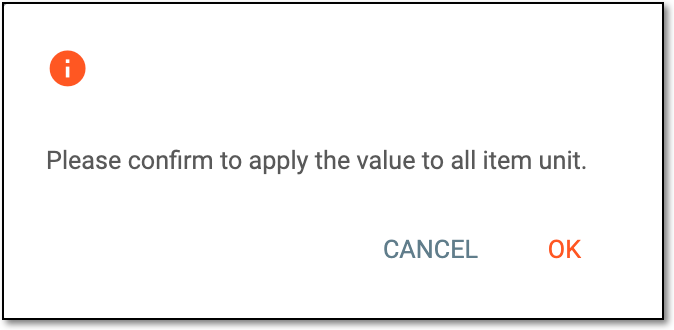 Figure 4. Applying limit to all values
SAVE
Select
 to apply your changes and return the items.
CANCEL
Select
 to dismiss your changes without saving.
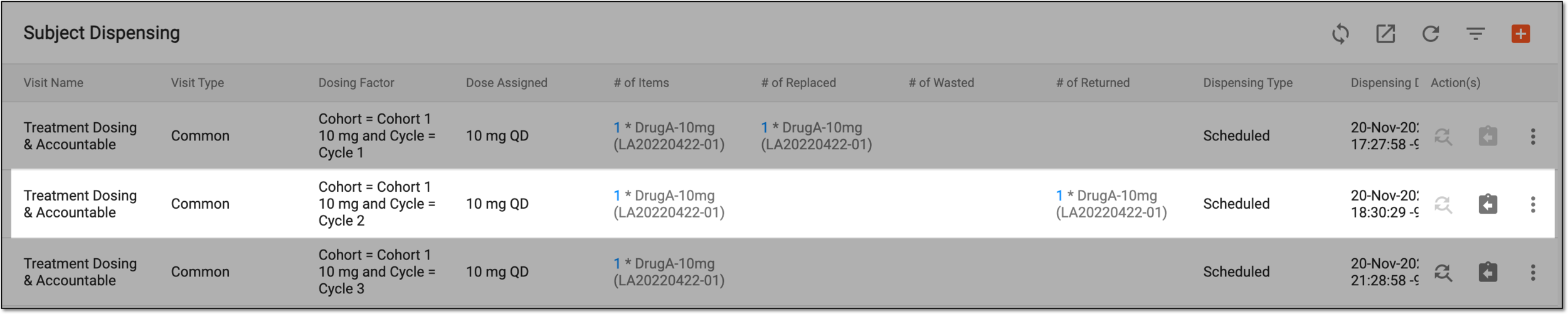
Once saved, the item is returned and the operation is reflected in the respective dispensation record of the Subject Dispensing table.
Tip
The returned items can be restored if needed.