Hide item number (H.I.N.) permission
The Hide Item Number permission is granted or not granted to a user with a certain role in the ADMIN application. Based on this permission, the user can or cannot view some columns in the Subject Dispensing and Subject Event History tables.
As shown in the following figure, if the Hide Item Number permission is granted, a user can view the # of Items, # of Replaced, # of Wasted, and # of Returned columns in the Subject Dispensing and Subject Event History tables. If the user is not granted this permission, then they can view the Item Number (item Unit) column instead.
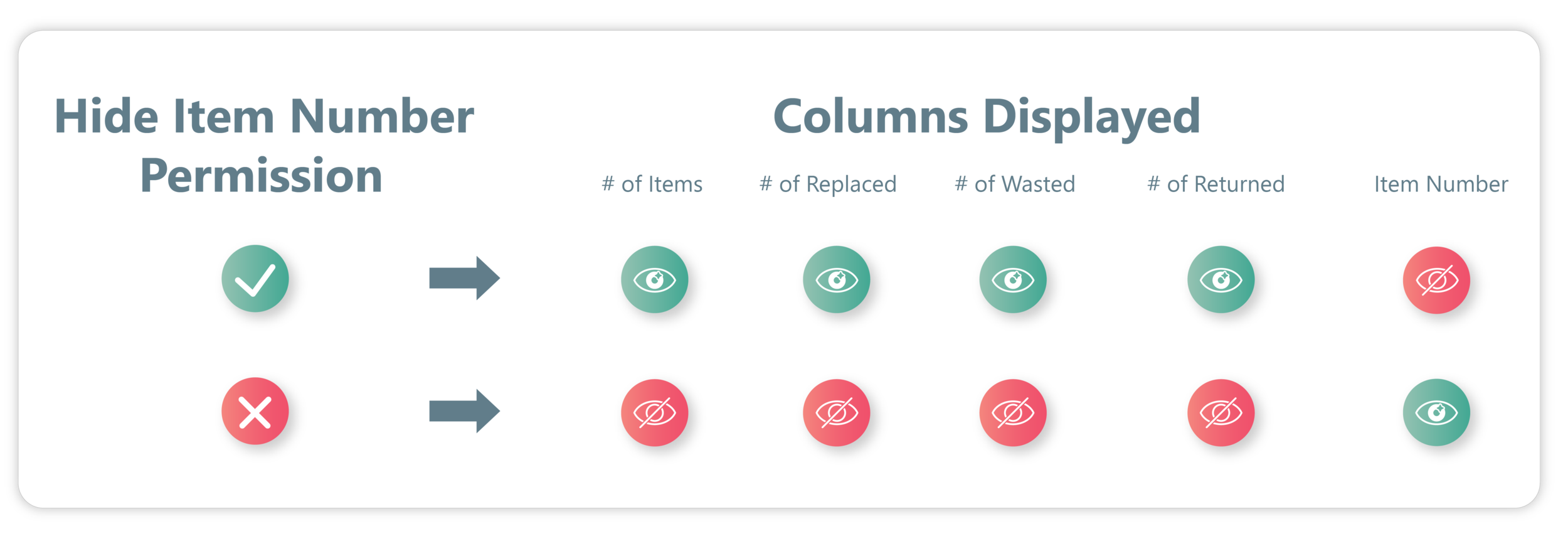
If you are not granted the Hide Item Number permission, you can view item dispensation details and dispensation details of replaced, returned, and wasted items. Moreover, the process of replacing, returning, and wasting dispensed items is different without the Hide Item Number permission granted.
If you are not granted the Hide Item Number permission, then you can see the Item Number column in the Subject Dispensing table. This column provides you with the item numbers of drugs that are dispensed during the subject's visit. Selecting the item numbers provides you with complete details about the items along with the number of items' contents (unnumbered items).
-
In the IWRS application header, select the SUBJECT tab.
-
From Subject List that opens, select the needed site and subject.
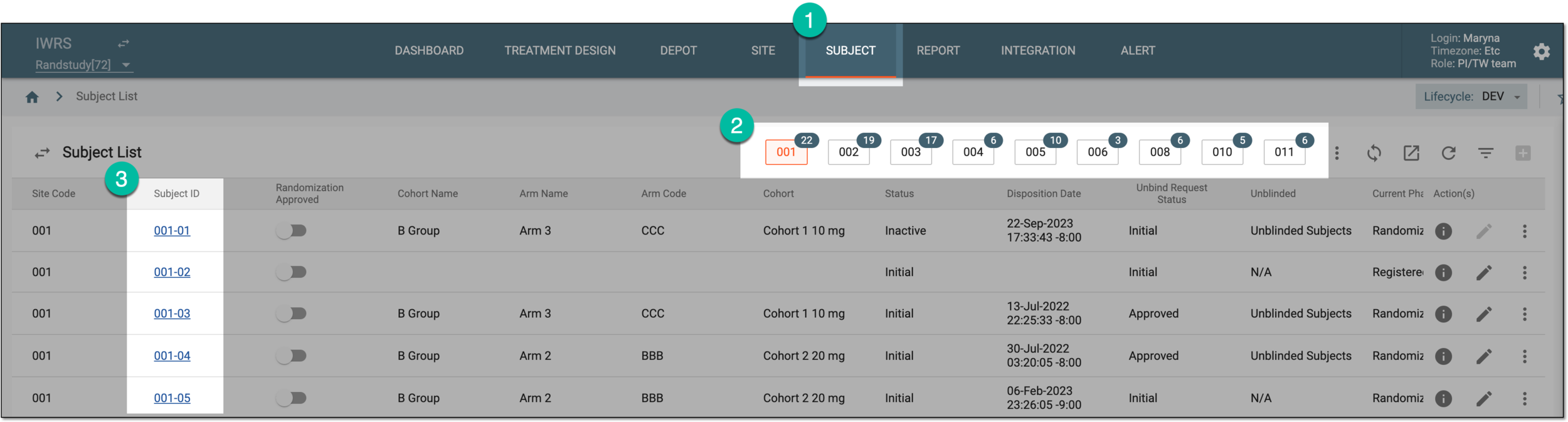 Figure 1. Selecting site and subject
-
In the left pane of the page that opens, select the Subject Dispensing tab.
-
In the Subject Dispensing table that appears, select the item number next to the needed visit.
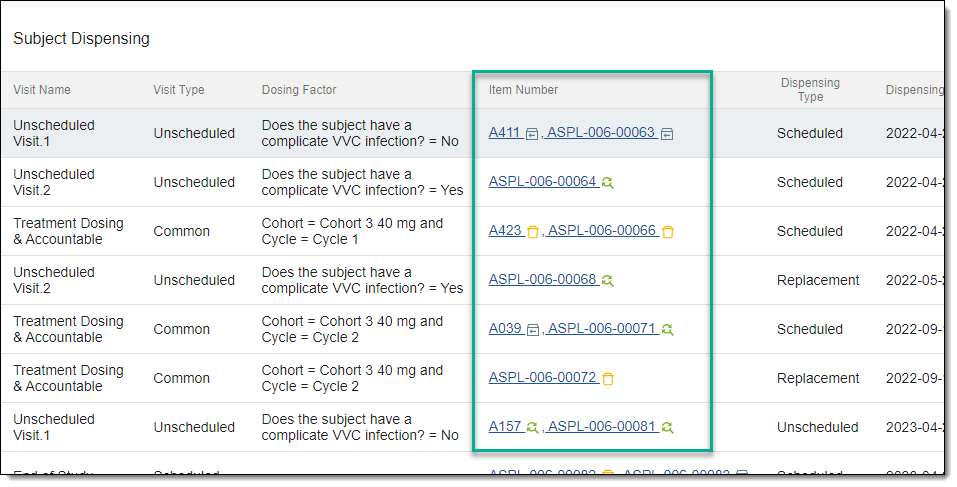 Figure 2. Selecting item number
-
In the Details dialog that opens, view details of the dispensed item.
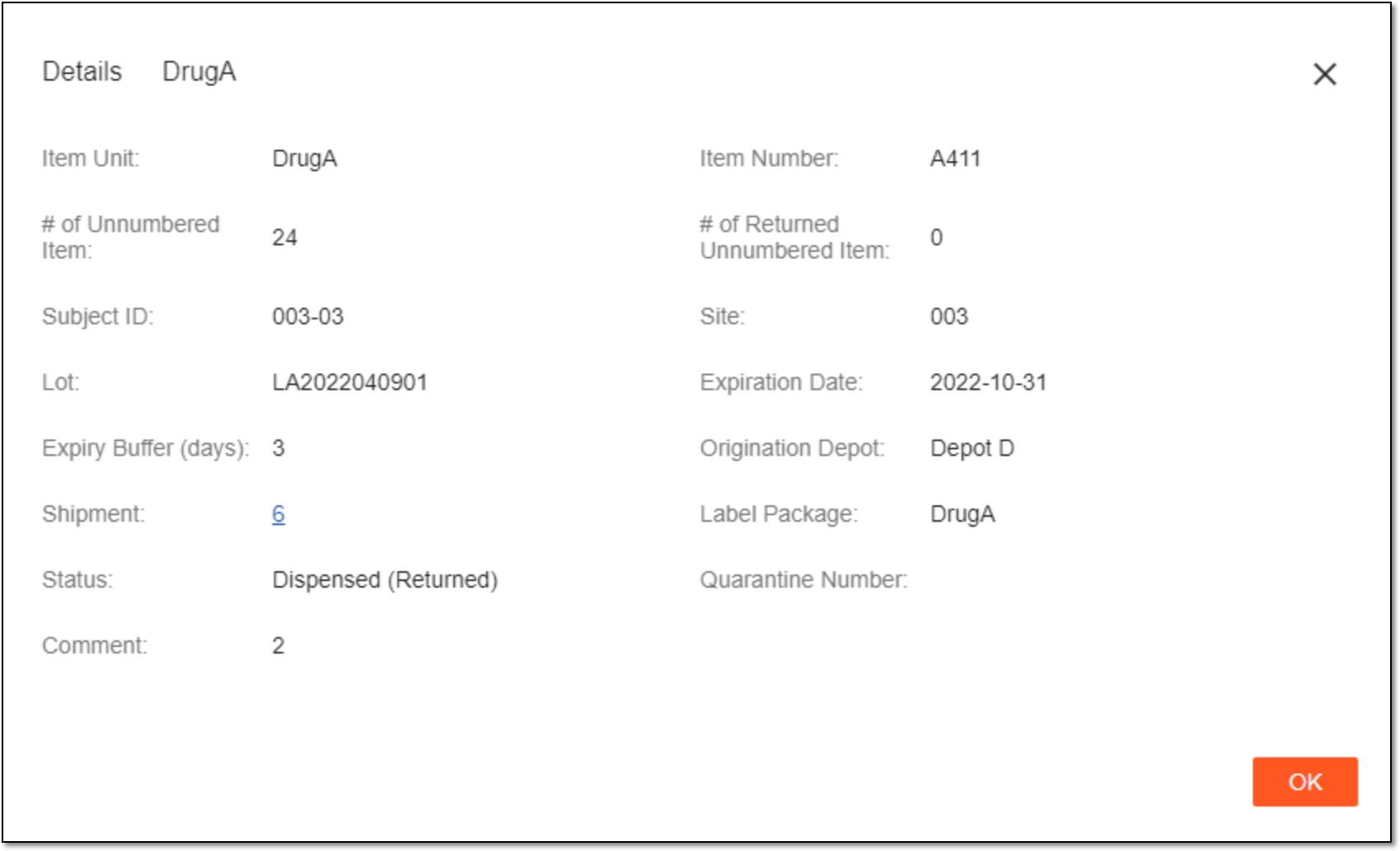 Figure 3. Viewing item dispensation details
Tip
Selecting the shipment number redirects you to the page displaying the details of the shipment during which the dispensed drug has been delivered.
Once viewed, select  to close the Details dialog. You can also view dispensation details of replaced, returned, or wasted items.
If you are not granted the Hide Item Number permission, then you can see the Item Number column in the Subject Dispensing table. This column provides you with the item numbers of drugs that are dispensed during the subject's visit. If the item has been replaced, returned, or wasted, you can see the special icon next to the item number indicating the committed action.
-
In the IWRS application header, select the SUBJECT tab.
-
From Subject List that opens, select the needed site and subject.
Figure 1. Selecting site and subject
-
In the left pane of the page that opens, select the Subject Dispensing tab.
-
In the Subject Dispensing table that appears, in the Item Number column, go to the item you need and select the respective icon next to it: Replaced
 , Returned
  , or Wasted
  .
.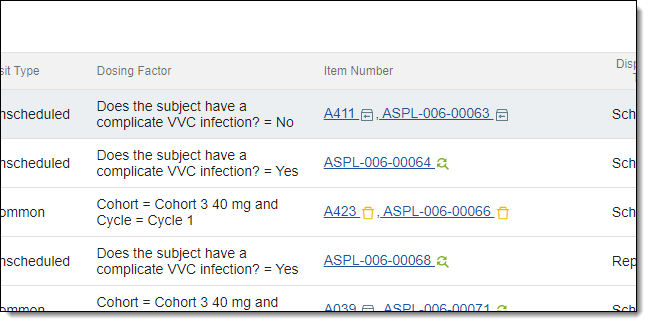 Figure 2. Selecting item details
-
In the dialog that opens, view the details of either replaced, returned, or wasted drug depending on what icon you have previously selected.
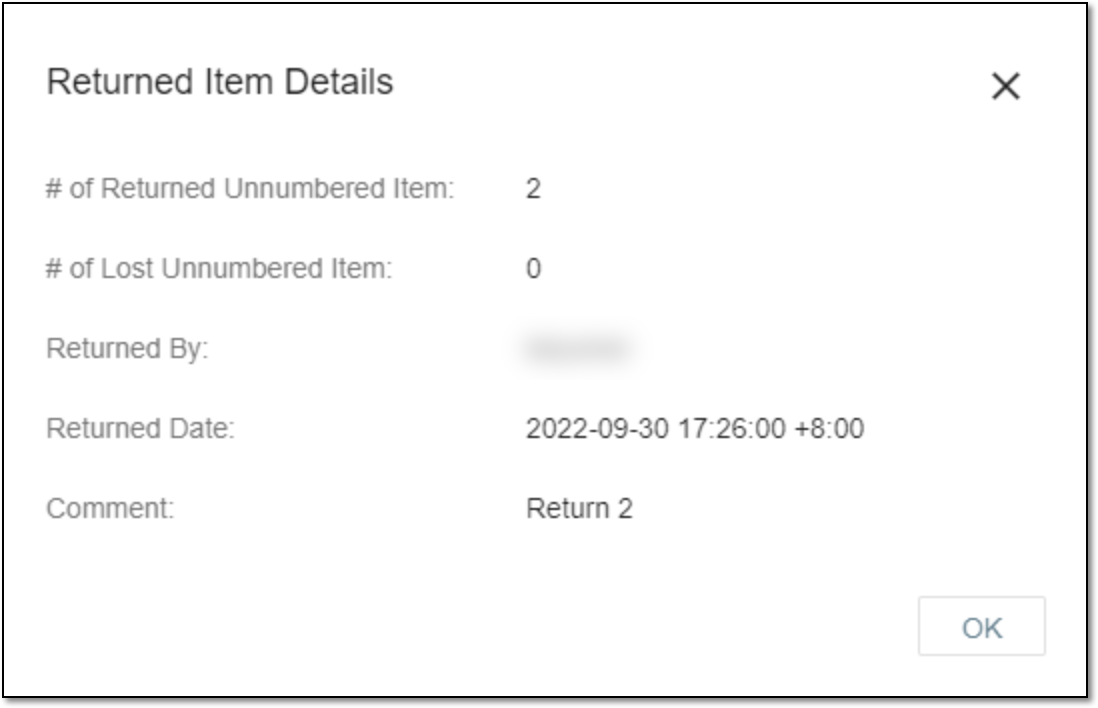 Figure 3. Viewing item details
Once viewed, select OK to close the Item Details dialog.
In a clinical trial, when the drugs are dispensed to the subject, then under certain circumstances, they may need to get replaced. This may occur because the participant has lost or wasted a prescribed drug.
Important
The ability to replace a dispensed item is provided even if you are granted the H.I.N. permission. This section explains the process of how to replace items without the Hide Item Number (H.I.N.) permission granted. If you are granted the H.I.N. permission, then the process of replacing items is different.
-
In the IWRS application header, select the SUBJECT tab.
-
From Subject List that opens, select the needed site and subject.
Figure 1. Selecting site and subject
-
In the left pane of the page that opens, select the Subject Dispensing tab.
-
In the Subject Dispensing table that appears, select Replace
 next to the
needed subject dispensing visit.
next to the
needed subject dispensing visit.Important
The Replace option is disabled if the item has already been replaced or returned. If the item you want to replace is out of stock, then you have nothing to replace it with, so the option is unavailable.
-
In the Replace dialog that appears, select checkboxes next to the items you want to replace and add a comment explaining why these items need to be replaced.
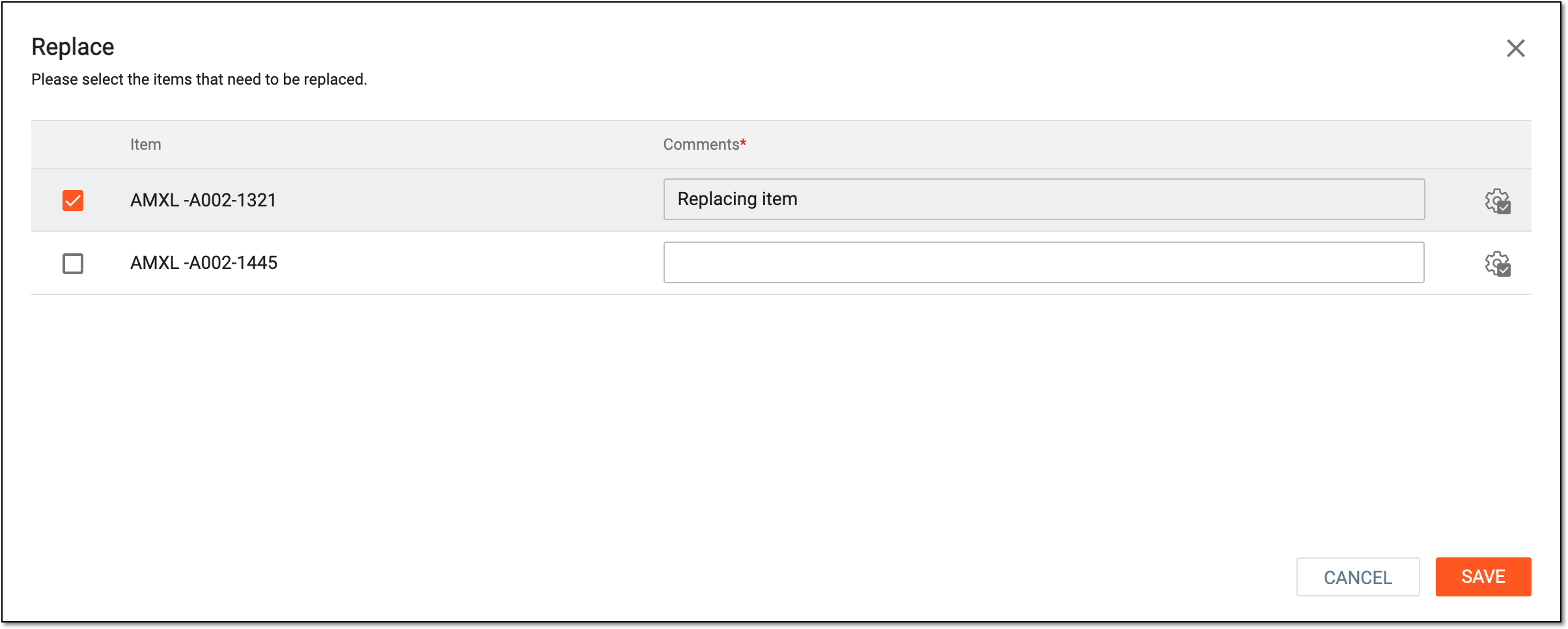 Figure 2. Replacing item
Tip
To add the same comment to all the items you are replacing, select
 next to the entered comment.
 -
Select
 .
.
Once saved, the item is replaced; a new visit with the replaced item appears in the Subject Dispensing table.
When it comes to drug dispensation to subjects, the rules may vary depending on the study protocol and local regulations. In general, if a subject has any unused study medication at the end of their participation in the study, the investigator needs to follow the procedures specified in the study protocol for disposing of that medication. If the protocol allows for it, and the medication is still within its expiration date and has been properly stored, the unused medication can be returned to the study site for proper disposal.
Important
The ability to return a dispensed item is provided even if you are granted the H.I.N. permission. This section explains the process of how to return items without the Hide Item Number (H.I.N.) permission granted. If you are granted the H.I.N. permission, then the process of returning items is different.
-
In the IWRS application header, select the SUBJECT tab.
-
From Subject List that opens, select the needed site and subject.
Figure 1. Selecting site and subject
-
In the left pane of the page that opens, select the Subject Dispensing tab.
-
In the Subject Dispensing table that appears, select Subject Return
 next to the
needed subject dispensing visit.
next to the
needed subject dispensing visit. -
In the Subject Return dialog that appears, select checkboxes next to the items you want to return and fill in the fields as explained in the following table.
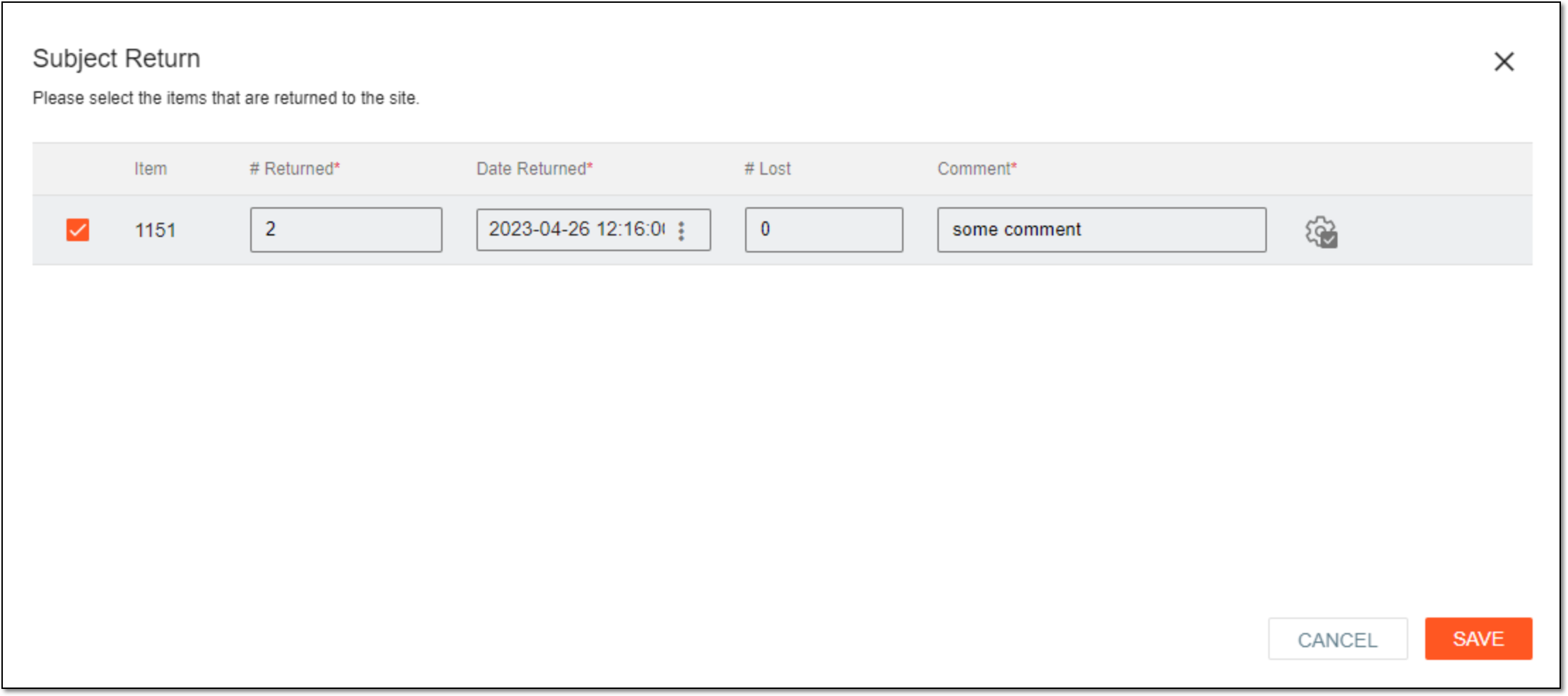 Figure 2. Replacing item
Tip
In the following table, mandatory elements are marked with an asterisk (*).
Element
Details
Item
This field is disabled and it represents the ID of the item that is to be returned.
# Returned*
Enter the number of items that you want to return.
Date Returned*
Select a date and time on which the item is returned. By default, this field displays the current date and time.
# Lost
Enter the number of items lost, if any.
Comment*
Enter a reason for returning the items.
Apply to All
Select
to add the same comment for the items on the returning list.SAVE
Select
to save your changes and return the items.CANCEL
Select
 or
or  to dismiss your changes without saving.
Once saved, the items are returned.
In the course of a clinical trial, there can be scenarios when medication meant for dispensation needs to be wasted. If a drug is discontinued before the full course of treatment is completed, any remaining doses of the drug can be considered as wasted. If a drug is not stored properly or is mishandled in some other way, such as being contaminated or damaged, then it may become unusable and considered wasted.
Important
The ability to waste a dispensed item is provided even if you are granted the H.I.N. permission. This section explains the process of how to waste items without the Hide Item Number (H.I.N.) permission granted. If you are granted the H.I.N. permission, then the process of wasting items is different.
-
In the IWRS application header, select the SUBJECT tab.
-
From Subject List that opens, select the needed site and subject.
Figure 1. Selecting site and subject
-
In the left pane of the page that opens, select the Subject Dispensing tab.
-
In the Subject Dispensing table that appears, select More
 >
Mark Wasted Items
>
Mark Wasted Items  .
. -
In the Mark Wasted Items dialog that appears, select checkboxes next to the items you want to waste and add a comment explaining why these items need to be wasted.
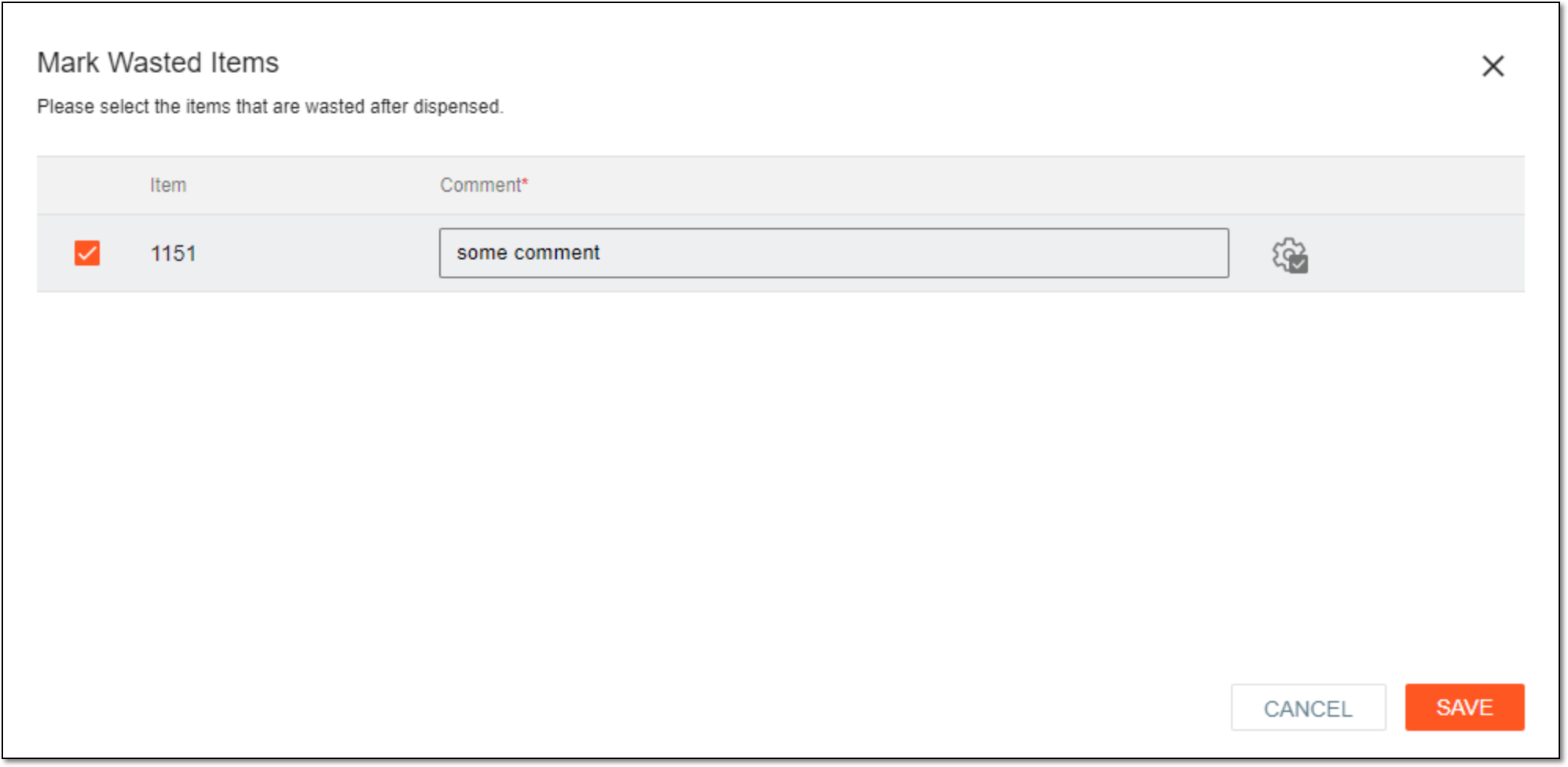 Figure 2. Replacing item
Tip
To add the same comment for all the items you are wasting, select
. -
Select
.
Once saved, the item is wasted.