Replace dispensed item
In a clinical trial, when the drugs are dispensed to the subject, then under certain circumstances, they may need to be replaced. This may occur because the participant has lost or wasted a prescribed drug.
Important
This section explains the process of how to replace items with the Hide Item Number (H.I.N.) permission granted. If you are not granted the H.I.N. permission, then the process of replacing items is different.
-
In the IWRS application header, select the SUBJECT tab.
-
From Subject List that opens, select the needed site and subject.
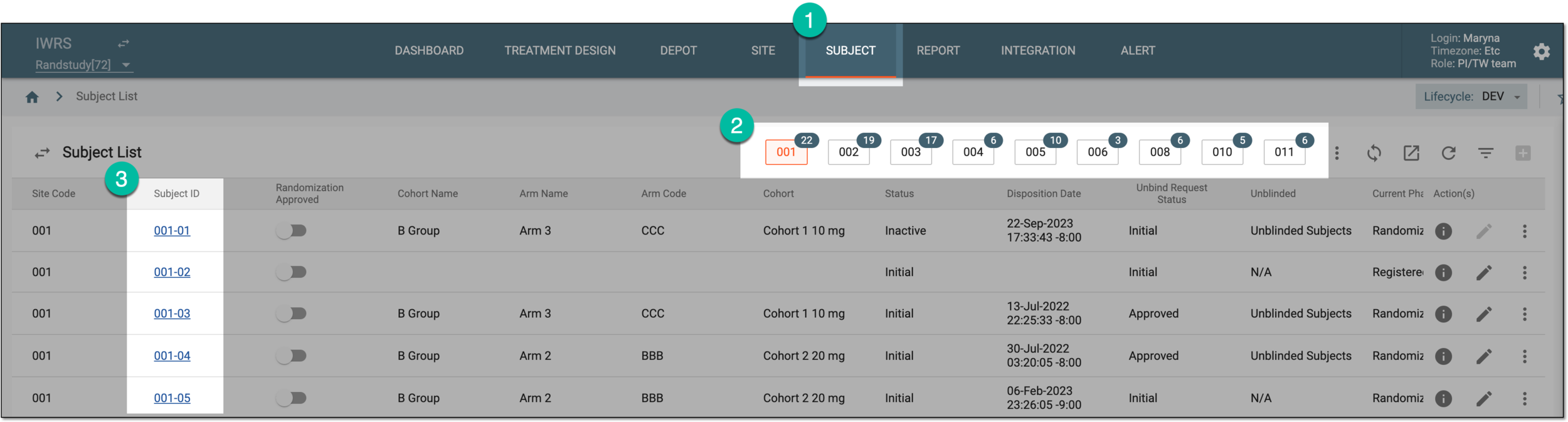 Figure 1. Selecting site and subject
-
In the left pane of the page that opens, select the Subject Dispensing tab.
-
In the Subject Dispensing table that appears, next to the needed subject dispensing visit, select Replace
 .
. Figure 2. Accessing item replacement
Important
The Replace option is disabled if the item has already been replaced or returned. If the item you want to replace is out of stock, then you have nothing to replace it with, so the option is unavailable.
-
In the Replace dialog that appears, provide the item replacement details as explained in the following table.
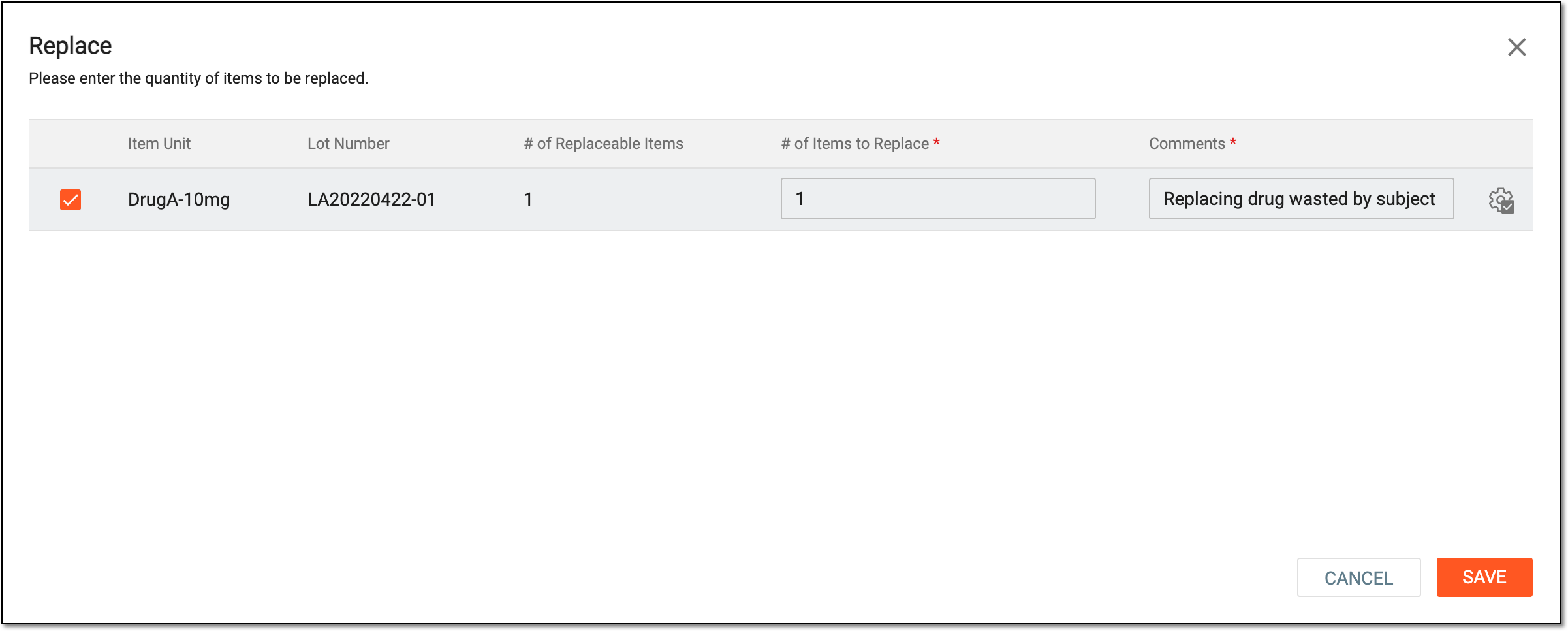 Figure 3. Replacing item
Tip
In the following table, mandatory elements are marked with an asterisk (*).
Element
Details
Item Unit
This field is disabled and it represents the name of the item (for instance, Aspirin 5mg, Aspirin 10mg, and so on).
Lot Number
This field is disabled and it represents the identifier of the lot to which the particular item belongs.
# of Replaceable Items*
This field is disabled and it represents the total number of items available for a corresponding visit.
# of Items to Replace*
Enter the number of items that you want to replace. This number cannot be greater than the number of available items.
Comments*
Enter a reason for replacing an item or items.
Apply to All
Select Apply to All
 to apply the limit to all values. Then in the confirmation dialog that appears, select
 to save changes.
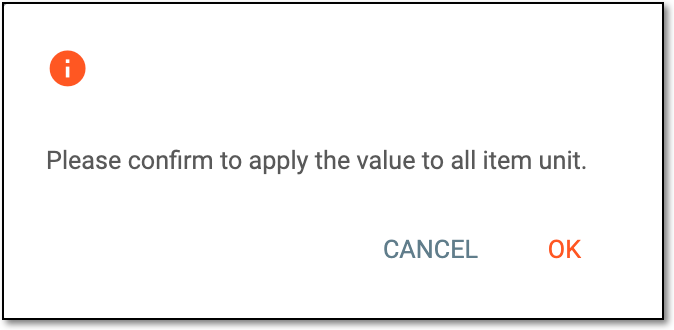 Figure 4. Applying limit to all values
SAVE
Select
 to apply your changes and replace the items.
CANCEL
Select
 to dismiss your changes without saving.
 -
Once saved, in the Details dialog appears, review the item replacement details. Select
 to close the
dialog.
to close the
dialog.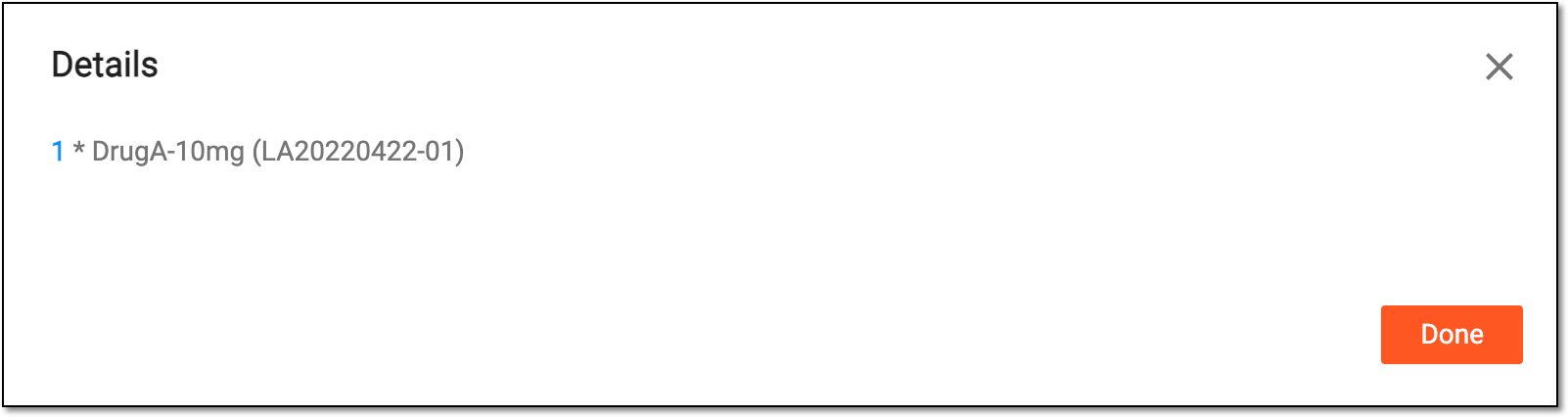 Figure 5. Reviewing item replacement details
Once the item is replaced, the new record is added to the Subject Dispensing table reflecting the occurred replacement.
