Create manual dispensation
In IWRS, you can manage the process of product unit dispensation to subjects. The scheduled and unscheduled dispensing is aimed to provide the subjects with their assigned medication according to the specified factor values.
Dispensing usually occurs via the creation of scheduled and unscheduled dispensation with the automatic distribution of items to the subject. However, it may occur that you need to dispense medication to the subject manually because you want to specify the exact amount of drugs to be dispensed.
-
In the IWRS application header, select the SUBJECT tab.
-
From Subject List that opens, select the needed site and subject.
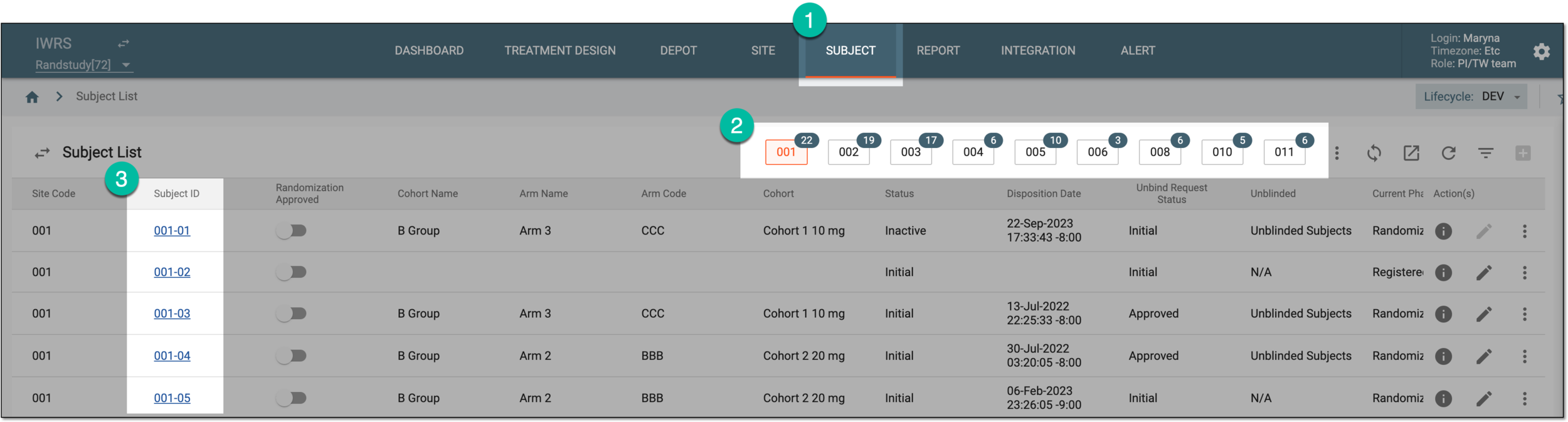 Figure 1. Selecting site and subject
-
In the left pane of the page that opens, select the Subject Dispensing tab.
-
On the Subject Dispensing page that opens, from the workspace toolbar, select New Item
 > Manual.
 Figure 2. Selecting dispensation type
-
In the dialog that appears, fill in the fields as explained in the following table.
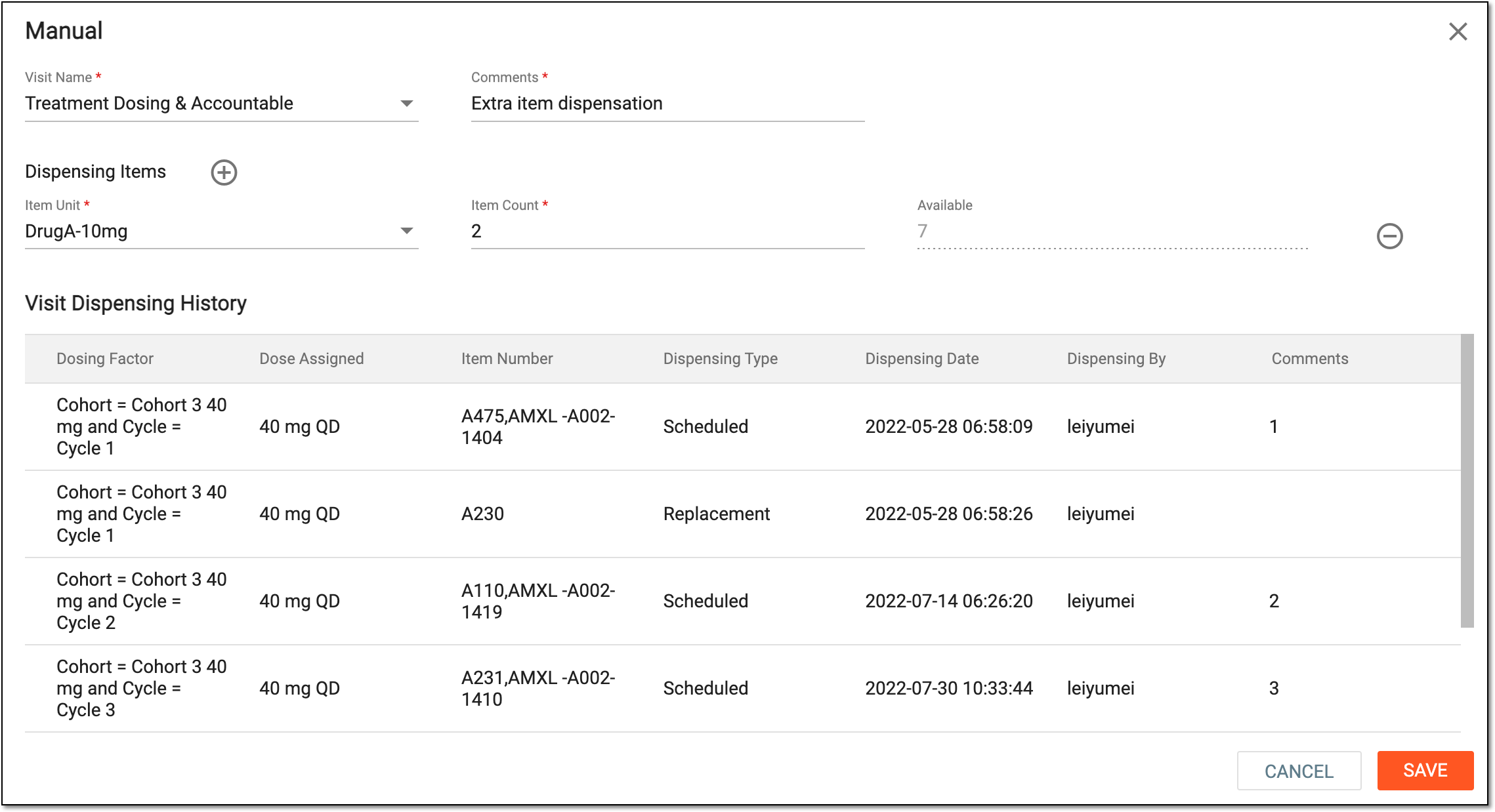 Figure 3. Creating manual dispensation
Tip
In the following table, mandatory elements are marked with an asterisk (*).
Element
Details
Visit Name*
Select the visit during which the medication is to be dispensed to the selected subject. The availability of visits in this field depends on the number of visits added to the subject dispensing plan.
Comments*
Enter the reason for creating this particular dispensation.
Dispensing Items
Item Unit*
Select a drug that is to be dispensed to the selected subject. The availability of items in this field depends on the supply plan that is associated with the corresponding site.
Item Count*
Enter the number of items to dispense to the subject. Bear in mind, you can only dispense the number of items available in the site inventory. This number is displayed in the next field—Available.
Available
Represents the total amount of items available in the site's inventory and is read-only.
Add Item
Select
 if you want to add another drug to the manual dispensation. Make sure that there are other drugs available in the supply plan associated with the site.
Remove Item
Select
 if you want to remove a previously added drug from the created manual dispensation.
Visit Dispensing History
Review the details and total number of items that have already been dispensed to the subject according to the selected visit.
SAVE
Select
 to dispense the items to the selected subject.
CANCEL
Select
 to cancel changes without saving.
Once saved, the manual dispensation is created; the dialog appears showing how many items you have dispensed to the subject. You can now sync subject dispensing to EDC.
Important
If the dispensed product belongs to a container unit, the system automatically updates the container unit’s disposition to Open, indicating that its contents are no longer fully intact.