Add visit to dispensing plan
A subject dispensing plan outlines the procedures for administering a particular drug or treatment to human subjects in a clinical trial. A dispensing plan consists of various planned visits during which a drug dispensation occurs. You can add visits with custom configurations to a dispensing plan using the existing dispensing packages. The visits you add to the dispensing plan for a subject are created separately from the general list of visits that are predefined in the IWRS system.
Important
The visits you add to a dispensing plan are not reflected on the Visit Dispensing page.
-
In the IWRS application header, select the SUBJECT tab.
-
From Subject List that opens, select the needed site and subject.
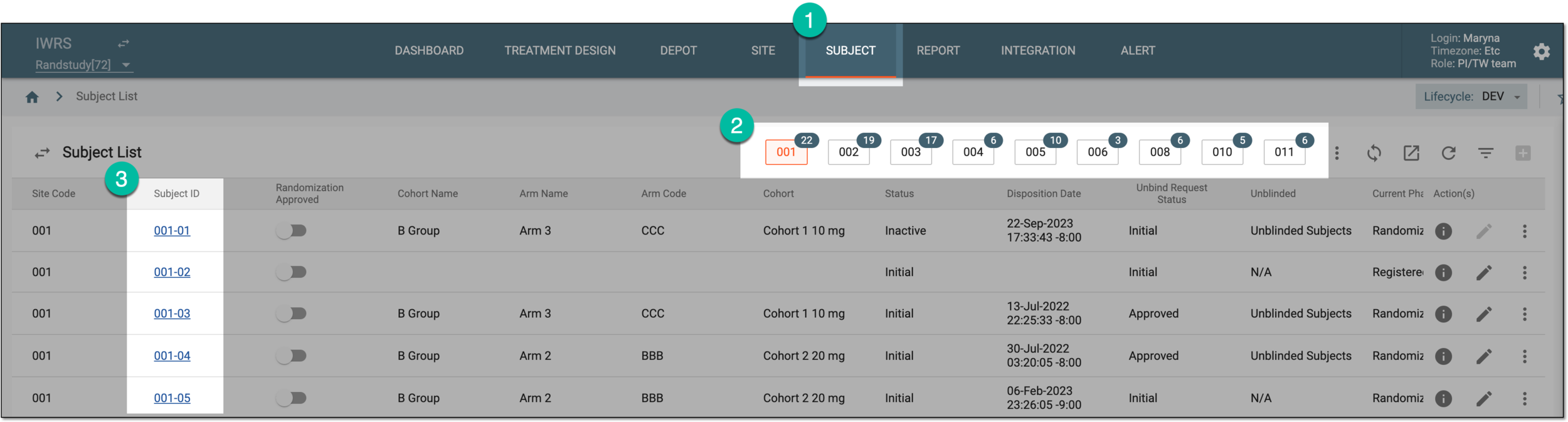 Figure 1. Selecting site and subject
-
In the left pane of the page that opens, select the Subject Scheduled Dispensing Plan tab.
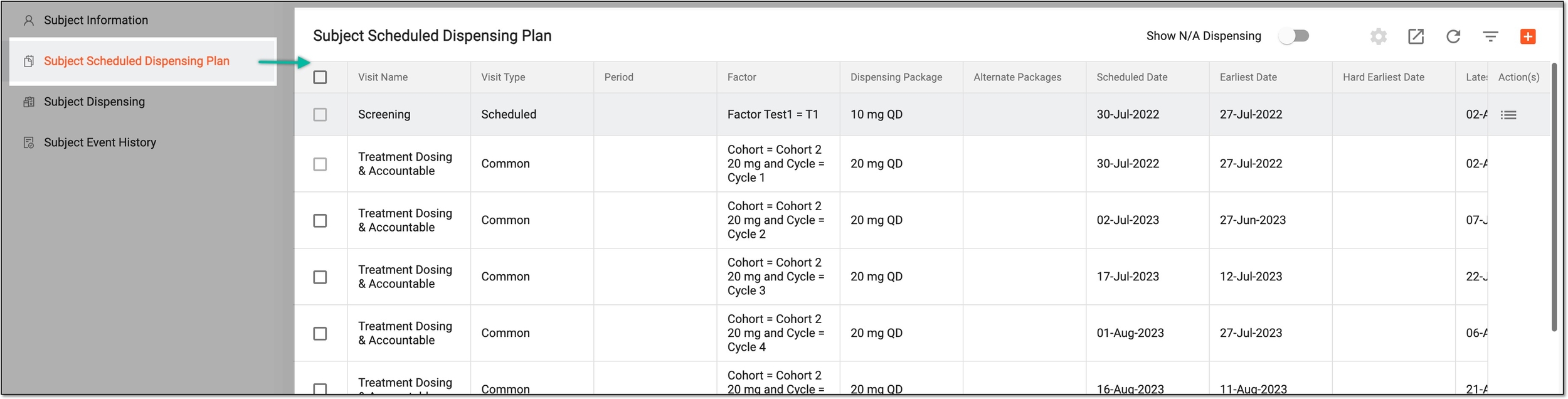 Figure 2. Accessing subject scheduled dispensing plan
-
On the Subject Scheduled Dispensing Plan page that opens, from the workspace toolbar, select New Item
 .
. Figure 3. Adding new visit to subject dispensing plan
-
In the form that appears, complete the Select Factor step of the dispensing plan creation process as explained in the following table.
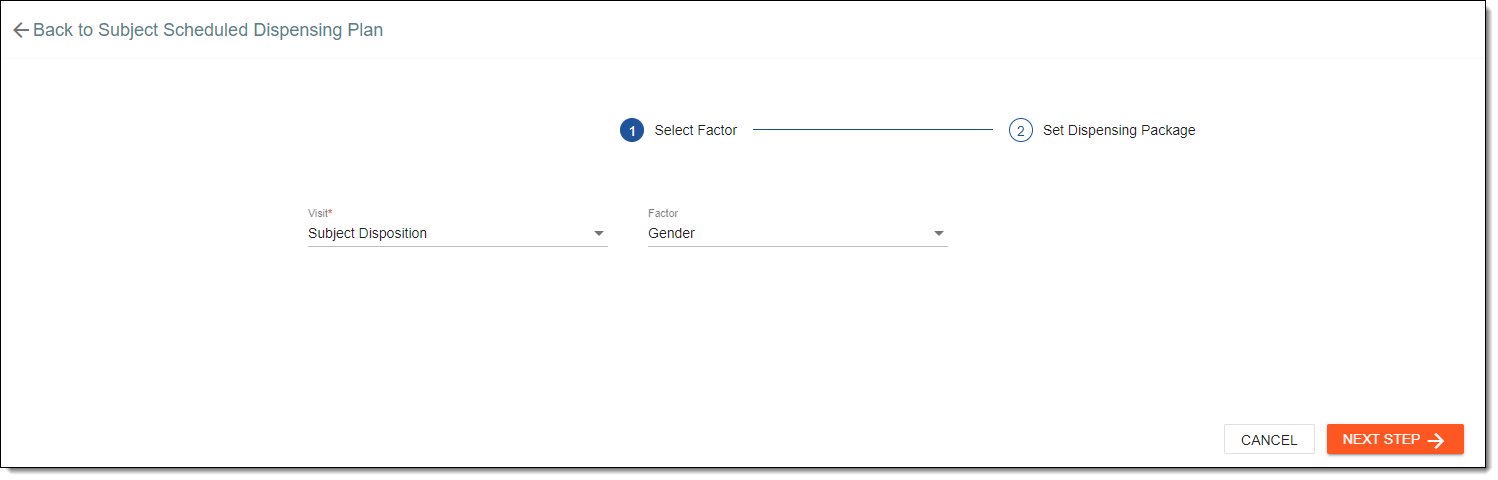 Figure 4. Selecting dispensing package factor
Tip
In the following table, mandatory elements are marked with an asterisk (*).
Element
Details
Visit*
Select the visit or visits that require a dispensing plan. You can only select visits that have no treatment plans.
Factor
Select the factor or factors for determining the dispensing plan.
NEXT STEP
Select
 to go to the Set Dispensing Package step.
CANCEL
Select
 to dismiss the changes without saving.
 -
At the Set Dispensing Package step, define the visit dispensing packages as explained in the following table.
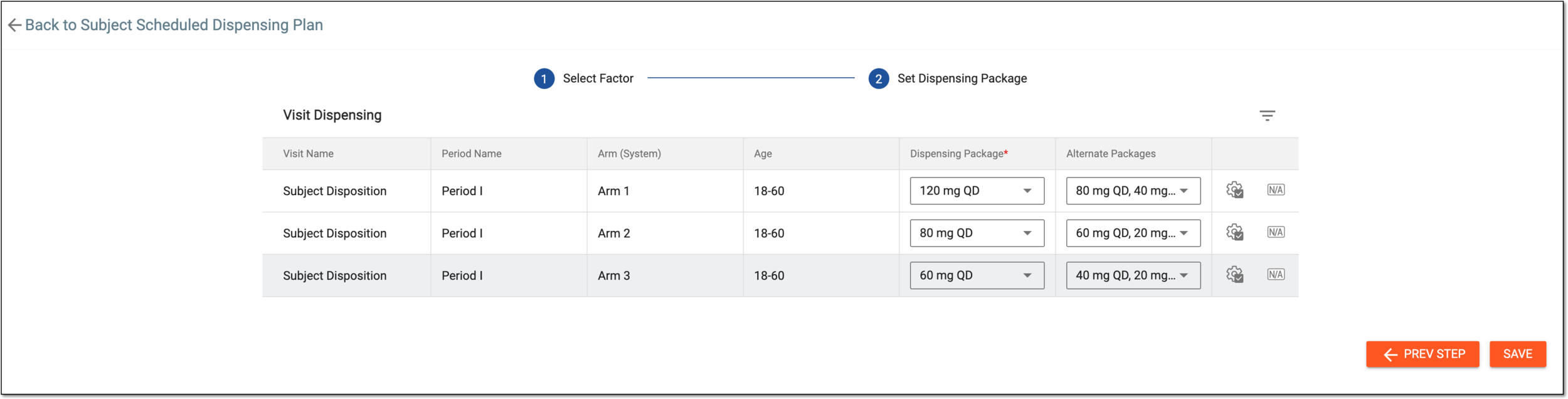 Figure 5. Defining visit dispensing
Tip
In the following table, mandatory elements are marked with an asterisk (*).
Element
Details
Visit Name
Represents the visit(s) selected at the Select Factor step.
[Factor name]
The title of this column is the factor that has been selected in the previous step.
For example, if you have selected Gender in the Select Factor step, then in the Set Dispensing Package step, the title of this column is Gender and the values of the column are according to the defined factor specifications.
Dispensing Package*
From a dropdown list, select the dispensing package for the corresponding visit and factors.
Alternative Packages
From a dropdown list, select dispensing packages that can be used as an alternative to the main dispensing package for the corresponding visit and factors.

Select this icon to add the selected dispensing package value(s) to all factors displayed in the table.

Select this icon to apply the N/A value to factors displayed in the table.
SAVE
Select
 to save the configured dispensing plan.
PREV STEP
Select
 to go back to the previous step.
Once saved, a visit is added to the dispensing plan. You can also set up a dispensing package.