Create scheduled or unscheduled dispensation record
In IWRS, you can manage the process of drug dispensation to subjects. The scheduled and unscheduled dispensing is aimed to provide the subjects with their assigned medication (items) according to the specified factor values. You can schedule a dispensation once for a treatment plan during the visit. Whereas, you can create multiple unscheduled dispensations for the treatment plan during the visit.
After creating a scheduled or unscheduled dispensation, the number of items dispensed to the subject is set to the number of drugs associated with the supply plan for the site. If for example, two different drugs are associated with the supply plan, then two items (one of each drug) are dispensed.
Important
Note that you cannot dispense drugs to the subject if there are no more available items for a corresponding site. Check the site inventory beforehand to learn how many items you can dispense.
-
In the IWRS application header, select the SUBJECT tab.
-
From Subject List that opens, select the needed site and subject.
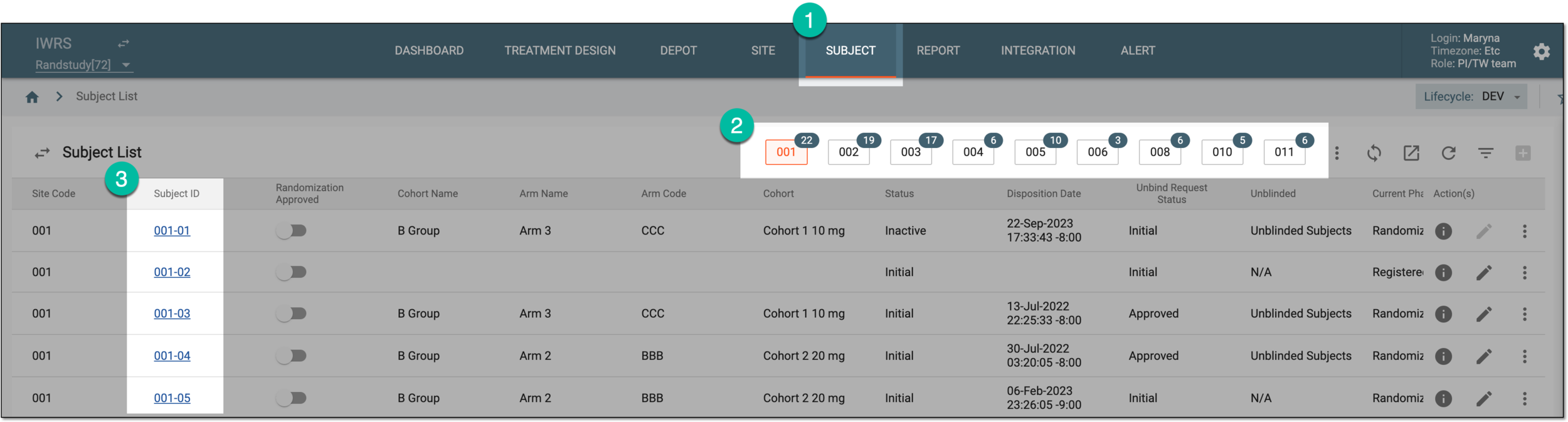 Figure 1. Selecting site and subject
-
In the left pane of the page that opens, select Subject Dispensing.
-
On the Subject Dispensing page that opens, from the workspace toolbar, select New Item
 and then Scheduled or Unscheduled depending on what type of dispensation you want to add.
 Figure 2. Selecting dispensation type
-
In the dialog that appears, fill in the fields as explained in the following table.
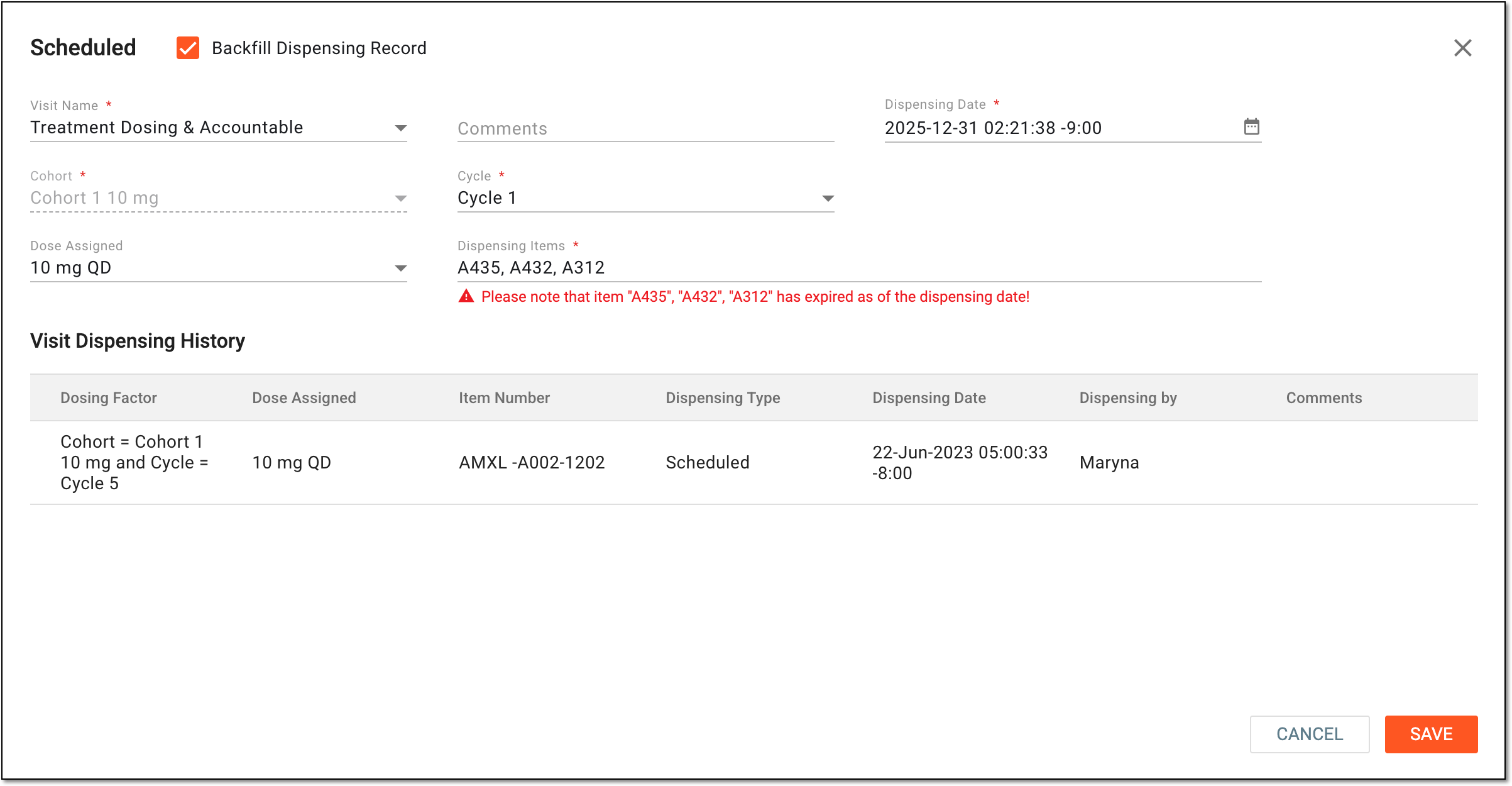 Figure 3. Creating dispensation record
Tip
In the following table, mandatory elements are marked with an asterisk (*).
Element
Details
Backfill Dispensing Record
Select this checkbox if the drugs have been dispensed offline, meaning the site personnel has not used IWRS prior to item dispensation.
In such a case, the site personnel need to backfill the dispensing record into the system to sync the dispensing record to EDC, update the drug status to reflect the actual inventory, and update the subject dispensing plan to reflect the actual dispensing date.
Visit Name*
Select a visit during which a drug is to be dispensed to the selected subject. The availability of visits in this field depends on the number of visits added to the dispensing plan of the subject.
Comments
Enter the reason for creating this particular dispensation.
Dispensing Date*
Select the date and time when the drug has been dispensed offline. This field is available only if the Backfill Dispensing Record checkbox has been selected previously.
The selected date and time are set as specified, however, if your timezone differs from the site time zone, you see that by the offset value next to the time, such as "-5" or "+2."
If the dispensation date is out of the scheduled dispensing window, the system prompts you respectively upon saving, however, you can still save the dispensation.[Factor]*
Based on the selected visit, this field displays factors with a set of values that have been predefined during factor creation for a corresponding visit. For instance, in the given figure, the factors are Cohort and Cycle.
For the Cycle field, if there is an ongoing cycle during the dispensation creation, it is automatically populated as a value here. If the cycle you are manually selecting belongs to the past date, you will see the respective notification, but you can still use it as a valid value.
Note that you cannot add a duplicate scheduled or unscheduled dispensation with the same factor values.Dose Assigned
Select one of the dispensing packages created for your study and associated with the selected visit according to the designed dispensing plan.
The order of the options available for selection here depends on the sequential numbers of the dispensing
                                  packages in the treatment compositions list.
Dispensing Items*
Select the field and in the dialog that appears, select the checkboxes next to the items that have been dispensed to the subject.
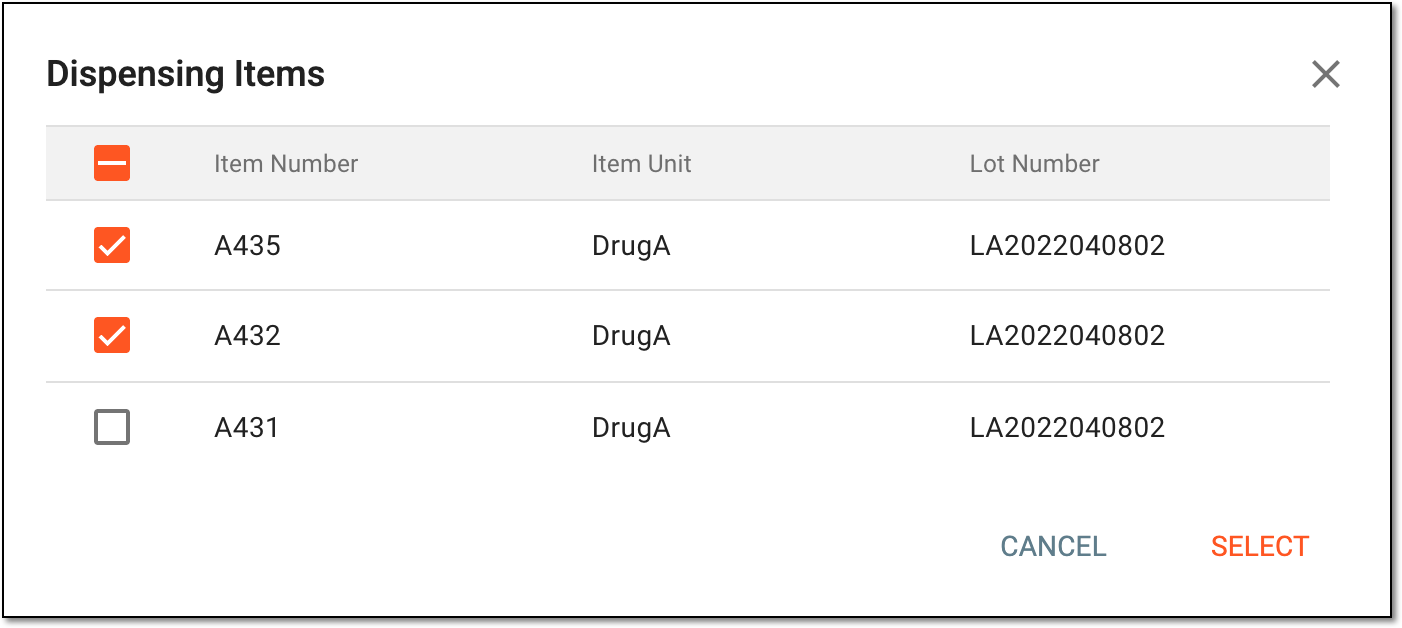 Figure 4. Selecting dispensed items
This field is available only if the Backfill Dispensing Record checkbox has been selected
                                  previously. It is possible to select the expired items here; the system will prompt you about the fact of expiry with the message under the Dispensing Items field, but will not prevent you from saving such a dispensing record.
Visit Dispensing History
Analyze the details of all the previous dispensations for the subject according to the selected visit.
SAVE
Select
 to create item dispensation for the selected subject.
CANCEL
Select
 to discard changes without saving.
Once saved, the scheduled or unscheduled dispensation is created. The dialog appears showing how many items are automatically dispensed to the subject. You can now sync subject dispensing to EDC.
Important
If the dispensed product belongs to a container unit, the system automatically updates the container unit’s disposition to Open, indicating that its contents are no longer fully intact.