Add new factor
In IWRS, factors are the conditions that influence subject randomization and drug dispensation. They determine, for example, to which cohort the subject is assigned, what treatment the subject has at a certain visit, and so on.
In the system, there are two ways to create a new factor:
-
Manually: the factor is created manually in the IWRS system.
-
Automatically: the factor is automatically generated by the system once it is configured in the Study Designer (SD) application via the CRF Design functionality.
This section covers the information on how to create a new factor manually in IWRS.
-
In the IWRS application header, select the TREATMENT DESIGN tab.
-
In the left pane, select the Factor subtab.
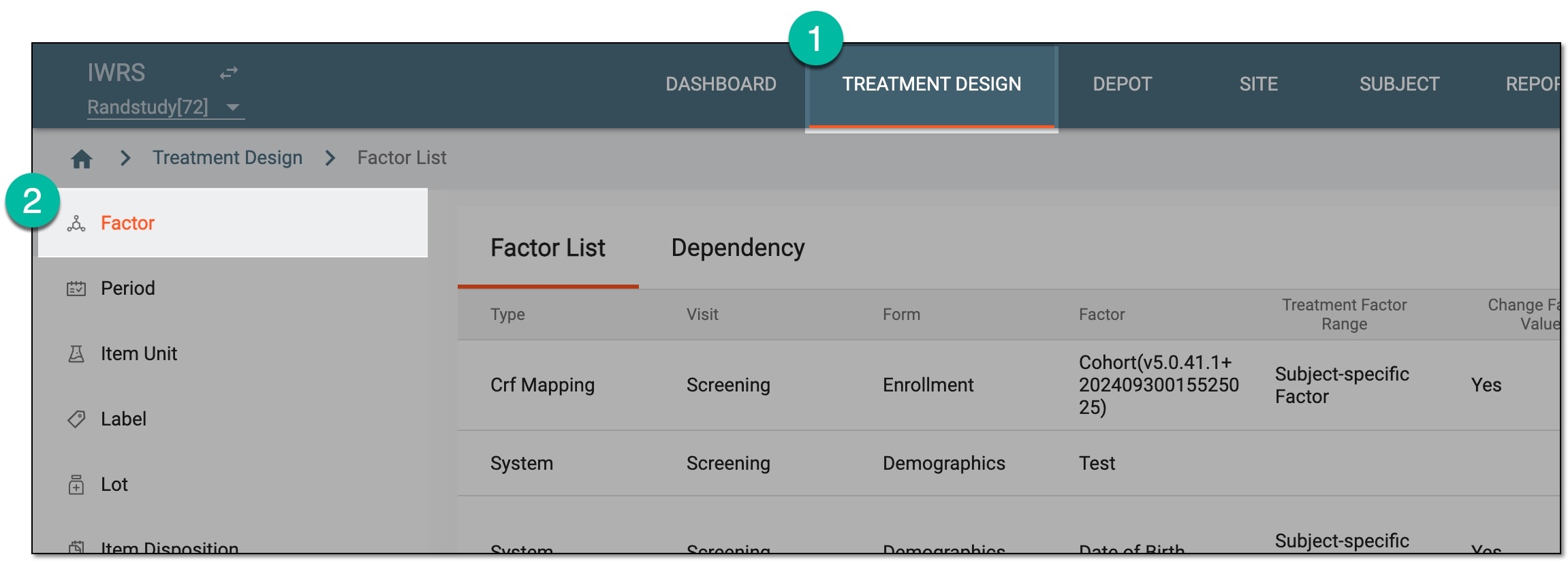 Figure 1. Accessing factor list
-
On the page that appears, from the workspace toolbar, select New Item
 .
.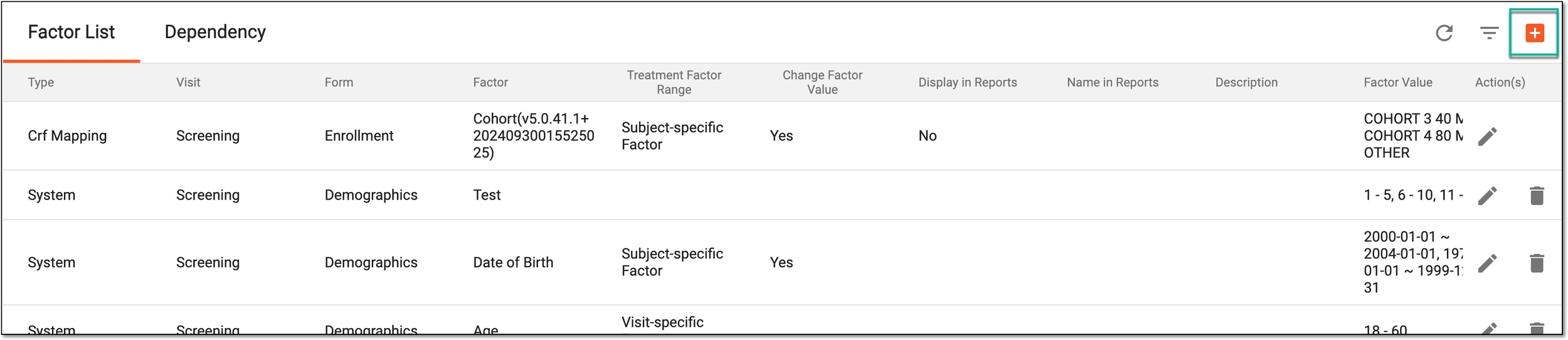 Figure 2. Adding new factor
-
In the Add dialog that appears, start creating your factor depending on its type as follows.
Tip
The CRF Mapping type of factor cannot be created in IWRS and thus, this option is always disabled and unavailable for selection. The CRF mapping factors are created in SD and pushed to IWRS automatically. Depending on the SD setting, the factor value can be entered in IWRS and pushed to EDC, or entered in EDC and pushed to IWRS.
Add a new factor of the Manual type by setting the preferences as described in the following table.
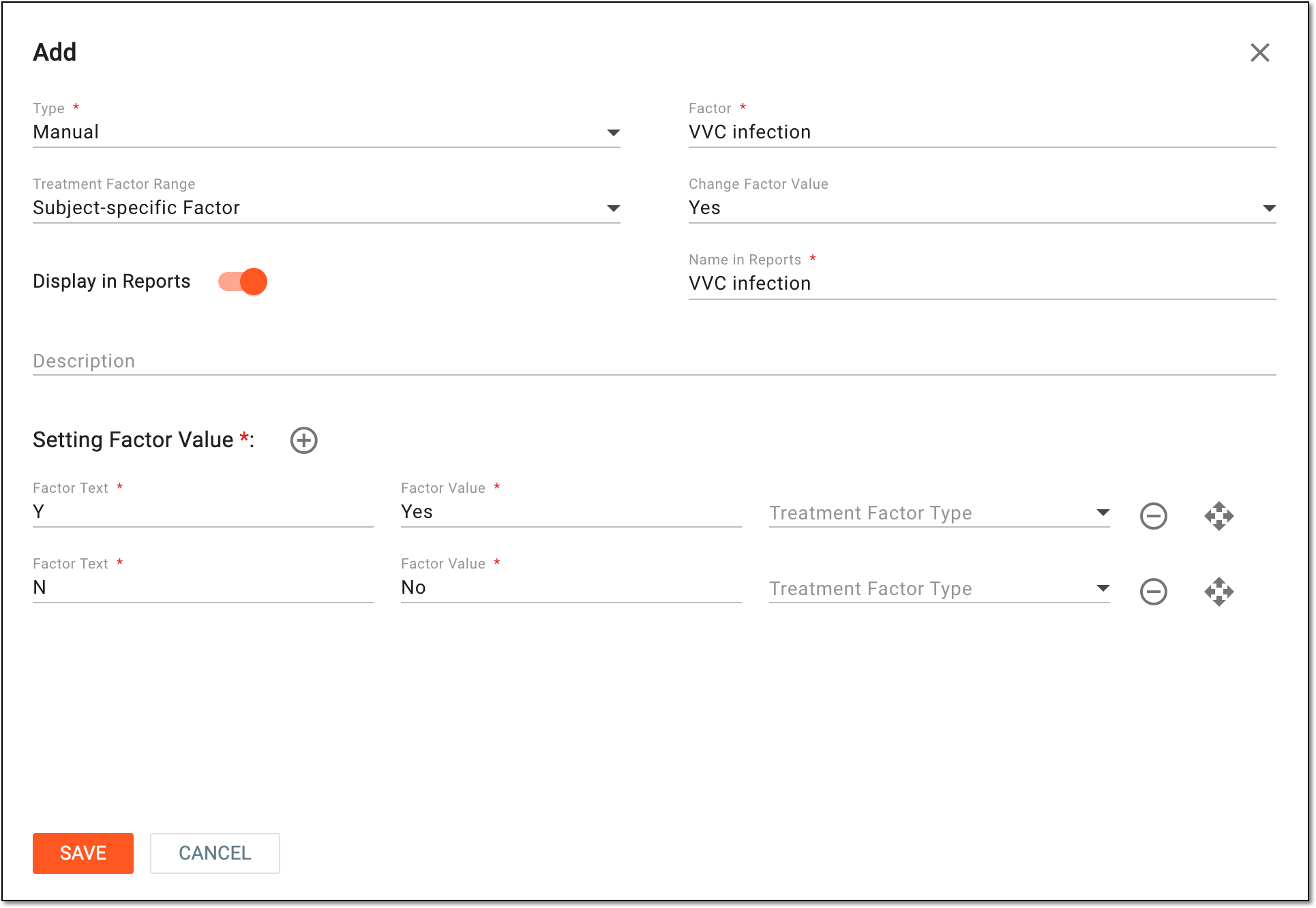 Figure 3. Configuring new manual factor
Element
Details
Type*
Select the Manual type to create a factor whose data is not synced to EDC.
Factor*
Enter a new factor name, for example, "VVC infection."
Treatment Factor Range
Select the factor treatment range:
If no value is selected, the factor is handled as treatment-specific by default.Change Factor Value
Allow or restrict changing the factor value for a subject as follows:
This field is only available if the Subject-specific Factor value is selected in the Treatment Factor Range field.Display in Reports
Turn this toggle on if you want to display the subject's factor value in the subject list and randomization reports.
This field is only available if the Subject-specific Factor value is selected in the Treatment Factor Range field.Name in Reports*
Enter the name of the factor that you want to be displayed in the the subject list and randomization reports. This one can be different from the factor name, for instance, it can be shorter to keep your report naming concise. The maximum allowed length for the name is 32 characters.
This field is only available if the Display in Reports toggle is turned on.Description
Enter a meaningful description of the factor.
For example, "The subject has a complicated VVC infection."
Setting Factor Value*

Select to add a new row for an additional factor value.

Select next to any row to delete the factor value.

Select next to any row and drag the row to a new placement to change the value order. This is most helpful when factor value order is important.
For instance, factor values are cycles of certain numbers and unscheduled visits, you would want the cycles to go in their correct order from first to last, and then have the unscheduled visits, not in the middle of the cycles.
Factor Text*
Enter the text of the factor value to display.
For example, for the "VVC infection" factor, the text could be "Yes" or "No."
Factor Value*
Enter the value of the factor.
For example, for a manual factor with the factor text Yes, the code list can be Y, and for No, it can be N.
Treatment Factor Type
Select one of the following treatment factor types or no value:
SAVE
Select
 to implement the changes.
CANCEL
Select
 to discard the changes, close the dialog, and return to the Factor List
table.
to discard the changes, close the dialog, and return to the Factor List
table.Add a new factor of the System type by setting the preferences as described in the following table.
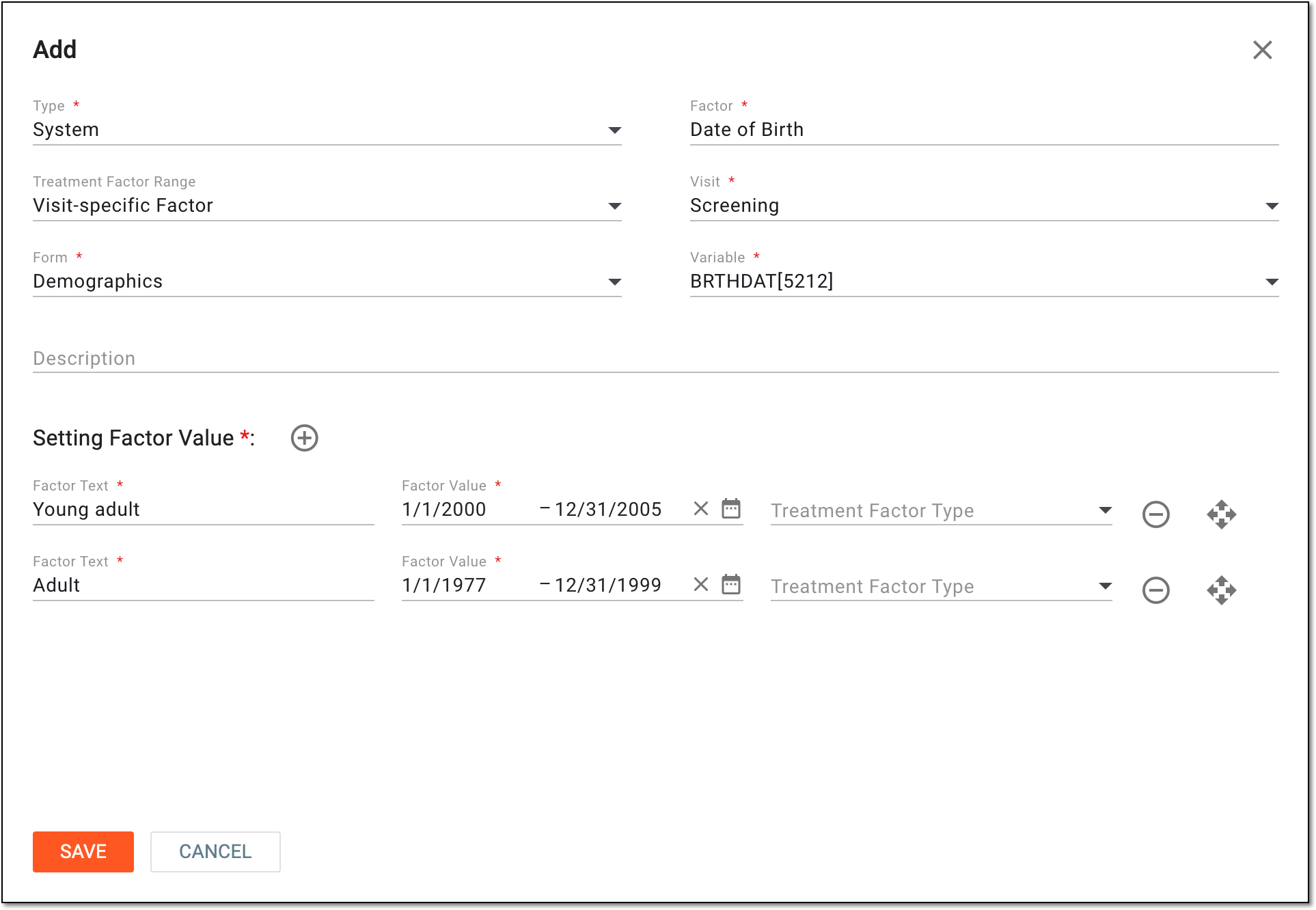 Figure 4. Configuring new system factor
Element
Details
Type*
Select the System type to create a factor whose data is mapped to Date or Numeric item in EDC. You can set a date or number range as the factor value. When the data is entered in EDC and pushed to IWRS, the system maps the factor value according to the range within which the data is located. .
For instance, the factor can be Age group: 0~18, 19~55, 56~70. If a user enters the age of 32 in EDC, the data is pushed to IWRS and mapped to 19~55. This type is mostly used when the randomization is stratified by age or birth year.
Factor*
Enter a new factor name, for example, "Date of Birth."
Treatment Factor Range
Select the factor treatment range:
If no value is selected, the factor is handled as treatment-specific by default.Change Factor Value
Allow or restrict changing the factor value for a subject as follows:
This field is only available if the Subject-specific Factor value is selected in the Treatment Factor Range field.Display in Reports
Turn this toggle on if you want to display the subject's factor value in the subject list and randomization reports.
This field is only available if the Subject-specific Factor value is selected in the Treatment Factor Range field.Name in Reports*
Enter the name of the factor that you want to be displayed in the subject list and randomization reports. This one can be different from the factor name, for instance, it can be shorter to keep your report naming concise. The maximum allowed length for the name is 32 characters.
This field is only available if the Display in Reports toggle is turned on.Visit*
Select the visit from whose form's variable you want to pull the data for the factor you are creating.
For instance, if you want the subject's date of birth to be pulled from the EDC application, you need to select the visit at which the demographics data along with the date of birth is collected, for example, Screening.
Form*
Select the form from whose variable you want to pull the data for the factor you are creating.
For instance, if you want the subject's date of birth to be pulled from the EDC application, and you have selected the Screening visit to be the source of data, now select the form containing the date of the subject's birth, such as Demographics.
Variable*
Select the variable whose data you want to pull from EDC for the factor you are creating.
For instance, if you want the subject's date of birth to be pulled from the EDC application, and you have selected the Screening visit and the Demographics form to be the source of data, now select the variable containing the date of the subject's birth, such as BRTHDAT.
Description
Enter a meaningful description of the factor.
For example, "The subject's date of birth."
Setting Factor Value*
Select to add a new row for an additional factor value.
Select next to any row to delete the factor value.
Select next to any row and drag the row to a new placement to change the value order. This is most helpful when factor value order is important.
For instance, factor values are cycles of certain numbers and unscheduled visits, you would want the cycles to go in their correct order from first to last, and then have the unscheduled visits, not in the middle of the cycles.
Factor Text*
Enter the text of the factor value to display.
For example, for the "Date of Birth" factor, the text could be "Young Adult" or "Adult."
Factor Value*
Select the value of the factor that depends on the selected variable.
For instance, for the system factor Age, the factor value is always a range of numbers (0-18, 19-55, or else), and for a Date of Birth factor, the value is always a range of start and end dates.
Treatment Factor Type
Select one of the following treatment factor types or no value:
-
Scheduled: the values of this type are only available for scheduled dispensing.
-
Unscheduled: the values of this type are only available for unscheduled dispensing.
-
No value: the empty field defines that the value will be available for both scheduled and unscheduled types of dispensing.
SAVE
Select
to implement the changes.CANCEL
Select
to discard the changes, close the dialog, and return to the Factor List
table.Add a new factor of the Read Only type by setting the preferences as described in the following table.
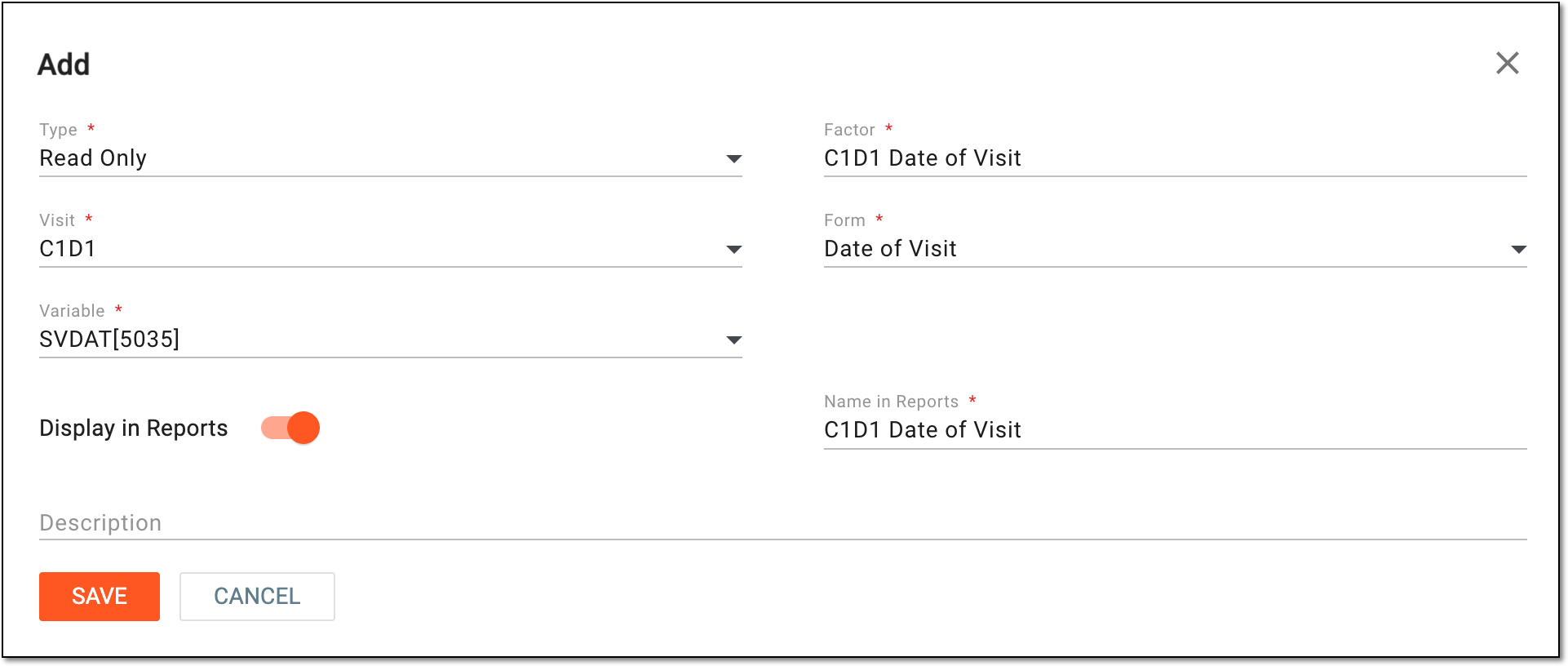 Figure 5. Configuring new read-only factor
Element
Details
Type*
Select the Read Only type to create a factor whose data is mapped to EDC. This factor type is intended to include a certain data variable into the subject's statistical information in the system. These factors are not considered for randomization or dispensation; their purpose is strictly informative.
For instance, you can add a read-only factor "C1D1 Date of Visit" that captures the date when the subject's first visit of the first treatment cycle took place. This data can now be set to be displayed in reports so that it is easy to locate and track.
Factor*
Enter a new factor name, for example, "C1D1 Date of Visit."
Visit*
Select the visit from whose form's variable you want to pull the data for the factor you are creating.
For instance, if you want the subject's date of first visit of the first treatment cycle to be pulled from the EDC application, you need to select the C1D1 (Cycle 1 Day 1) visit.
Form*
Select the form from whose variable you want to pull the data for the factor you are creating.
For instance, if you want the subject's date of first visit of the first treatment cycle to be pulled from the EDC application, and you have selected the C1D1 visit to be the source of data, now select the form containing the needed data, such as Date of Visit.
Variable*
Select the variable whose data you want to pull from EDC for the factor you are creating.
For instance, if you want the subject's date of first visit of the first treatment cycle to be pulled from the EDC application, and you have selected the C1D1 visit and the Date of Visit form to be the source of data, now select the variable containing the date of visit, such as SVDAT.
Display in Reports
Turn this toggle on if you want to display the subject's factor value in the subject list and randomization reports.
Name in Reports*
Enter the name of the factor that you want to be displayed in the subject list and randomization reports. This one can be different from the factor name, for instance, it can be shorter to keep your report naming concise. The maximum allowed length for the name is 32 characters.
This field is only available if the Display in Reports toggle is turned on.Description
Enter a meaningful description of the factor.
For example, "The date of subject's first visit of the first treatment cycle (C1D1)."
SAVE
Select
to implement the changes.CANCEL
Select
to discard the changes, close the dialog, and return to the Factor List
table. -
Once all the changes are saved, a new factor of the selected type is added to IWRS. You can now use the manual and system type factors as cohort inclusion criteria.