Subject event history
In IWRS, you can manage a dispensation plan and handle drug dispensing for any subject. When you do any manipulations with subjects, the history of actions is recorded on a separate page. On this page, you can view when and who randomized a particular subject, dispensed a drug, and so on.
Before viewing the history of actions done with a specific subject, make sure to have proper unblinding permissions assigned to your user role in the ADMIN application. You cannot view all the subject details without those permissions. Moreover, make sure that your user role is authorized to view unblinded data via the configured blinding settings in the IWRS application.
Within the Subject Event History page, you can view a history of actions for a selected subject. The grid columns on this page are explained in the following table.

Important
The columns in the Subject Event History table may differ depending on whether the Hide Item Number permission has been assigned to your user role or not.
|
Column |
Details |
|---|---|
|
Type |
Represents the type of action that has been performed with the selected subject. |
|
Visit |
Represents the visit for which the event has been generated. |
|
User |
Represents the login name of the user who has triggered the event. |
|
Date |
Represents the date and time at which the event has been created. |
|
Period |
Represents the subject's randomization period. |
|
Cohort (system) |
Represents the cohort to which the subject belongs. The column displays data only for the Randomization event type. |
|
Cohort Factor |
Represents the cohort factor applied to the selected subject. |
|
Arm |
Represents the arm to which the selected subject belongs. |
|
Strata Factor |
Represents the stratified factor applied to the selected subject. |
|
# of Items |
Represents the total number of items dispensed during the generated event and the lot number. |
|
# of Replaced |
Represents the total number of items combined with the lot number that have been replaced during the generated event. |
|
# of Wasted |
Represents the total number of items combined with the lot number that have been wasted during the generated event. |
|
# of Returned |
Represents the total number of items combined with the lot number that have been returned during the generated event. |
In IWRS, you can manage a dispensation plan and handle drug dispensing for any subject. When you do any manipulations with subjects, the history of actions is recorded on a separate page. On this page, you can view when and who randomized a particular subject, dispensed a drug, and so on. Also on this page, you can export the entire event history in an XLSX file so you can view it offline on your computer.
-
In the IWRS application header, select the SUBJECT tab.
-
From Subject List that opens, select the needed site and subject.
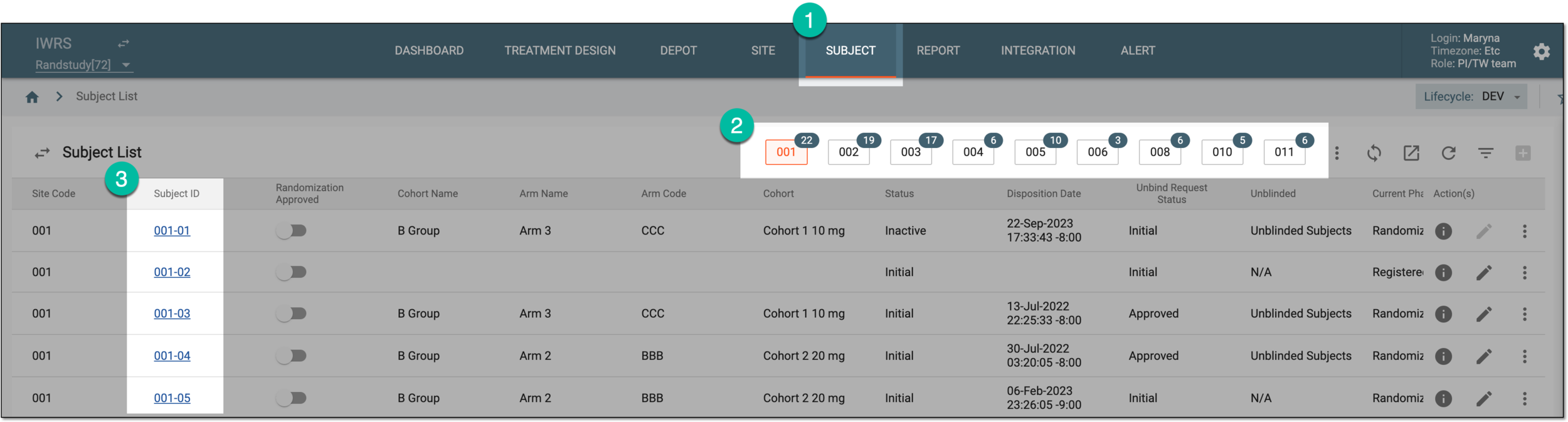 Figure 1. Selecting site and subject
-
In the left pane of the page that opens, select the Subject Event History tab.
-
In the Subject Event History table that appears, from the workspace toolbar, select Export
 .
. Figure 2. Exporting subject event history
-
Once selected, the widget appears displaying your download progress. Select the widget to open the My Downloads dialog.
 Figure 3. Downloads widget
-
In the My Downloads dialog that opens, you can find the following tabs:
-
Preparing: under this tab, you can find all the files whose export is in progress, and they are not yet ready for download.
-
Download is Ready: under this tab, you can find all the files whose export is complete, and they can be downloaded to your computer.
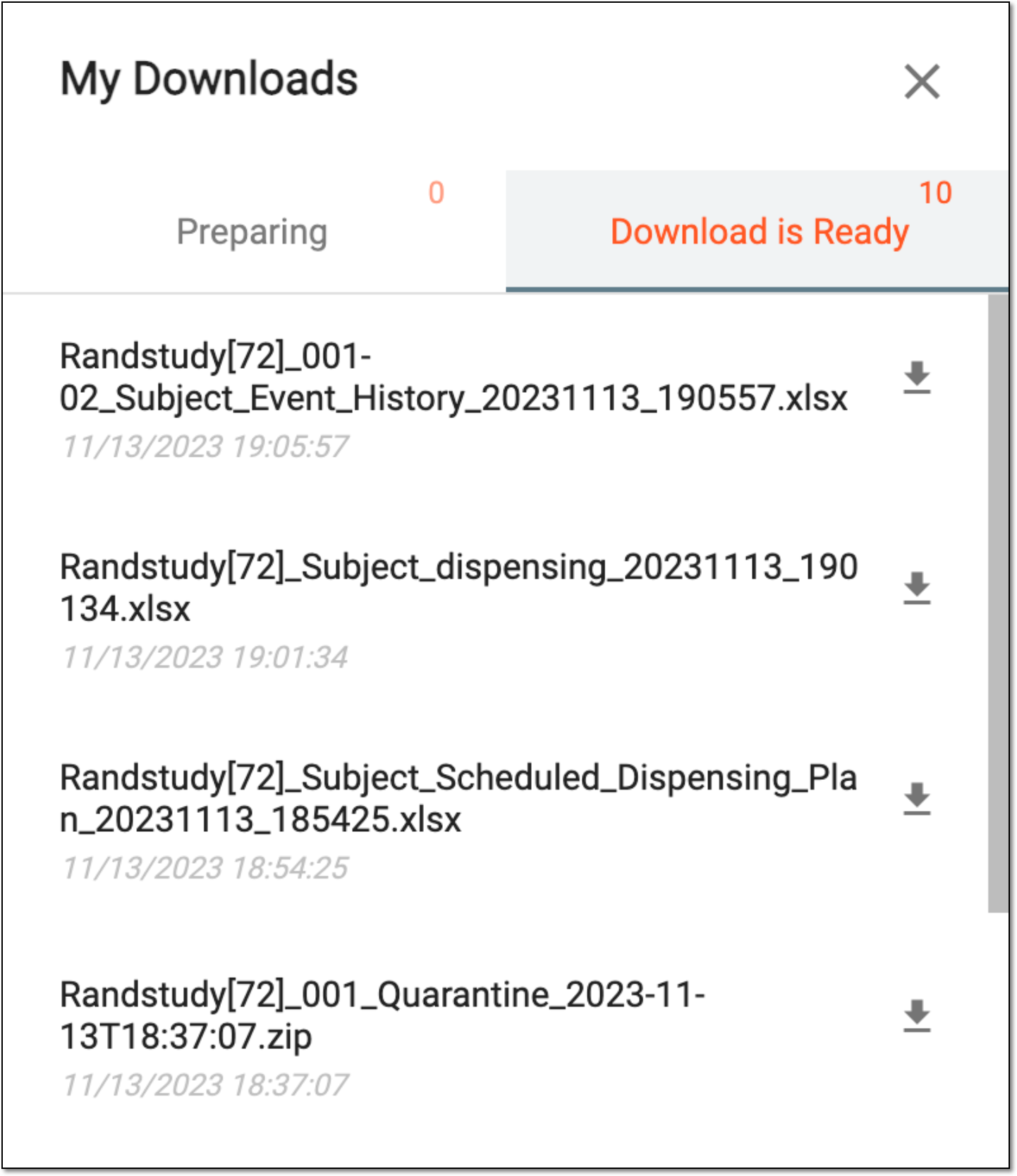 Figure 4. Viewing downloads
-
-
Under the Download is Ready tab, next to the file that you want to download, select
 .
.
Once exported, the subject event history is available on your computer.