Blind setting
Blinding is an instrument of a clinical trial to keep different groups of participants unaware of the treatment specifics. The intention behind blinding is to avoid and prevent conscious or unconscious bias in the design and execution of a clinical trial.
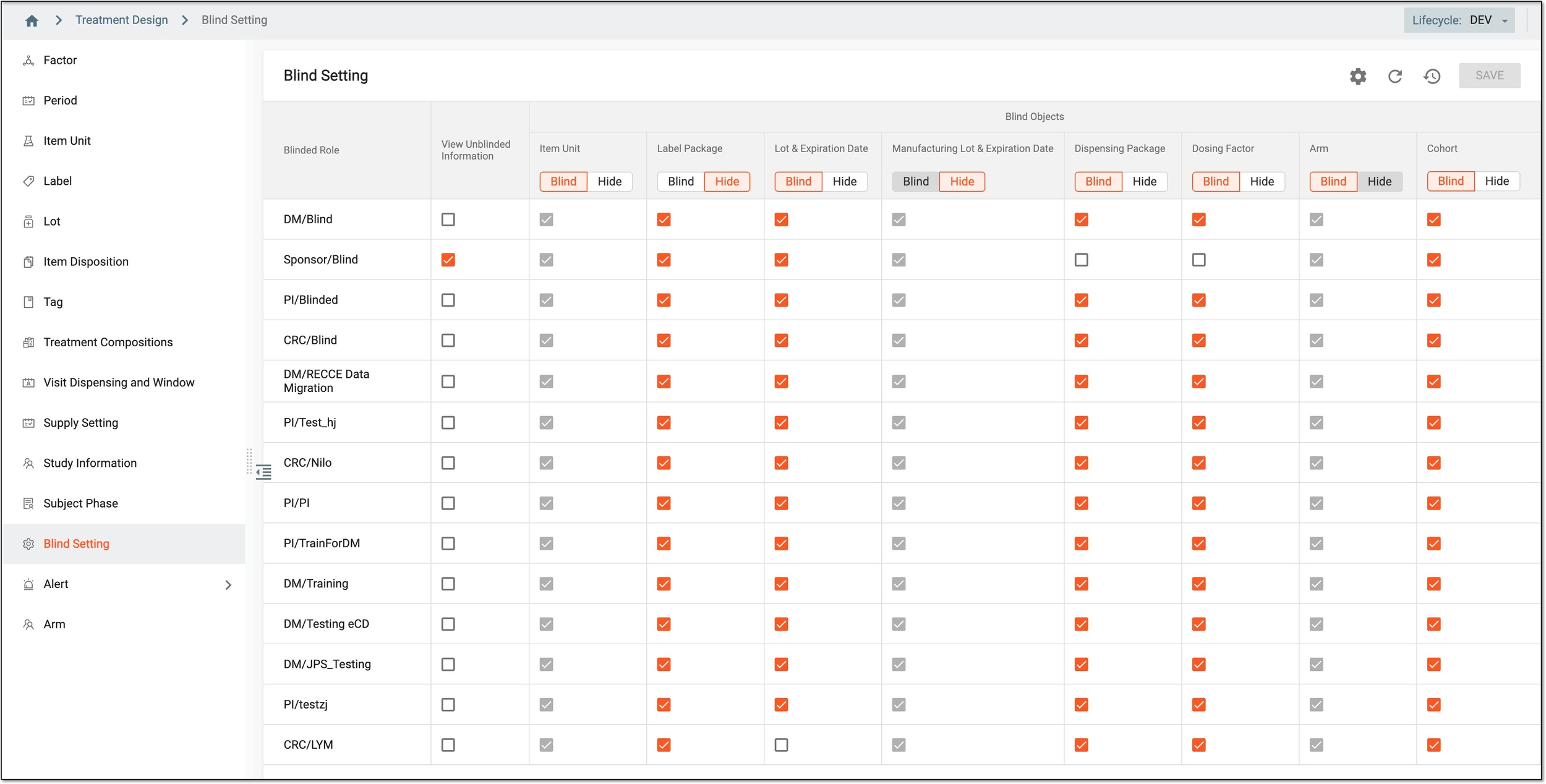
In IWRS, with the Blind Setting feature, you can set up which data pieces are available to blinded user roles to maintain the integrity of the study.
Tip
The setup of blinded and unblinded user roles occurs in the ADMIN application upon role creation or editing.
More details on blind setting capabilities in IWRS you can find in the following sections.
The intention behind blinding is to avoid and prevent conscious or unconscious bias in the design and execution of a clinical trial. In the IWRS application, where subject randomization and drug dispensation occur, it is of vital importance to ensure that blinded users have no access to specific data that can compromise the study's integrity.
In IWRS, you can predefine which data pieces are unavailable to blinded user roles by default to maintain the integrity of the study. Thus, each time a new blinded role is added to the study, the data elements selected as blind by default are disguised from all users of such role until configured otherwise by unblinding or showing some details to them via IWRS settings.
Important
For the user roles that already have their blind data points configured in IWRS, the setup of default blind data points does not affect their configurations.
-
In the IWRS application header, select the TREATMENT DESIGN tab.
-
In the left pane, select the Blind Setting subtab.
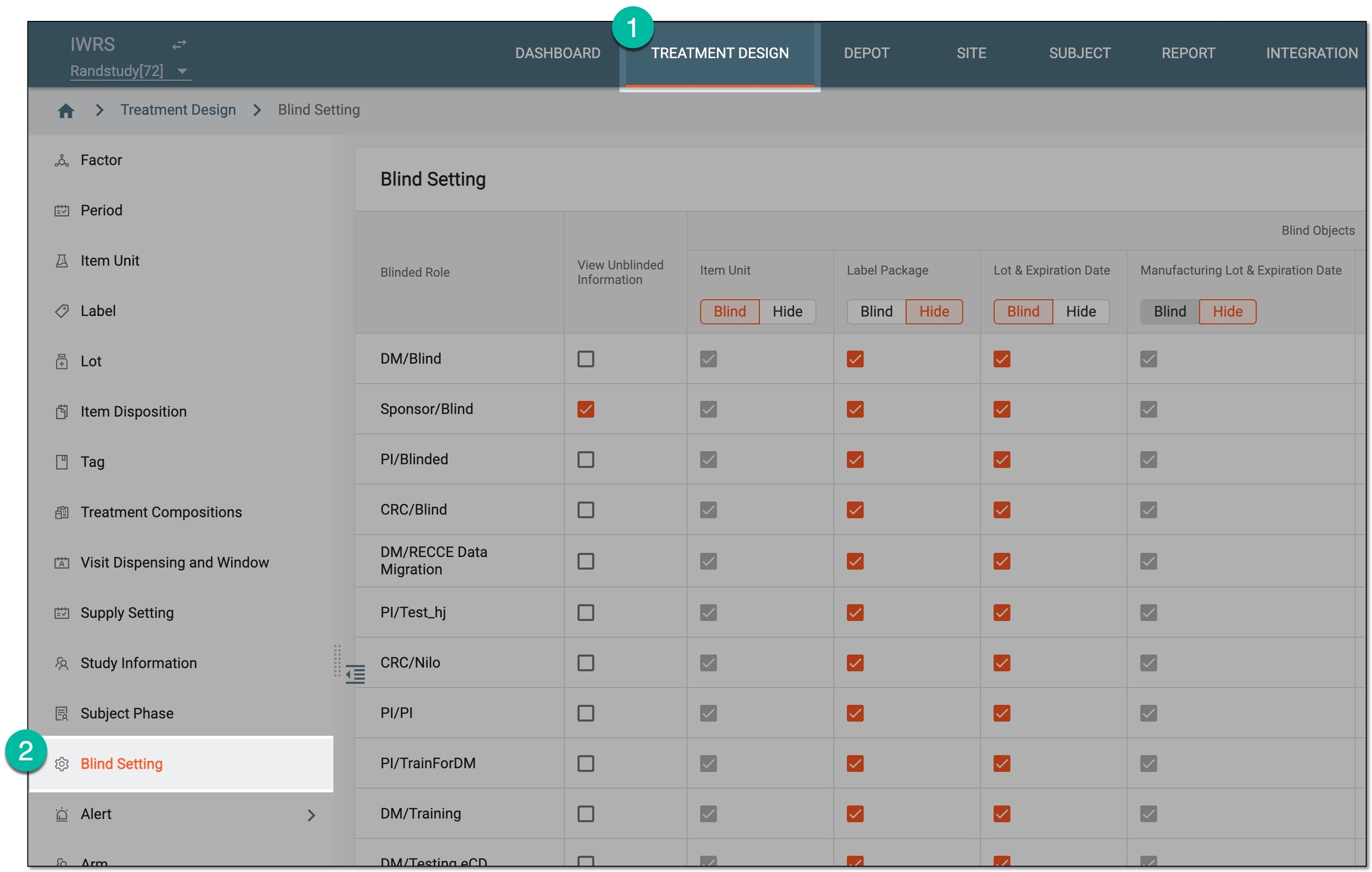 Figure 1. Accessing blind setting
-
On the Blind Setting page that opens, from the workspace toolbar, select Set Default Blind Data Point
 .
.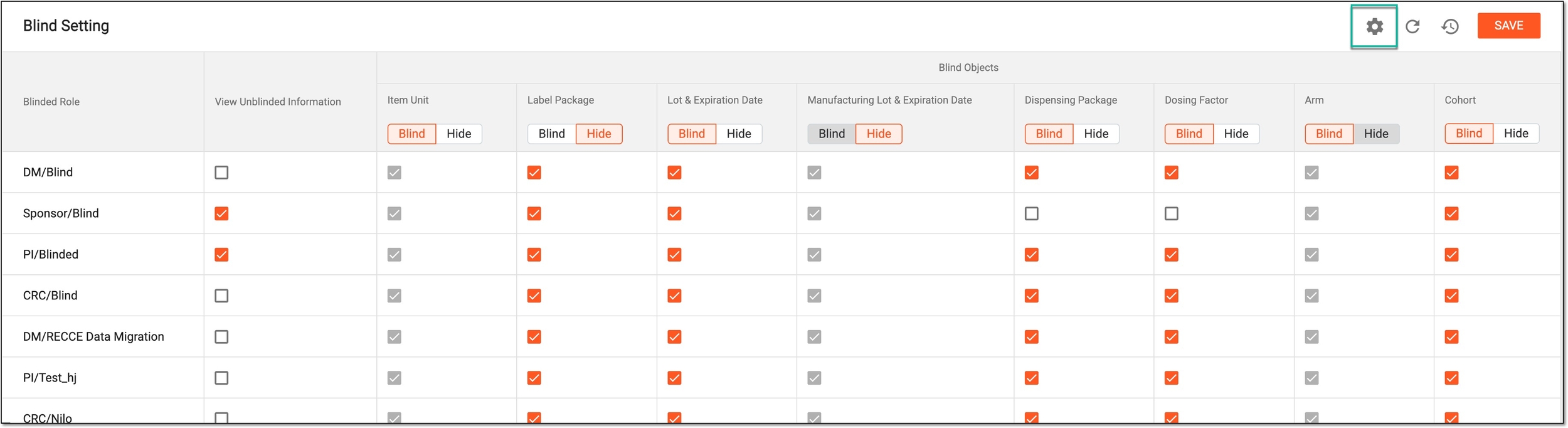 Figure 2. Accessing default blind data points settings
-
In the Set Default Blind Data Point dialog that appears, select the checkboxes next to the items that you want to be blinded by default from the users of the blind role. If cleared, the item is not blinded by default and you need to apply the blinding manually if needed.
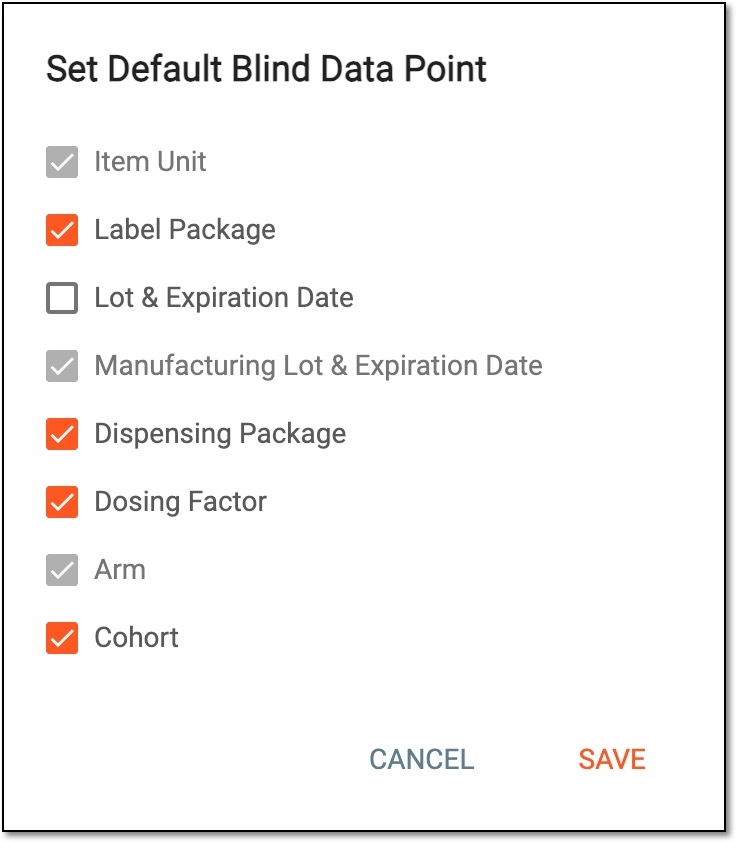 Figure 3. Selecting default blind data points
-
Select
 to implement the changes.
Once saved, the selected data items are blinded by default for all blind user roles added to the study after this setting is implemented.
The intention behind blinding is to avoid and prevent conscious or unconscious bias in the design and execution of a clinical trial. In the IWRS application, where subject randomization and drug dispensation occur, it is of vital importance to ensure that blinded users have no access to specific data that can compromise the study's integrity.
With the Blind Setting feature, you have the flexibility to disguise some specific data from the blinded users. You can either select to blind the values of some sensitive field and mask it with the Blind value, or you can hide the field from the user entirely so that they do not even know it is supposed to be there.
-
In the IWRS application header, select the TREATMENT DESIGN tab.
-
In the left pane, select the Blind Setting subtab.
Figure 1. Accessing blind setting
-
On the Blind Setting page that opens, in the Blind Objects table column, locate the subcolumn with the field name that you want to blind/hide from the specific user role. Then below its name, select the Blind or Hide option, respectively.
-
In the Blinded Role table column, locate the blinded user role for which you want to blind/hide the values.
-
At the intersection of the user role and value name values, select the checkbox to blind or hide the value from the user role.
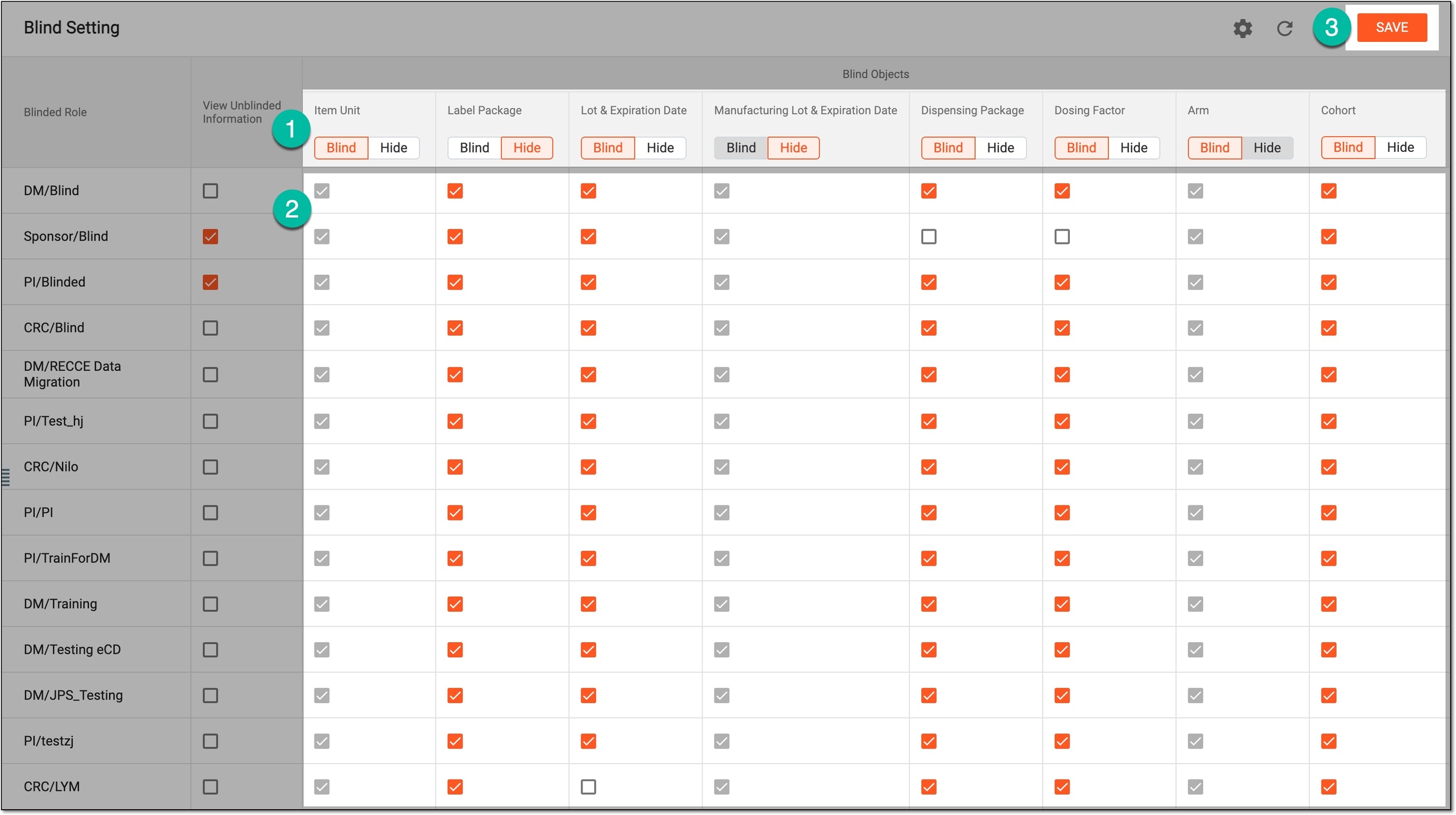 Figure 2. Blinding/Hiding values from blinded user roles
Important
The Item Unit and Arm columns are not editable. Since these values are at all times blinded for the blinded user role, you cannot change the selection manually.
-
Select
 to implement the changes.
Tip
If you get confused with the applied changes, before saving the blind settings, you can select Refresh
 to discard all your amendments, update the page to its original settings, and start over.
Upon saving, based on the selected option—Blind or Hide—the field values are blinded or the fields are completely hidden from the specific blinded user roles.
You can also select to show or hide the unblinded data for the blinded user role.
The intention behind blinding is to avoid and prevent conscious or unconscious bias in the design and execution of a clinical trial. In the IWRS application, where subject randomization and drug dispensation occur, it is of vital importance to ensure that blinded users have no access to specific data that can compromise the study's integrity.
With the View Unblinded Information feature you have the flexibility to hide even some unblinded data from the blinded users.
-
In the IWRS application header, select the TREATMENT DESIGN tab.
-
In the left pane, select the Blind Setting subtab.
Figure 1. Accessing blind setting
-
On the Blind Setting page that opens, in the View Unblinded Information table column, select the checkboxes next to the blinded user roles for which you want to allow the view of unblinded data or clear the checkboxes to hide the data.
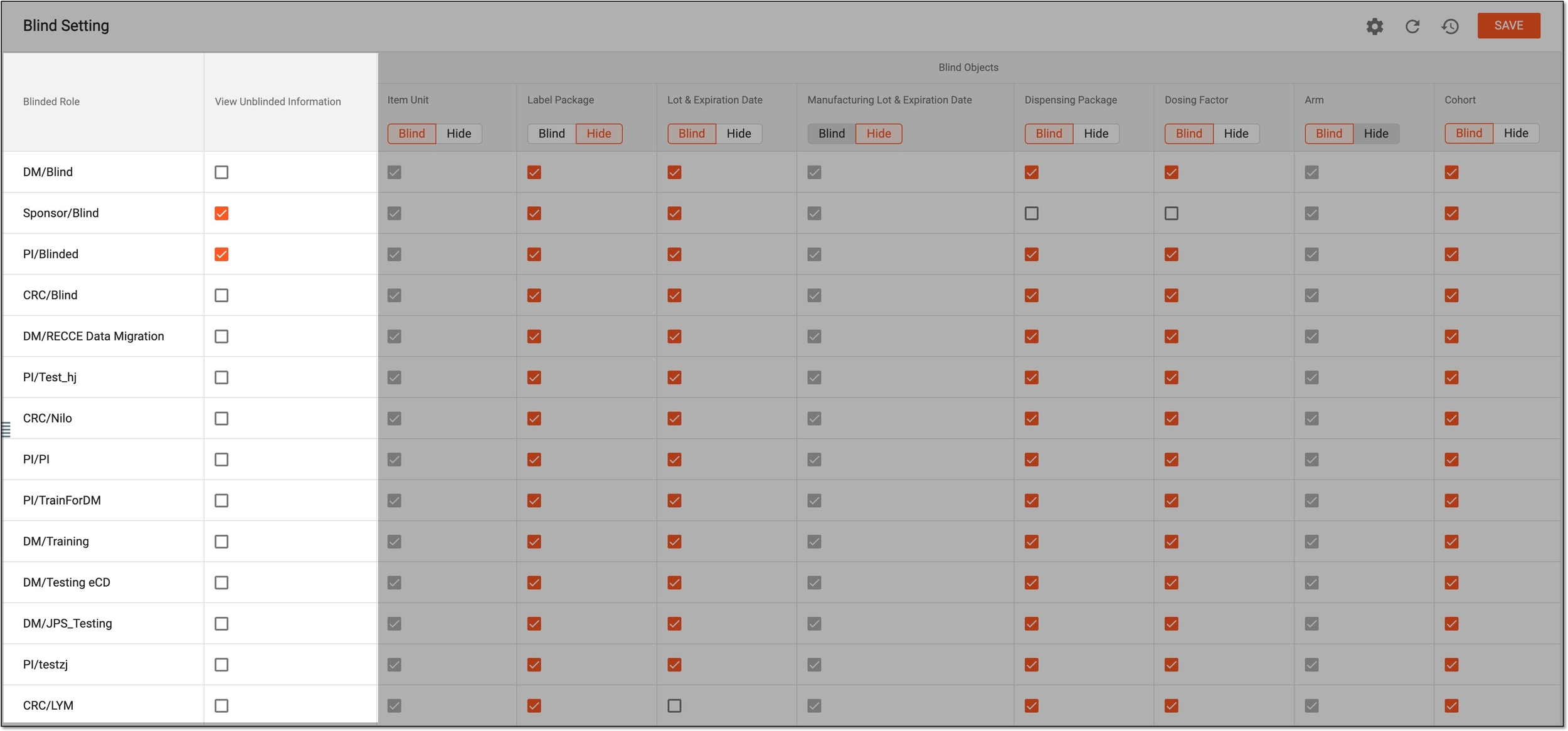 Figure 2. Showing/Hiding unblinded data for blinded user roles
-
Select
to implement the changes.Tip
If you get confused with the applied changes, before saving the blind settings, you can select Refresh
to discard all your amendments, update the page to its original settings, and start over. -
In the Signature dialog that appears, enter your credentials and the reason for the action as explained in the following table.
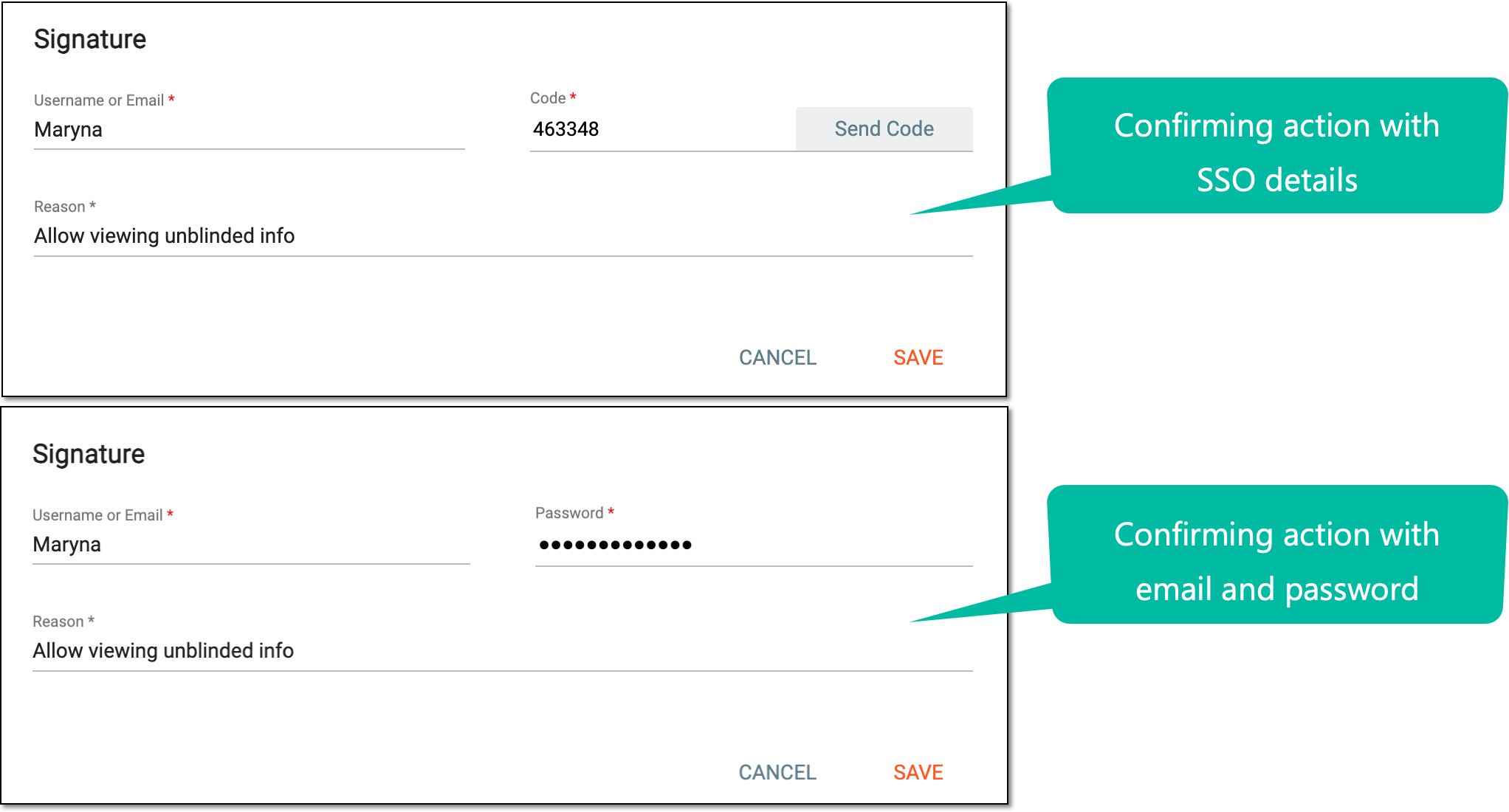 Figure 3. Signing confirmation to show/hide unblinded data
Tip
In the following table, mandatory elements are marked with an asterisk (*).
Element
Details
Username or Email*
Enter your username or email that you use to log in to the eClinical applications.
Send Code
Select
 to send the temporary PIN code to your email for which the SSO method is configured.
The button is only available if you use the authorization method via SSO.Code*
Enter the temporary PIN code that you received via email.
The field is only available if you use the authorization method via SSO.Password*
Enter the password that you use to log in to the eClinical applications.
The field is only available if you use the authorization method by providing your login and password.Reason*
Enter a valid reason for granting/denying the user role access to unblinded subject data in the IWRS application.
SAVE
Select
to confirm your action with your signature and save the implemented changes.CANCEL
Select
 to discard the changes, close the dialog, and return to the Blind Setting
page.
to discard the changes, close the dialog, and return to the Blind Setting
page.Important
For security, the system logs you out after three failed attempts to confirm your identity with a password or code.
Upon saving, the users of the selected blinded roles can or cannot—depending on your selection—view the unblinded information for subjects and drugs.
For traceability and compliance, all the unblinding and blinding actions in the system can be reviewed via blind setting operation history.
In the IWRS application, where subject randomization and drug dispensation occur, it is of vital importance to ensure that blinded users have no access to specific data that can compromise the study's integrity.
To keep track of all the changes performed via the Blind Setting functionality and prevent unlawful doing, you can use the operation log that tracks all actions within the page.
-
In the IWRS application header, select the TREATMENT DESIGN tab.
-
In the left pane, select the Blind Setting subtab.
Figure 1. Accessing blind setting
-
On the Blind Setting page that opens, on the workspace toolbar, select Operate History
 .
.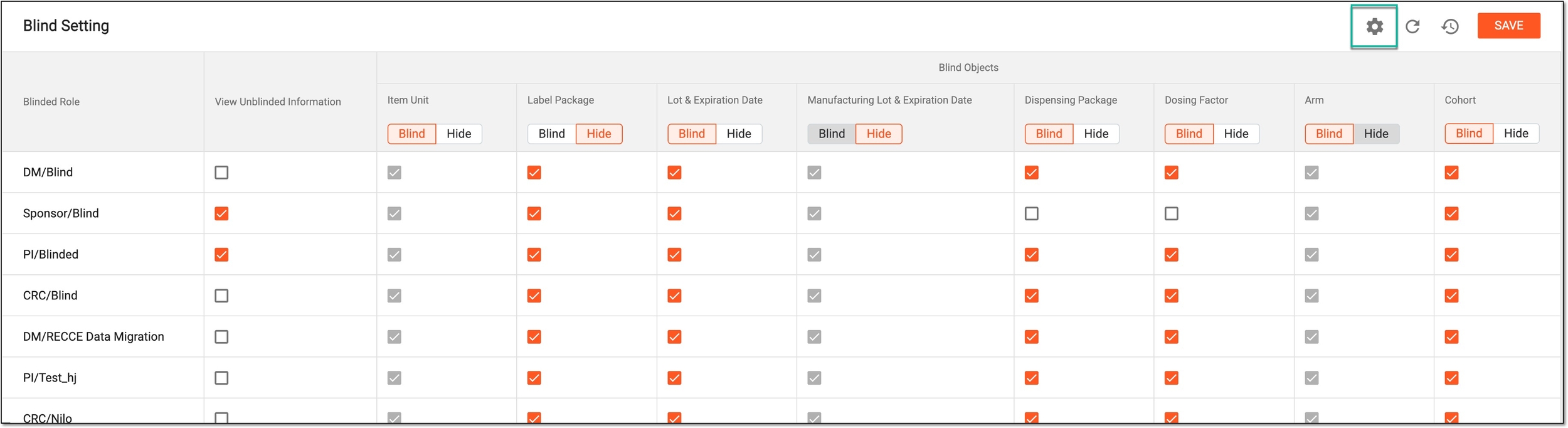 Figure 2. Accessing blind setting operation history
-
In the Operate History dialog that opens, view all the actions with blinding fields and data for user roles within the Blind Setting page.
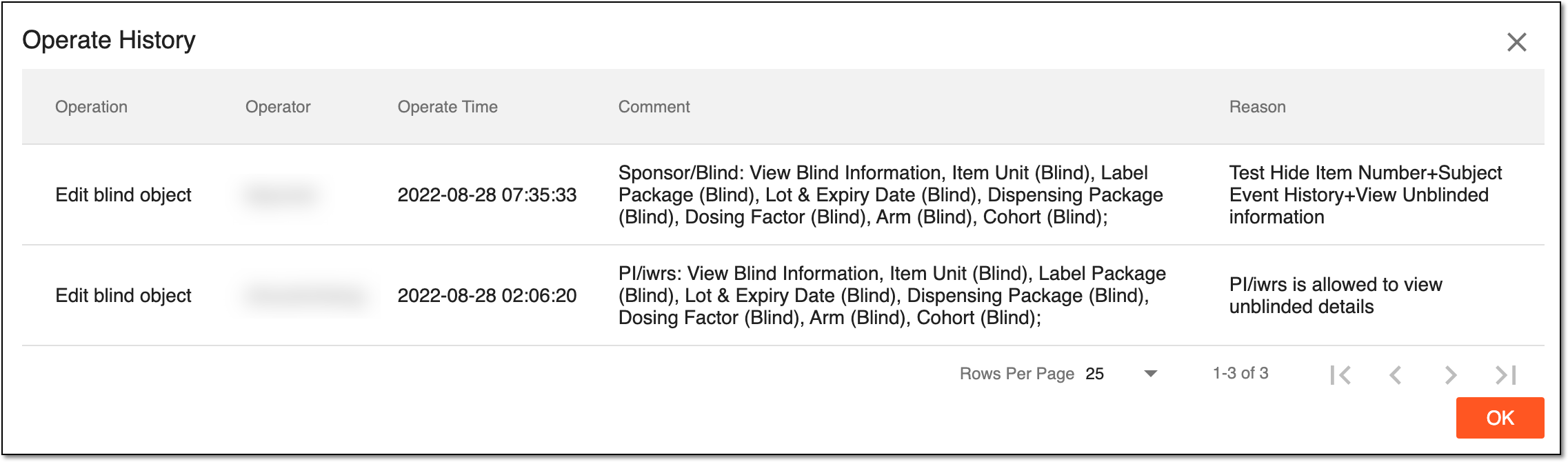 Figure 3. Viewing blind setting operation history
-
Select
 to close the dialog and return to the Blind Setting page.
You have viewed the operation history of blind settings.