Edit role details
A role is defined as the set of access permissions and characteristics provided to a certain group of users and based on which they can use the eClinical system.
In the ADMIN application, you can update roles to introduce some changed characteristics or their activation status per sponsor request or other reason.
For instance, if you have changed the access permissions for the role, you might want to edit the description of the role to reflect the new set of responsibilities.
-
In the ADMIN application header, select the ROLE tab.
-
On the Role management page that appears, next to the needed role, select Edit
 .
. Figure 1. Selecting option to edit role details
-
In the Edit Role panel that expands, make all the necessary changes as explained in the following table.
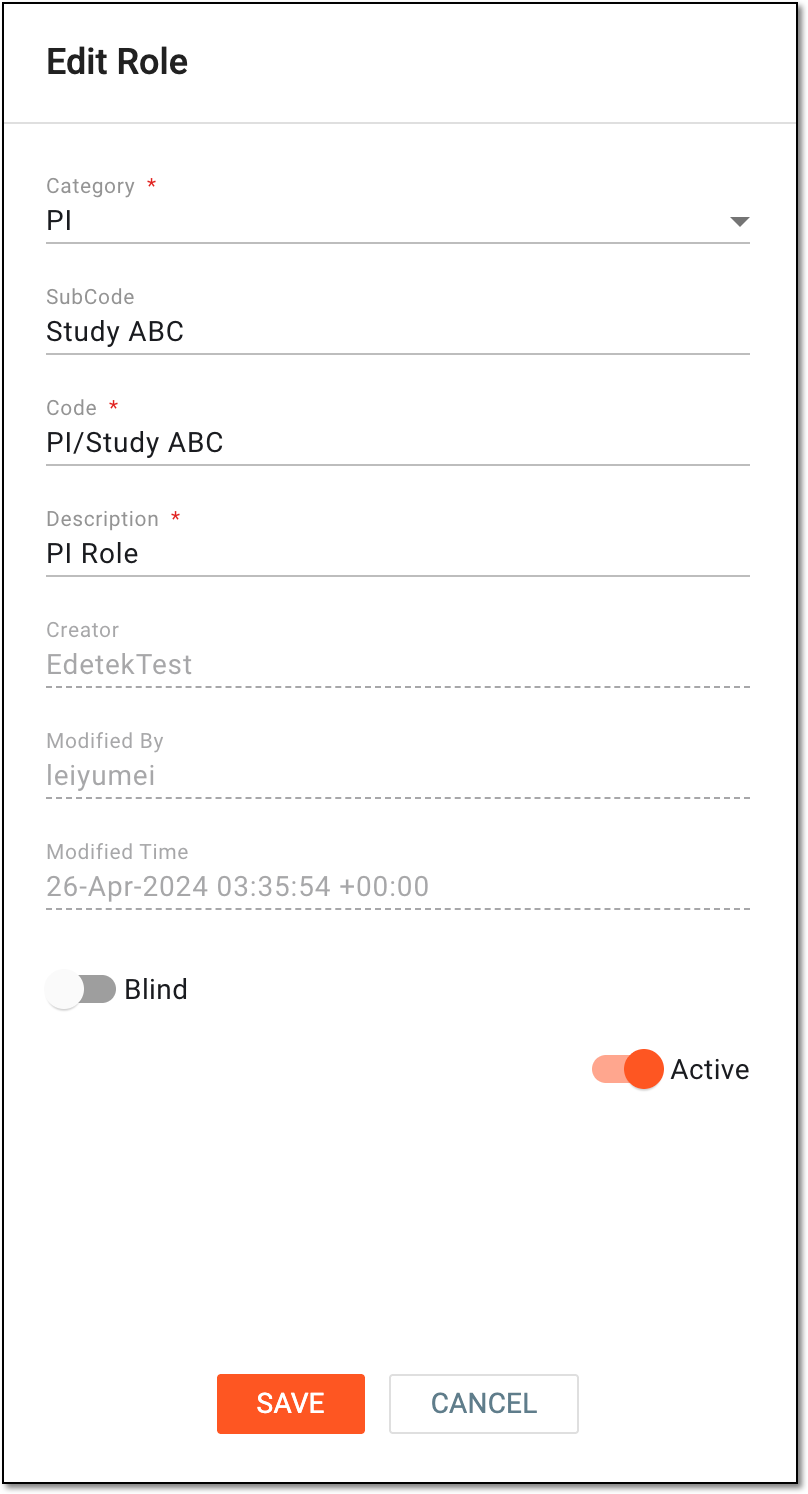 Figure 2. Editing role details
Element
Details
Category*
Select the kind of role that the associated users have in the clinical trial or system management based on their functional characteristics, such as DM, CRC, PI, Sponsor, Administrator, Tester, and so on.
This value is automatically added to the Code value as a first part of the role name.
SubCode
Enter the application or specific study to which the role might have access.
This value is automatically added to the Code value as a second part of the role name after the slash to provide some specification.
Code*
Represents the autofilled value that is the combination of the Category and SubCode field values, divided by a slash. This is needed to give a more specific name to the role for further distinguishing in the system.
For instance, if you handle multiple studies with different PIs, you might want to give them different access permissions in the system; thus, you need to create different user roles to assign to them. In ADMIN, you can do it by selecting the PI category and entering the Study 1 subcode for one role, and then creating another one by selecting the PI category as well, but entering the Study 2 subcode. Thus, you will have two roles—PI/Study 1 and PI/Study 2.
Description*
Enter some descriptive details to elaborate on the role significance or specifications.
Creator
A read-only field that represents the name of the user who first created the role being edited.
Modified By
A read-only field that represents the name of the user who last modified the role being edited.
Modified Time
A read-only field that represents the exact date, time, and time zone indicator when the role was last modified.
Blind
Set as follows:
-
Turn this toggle on to provide the role being added a blinded view, meaning that the sensitive data will be hidden from the user to ensure study integrity.
-
Turn the toggle off to unblind the user role, thus, providing them the ability to see and interact with sensitive study data.
Active
Set as follows:
-
Turn the toggle on if the role being added must be activated upon creation. The users of an active role obtain immediate access to the applications and studies.
-
Turn the toggle off if the role being added must be inactive upon creation. The users of an inactive role cannot access the applications and studies until activated.
SAVE
Select
 to implement the changes.
CANCEL
Select
 to discard changes without saving.
 -
Once saved, the role is updated.