Grant access permissions (manage hierarchies) for roles
In the ADMIN application, with the Manage Hierarchies functionality, you can grant or restrict the user role access permissions to certain eClinical applications or their functionalities.
For instance, you can provide the DM (data manager) role with full access to the data entry functionality of EDC, and in CTMS, you can grant them read-only access to review some reports, but not maintain monitoring activities, risk management, and so on, which are not in their responsibilities.
-
In the ADMIN application header, select the ROLE tab.
-
On the Role management page that appears, next to the needed role, select Manage Hierarchy
 .
. Figure 1. Selecting option to manage role rpermissions
-
In the Link System panel that expands, drill down the hierarchy tree of apps and their functionalities and select or clear the checkboxes to provide or restrict access, respectively.
For instance, to grant the users of a PI role access permission to create, edit, and otherwise manage workflows of CTMS, drill down the CTMS hierarchy in the tree to expand Workflow Setting and select Write. On the contrary, to restrict the permission to manage workflows and only permit to view them, under Workflow Setting, clear Write but select View.
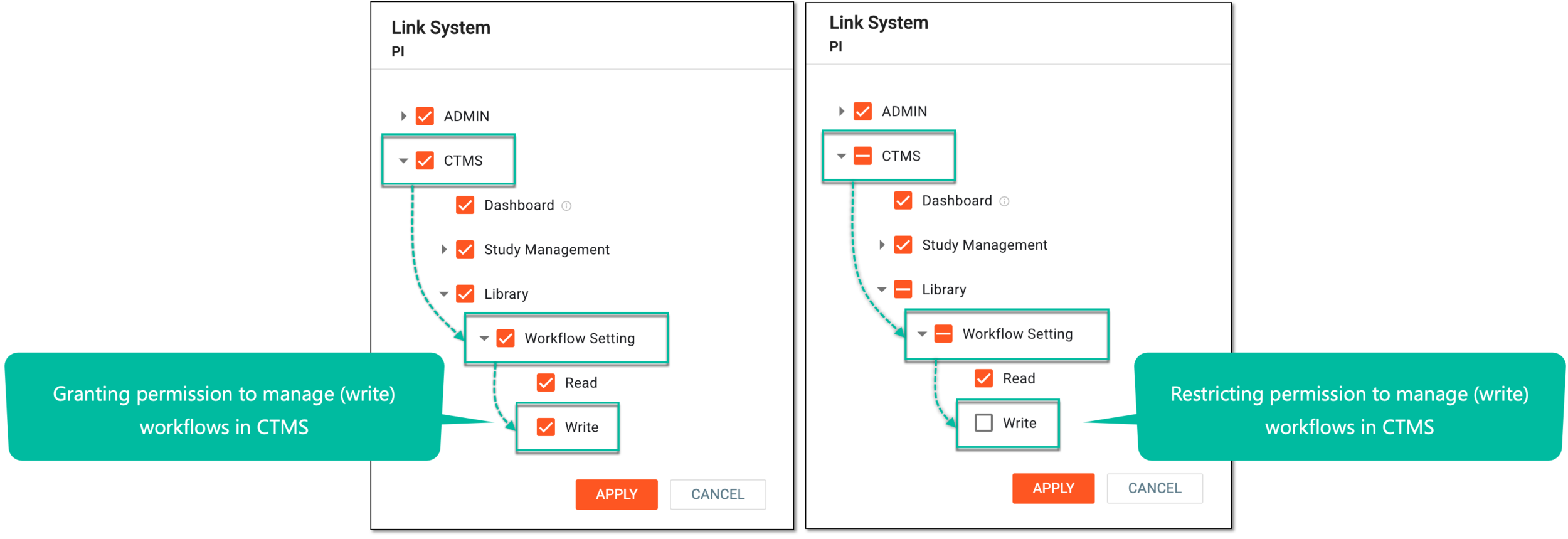 Figure 2. Example of granting and restricting permission
-
Once you have selected all the functionalities to grant access to them and cleared those to restrict from accessing for the role, select
 to save the changes.
Once applied, the access permissions for the role are set. The users of this role can now access and maintain the selected applications and features.