Restore item status
In the IWRS application, if the item has been dispensed to the subject and then marked as returned, you can restore the item status to dispensed. This might be helpful, for instance, if the item return has been done by mistake. The changes made are synchronized in the EDC application, so you can restore the item status directly from IWRS instead of making changes in the EDC application.
Important
You can restore the status of items to dispensed only when items are returned to the site by using Subject Return.
-
In the IWRS application header, select the SUBJECT tab.
-
From Subject List that opens, select the needed site and subject.
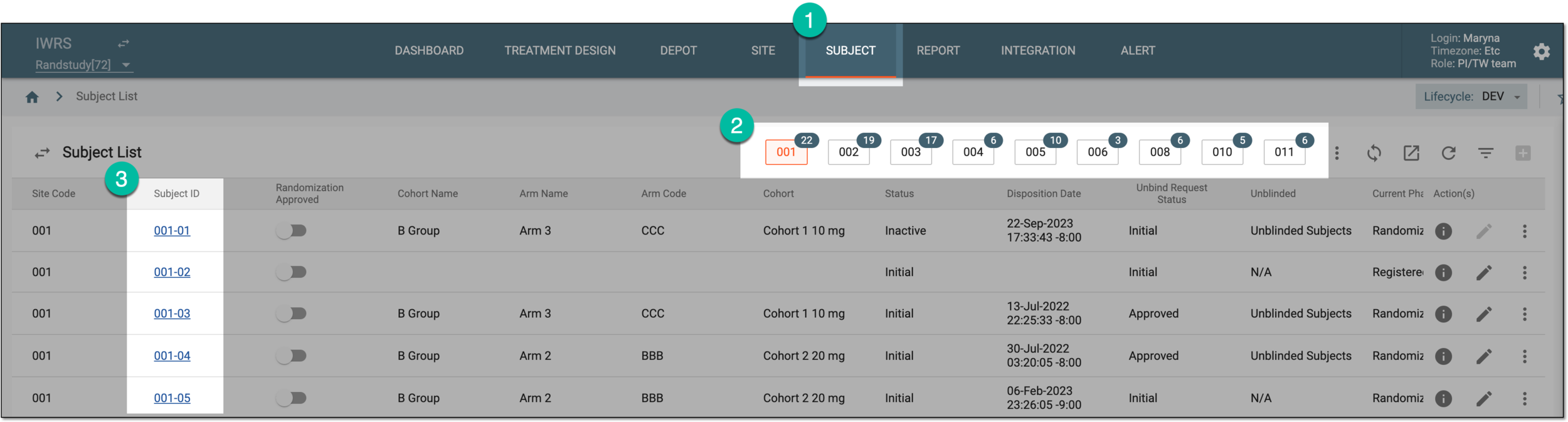 Figure 1. Selecting site and subject
-
In the left pane, of the page that opens, select the Subject Dispensing tab.
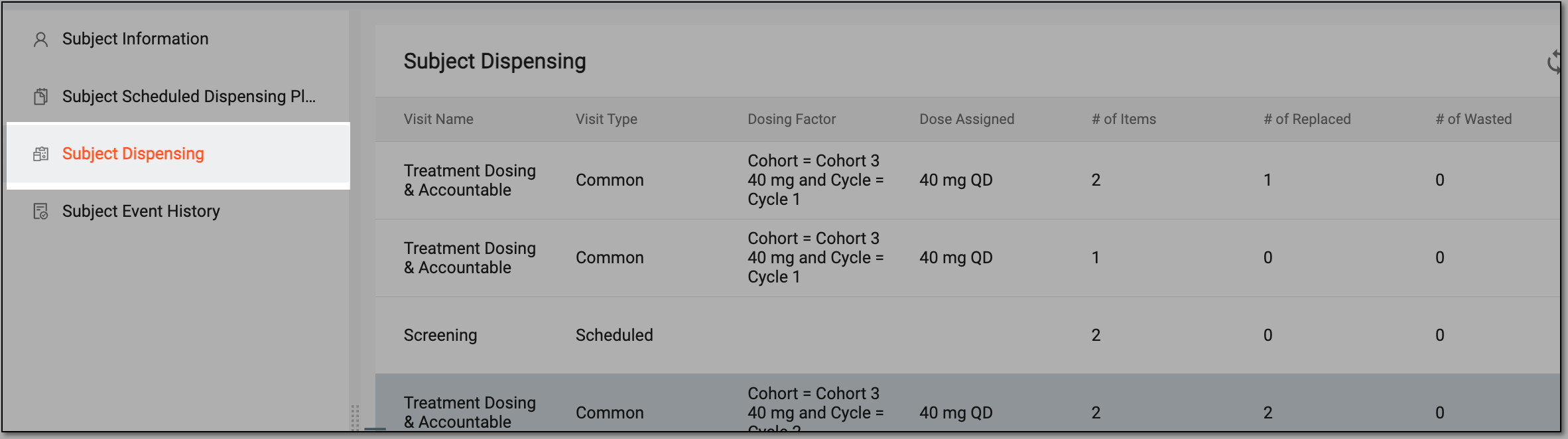 Figure 2. Selecting subject dispensing tab
-
In the Subject Dispensing table that appears, select More
 > Restore Item Status
  .
.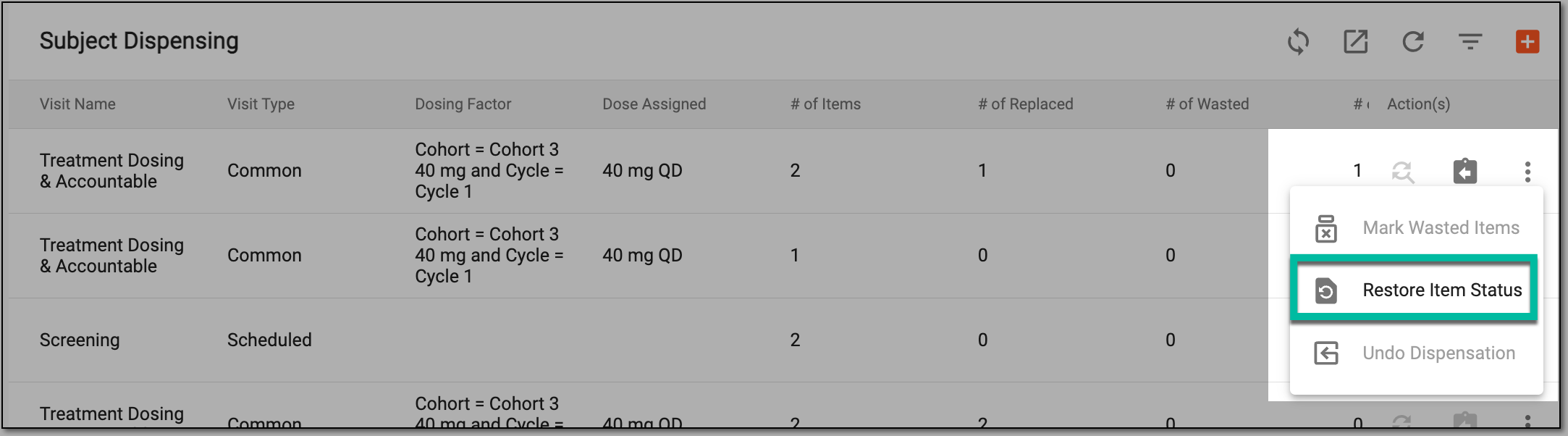 Figure 3. Selecting restore item status
Important
The Restore Item Status option is disabled if no items are returned to the site.
-
In the Restore Item Status dialog that appears, provide the details for restoring item status as explained in the following table.
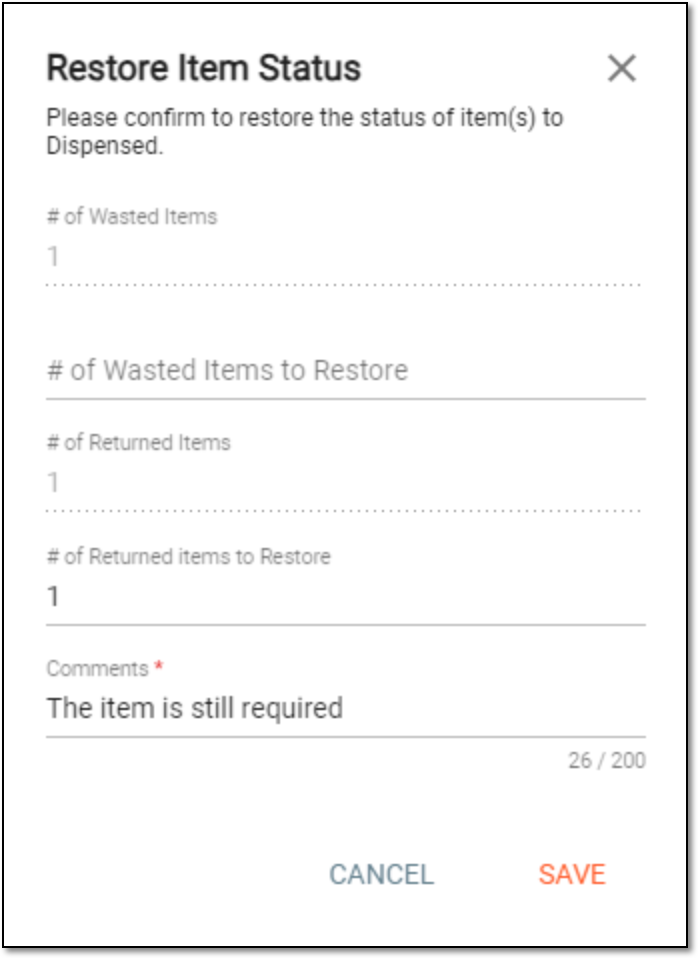 Figure 4. Restoring item status
Tip
In the following table, mandatory elements are marked with an asterisk (*).
Element
Details
# of Wasted Items
This field is disabled and it represents the total number of wasted items.
# of Wasted Items to Restore
Enter the number of wasted items that you want to restore.
# of Returned Items
This field is disabled and it represents the total number of returned items.
# of Returned items to Restore
Enter the number of returned items that you want to restore.
Comments*
Enter the reason for restoring the item status.
SAVE
Select
 to save your changes.
CANCEL
Select
 to dismiss your changes without saving.
Once saved, the status of items is restored, and the return of the items is undone in both IWRS and EDC applications.