Edit log form name components
The Study Designer application has various tools to maintain different form settings. One such setting includes a configuration of a standardized naming format for log forms. By using such a format, it becomes easier to locate and identify log forms within the EDC system. Log-type CRFs are typically used to capture chronological events or activities, making it convenient for users to enter data.
Important
This feature is only available for unique forms of the Log  and Simple-Log
  types.
-
In the Study Designer application header, select the CRF DESIGN tab.
-
In the toolbar, select the latest draft CRF version marked with the respective unlock symbol
 , otherwise, you cannot perform any actions.
 Figure 1. Selecting latest draft CRF version
-
In the left pane that appears, expand the Unique Form folder and select the needed unique form.
Tip
To locate the needed forms faster, use Search
 on the workspace toolbar of the
left pane.
on the workspace toolbar of the
left pane. -
On the form content page that opens, select the Log Form Name Components tab.
Important
If this tab is not available, then open the tabs menu
 and select the Log Form Name Components
checkbox.
and select the Log Form Name Components
checkbox. -
In the table that appears, configure the naming convention with the necessary name components by selecting
 and then moving the components with the select and
drag action. If you add a variable to the naming format, you need to select it from the list of variables available on the form.
and then moving the components with the select and
drag action. If you add a variable to the naming format, you need to select it from the list of variables available on the form.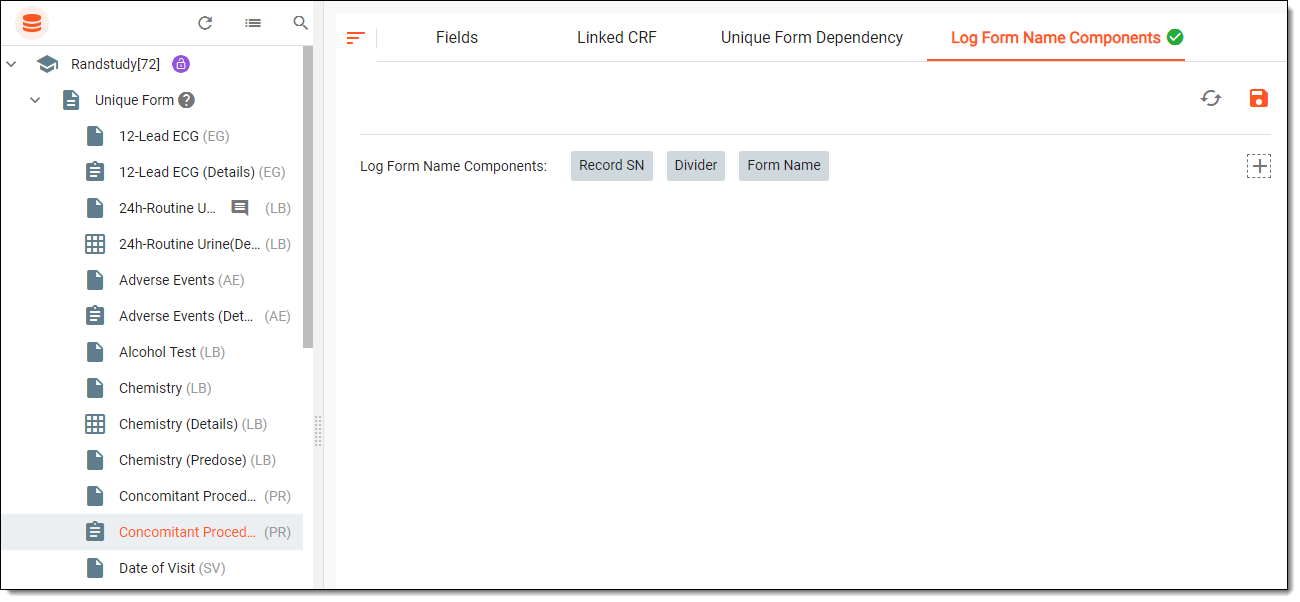 Figure 2. Defining log form naming convention
-
Then from the workspace toolbar, select
 to save the configuration.
Once saved, the log form name components for a unique form are configured.