Edit parent-child settings
The Study Designer application has various tools to maintain different aspects of form settings. One such setting includes the configuration of relations between the parent unique form and its linked child visit forms. This relationship defines what questions need to be displayed on the follow-up form when it is manually created in the EDC system. Once configured for a unique form, the setting is automatically propagated to all linked visit forms.
Such a configuration is usually applied to the Adverse Events (Details) form because after an adverse event occurs, it is crucial to track the event's progression and the patient's response over time. By using a follow-up CRF, healthcare providers can document the subsequent developments, including any changes in symptoms. In order to save time on the creation of a follow-up form, a specific set of questions can be preadded to it.
Important
This feature is only available for unique forms of the Log  and Simple-Log
  types.
-
In the Study Designer application header, select the CRF DESIGN tab.
-
In the toolbar, select the latest draft CRF version marked with the respective unlock symbol
 , otherwise, you cannot perform any actions.
 Figure 1. Selecting latest draft CRF version
-
In the left pane that appears, expand the Unique Form folder and select the needed unique form.
Tip
To locate the needed forms faster, use Search
 on the workspace toolbar of the
left pane.
on the workspace toolbar of the
left pane. -
On the form content page that opens, select the Parent-child Settings tab.
Important
If this tab is not available, then open the tabs menu
 and select the Parent-child Settings
checkbox.
and select the Parent-child Settings
checkbox. -
In the table that appears, select checkboxes next to the questions that you want to be preadded to the follow-up form when it is created in EDC.
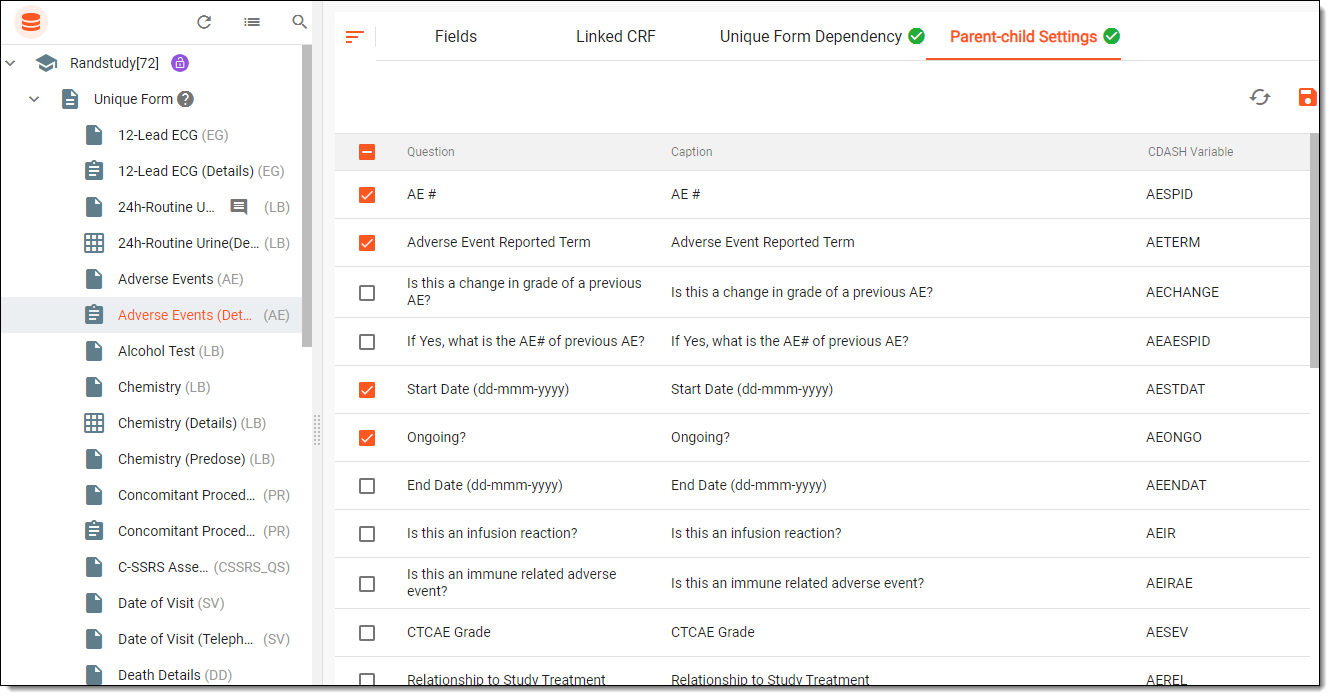 Figure 2. Editing parent-child settings
-
Then from the workspace toolbar, select
 to save the configuration.
Once saved, the parent-child settings are updated.