Configure form dependency
The Study Designer application has various tools to maintain different form settings. One such setting incorporates the configuration of form dependency. This dependency is set up using the SAS language syntax to define in what order and based on what condition the forms need to become available in EDC for data entry. The purpose of the rule configuration is to streamline the assessment process by omitting irrelevant forms based on the respondent's initial response. It helps ensure that the assessment focuses on gathering only pertinent information.
For example, there are Adverse Events and Adverse Events (Details) forms. The first form includes the question "Subject experienced adverse events." The dependency can be configured to show the Adverse Events (Details) form if the response to the indicated question on the Adverse Events form is "Yes" so the adverse event details can be provided in a separate form.
For the studies with hierarchical design, where there is a master study and its substudies, you can set up dependencies for the forms of the substudies to rely on the respective forms of the master study.
-
In the Study Designer application header, select the CRF DESIGN tab.
-
In the toolbar, select the latest draft CRF version marked with the respective unlock symbol
 , otherwise, you cannot perform any actions.
 Figure 1. Selecting latest draft CRF version
-
In the left pane that appears, select one of the following:
-
Unique Form and then select the needed form within. In the contents panel that opens, go to the Unique Form Dependency tab.
Tip
By configuring a form dependency for a unique form, this dependency is applied to all linked visit forms.
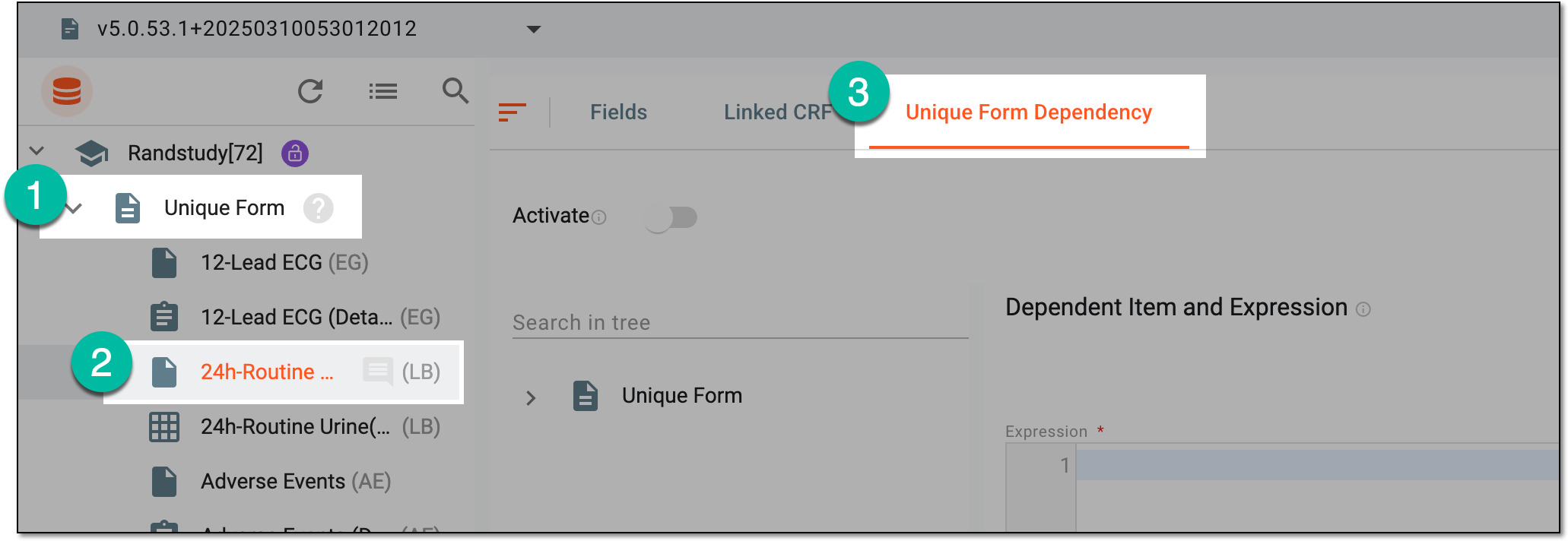 Figure 2. Accessing unique form dependency tab
-
The needed visit and then select the form within. In the contents panel that opens, go to the CRF Form Dependency tab.
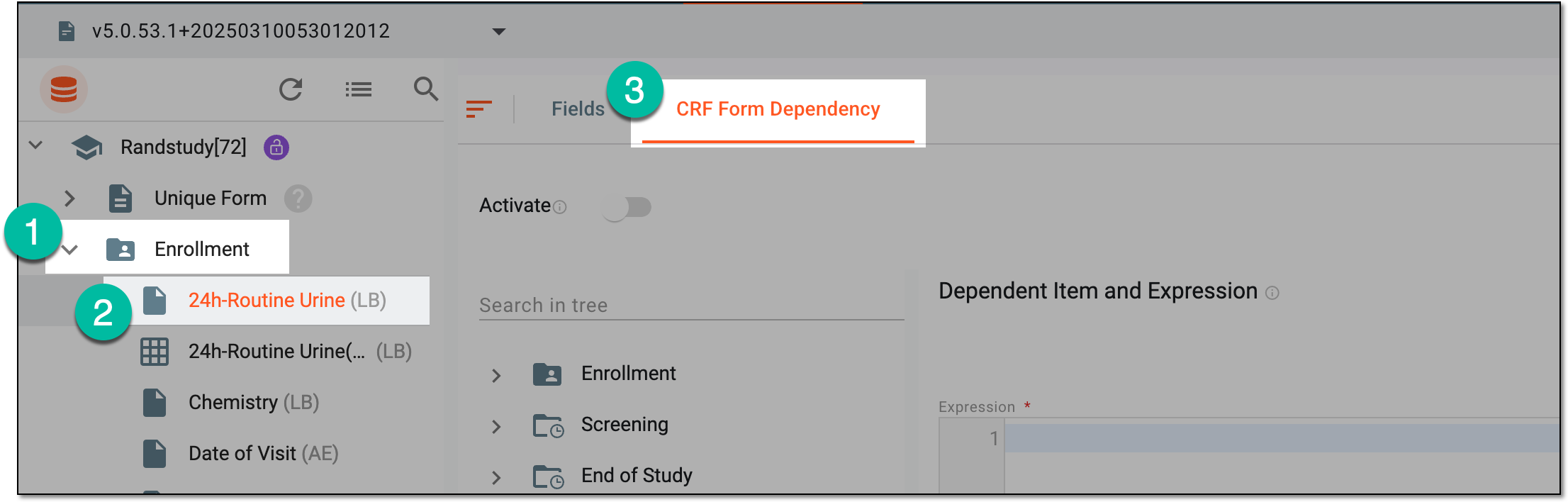 Figure 3. Accessing visit form dependency tab
Tip
To locate the needed forms faster, use Search
 on the workspace toolbar of the
left pane.
on the workspace toolbar of the
left pane. -
-
In the Expression text box of the page that opens, start designing an expression. Use the following entry options when designing an expression:
-
Press Shift + @ to automatically prompt functions.
-
Press Shift + # to automatically prompt conditions.
-
Press Shift + $ to automatically prompt the list of visits, then forms, and then variables to select for the expression.
-
From the tree panel, select and drag the necessary variable to use it in the expression configuration.
Tip
For the substudy, you can see the forms of the master study for which you can set up the dependency rule. These forms are marked with the respective
 indicator.
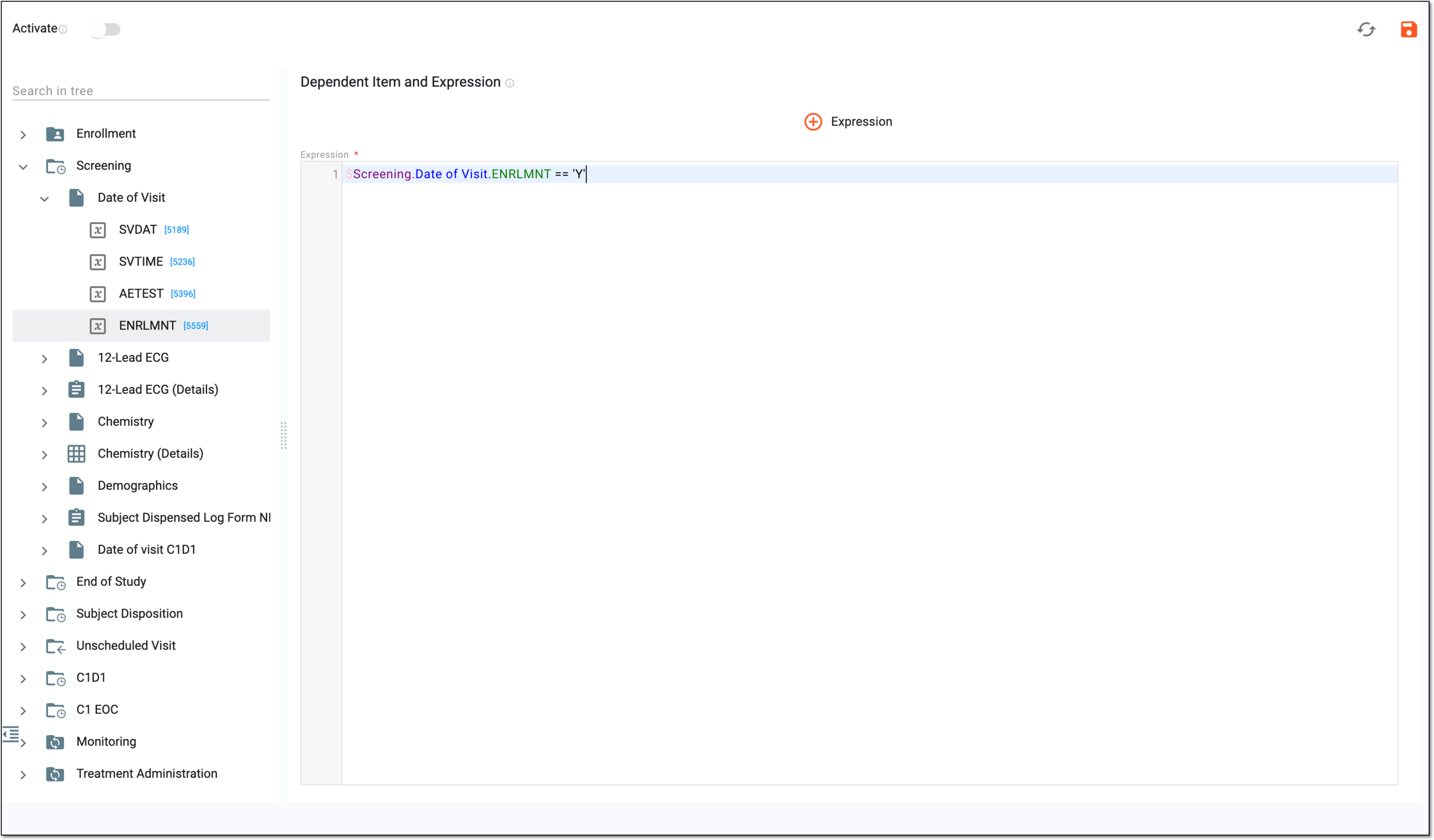 Figure 4. Designing form dependency expression
-
-
Optionally, select
 to add an expression placeholder that you can use for the purpose of organization.
 Figure 5. Configuring additional form dependency expression
-
Then from the workspace toolbar, select
 to save the configured form dependency rule.
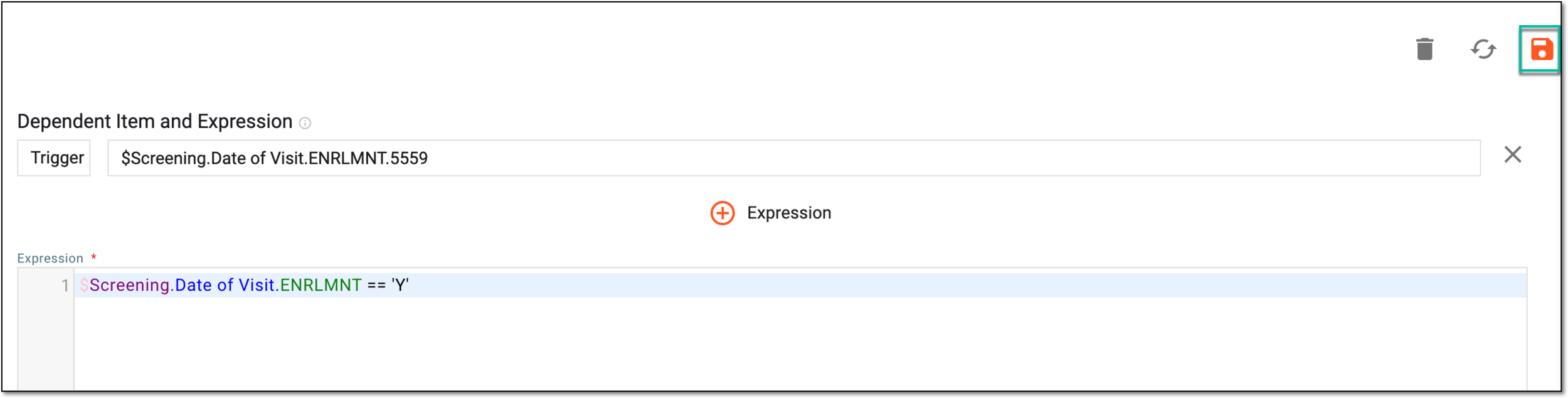 Figure 6. Saving form dependency expression
-
From the same workspace toolbar, turn on the Activate toggle to make the form dependency active and applied in EDC once the CRF version is published. If the toggle is turned off, the dependency rule is not applied and the form remains available without any precondition.
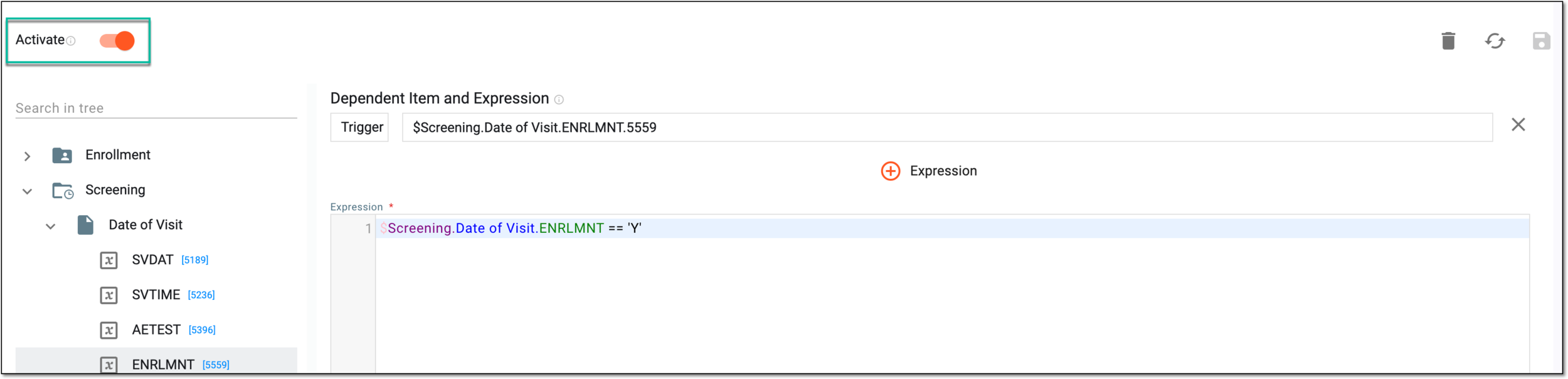 Figure 7. Activating form dependency expression
Once saved and activated, the form dependency is configured and will applied in EDC once the respective CRF version is published.