Maintain unique form linkage
The Study Designer application has various tools to maintain different form settings. One such setting incorporates the association of unique forms with different study visits within one page. There is already an option to assign forms to visits or cycles, however, this functionality limits you to a single visit. While maintaining a unique form linkage, you can see the entire list of visits created for your study and decide what visits need to have a specific form included or removed.
-
In the Study Designer application header, select the CRF DESIGN tab.
-
In the toolbar, select the latest draft CRF version marked with the respective unlock symbol
 , otherwise, you cannot perform any actions.
 Figure 1. Selecting latest draft CRF version
-
In the left pane that appears, expand the Unique Form folder and select a unique form that you want to associate with visits.
Tip
To locate the needed forms faster, use Search
 on the workspace toolbar of the
left pane.
on the workspace toolbar of the
left pane. -
On the form content page that opens, select the Linked CRF tab.
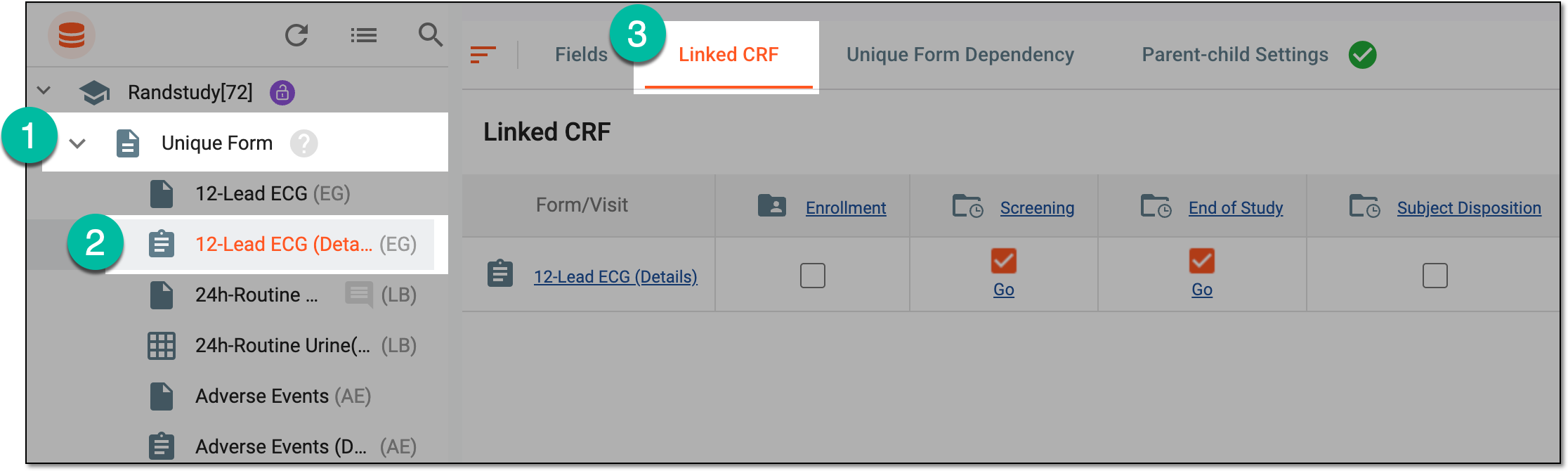 Figure 2. Accessing unique form linkage functionality
-
In the Linked CRF table that appears, select the checkboxes in columns with visits that you want to associate with the selected form. Similarly, clear the checkboxes to remove the association.
 Figure 3. Maintaining unique form linkage
Once selected or cleared, the unique form linkage is updated. You can also define the schedule of assessments to perform the same association with visits but there you can do it with all available unique forms.