Edit visit form details
In the SD app, you might need to edit the details of a certain CRF due to new protocol requirements or to fix errors that have been made during form configuration.
You can edit forms that are already associated with visits, and in this case, a corresponding unique form and all of its linked visit forms become updated automatically, preserving the latest changes.
Tip
You can locate the unique form linked to a visit form before editing the visit form to ensure this action can be done.
-
In the Study Designer application header, select the CRF DESIGN tab.
-
In the toolbar, select the latest draft CRF version marked with the respective unlock symbol
 , otherwise, you cannot perform any actions.
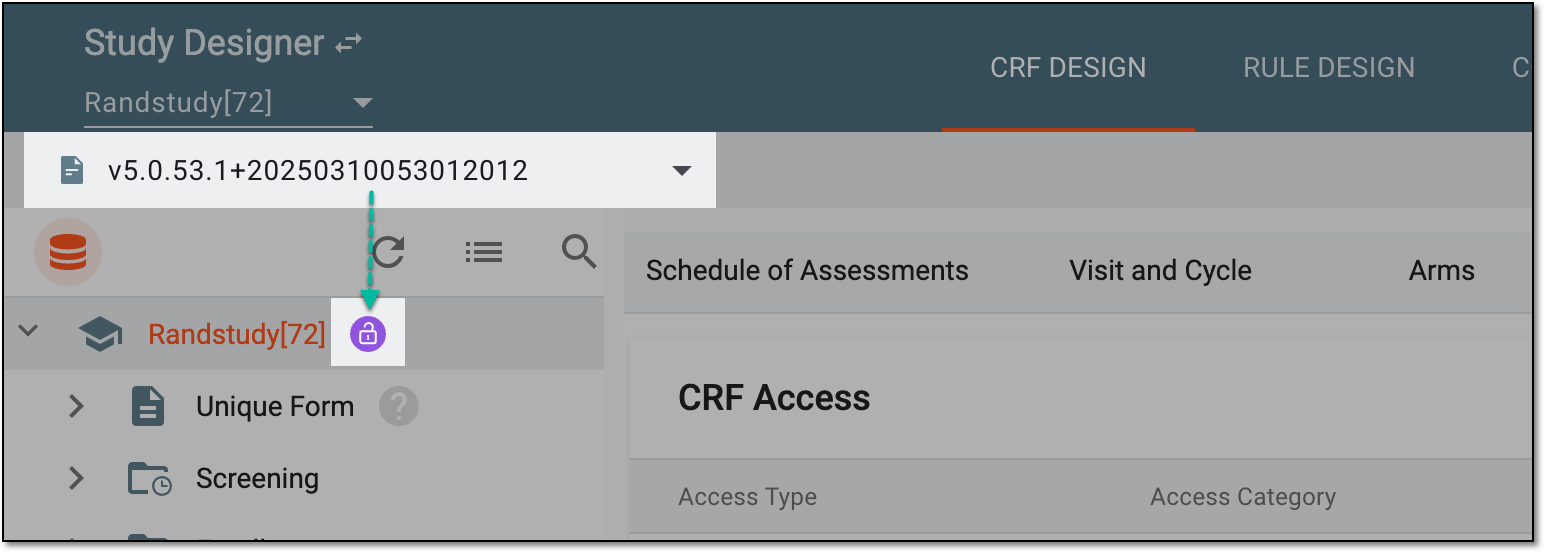 Figure 1. Selecting latest draft CRF version
-
In the left pane that appears, expand the folder of the needed visit and right-click the form you want to edit.
Tip
To locate the needed forms faster, use Search
 on the workspace toolbar of the
left pane.
on the workspace toolbar of the
left pane. -
In the context menu that opens, select Edit Form
 .
.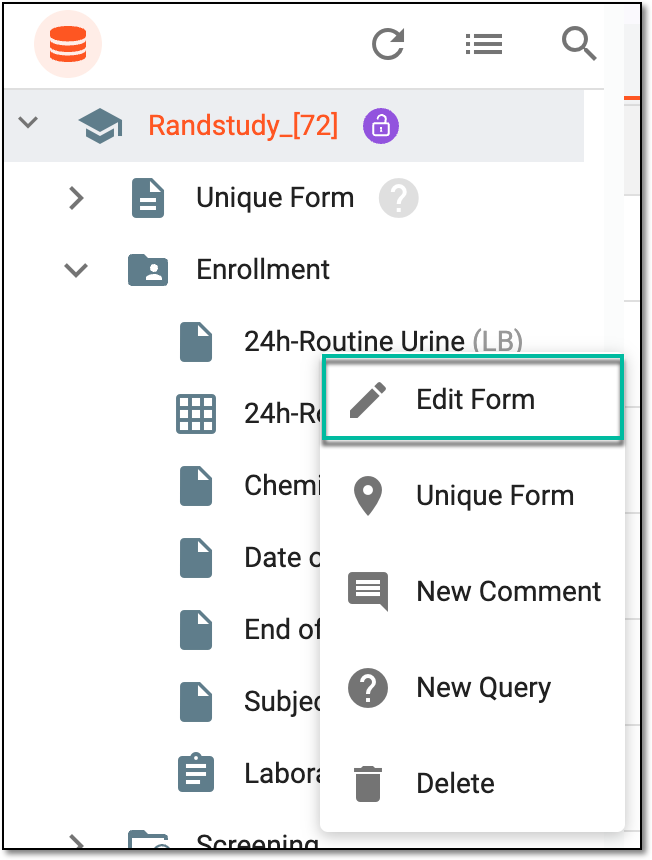 Figure 2. Selecting to edit visit form
-
In the Edit Form panel that expands, update the fields as needed. These fields are identical to the ones explained in the table of the Add unique form from scratch section.
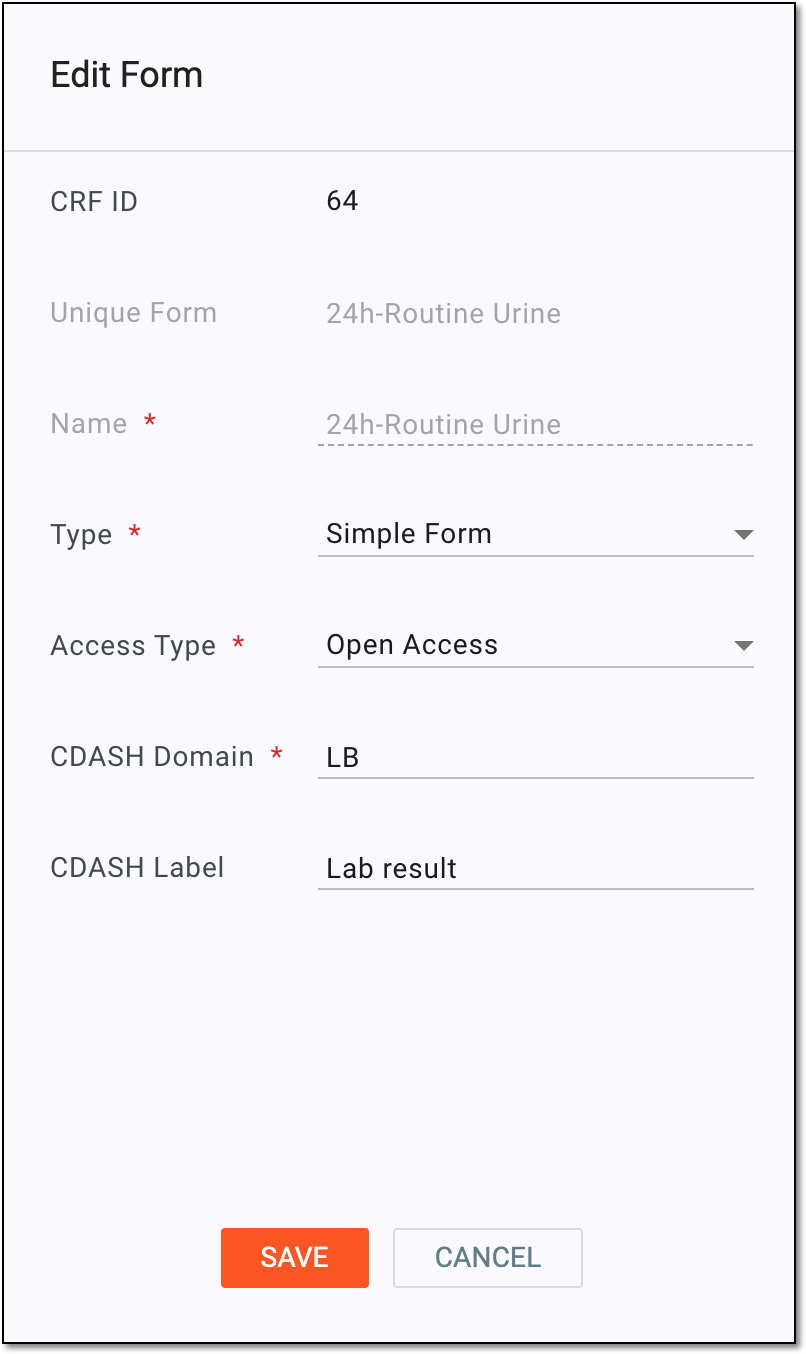 Figure 3. Editing visit form details
-
Select
 to update the form details.
Once saved, the visit form is updated and the corresponding unique form and linked visit forms (if any) also become updated automatically.