Add unique form
In the Study Designer application, you can design unique forms to be used in study visits. A unique form is a CRF template that serves as a starting point for creating new forms for different visits of the clinical trial. Unique forms are stored in a separate folder under the CRF DESIGN tab and serve as a reusable blueprint for creating other CRFs in the study, cycle, or folder visits.
Important
For master study and its substudies, you need to create the unique forms individually, they are not inherited from the master study to its substudies.
You can add new unique forms to the study Unique Form folder. However, there is also an option to add new forms to each study visit separately. In this case, once created for a visit, such a form becomes added automatically as a unique form to the study Unique Form folder. Then it can be reused for other visits as well.
There are several ways to add unique forms to the study. Each of them is described in the following sections.
In the Study Designer application, you can design unique forms for study visits. A unique form is a CRF template that serves as a starting point for creating new forms for different visits of the clinical trial. Unique forms are stored in a separate folder under the CRF DESIGN tab and serve as a reusable blueprint for creating other CRFs in the study, cycle, or folder visits.
You can add new unique forms to the study Unique Form folder from scratch if your study protocol has some specific requirements related to the form creation. But if the protocol requirements are ordinary, you can reuse CRF templates stored on your computer or from the Study Designer library.
Tip
The other possible unique form creation methods are mentioned in the Add unique form section.
When adding a new unique form from scratch, consider the following form types that serve different purposes in data collection processes:
-
Simple Form
 : the most basic type of CRF that typically consists of a list of questions or variables with spaces
provided for the corresponding responses or data entries.
: the most basic type of CRF that typically consists of a list of questions or variables with spaces
provided for the corresponding responses or data entries. -
Log Form
 : this CRF is used for recording events, observations, or data over a specified period. It often involves
capturing information at regular intervals or when certain events occur. For example, a log CRF can be used to record adverse event details if the adverse event or reaction occurs in the subject.
: this CRF is used for recording events, observations, or data over a specified period. It often involves
capturing information at regular intervals or when certain events occur. For example, a log CRF can be used to record adverse event details if the adverse event or reaction occurs in the subject. -
Grid Form
 : a grid CRF utilizes a tabular
format with rows and columns to capture data. It is particularly useful for collecting data that involves multiple variables or assessments performed at different time points. Each cell in the grid represents a specific combination of variables or time points, allowing for efficient data organization and analysis.
: a grid CRF utilizes a tabular
format with rows and columns to capture data. It is particularly useful for collecting data that involves multiple variables or assessments performed at different time points. Each cell in the grid represents a specific combination of variables or time points, allowing for efficient data organization and analysis. -
Simple-Log Form
 : a CRF that is
designed to group related data fields together under a specific header and a log section. This format is useful when collecting the same data type and multiple events. For example, in a form capturing vital signs, the header may include "Blood Pressure" so the section would contain fields for collecting blood pressure
levels.
: a CRF that is
designed to group related data fields together under a specific header and a log section. This format is useful when collecting the same data type and multiple events. For example, in a form capturing vital signs, the header may include "Blood Pressure" so the section would contain fields for collecting blood pressure
levels. -
Simple-Grid Form
 : a CRF that is designed to group related data fields together under a specific header
and a grid section. This format is useful when collecting the same data type and assessments performed at different time points or the same data type and different subcategories. For example, in a form capturing vital signs, the header may include "Blood Chemistry" so the section would contain fields for collecting
blood chemistry details.
: a CRF that is designed to group related data fields together under a specific header
and a grid section. This format is useful when collecting the same data type and assessments performed at different time points or the same data type and different subcategories. For example, in a form capturing vital signs, the header may include "Blood Chemistry" so the section would contain fields for collecting
blood chemistry details.
-
In the Study Designer application header, select the CRF DESIGN tab.
-
In the toolbar, select the latest draft CRF version marked with the respective unlock symbol
 , otherwise, you cannot perform any actions.
 Figure 1. Selecting latest draft CRF version
-
In the left pane that appears, right-click the Unique Form folder.
Tip
You can follow the same procedure to add new forms directly to visits by right-clicking the visit folder in the tree of the left pane. In this case, such forms are automatically added to the Unique Form folder, from where they can be reused for other visits as well.
-
In the context menu that opens, select Add Form and then select New Form
 .
.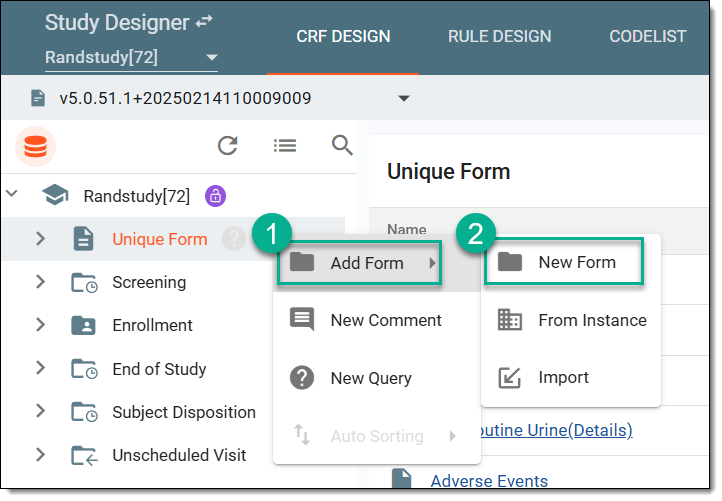 Figure 2. Selecting to add new form
-
In the Add Form panel that expands, fill in the details as explained in the following table.
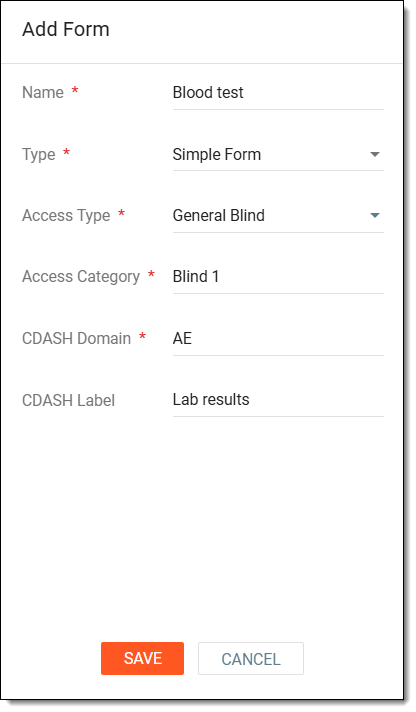 Figure 3. Creating unique form from scratch
Tip
In the following table, mandatory elements are marked with an asterisk (*).
Element
Details
Name*
Enter the unique name of the form.
Type*
Select one of the previously explained form types. Bear in mind that the Simple-Log and Simple-Grid form types become created when the Header-details type is selected in this field and the details type is a Log Form or Grid Form respectively.
Access Type*
Select the type of access or blinding that determines the users' level of visibility or editing capabilities for the data in the form.
Access Category*
Enter the name of the access category applied to the created form. You can also select one of the previously created access categories.
This field is available only if either of the following options is selected from the Access Type dropdown list:
-
Restricted Edit: only the user group given restricted data editing permission can perform data entry in EDC.
-
General Blind: only the user group with unblinded access category can review or edit the blinded data of specific forms.
Row*
Enter the number of rows to be included in the form. This field is available only for grid forms.
Column*
Enter the number of columns to be included in the form. This field is available only for grid forms.
Header Name*
Enter the name of the header to be included in the form. This field is available only for header-details forms.
Header Details*
Enter the description of the header. This field is available only for header-details forms.
Details Type*
Select the Log Form or Grid Form type that is to be included as the section for the header. This field is available only for header-details forms.
CDASH Domain*
Enter the CDASH domain where the data entered in the form in EDC needs to be stored.
CDASH Label
Enter the label text to indicate a specific type of information that is collected and recorded in the selected CDASH domain.
SAVE
Select
 to create a unique form.
CANCEL
Select
 to cancel the form creation process.
 -
-
Upon saving the created unique form, you are redirected to the form design page. Here, use a variety of field tools to fill in the form with the necessary questions and items.
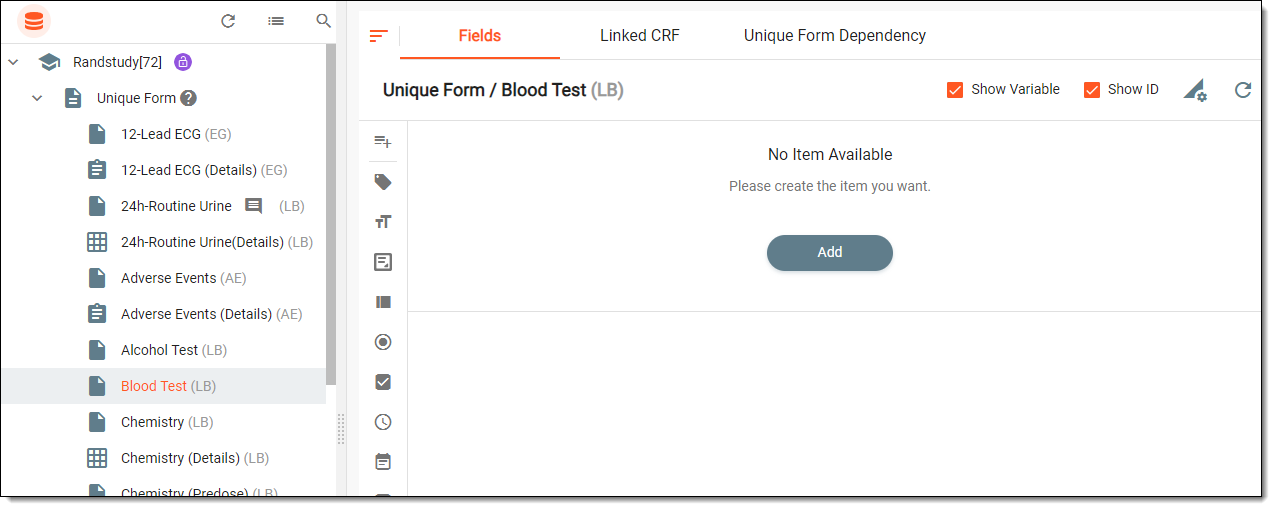 Figure 4. Viewing newly created form
Once configured, the created unique form can be added to different visits across the study.
In the Study Designer application, you can design unique forms for study visits. A unique form is a CRF template that serves as a starting point for creating new forms for different visits of the clinical trial. Unique forms are stored in a separate folder under the CRF DESIGN tab and serve as a reusable blueprint for creating other CRFs in the study, cycle, or folder visits.
You can add new unique forms to the study Unique Form folder from another instance, meaning to make a copy of another unique form. You can also do this when adding forms to visits but then you have the option to generate a new unique form from that copy.
Tip
The other possible unique form creation methods are described in the Add unique form section.
-
In the Study Designer application header, select the CRF DESIGN tab.
-
In the toolbar, select the latest draft CRF version marked with the respective unlock symbol
, otherwise, you cannot perform any actions.Figure 1. Selecting latest draft CRF version
-
In the left pane that appears, right-click the Unique Form folder.
Tip
You can also add new forms directly to visits by right-clicking the visit folder in the same tree. In this case, the system will offer you to add the created form to the Unique Form folder, from where it can be reused for other visits as well.
-
In the context menu that opens, select Add Form and then select From Instance
 .
.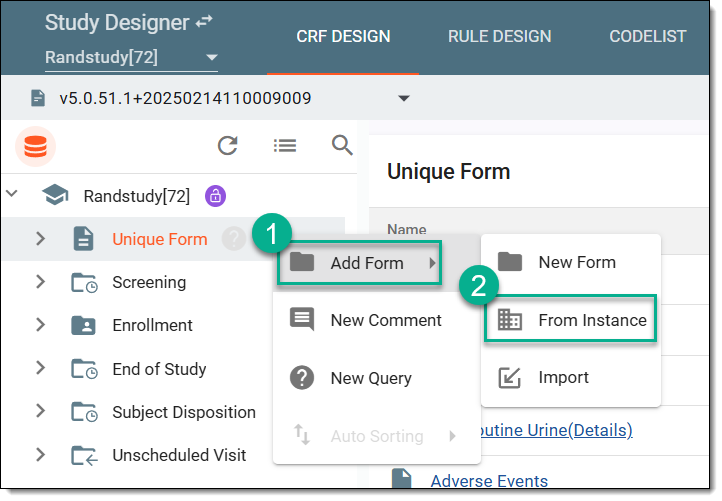 Figure 2. Selecting From Instance option
-
In the Add form From Instance dialog that appears, locate the form that you want to copy and in the New Form Name field, enter a new unique name for the copied form. Then select
.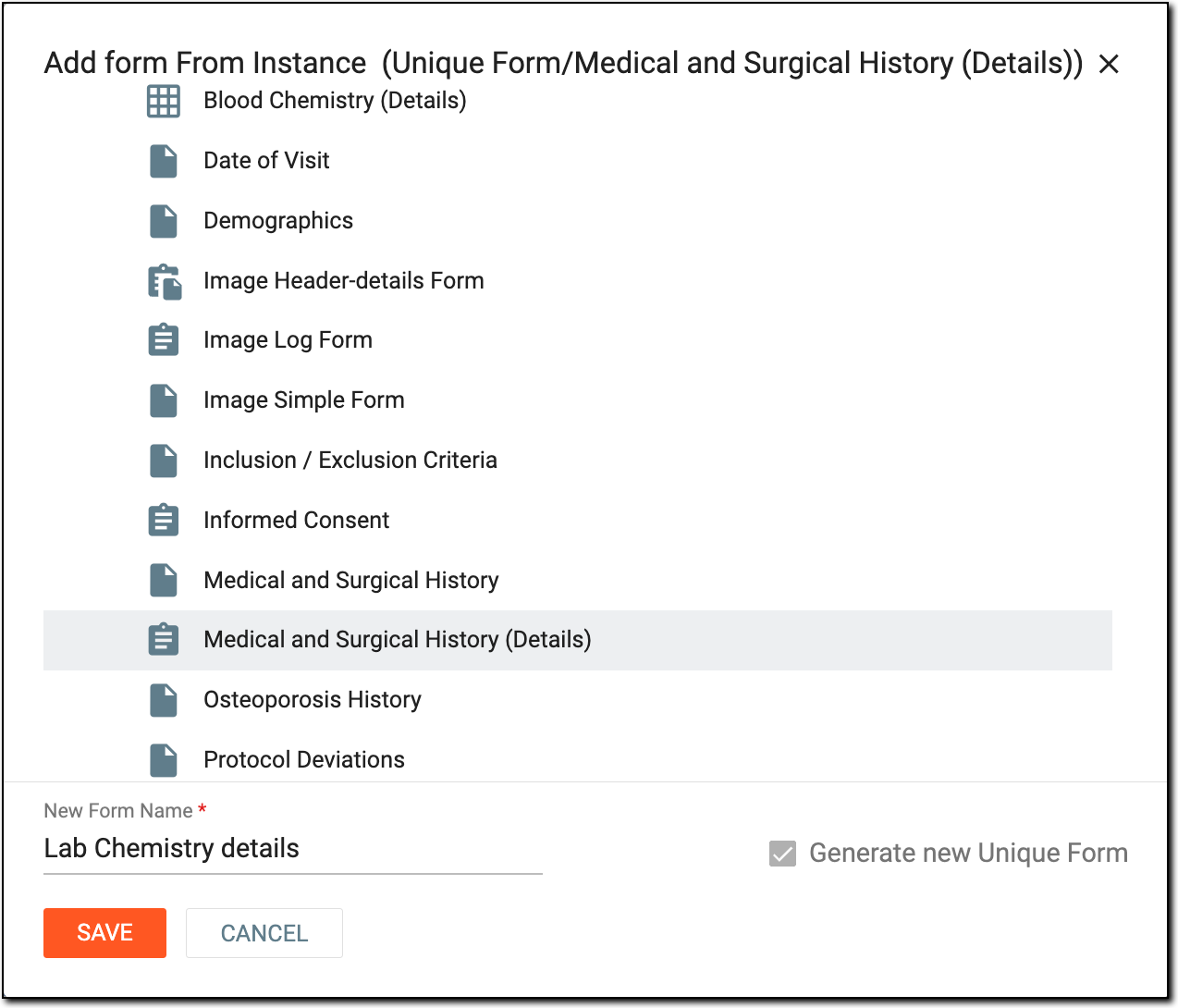 Figure 3. Adding form from instance
Important
The Generate new Unique Form checkbox is available only when you create a new form from an instance at the visit level, thus letting the system add it as a unique form as well. If adding a new form from an instance within the Unique Form folder, this checkbox is inactive.
-
Upon saving the created unique form, you are redirected to the form design page. Here, you can use a variety of field tools to update the form with the necessary questions and items.
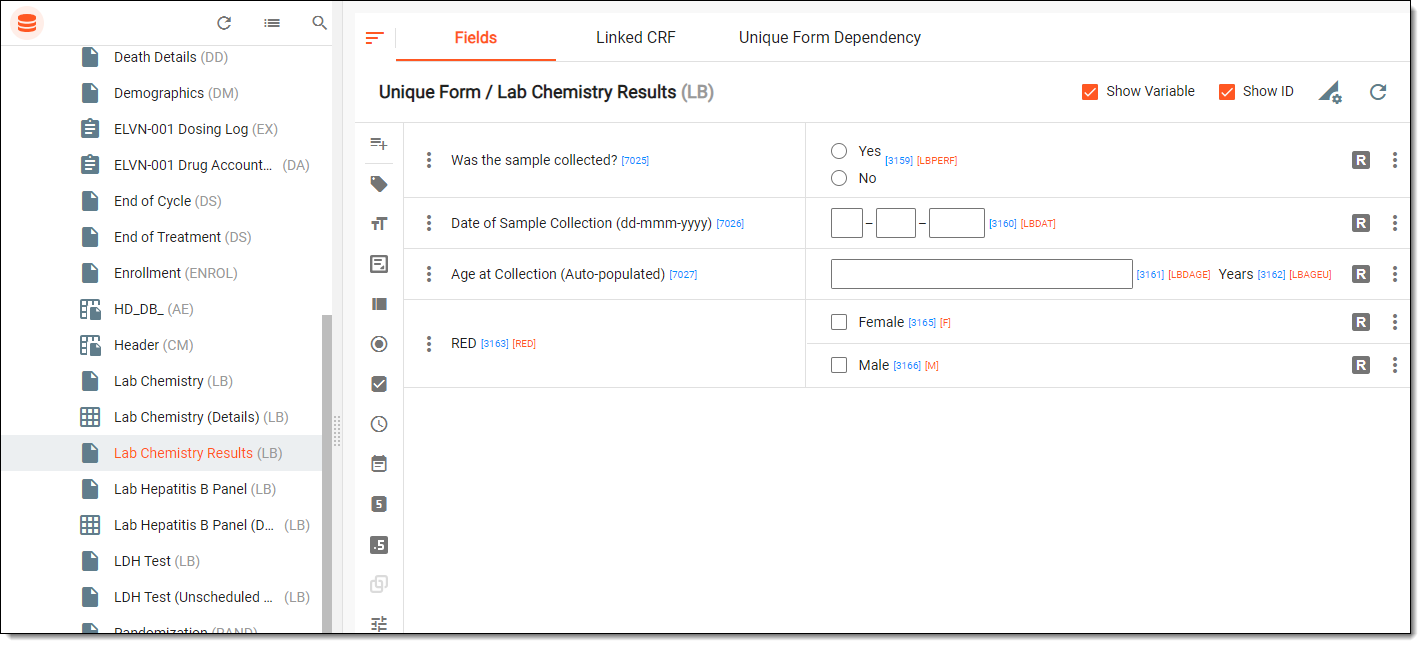 Figure 4. Viewing newly created form
Once configured, the created unique form can be added to different visits across the study.
In the Study Designer application, you can design unique forms for study visits. A unique form is a CRF template that serves as a starting point for creating new forms for different visits of the clinical trial. Unique forms are stored in a separate folder under the CRF DESIGN tab and serve as a reusable blueprint for creating other CRFs in the study, cycle, or folder visits.
You can add new unique forms to the study Unique Form folder by importing them from your computer in JSON format. This type of unique form creation is convenient when you have multiple forms stored locally after you have downloaded them from another study.
Tip
The other possible unique form creation methods are described in the Add unique form section.
-
In the Study Designer application header, select the CRF DESIGN tab.
-
In the toolbar, select the latest draft CRF version marked with the respective unlock symbol
, otherwise, you cannot perform any actions.Figure 1. Selecting latest draft CRF version
-
In the left pane that appears, right-click the Unique Form folder.
Important
You cannot import CRFs directly to visits as this option is available only for unique form creation.
-
In the context menu that opens, select Add Form, and then select Import
 .
.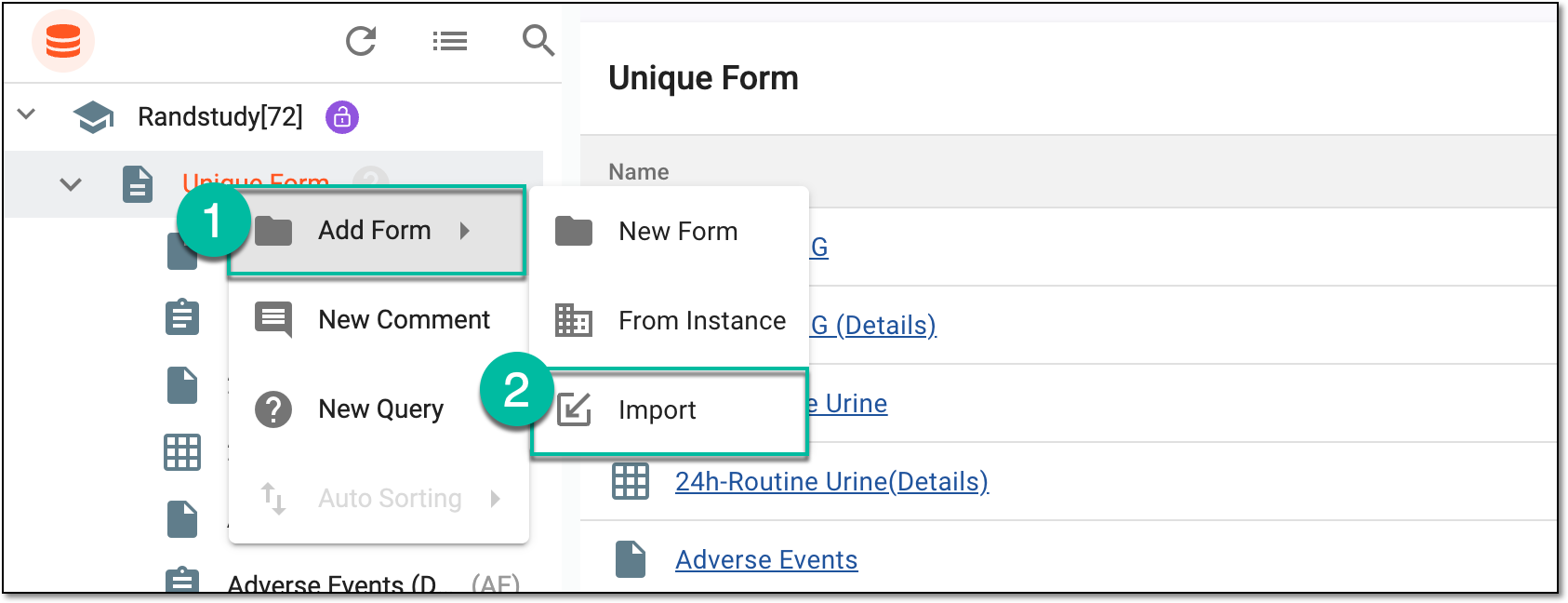 Figure 2. Selecting option to import unique form
-
Then follow the prompts of your operating system to locate and select the file with the form that you want to import.
-
Once imported, go to this form to use a variety of field tools and update it with the necessary questions and items.
Once configured, the imported unique form can be added to different visits across the study.
In the Study Designer application, you can design unique forms for study visits. A unique form is a CRF template that serves as a starting point for creating new forms for different visits of the clinical trial. Unique forms are stored in a separate folder under the CRF DESIGN tab and serve as a reusable blueprint for creating other CRFs in the study, cycle, or folder visits.
You can add new unique forms to the study Unique Form folder by importing them from your private form library. This type of unique form creation is convenient when you have multiple forms stored in the form library where you have previously uploaded them from other studies. The other possible unique form creation methods are described in the Add unique form section.
-
In the Study Designer application header, select the CRF DESIGN tab.
-
In the toolbar, select the latest draft CRF version marked with the respective unlock symbol
, otherwise, you cannot perform any actions.Figure 1. Selecting latest draft CRF version
-
From the same toolbar, select Form library
 .
. Figure 2. Accessing form library
-
In the left pane of the page that opens, locate and select the CRF that you want to use as a unique form in your study. You can also preview the form to make sure it is the one you need.
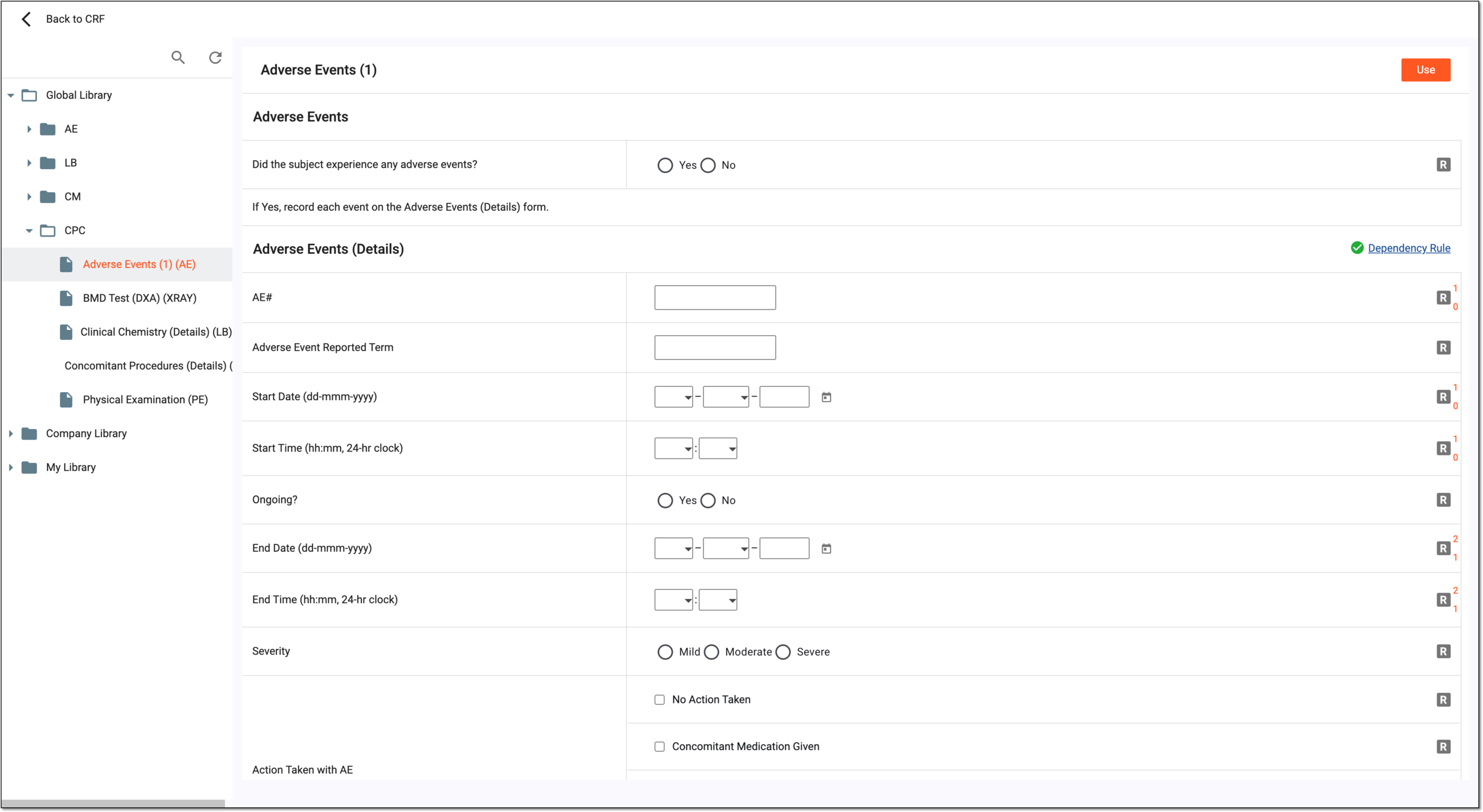 Figure 3. Adding form from form library
-
Select
 to add the selected unique form to your study.
Once used, the selected unique form is added to your study. You can now use a variety of field tools to update this form if needed.