Upload unique form to library
In the Study Designer application, you can design unique forms for study visits. A unique form is a CRF template that serves as a starting point for creating new forms for different visits of the clinical trial. Unique forms are stored in a separate folder under the CRF DESIGN tab and serve as a reusable blueprint for creating other CRFs in the study, cycle, or folder visits.
After adding unique forms to your study, you can upload them to your private form library. The form library is used as a storage of different unique forms, so when you need to design a CRF for a new study, you can add them back into the system to avoid manual creation and configuration.
-
In the Study Designer application header, select the CRF DESIGN tab.
-
In the toolbar, select the latest draft CRF version marked with the respective unlock symbol
 , otherwise, you cannot perform any actions.
 Figure 1. Selecting latest draft CRF version
-
In the left pane that appears, expand the Unique Form folder and right-click the needed form.
Tip
To locate the needed forms faster, use Search
 on the workspace toolbar of the
left pane.
on the workspace toolbar of the
left pane. -
In the context menu that opens, select Upload to Library
 .
.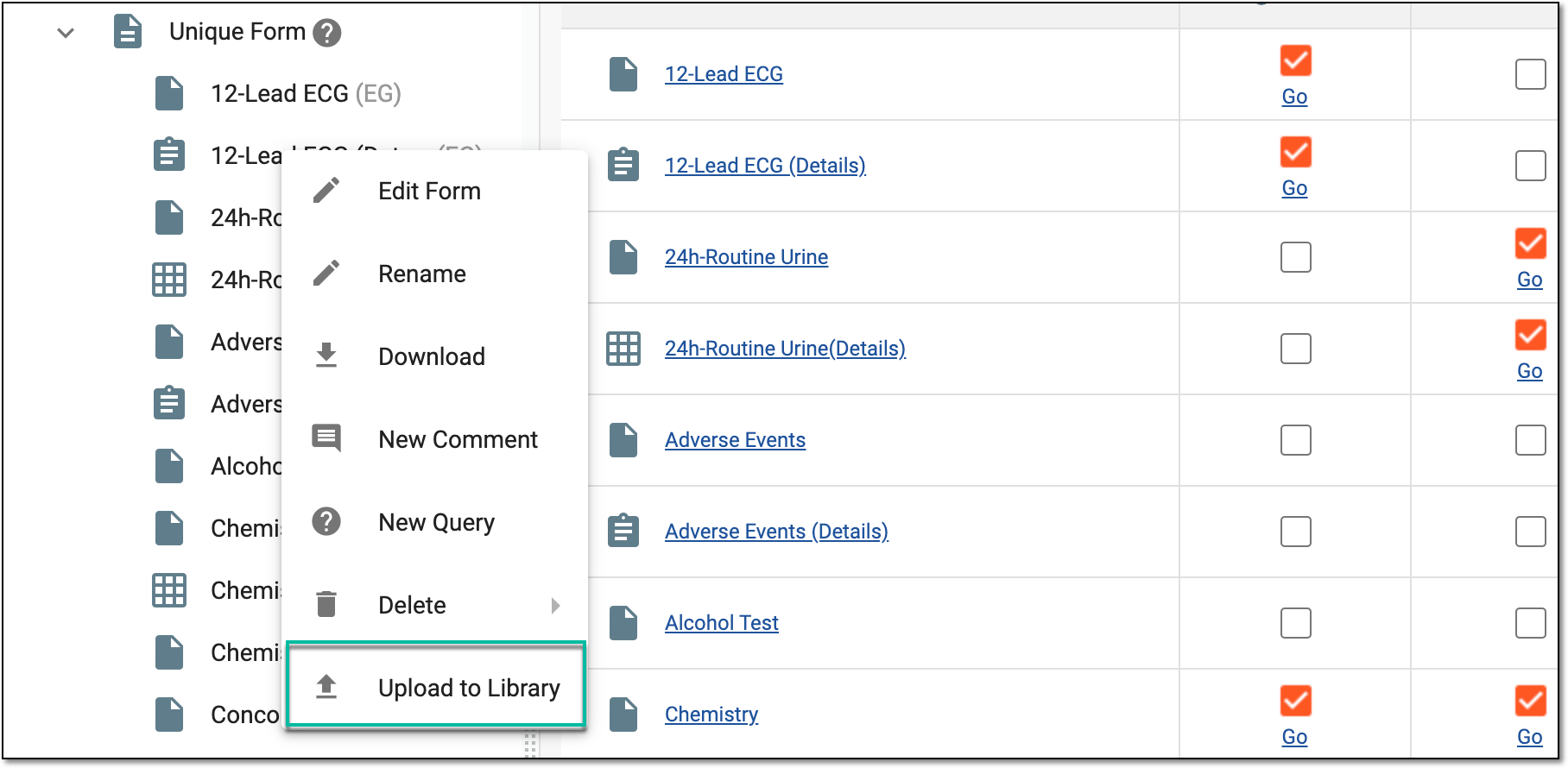 Figure 2. Uploading unique form to library
-
In the Upload to Form Library dialog that opens, select the folder in the library where you want to store your unique form.
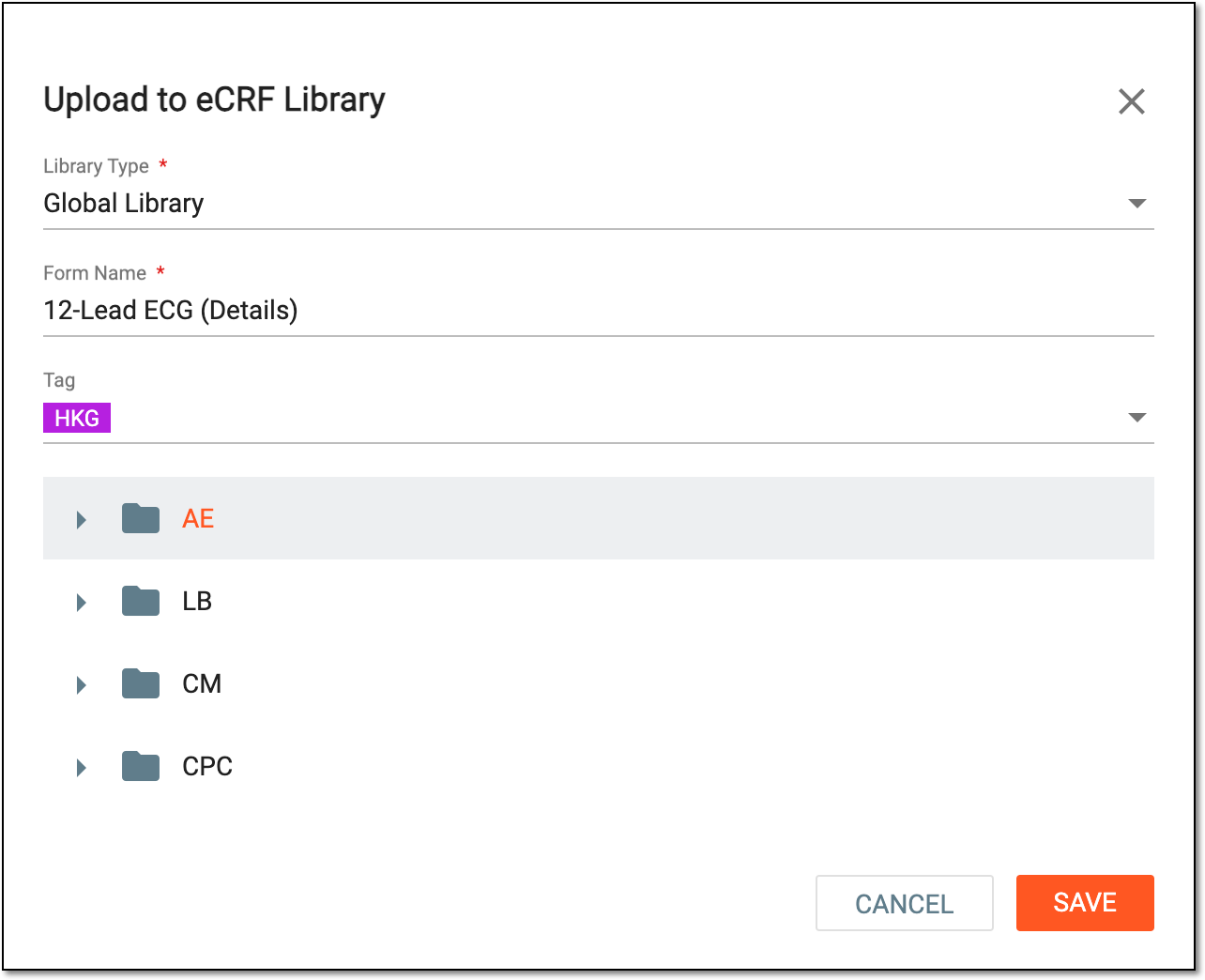 Figure 3. Selecting library directory for unique form
Tip
If there is no needed folder in the form library, you can always add one since this is your private storage.
-
Select
 to upload the unique form to the selected library folder.
Once uploaded, a unique form is uploaded to the form library. You can now use it to add to another study.