Add new folder to library
The Study Designer application has a library of reusable forms that can streamline the process of designing a CRF for different studies. This library accelerates the form creation process and ensures consistency and accuracy across various studies, saving study teams considerable effort. By leveraging the library content, researchers can minimize the time spent on repetitive form design tasks.
To tailor the experience, you have the flexibility to organize the form library by adding custom folders. This can facilitate the efficient storage and retrieval of forms as per specific study needs or your personal preferences.
-
In the Study Designer application header, select the CRF DESIGN tab.
-
In the toolbar, select Form library
 to open the library with forms.
 Figure 1. Opening form library
-
On the page that opens, select the My Library node or any existing folder depending on where you want to add your new folder.
Tip
The My Library folder is the primary node that serves as a starting point for creating custom folders, adding forms, or uploading forms.
-
Then from the workspace toolbar of the hierarchy tree, select New folder
 .
.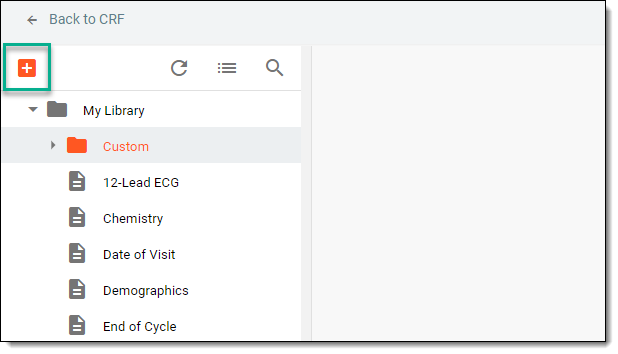 Figure 2. Selecting option to add folder
-
In the New folder dialog that appears, enter a name for your new folder, and then select
 .
.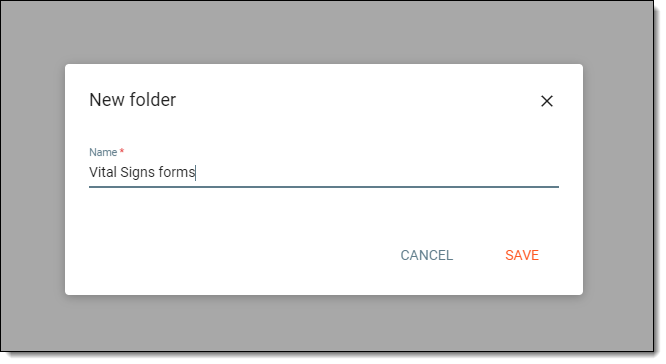 Figure 3. Adding new folder