Upload form to library
The Study Designer application has a library of reusable forms that can streamline the process of designing a CRF for different studies. This library accelerates the form creation process and ensures consistency and accuracy across various studies, saving study teams considerable effort. By leveraging the library content, researchers can minimize the time spent on repetitive form design tasks.
The forms can be added to the library during the design of CRF from various studies. Alongside this, the option to append forms from your computer in JSON format is also available within the library. It is imperative to ensure the proper form configuration before it is downloaded for reuse.
-
In the Study Designer application header, select the CRF DESIGN tab.
-
In the toolbar, select Form library
 to open the library with forms.
 Figure 1. Opening form library
-
On the page that opens, select the My Library node or any existing folder depending on where you want to upload forms.
Tip
The My Library folder is the primary node that serves as a starting point for creating custom folders, adding forms, or uploading forms.
-
On the page that opens, right-click the needed folder and select Upload Form Local
 .
.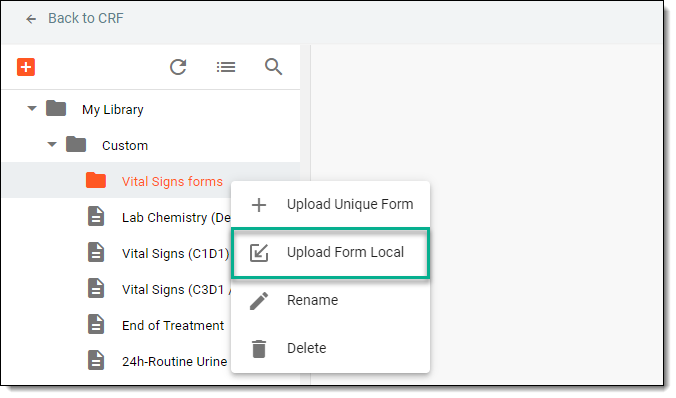 Figure 2. Selecting option to upload form
-
Follow the prompts of your operating system to locate and select the form you want to upload to the library.
Important
Note that you can upload only one form per each single upload. Repeat steps 4-6 to upload more forms to the library.
Once opened, the selected form is added to the library. You can now reuse this form in other studies.