Rename library form
The Study Designer application has a library of reusable forms that can streamline the process of designing a CRF for different studies. This library accelerates the form creation process and ensures consistency and accuracy across various studies, saving study teams considerable effort. By leveraging the library content, researchers can minimize the time spent on repetitive form design tasks.
After adding or uploading the necessary forms to the library, it may occur that some of them need to be renamed due to new protocol requirements or mistakes in the naming convention. It's important to remember that once renamed, these forms will retain their new names when added to CRF versions in other studies.
-
In the Study Designer application header, select the CRF DESIGN tab.
-
In the toolbar, select Form library
 to open the library with forms.
 Figure 1. Opening form library
-
On the page that opens, expand the My Library node or any existing folder to locate the form you want to rename.
-
Then right-click the needed form and select Rename
 .
.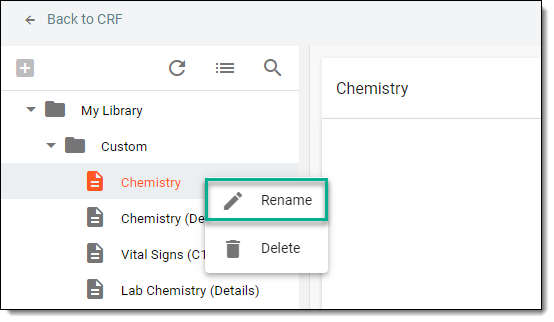 Figure 2. Selecting option to rename form
-
In the Rename dialog that appears, update the form name, and then select
 .
.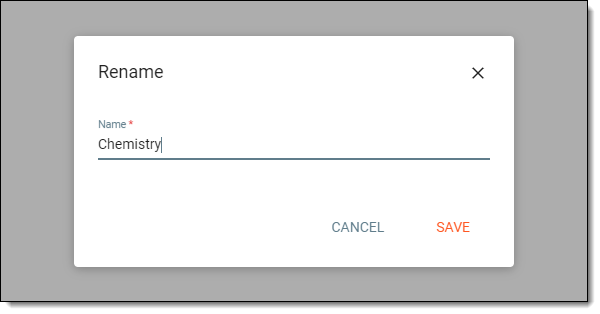 Figure 3. Renaming form
Once saved, the form name is updated.