Preview library form
The Study Designer application has a library of reusable forms that can streamline the process of designing a CRF for different studies. This library accelerates the form creation process and ensures consistency and accuracy across various studies, saving study teams considerable effort. By leveraging the library content, researchers can minimize the time spent on repetitive form design tasks.
Any of the forms that have been previously added or uploaded to the library can be previewed. In the preview mode, you can assess the content of each form and then make an informed decision on whether they are suitable for your study when designing a CRF.
-
In the Study Designer application header, select the CRF DESIGN tab.
-
In the toolbar, select Form library
 to open the library with forms.
 Figure 1. Opening form library
-
On the page that opens, expand the My Library node or any existing folder to locate and select the form you want to preview.
-
In the contents panel that opens, select
 .
.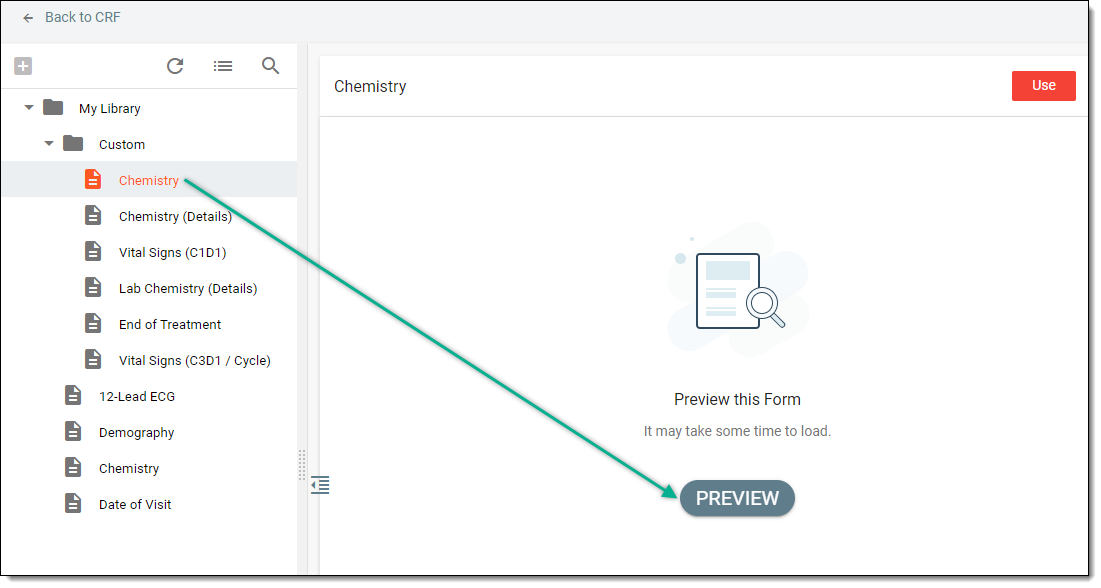 Figure 2. Selecting form preview
-
Preview the form content as it appears in the content panel upon loading.
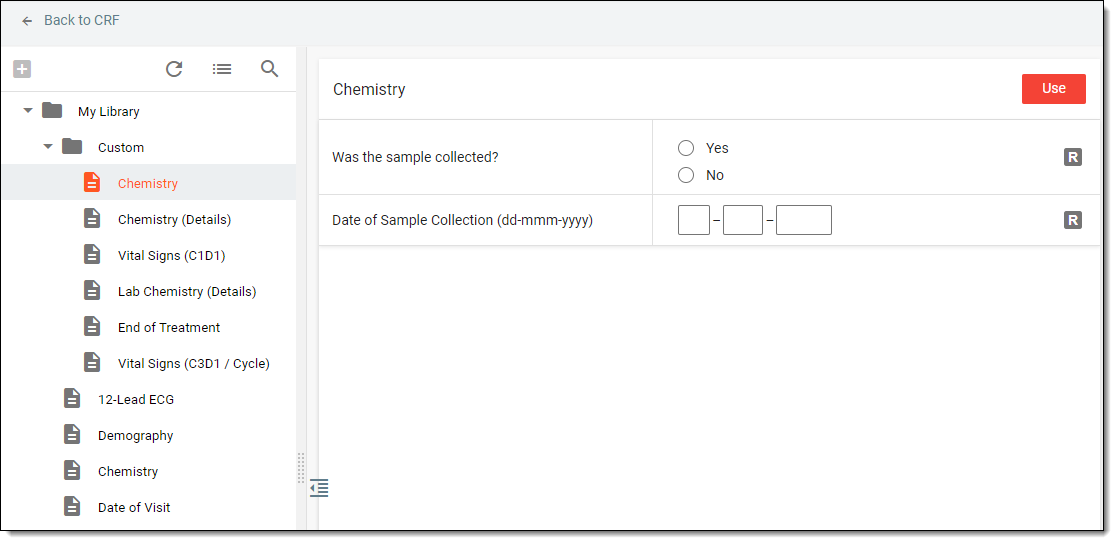 Figure 3. Previewing form content
Once previewed, you can decide whether you want to use the form in your study.