Locate unique form linked to visit form
In the Study Designer application, you can design unique forms for study visits. A unique form is a CRF template that serves as a starting point for creating new forms for different visits of the clinical trial. Unique forms are stored in a separate folder under the CRF DESIGN tab and serve as a reusable blueprint for creating other CRFs in the study, cycle, or folder visits.
After adding unique forms to your study and then assigning them to visits in different cycles, folders, or at the study level, it may occur that there are plenty of forms at different destinations. When working with multiple visit forms, you may need to quickly access the original unique form in order to verify some information or introduce new changes.
-
In the Study Designer application header, select the CRF DESIGN tab.
-
In the toolbar, select the needed CRF version.
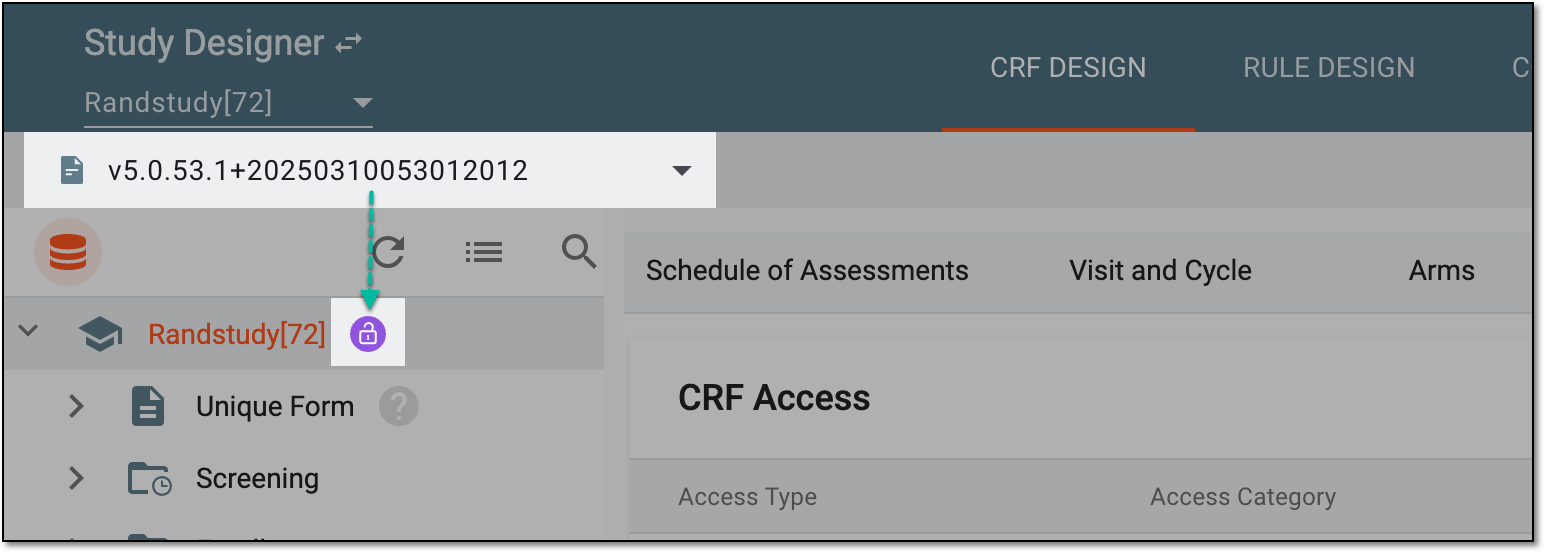 Figure 1. Selecting CRF version
-
In the left pane that appears, expand the needed visit and right-click the form whose unique form you want to locate.
Tip
To locate the needed forms faster, use Search
 on the workspace toolbar of the
left pane.
on the workspace toolbar of the
left pane. -
In the context menu that opens, select Unique Form
 .
.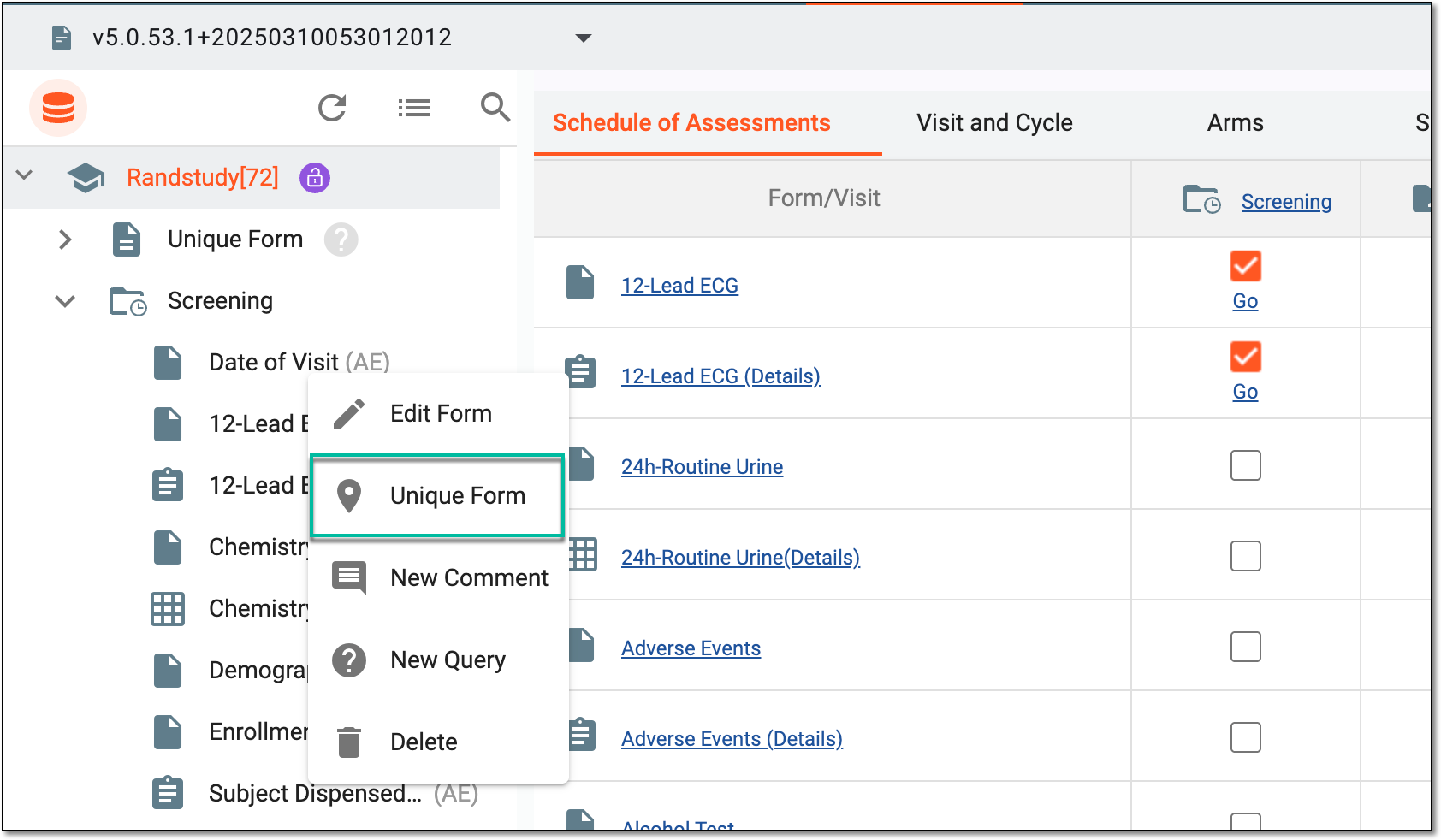 Figure 2. Locating unique form
Once selected, you are redirected to the design page of the parent unique form. You can now verify the needed information.