Associate form with visit/Remove form association
In the Study Designer, once a new visit is added to the study design, it needs to be associated with forms. By associating certain case report forms (CRFs) with the visit, you establish that these forms must be completed in EDC with the data collected from subjects during this visit to the site.
-
In the Study Designer application header, select the CRF DESIGN tab.
-
In the toolbar, select the latest draft CRF version marked with the respective unlock symbol
 , otherwise, you cannot perform any actions.
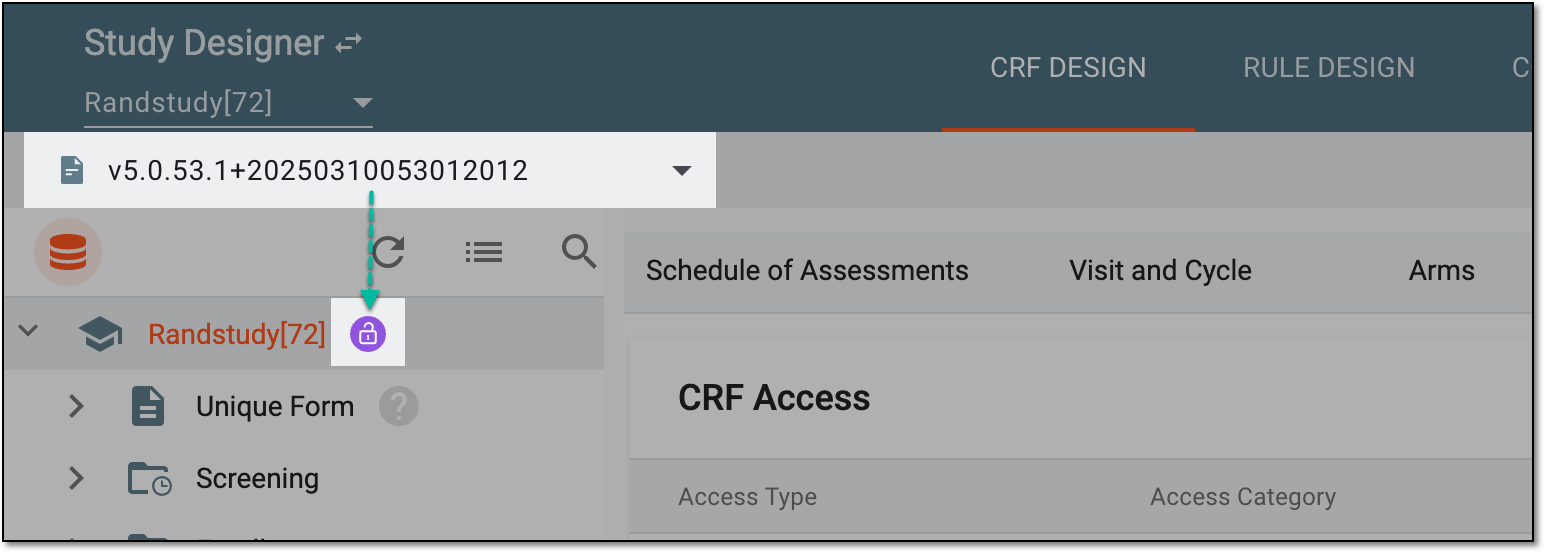 Figure 1. Selecting latest draft CRF version
-
In the left pane that appears, select the visit that you want to associate with the forms.
-
In the Forms tab of the page that opens, one by one select or clear checkboxes next to unique forms that you want to associate or remove the association with the selected visit.
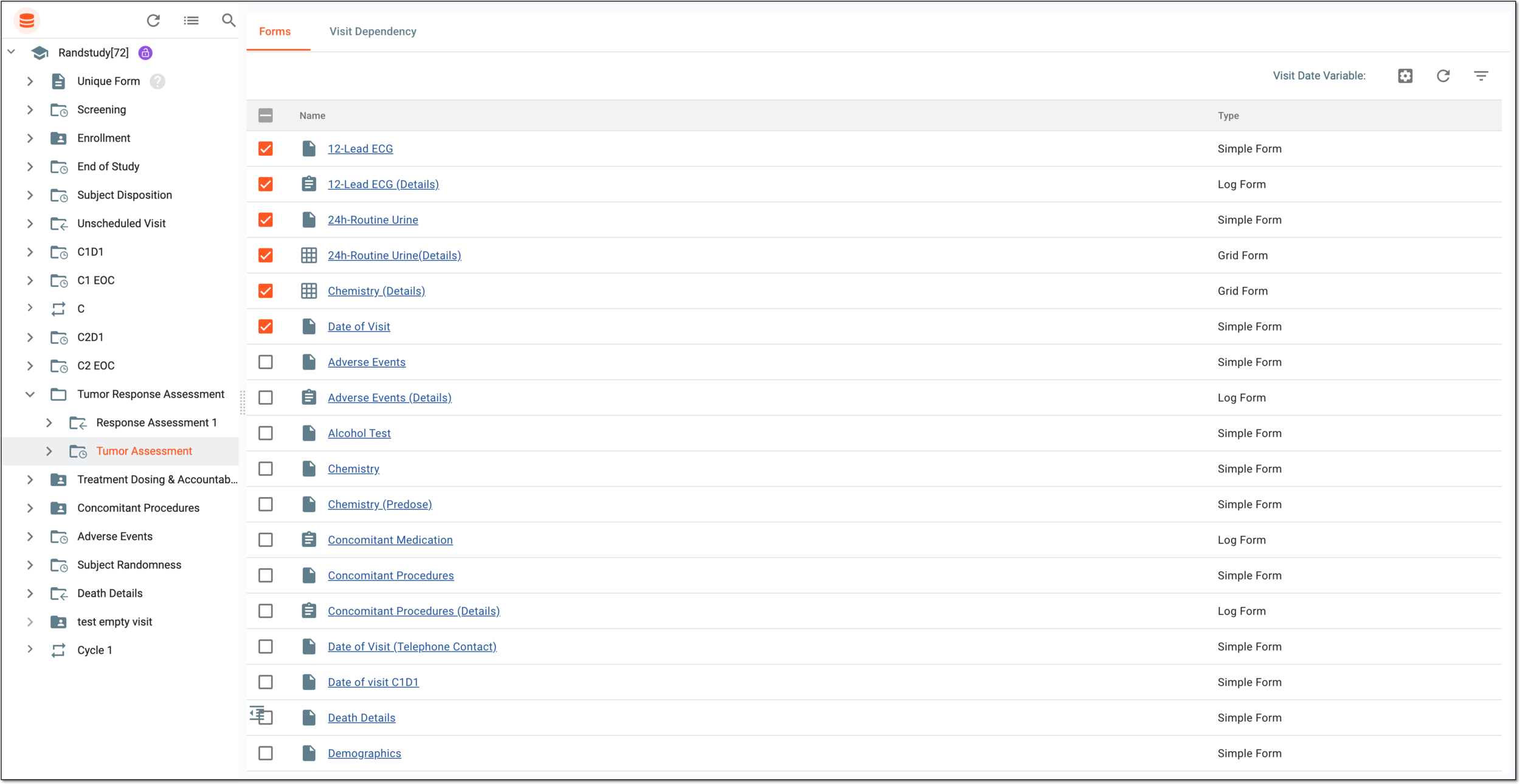 Figure 2. Assigning forms to visit
-
As you select or clear each checkbox, the confirmation dialog appears for every selected or unselected form. Select
 to confirm your action.
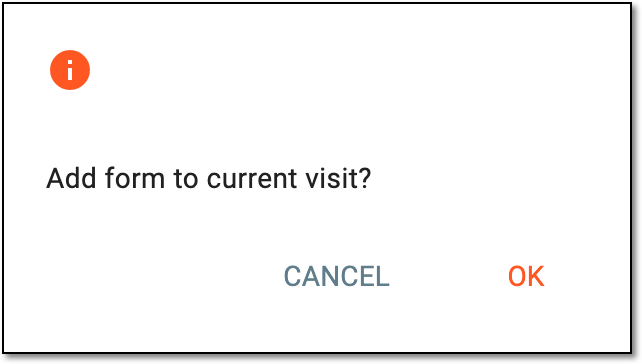 Figure 3. Confirming form association
Once confirmed, the association of forms with a visit is established or removed. You can now configure visit dependency if needed.