Set visit date variable
In Study Designer, the date variable represents the piece of data entered into the field of the associated with the visit CRF, which stands for the date of the visit.
Since one visit can be associated with multiple CRFs, setting the date variable helps you to determine the exact CRF whose date field is to be recorded by the system as the date of the visit.
-
In the Study Designer application header, select the CRF DESIGN tab.
-
In the toolbar, select the latest draft CRF version marked with the respective unlock symbol
 , otherwise, you cannot perform any actions.
 Figure 1. Selecting latest draft CRF version
-
In the left pane that appears, select the needed visit.
-
In the Forms tab of the page that opens, from the workspace toolbar, select Set Visit Date Variable
 .
.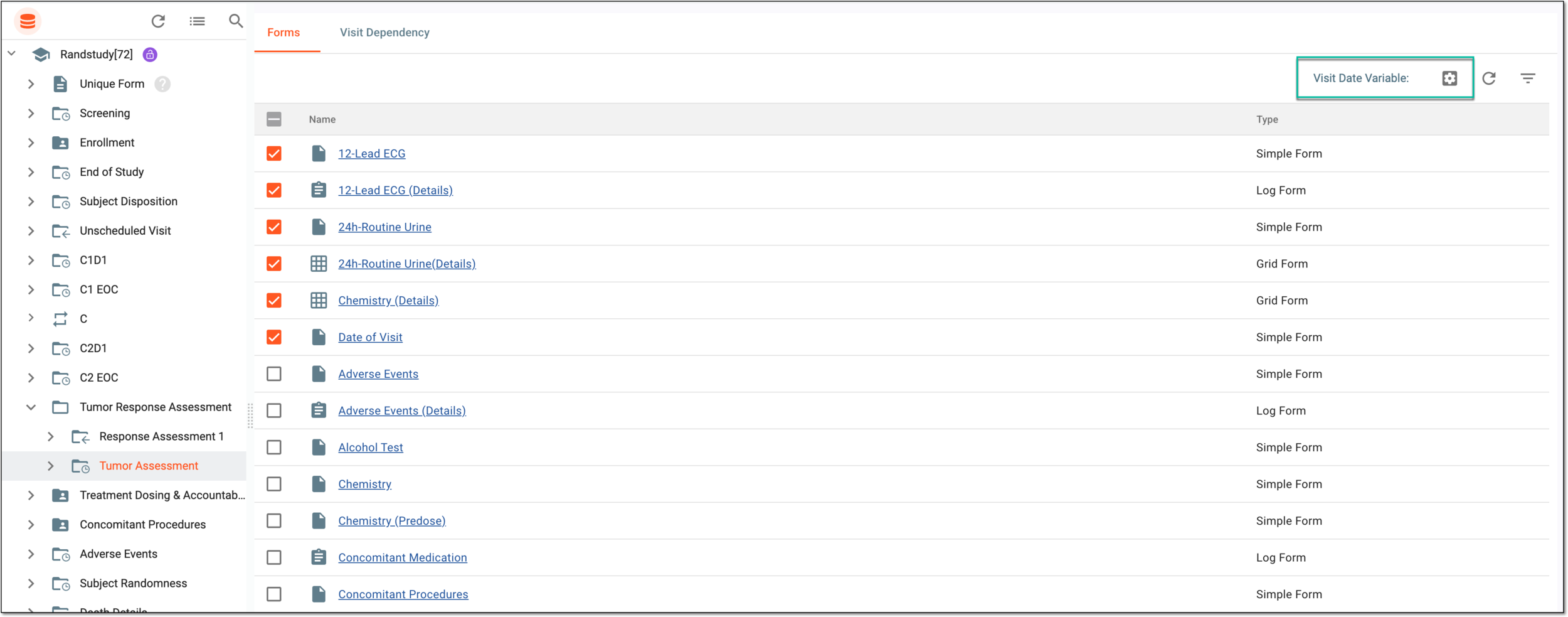 Figure 2. Selecting to set visit date variable
-
In the Set Visit Date Variable dialog that appears, first, select the simple form and then select the date-type field on this form that you want to set as a visit date.
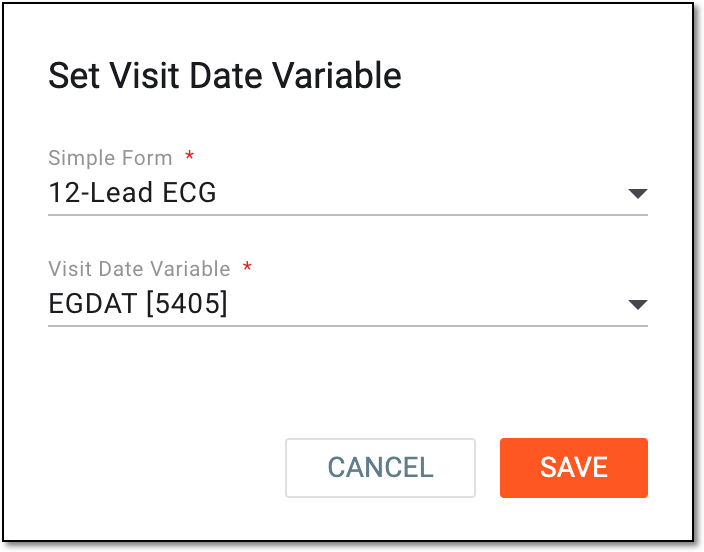 Figure 3. Defining visit date variable
Important
You cannot select a field where a question or item has been disassociated from the visit form.
-
Select
 to set the selected variable as a visit date.
Once saved, the variable on the selected form is set as a visit date.