Configure visit dependency
In Study Designer, you have the possibility to configure a dependency between visits. The dependency is set up using the SAS language syntax to define in what order and based on what condition the visits need to become available in the EDC application for data entry.
For example, there is the Tumor Response Assessment 1 visit that includes the Disease Assessment form. If a healthcare professional indicates on this form that the subject's health is not improved after the treatment, such a subject will need to attend the Tumor Response Assessment 2 visit. The dependency between these visits is configured in Study Designer. When set up correctly, the Tumor Response Assessment 2 visit will become available for the subject right after the Tumor Response Assessment 1 visit is completed and the Disease Assessment form is completed appropriately.
For the studies with hierarchical design, where there is a master study and its substudies, you can set up dependencies for the visits of the substudies to rely on the visits of the master study.
For example, there is the Prescreening visit of the master study that includes the Compatibility Assessment form. If a healthcare professional indicates on this form that the subject is compatible to be screened for participation in the substudy, such a subject will need to attend the Screening visit that belongs to the substudy. When set up correctly, the Screening visit will become available in the substudy for the subject right after the Prescreening visit of the master study is completed and the Compatibility Assessment form is completed appropriately.
-
In the Study Designer application header, select the CRF DESIGN tab.
-
In the toolbar, select the latest draft CRF version marked with the respective unlock symbol
 , otherwise, you cannot perform any actions.
 Figure 1. Selecting latest draft CRF version
-
In the left pane that appears, select the needed visit.
-
On the page that opens, select the Visit Dependency tab.
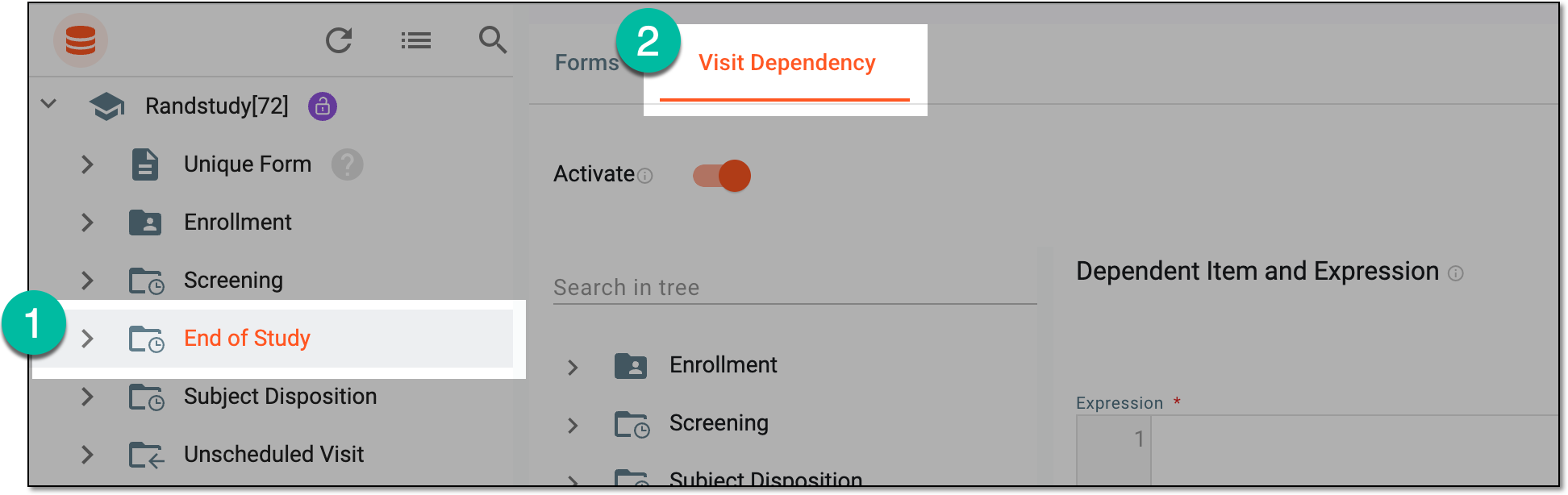 Figure 2. Accessing visit dependency setup
-
In the Expression text box, start designing an expression. Expand the visits and forms in the navigation tree to reference their variables in your expression.
Tip
For the substudy, you can see the visits and forms of the master study for which you can set up the dependency rule. These visits are marked with the respective
 indicator.
Use the following entry options when designing an expression:
-
Press Shift + @ to automatically prompt functions.
-
Press Shift + # to automatically prompt conditions.
-
Press Shift + $ to automatically prompt the list of visits, then forms, and then variables to select for the expression.
-
From the tree panel, select and drag the necessary variable to use it in the expression configuration.
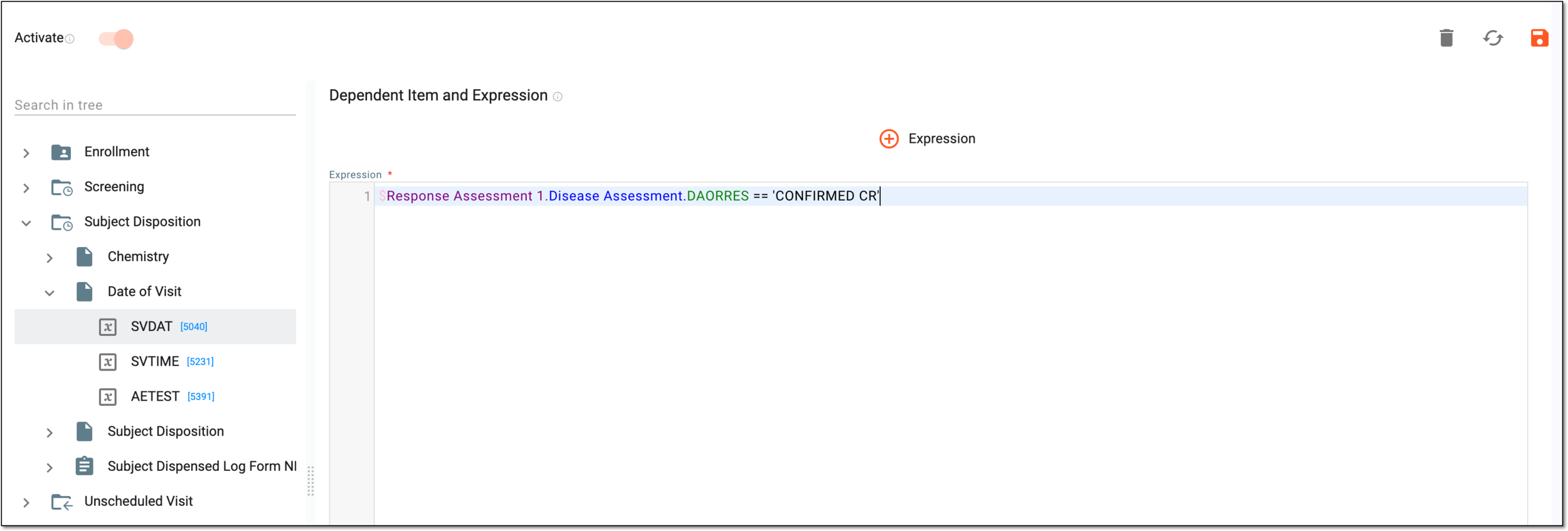 Figure 3. Designing visit dependency expression
-
-
Optionally, select
 to add an expression placeholder that you can use for the purpose of organization. Add as many such expressions as needed.
 Figure 4. Configuring additional visit dependency expression
-
From the workspace toolbar of the Visit Dependency page, select Save
 to save the
configured visit dependency.
to save the
configured visit dependency.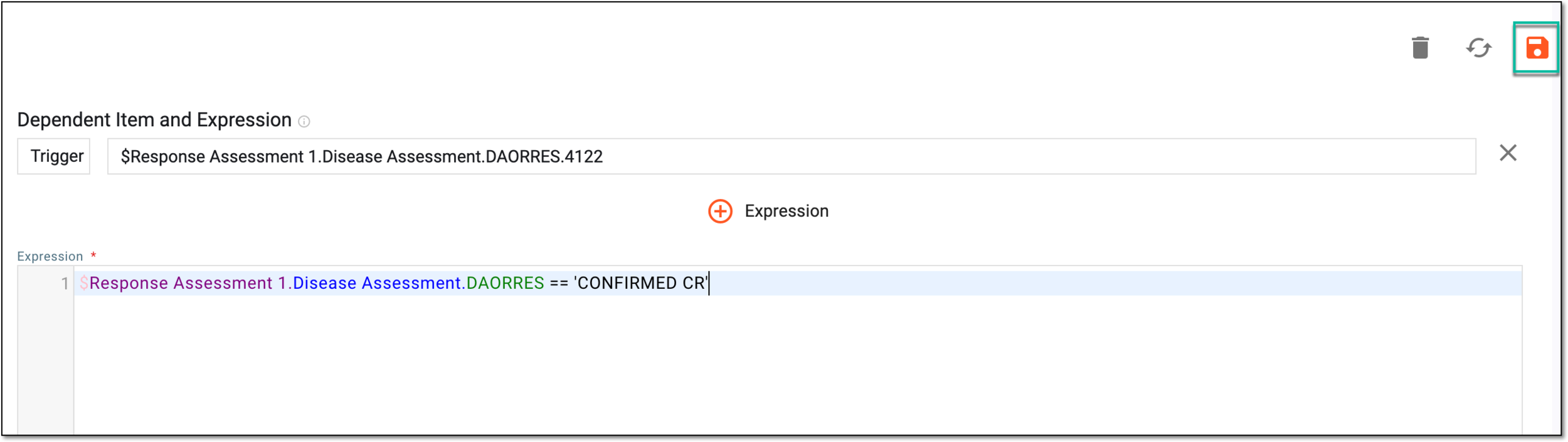 Figure 5. Saving configured expression
-
From the same workspace toolbar, turn on the Activate toggle to make the visit dependency active and applied in EDC once the CRF version is published. If the toggle is turned off, the dependency rule is not applied and the visit remains available without any precondition.
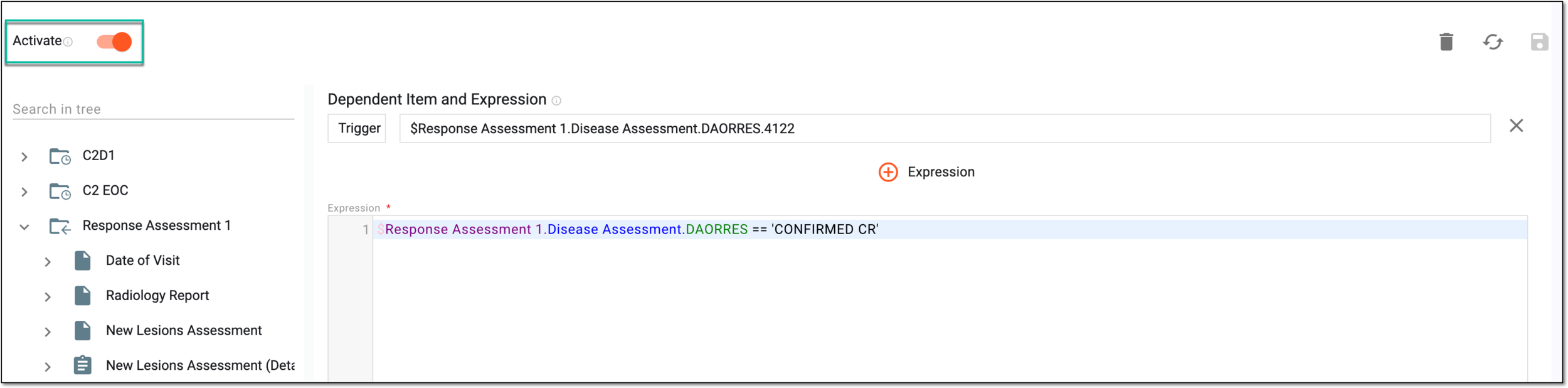 Figure 6. Activating configured expression
Once saved and activated, the visit dependency is configured and will be applied in EDC once the respective CRF version is published.