CRF access category management
When designing a CRF in SD, you can arrange for your sensitive data to be protected upon data collection in EDC. For this, you can blind as well as restrict editing of forms and separate questions on those forms. Applying general blinding or restricting edits to a form or question requires you to define an access category.
An access category determines the level of information concealment or a user's editing capacity to a form or question. Different access categories are helpful when dealing with complex interventions or multifaceted data collection because you can provide specific users or groups of users with permission to see or edit certain data pieces according to their qualifications.
During the form configuration or question management in SD, you can set up an access category upon assigning either of the following access types:
-
Restricted Edit: only the user group given restricted data editing permission can perform data entry in EDC.
-
General Blind: only the user group with unblinded access category can review or edit the blinded data of specific forms.
After defining access categories for forms and questions during the CRF design, these categories are stored at the study level.
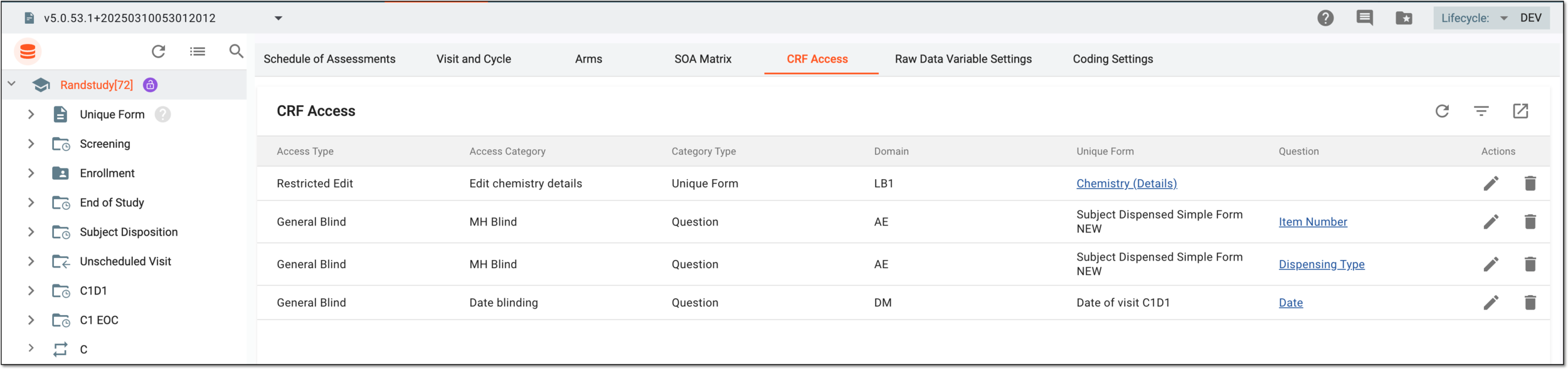
You cannot manually add new access categories since they can be added only when you create or edit a form. However, at the study level, you can perform actions with the existing categories as explained in the following sections.
When designing a CRF in SD, you can arrange for your sensitive data to be protected upon data collection in EDC. For this, you can blind as well as restrict editing of forms and separate questions on those forms. Applying general blinding or restricting edits during the form configuration or question management requires you to define an access category.
An access category determines the level of information concealment or a user's editing capacity to a form or question. Different access categories are helpful when dealing with complex interventions or multifaceted data collection because you can provide specific users or groups of users with permission to see or edit certain data pieces according to their qualifications.
After defining access categories for forms and questions, you can find their complete list at the study level, where you can edit names for existing categories for consistency, compliance, or other needs. The changes are automatically applied to general blinding settings of all forms and questions where these categories are used.
-
In the Study Designer application header, select the CRF DESIGN tab.
-
In the toolbar, select the latest draft CRF version marked with the respective unlock symbol
 , otherwise, you cannot perform any actions.
 Figure 1. Selecting latest draft CRF version
Tip
The identifier next to the study name aids you in diversifying between the Locked
 CRF version unavailable for edits and Unlocked one that you can amend
and configure.
CRF version unavailable for edits and Unlocked one that you can amend
and configure.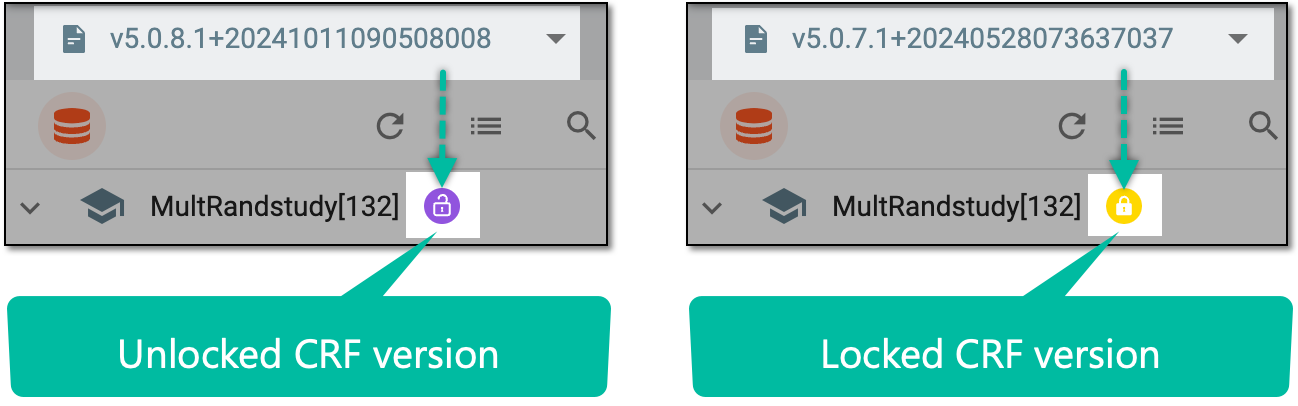 Figure 2. Unlocked vs locked CRF version
-
In the left pane that appears, select the study node.
-
In the contents panel that appears, select the CRF Access tab.
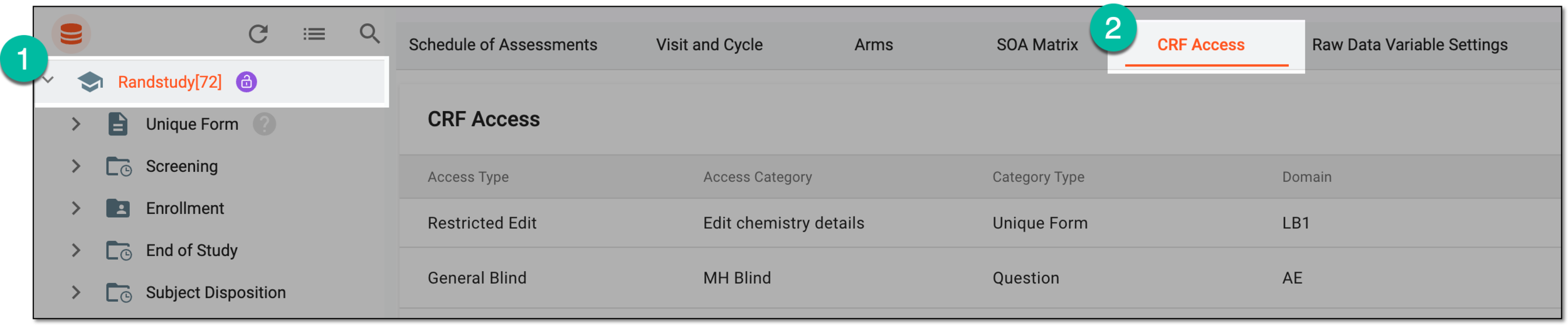 Figure 3. Going to access category list
Important
If this tab is not available, it means that there are no blind or access categories applied to any forms or questions within the study.
-
In the CRF Access table that appears, select Edit
 next to the needed access
category.
next to the needed access
category. Figure 4. Selecting option to edit access category
-
In the Rename dialog that appears, update the name of the existing access category name, and then select
 .
.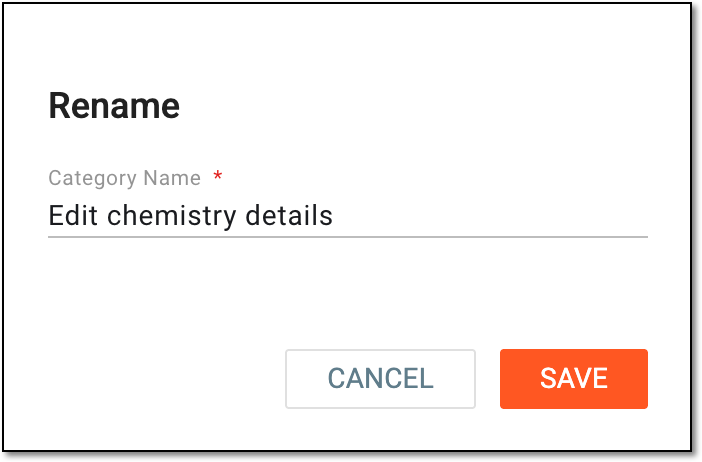 Figure 5. Editing access category name
Once saved, the access category is updated. A new name becomes automatically applied to general blinding settings of forms and questions where the category is used.
When designing a CRF in SD, you can arrange for your sensitive data to be protected upon data collection in EDC. For this, you can blind as well as restrict editing of forms and separate questions on those forms. Applying general blinding or restricting edits during the form configuration or question management requires you to define an access category.
An access category determines the level of information concealment or a user's editing capacity to a form or question. Different access categories are helpful when dealing with complex interventions or multifaceted data collection because you can provide specific users or groups of users with permission to see or edit certain data pieces according to their qualifications.
The complete list of all access categories applied to any CRFs or questions can be found at the study level. From here, you can delete existing categories and so, remove blinding or editing restrictions from all the forms and questions where they were applied. This helps you quickly lift the restrictions without the need to do so form by form.
Important
Deleting the access category automatically removes blinding or editing restrictions from all the forms and questions where this category is used.
-
In the Study Designer application header, select the CRF DESIGN tab.
-
In the toolbar, select the latest draft CRF version marked with the respective unlock symbol
, otherwise, you cannot perform any actions.Figure 1. Selecting latest draft CRF version
Tip
The identifier next to the study name aids you in diversifying between the Locked
CRF version unavailable for edits and Unlocked one that you can amend
and configure.Figure 2. Unlocked vs locked CRF version
-
In the left pane that appears, select the study node.
-
In the contents panel that appears, select the CRF Access tab.
Figure 3. Going to access category list
Important
If this tab is not available, it means that there are no blind or access categories applied to any forms or questions within the study.
-
In the CRF Access table that appears, next to the needed access category, select Delete
 .
. Figure 4. Selecting option to delete access category
-
In the Delete Item dialog that appears, select
 to confirm your action.
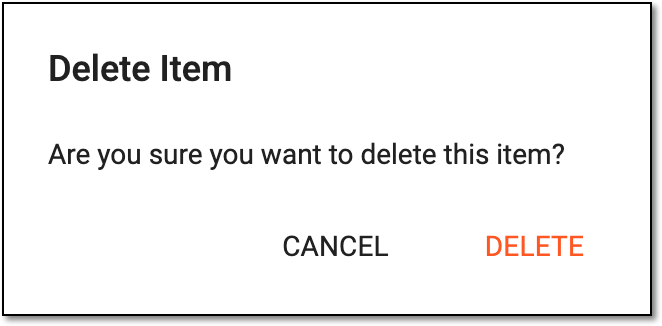 Figure 5. Deleting blind category
Important
You can only delete access categories associated with forms or questions that are not referenced in other forms across your study. Otherwise, the following dialog opens informing you about the inability to delete an access category.
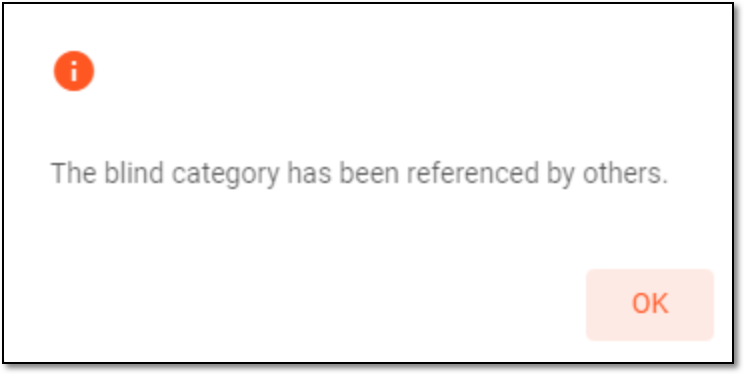 Figure 6. Confirming blind category reference
Once confirmed, the access category is deleted. The blinding or editing restriction is automatically removed from the forms and questions where the deleted category was applied.
When designing a CRF in SD, you can arrange for your sensitive data to be protected upon data collection in EDC. For this, you can blind as well as restrict editing of forms and separate questions on those forms. Applying general blinding or restricting edits to a form or question requires you to define an access category.
An access category determines the level of information concealment or a user's editing capacity to a form or question. Different access categories are helpful when dealing with complex interventions or multifaceted data collection because you can provide specific users or groups of users with permission to see or edit certain data pieces according to their qualifications.
The complete list of all access categories applied to any CRFs or questions can be found at the study level. From here, you can export existing categories to your computer in the XLSX file for analysis of study blinding or other business scenarios.
-
In the Study Designer application header, select the CRF DESIGN tab.
-
In the toolbar, select the needed CRF version.
Figure 1. Selecting CRF version
Tip
The identifier next to the study name aids you in diversifying between the Locked
CRF version unavailable for edits and Unlocked one that you can amend
and configure.Figure 2. Unlocked vs locked CRF version
-
In the left pane that appears, select the study node.
-
In the contents panel that appears, select the CRF Access tab.
Figure 3. Going to access category list
Important
If this tab is not available, it means that there are no access categories applied to any forms or questions within the study.
-
From the workspace toolbar of the CRF Access table that appears, select Export
 .
. Figure 4. Exporting access categories
Once selected, the list of access categories is downloaded to your computer.