Access control
Managing access to case report forms (CRFs) is among various EDC activities associated with data collection and maintenance. Once the EDC system is updated to the latest CRF version, which has blinding or amendment restrictions applied to specific forms or elements, you can control their access for different eClinical users based on the roles granted to them via ADMIN.
In the following sections, you can learn how perform the data access control.
Blinding refers to the process of concealing certain information from investigators and outcome assessors to minimize bias and ensure the validity of study results. When configuring CRFs or configuring individual questions in the Study Designer (SD) application, they can be set as blinded and as a result, multiple access categories are defined.
When dealing with complex interventions or multifaceted data collection, access control categories allow for further diversification of blinded data elements and management of their availability to different study participants. Thus, once the EDC system is updated to the case report form (CRF) version that has blinded categories of data, you can control their access for different eClinical users based on the roles granted to them via the ADMIN application.
For instance, the subject medication history CRF is blinded by configurations of SD and its access control category is "MH Blind." In EDC, you want the data manager (DM) to be able to see and update the blinded fields of the medication history CRF during the review and verification processes. Thus, you give the CRC user unblinded access to the "MH Blind" category.
In this section, you can learn how to unblind data for certain user roles.
Important
For the hierarchical study design, you need to configure the blinded data access individually for the master study and its substudies.
-
In the EDC application header, select the STUDY INFO tab.
-
On the page that opens, from the left pane, select CRF Version > Access Control.
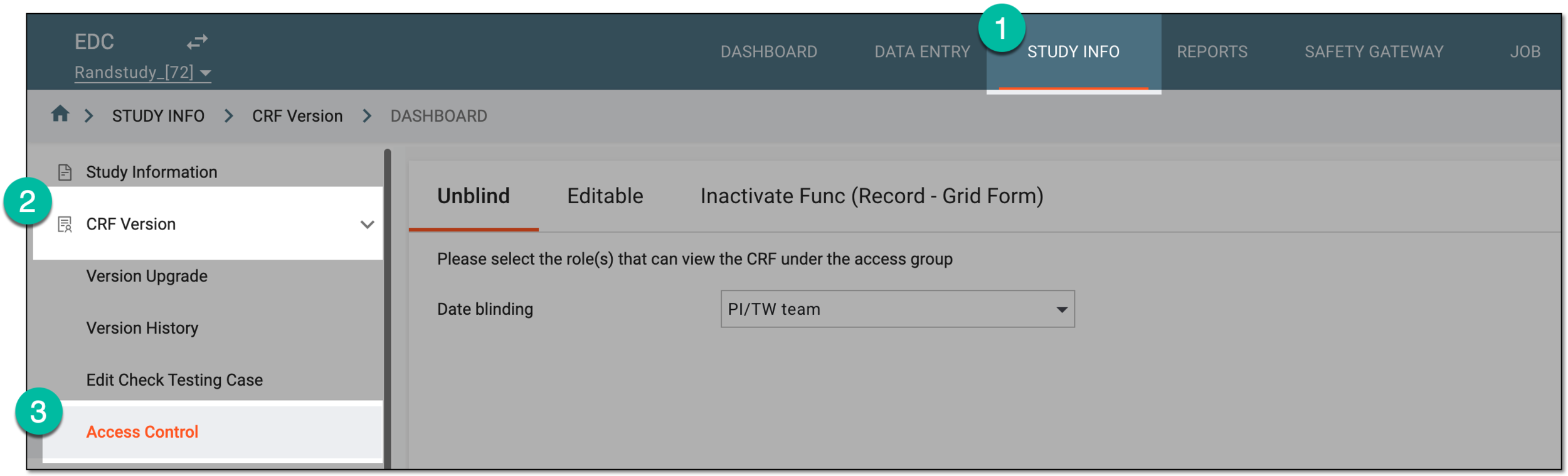 Figure 1. Opening access control functionality
-
Under the Unblind tab that opens, next to the blinded data category of your interest, expand the list of user roles and select the ones to whom you want to allow viewing data.
 Figure 2. Providing access to blinded data by role
Tip
There can be as many such fields as there are blinding categories created for forms and fields in SD.
-
Select
 to implement the changes.
Once saved, the selected user roles can view the blinded data of the respective categories when managing the subject forms in EDC.
Data editing restrictions for case report forms (CRFs) are applied to enhance the integrity and control over certain information to minimize risks and ensure the validity of study results. When configuring forms or individual questions in the Study Designer (SD) application, they can be set as uneditable and as a result, different categories of restricted data are generated.
Once the EDC system is updated to the CRF version that has restricted categories of data, you can control their access for different eClinical users based on the roles granted to them via ADMIN.
For instance, certain fields of the chemistry CRF are restricted for editing by configurations of SD and its access control category is "Edit Chemistry Forms." In EDC, you want the clinical research coordinator (CRC) to be able to edit the fields of the chemistry CRFs as these users are responsible for lab data collection. Thus, you allow the CRC users access and editing permission for the "Edit Chemistry Forms" category.
In this section, you can learn how to permit certain user roles to edit the restricted data in CRF.
Important
For the hierarchical study design, you need to control the restricted data access individually for the master study and its substudies.
-
In the EDC application header, select the STUDY INFO tab.
-
On the page that opens, from the left pane, select CRF Version > Access Control.
Figure 1. Opening access control functionality
-
On the page that opens, select the Editable tab. Then next to the access category of your interest, expand the list of user roles and select the ones to whom you want to allow data amendment in CRFs.
 Figure 2. Providing permission to edit data by role
Tip
There can be as many such fields as there are access categories created for forms and questions in SD.
-
Select
to implement the changes.
Once saved, the selected user roles can enter data into fields with restrictions of a certain category when managing the subject forms in EDC.
In EDC, you can control the process of data collection via grid forms (mostly intended for laboratory results data) by restricting the users from inactivating individual form records. This prevents unintended or deliberate deactivation of certain CRF records and skipping data entry.
-
In the EDC application header, select the STUDY INFO tab.
-
On the page that opens, from the left pane, select CRF Version > Access Control.
Figure 1. Opening access control functionality
-
On the page that opens, select the Inactivate Func (Record - Grid Form) tab. Then next to the forms for which you want to prevent the records from inactivation, select the checkboxes.
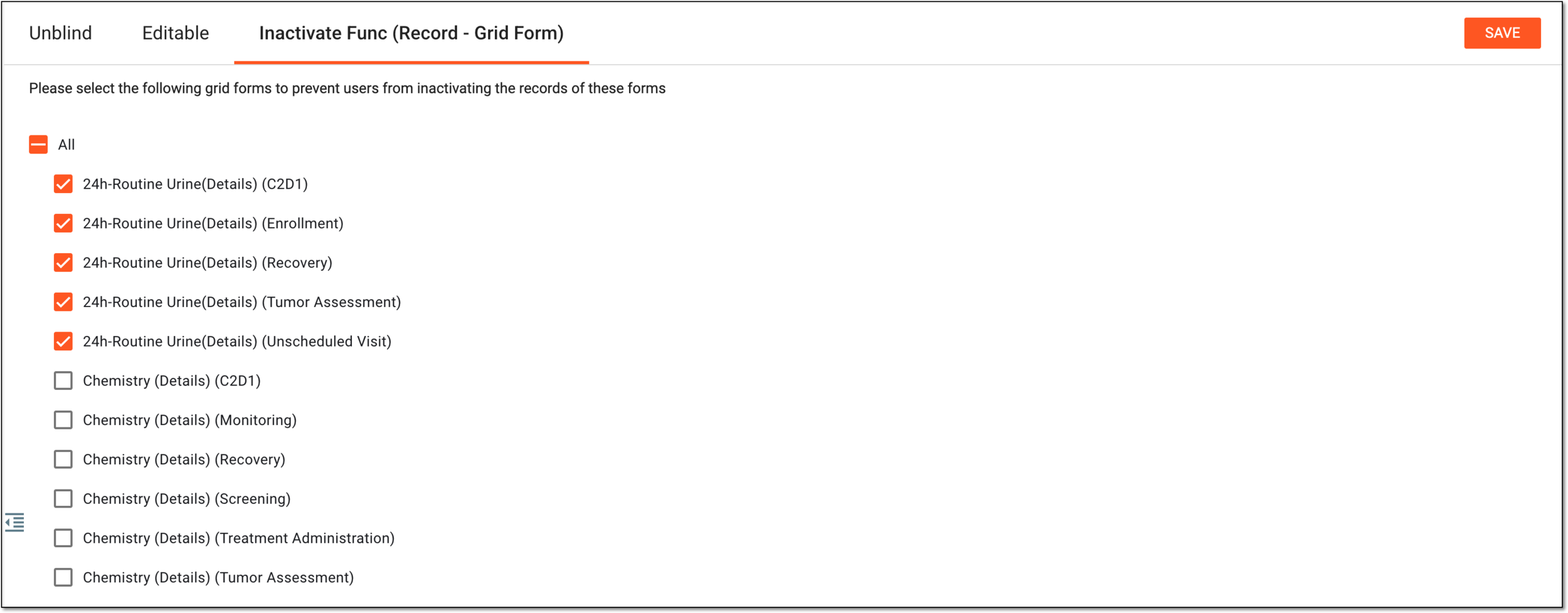 Figure 2. Selecting forms to restrict record inactivation
-
Select
to implement the changes.
Once saved, the EDC users can no longer inactivate records of the selected forms.