Add question to form
The Study Designer application enables study teams to configure CRFs for clinical trial visits with a variety of tools. There are various form field options such as text fields, checkboxes, dropdown menus, date pickers, and more. You can place these fields on the form canvas, arrange them as needed, and make sure they are associated with the corresponding variables.
One such field option is a custom question that can be added to the form whenever a clarification or a tip is needed. The custom questions may or may not be associated with variables depending on whether the data entered in the EDC system needs to be recorded in the output dataset upon collection. The following example provides a brief overview of how custom questions can be used in forms.
For example, there is the "End of Cycle" form with the question "Will the subject continue to the next cycle?". The custom question can be added to tip subjects on what they should do next if "No" is answered. In this case, you can add the custom question "If “No” was selected, skip to “End of Treatment” visit." Such a custom question does not need to be recorded in the dataset so it can be present on the form only as a label field without association with any variable.
Users can access the questions in EDC and Study Designer depending on the access type that you select when you create a new question.
Important
By updating a unique form, you introduce changes to all visit forms linked to it and vice versa.
-
In the Study Designer application header, select the CRF DESIGN tab.
-
In the toolbar, select the latest draft CRF version marked with the respective unlock symbol
 , otherwise, you cannot perform any actions.
 Figure 1. Selecting latest draft CRF version
-
In the left pane that appears, select the needed form.
Tip
To locate the needed forms faster, use Search
 on the workspace toolbar of the
left pane.
on the workspace toolbar of the
left pane.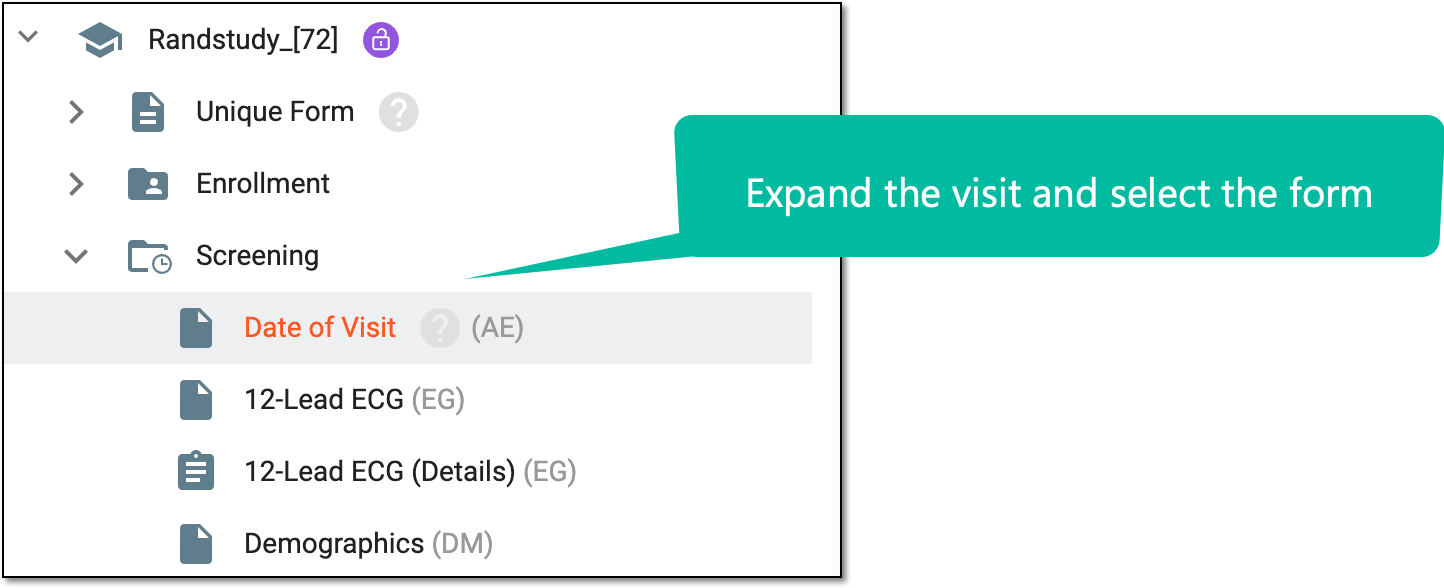 Figure 2. Accessing form to configure
-
From the action bar of the form content page that opens, select Question
 .
.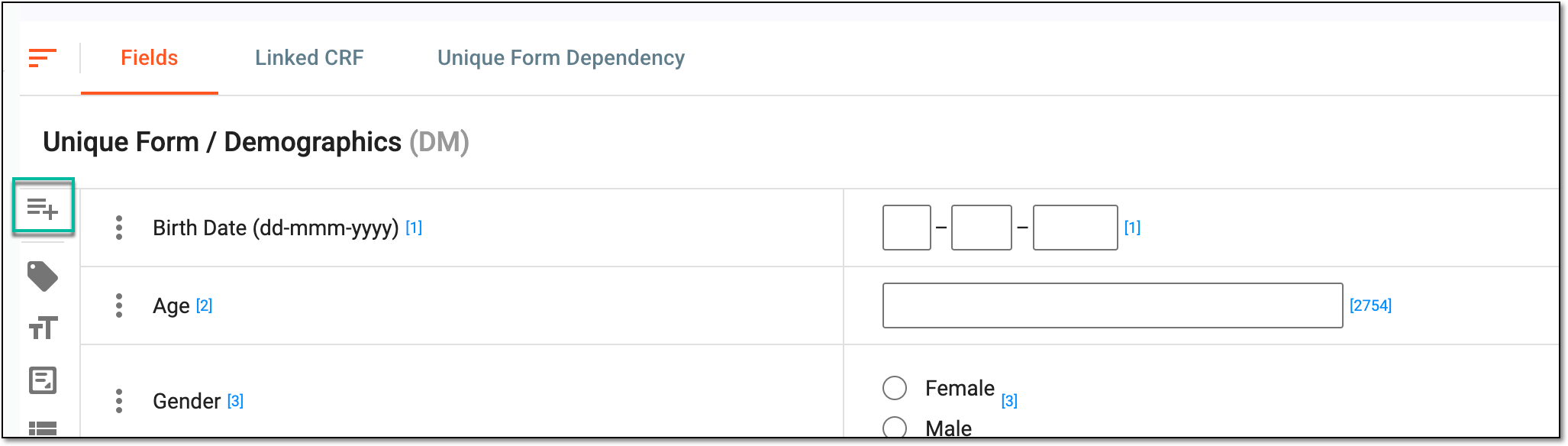 Figure 3. Selecting to add new question
-
In the New Question panel that expands, fill in the details as explained in the following table.
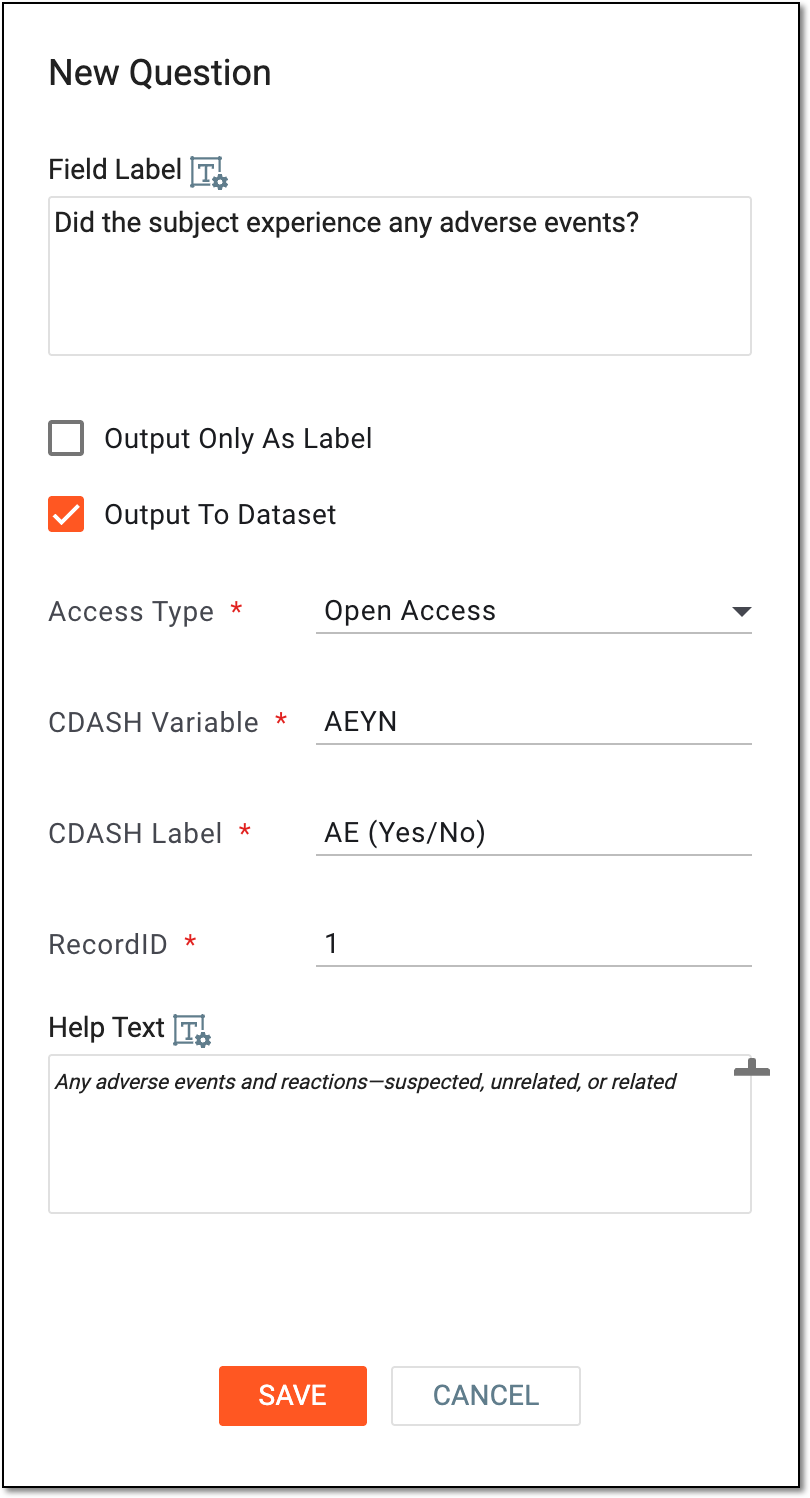 Figure 4. Adding question details
Tip
In the following table, mandatory elements are marked with an asterisk (*).
Element
Details
Field Label*
Enter the question text or information pertaining to the form field.
Use Rich Text to format the question text if needed.Rich Text
Select
 next to Field
Label or Help Text fields to open the text editor dialog and style your text as needed using the available formatting tools. The rich text you apply defines how your question
text is displayed in the CRF when it is completed via EDC, eDiary, or eCOA.
next to Field
Label or Help Text fields to open the text editor dialog and style your text as needed using the available formatting tools. The rich text you apply defines how your question
text is displayed in the CRF when it is completed via EDC, eDiary, or eCOA.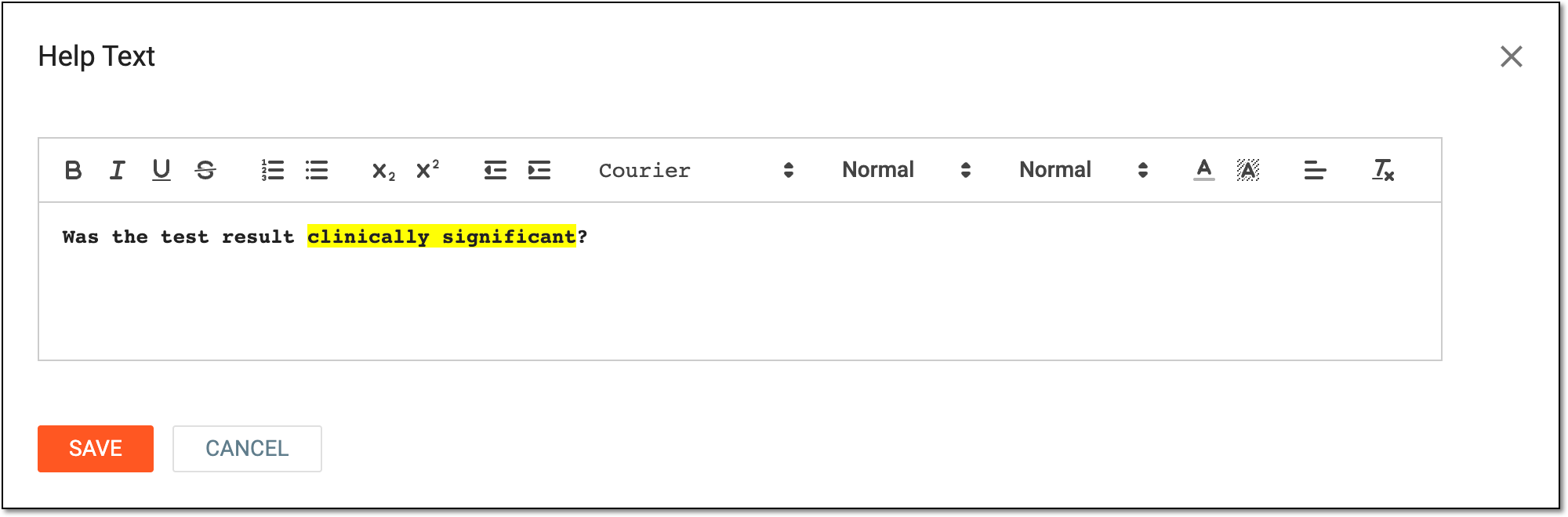 Figure 5. Configuring rich text
Output Only As Label
Select this checkbox if you want the question to be displayed as a label in the output dataset. If selected, the field options cannot be assigned to this question, meaning it will not be used for data collection purposes.
For instance, you can add a label to your form as a guide or a useful tip for the data entry in the following fields. Another example of the label use is a copyright text that can be inserted in a certain place on the form.
Output To Dataset
Select this checkbox if you want the question to be stored as a data record in the output dataset.
Access Type*
Select the type of access or blinding that determines the users' level of visibility or editing capabilities for the data in the question as follows:
-
Open Access: the user can read, edit, and access the question without any additional configuration needed.
-
Restricted Edit: only the user group specified in the access category can edit the question. If the user is not a part of the user group specified in the access category, the user cannot edit the question.
-
General Blind: only the user group specified in the access category can view the new question in the form. By default, the question with the General Blind access type is hidden.
Access Category*
Enter the name of the access category applied to the created form.
This field is available only if you select any option from the Access Type dropdown list.CDASH Variable*
Enter the name of the variable where the question text is to be recorded in the output dataset. The field only supports uppercase letters, numbers, and underscores.
This field is available only if the Output To Dataset checkbox is selected.CDASH Label*
Enter the label of the variable where the question text is to be recorded in the output dataset.
This field is available only if the Output To Dataset checkbox is selected.RecordID*
Enter the record ID in the output dataset. For example, if the record ID is set to 2, there will be 2 records generated in the output dataset for a corresponding variable. This is very useful when there are different fields on the form that are associated with the same CDASH variable but the collected data needs to be stored in separate records.
This field is available only if the Output To Dataset checkbox is selected.Help Text
Enter the help text for the new question.
Use Rich Text to format the help text if needed.SAVE
Select
 to add a question to the form.
CANCEL
Select
 to cancel adding the question.
 -
Once saved, the question is added to the form. You can now continue to maintain forms with available actions.