Add column to grid form
The Study Designer application enables study teams to configure CRFs for clinical trial visits with a variety of tools. There are various form field options such as text fields, checkboxes, dropdown menus, date pickers, and more. You can place these fields on the form canvas, arrange them as needed, and make sure they are associated with the corresponding variables.
In grid forms, the columns are used instead of questions for collecting lab data because they provide a structured and organized format to record multiple observations or measurements. Instead of having separate questions for each data point, which can become lengthy and repetitive, a column-based format enables healthcare professionals to quickly record values for multiple variables in a single row.
Important
By updating a unique form, you introduce changes to all visit forms linked to it and vice versa.
-
In the Study Designer application header, select the CRF DESIGN tab.
-
In the toolbar, select the latest draft CRF version marked with the respective unlock symbol
 , otherwise, you cannot perform any actions.
 Figure 1. Selecting latest draft CRF version
-
In the left pane that appears, select the needed form.
Tip
To locate the needed forms faster, use Search
 on the workspace toolbar of the
left pane.
on the workspace toolbar of the
left pane. Figure 2. Accessing form to configure
-
On the form content page that appears, add a new column to the form in one of the following ways:
-
In the header of the first column, select More
 > New Column
 .
. -
In the header of any of the already added columns, select More
> Add on
Left or Add on Right  to insert the column on the left or right side of the selected one.
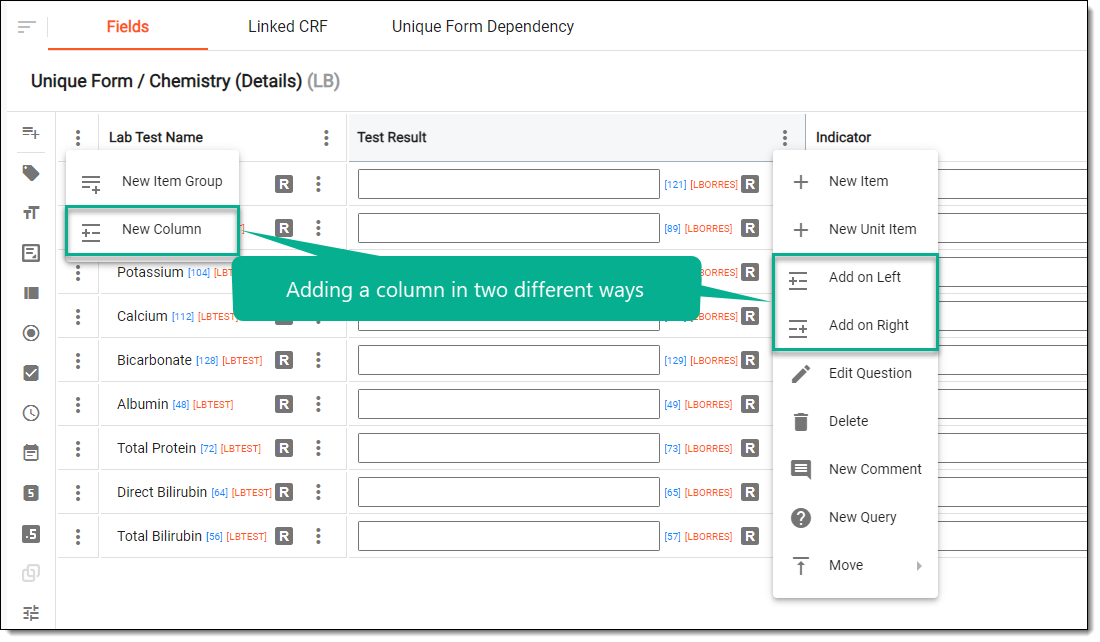 Figure 3. Selecting option to add column
-
-
In the New Column dialog that appears, enter a name and help text for the newly created column. Note that the column is added for grouping items and will be associated with variables to capture data.
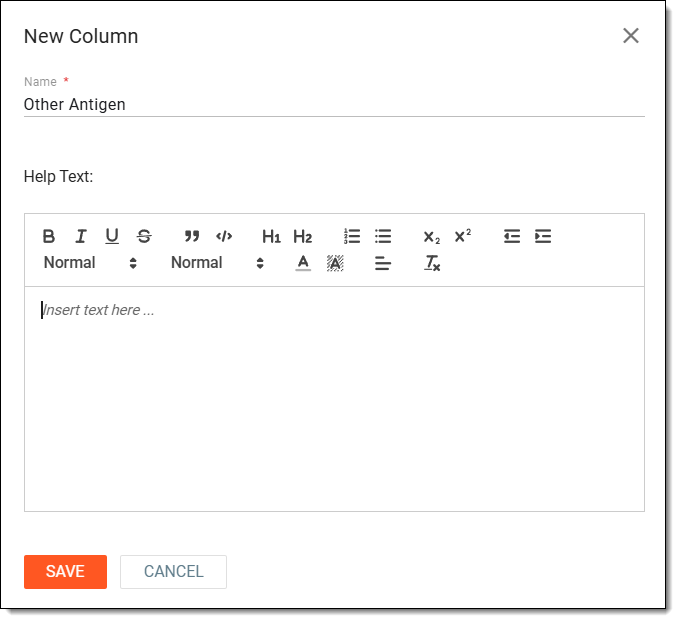 Figure 4. Adding new column
-
Select
 to add a new column to the grid form.
Once saved, the column is added to the grid form. You now need to assign items to this column using available actions.