Activate/Inactivate form
In the EDC application, case report forms (CRFs) are a mechanism you use to collect study data. You use forms to enter, correct, or update data for the subject visit.
The functionality to activate or inactivate CRFs helps you manage the data entry and amendment process by temporarily making some forms unavailable for users and then enabling data entry again as per your business scenario.
Important
If all the forms in a visit are inactivated, the visit becomes disabled automatically.
You can also disable a visit by deactivating all the forms for that subject visit.
-
In the EDC application header, select the DATA ENTRY tab.
-
On the site list page that opens, select the tile representing the site with which you want to work.
 Figure 1. Selecting site title
-
In the Subject ID column, select the ID of the subject to open their Subject Visit Overview page.
 Figure 2. Locating your subject
-
On the Subject Visit Overview page that opens, in the left pane, expand the needed subject visit and select the form that you want to activate or inactivate.
-
Next to the needed form, select Activate
 to make the form available for data entry in the subject visit or Inactivate
  to make the form unavailable in the subject visit.
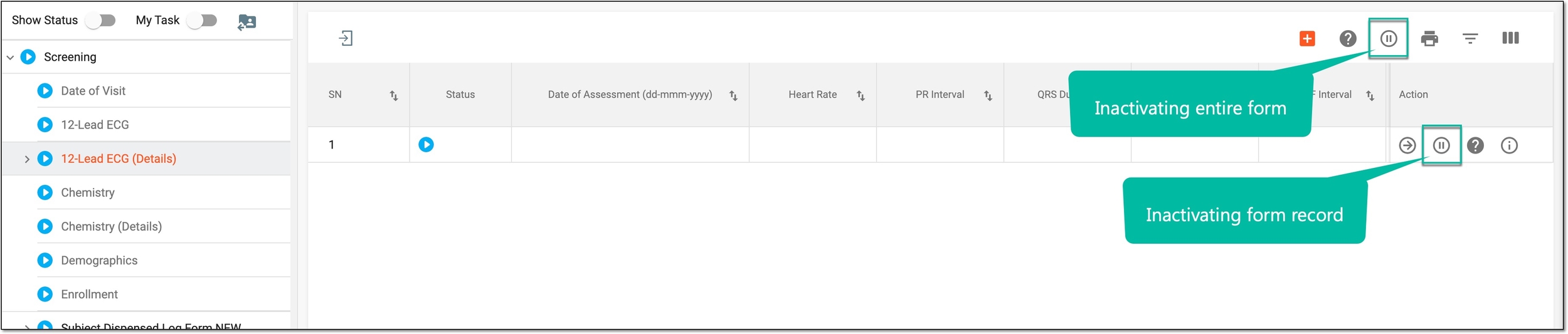 Figure 3. Inactivating form or record
Important
Note that if the form has active queries, upon inactivation of the form the query aging stops until the form is activated again.
-
In the Reason dialog that appears, enter the reason for activating or inactivating a form, and then select
 to save your
changes.
to save your
changes.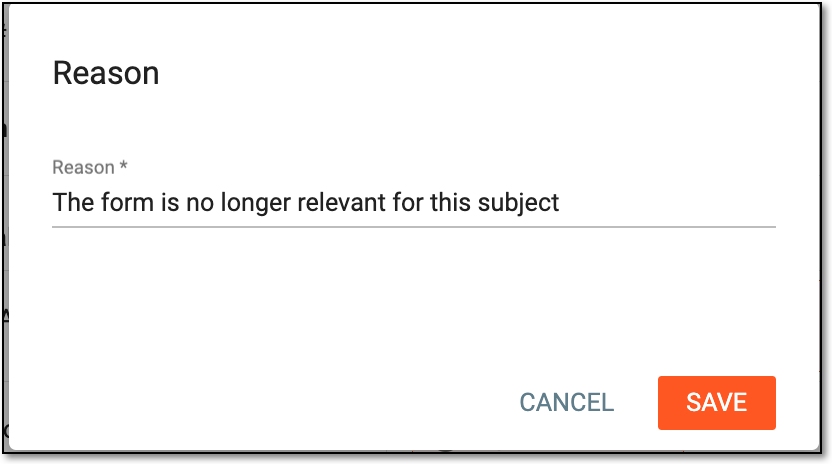 Figure 4. Providing reason for form activation/inactivation
Tip
For the log forms, upon inactivation of the last active form within a log, in the confirmation dialog that appears, you can select CONFIRM to inactivate the log as a whole or select CANCEL for it to remain active.
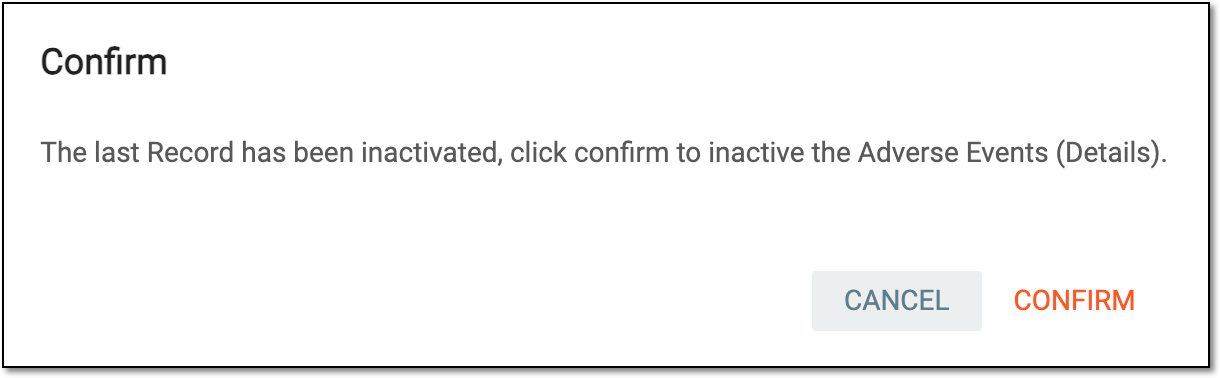 Figure 5. Confirming log inactivation
Once confirmed, the form is activated or inactivated, depending upon the performed action.