Clear form data
If the data entered into the form is incorrect or has been entered by mistake, or for whatever other reason, you can clear the form data completely and start over.
-
In the EDC application header, select the DATA ENTRY tab.
-
On the site list page that opens, select the tile representing the site with which you want to work.
 Figure 1. Accessing site
-
In the Subject ID column, next to the needed subject, select the link representing the subject whose data you want to clear.
 Figure 2. Selecting subject
-
In the subject visit tree of the page that opens, expand the needed visit to select the required form.
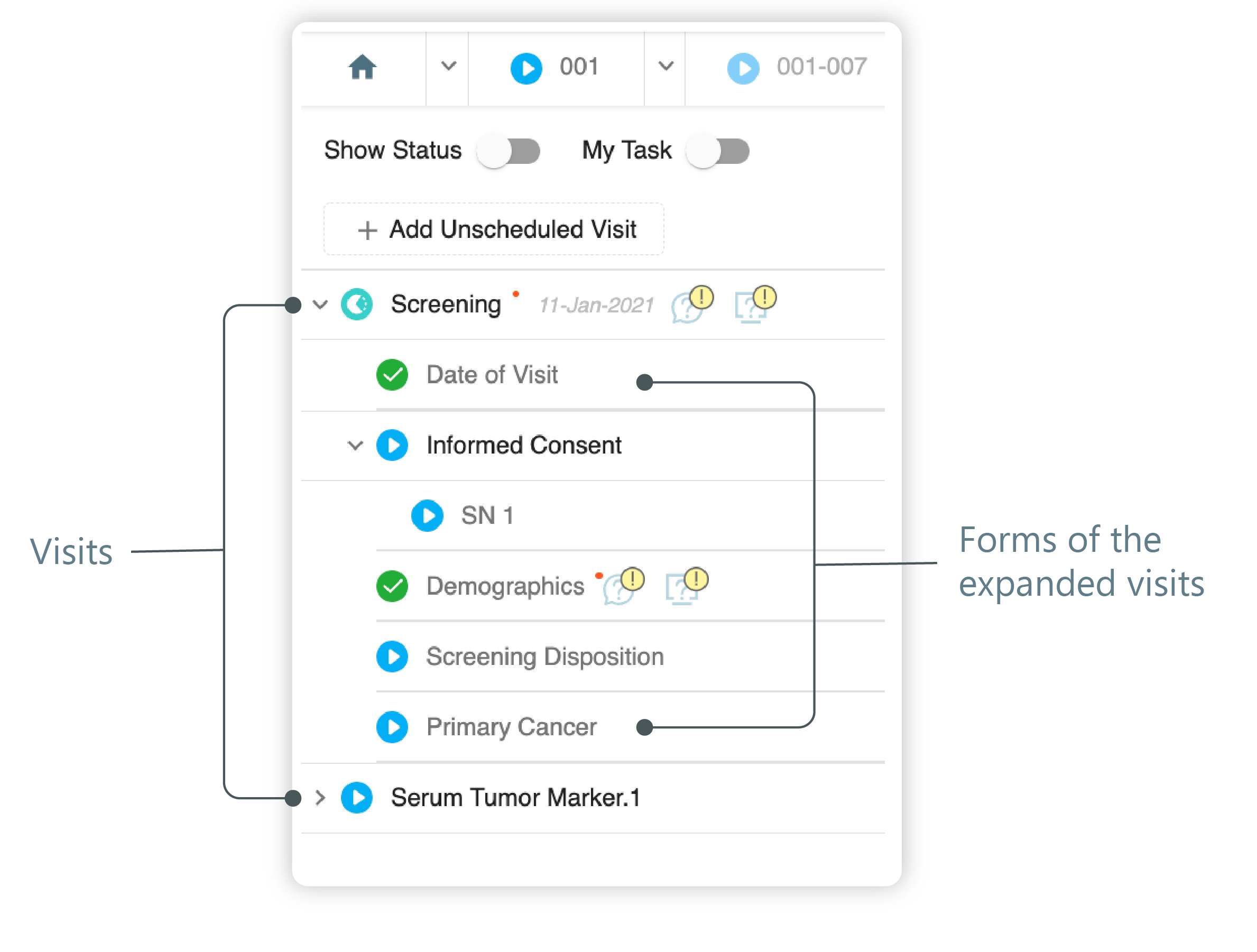 Figure 3. Left panel. Visits and their forms
-
Select the form where you need to clear data.
-
Once the form opens, in the toolbar, select Clear Data
 .
.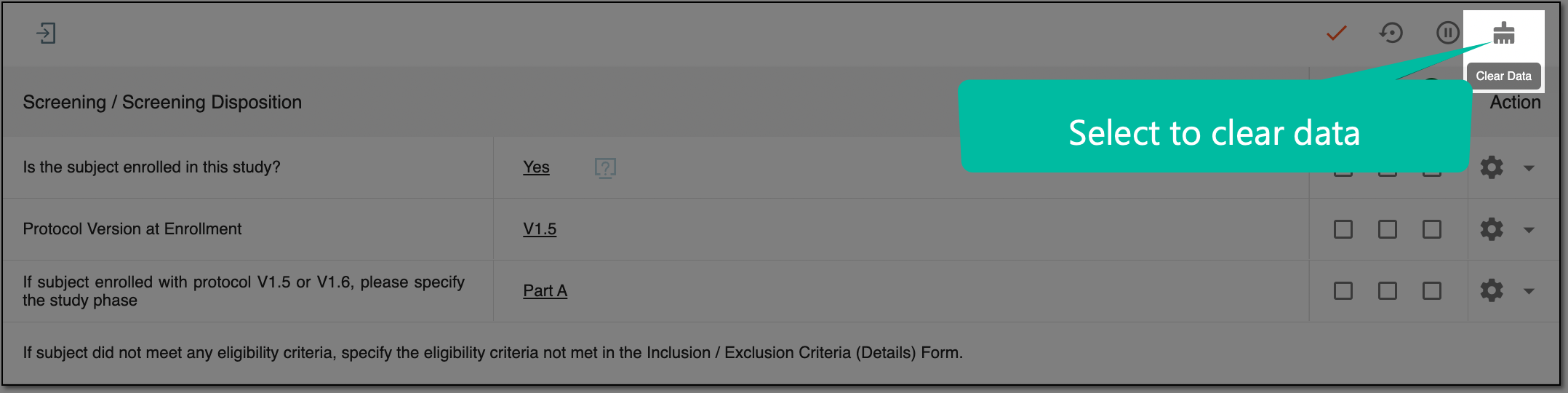 Figure 4. Clearing form data
-
In the Reason dialog that opens, specify the reason by selecting the one from the dropdown list or entering your own. Select
 to proceed with the data deletion or select
  to cancel the operation.
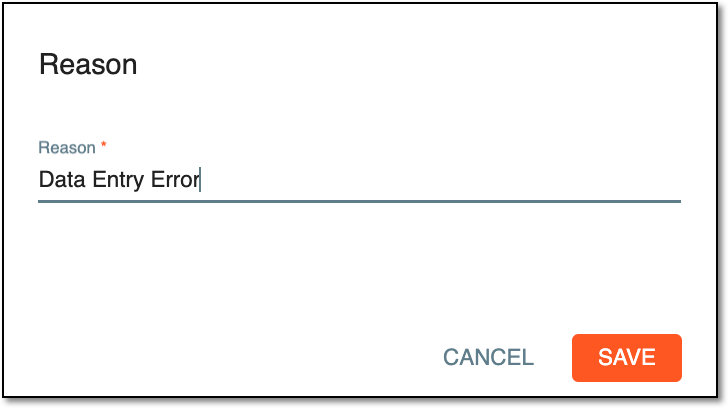 Figure 5. Reasoning data clearing
Once the reason is saved, the data entered previously is removed from the form.
