Download exported test case results from history
In EDC, you can generate and run testing cases for your configured CRF versions in the test—UAT—lifecycle before pushing the newest version and initiating actual data entry in the production—PROD—lifecycle. This helps you review and verify if the CRF logic is working correctly to prepare the fault-free version and avoid situations of broken logic only outing when the actual data entry starts.
You can also export the test case results in the form of an XLSX spreadsheet to use the data offline. All the previously exported versions can be accessed and downloaded from the export history.
-
In the EDC application header, select the STUDY INFO tab.
-
On the page that opens, in the left pane, select CRF Version > Edit Check Testing Case.
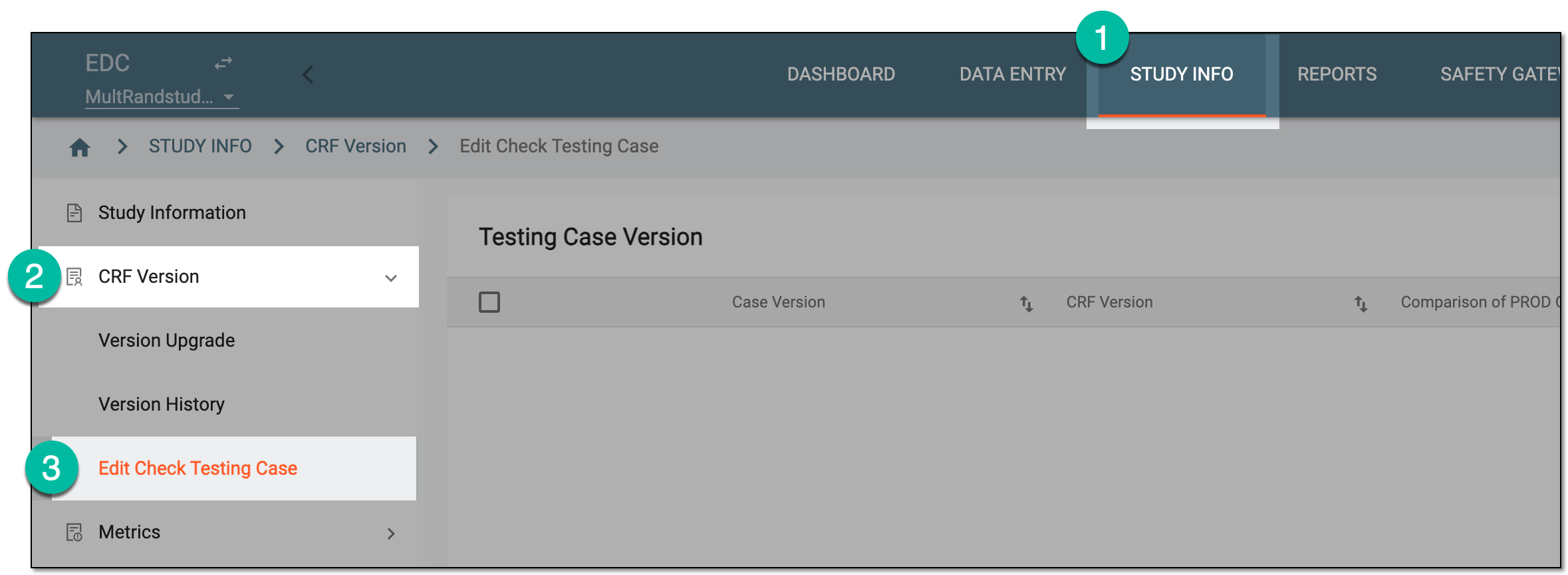 Figure 1. Accessing edit check testing
-
On the Testing Case Version page that opens, from the workspace toolbar, select Export History
 .
. Figure 2. Accessing test case export history
-
In the Export History dialog that opens, locate the needed file version you want to download. Then next to the needed file, select the download option
 to save it to your computer.
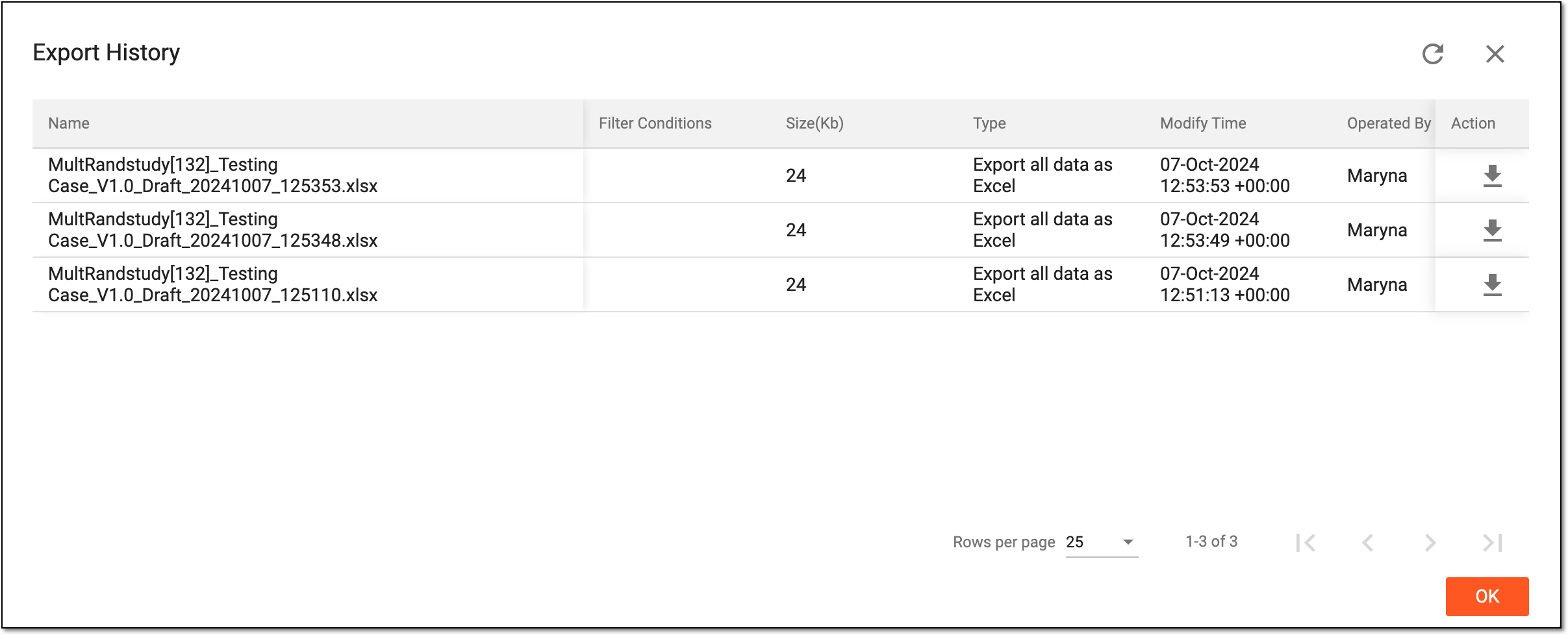 Figure 3. Downloading test case results from history
Once downloaded, the exported file becomes available on your computer. You can now use it according to your business needs. Select  to close the dialog and
return to the Testing Case Version page.
to close the dialog and
return to the Testing Case Version page.