Review CRF version test case results
In EDC, you can generate and run testing cases for your configured CRF versions in the test—UAT—lifecycle before pushing the newest version and initiating actual data entry in the production—PROD—lifecycle. This helps you prepare the fault-free CRF version and avoid situations of broken logic only outing when the actual data entry starts.
Once the test cases are generated, the system automatically populates the respective case report forms (CRFs) with test data to execute the established rules. Once done, user interaction is required to verify if the CRF logic is working correctly.
Thus, you can review the summary of the CRF version test cases and assess the results—if the version is ready to be used in a study, or if the fixes must be applied to the CRF rules design in Study Designer (SD).
Important
The test case results are generated for incremental data—only differences between the CRF version being tested and the currently effective CRF version on PROD.
-
In the EDC application header, select the STUDY INFO tab.
-
On the page that opens, in the left pane, select CRF Version > Edit Check Testing Case.
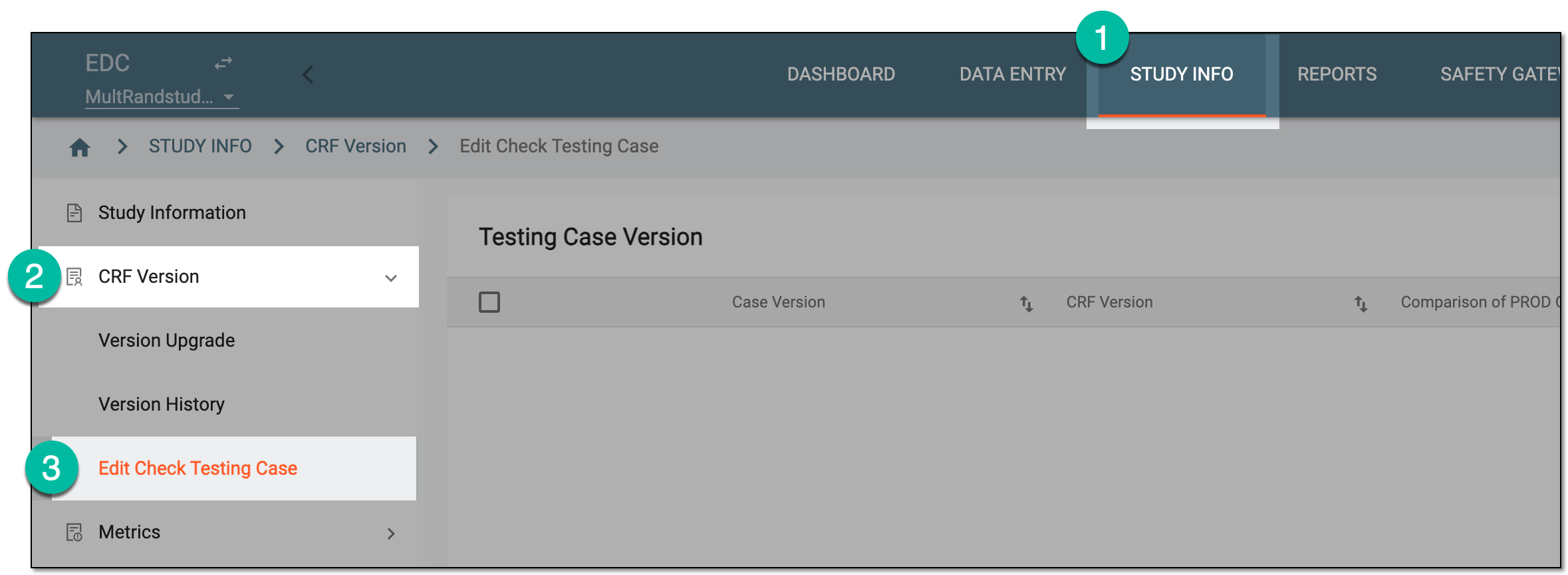 Figure 1. Accessing edit check testing
-
On the Testing Case Version page that opens, locate the test case version for which you want to review results. Then from the Action column, select Info
 .
. Figure 2. Accessing CRF version test case results
-
On the Testing Case List page that opens, review the test case result details as explained in the following table.
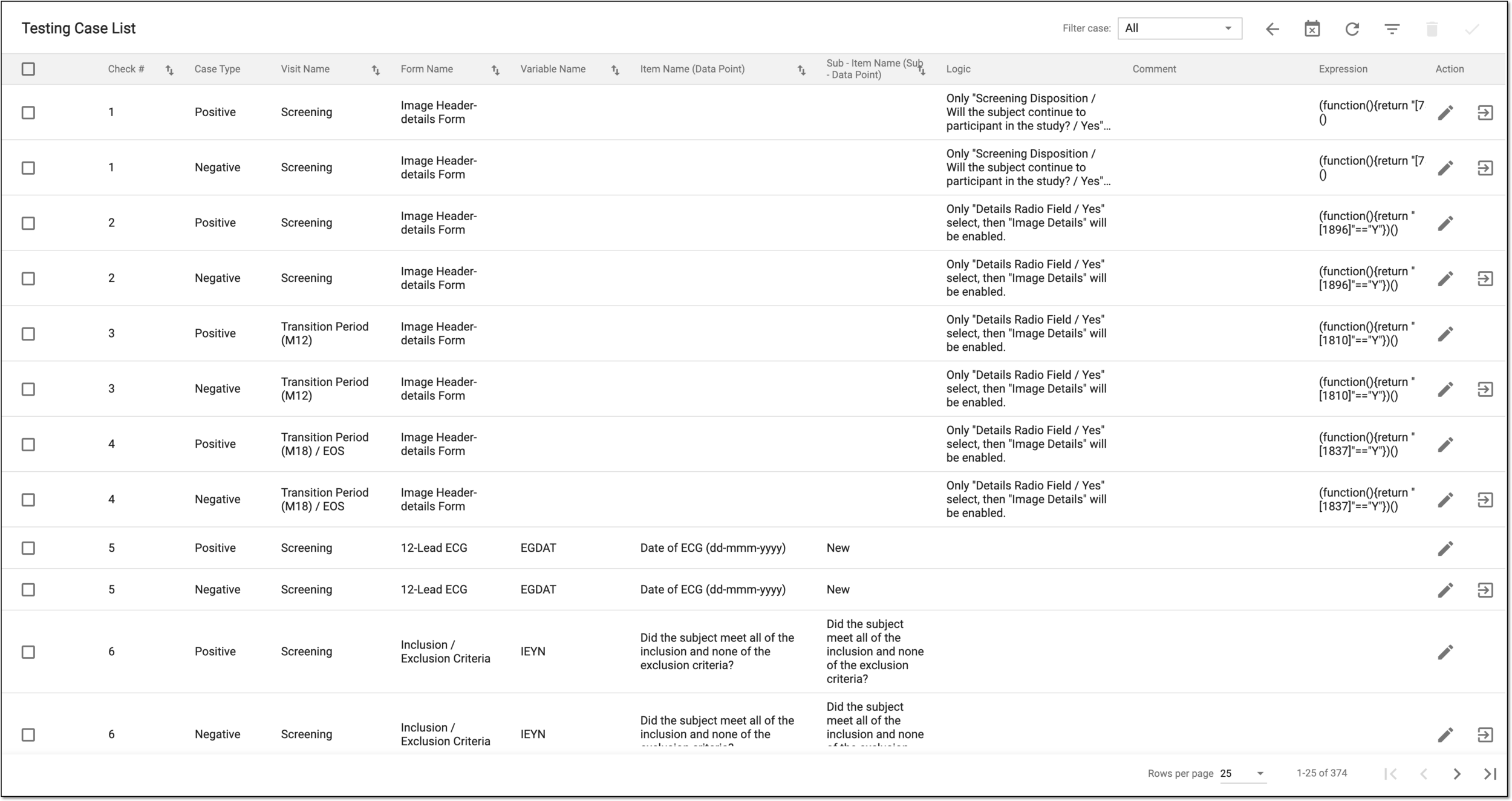 Figure 3. Reviewing CRF version test case results
Tip
Use the Filter case dropdown menu on the workspace toolbar to organize your table records as follows:
-
All: select this option to review all the generated test case records.
-
Matched: select this option to review only the test case records for which the EDC system can execute the established rule.
-
Unmatched: select this option to review only the test case records for which the EDC system cannot execute the established rule.
Column
Details
Check #
Represents the sequential number of edit check test cases that have been run. There are always two cases with the same number in the table because the system runs both positive and negative result testing for each edit check.
Case Type
Represents one of the following:
-
Positive: the test is performed to verify that a given scenario or rule will be executed with a satisfactory result.
-
Negative: the test is performed to check whether the reverse scenario will be executed with a satisfactory result.
For instance, there is a rule that only for female subjects the question "Of childbearing potential?" appears in the CRF, and for male subjects, this field is missing.
A positive case type is when the system checks if in the "Sex" field the answer is "Female," then the field "Of childbearing potential?" appears automatically.
A negative check is when the system checks if in the "Sex" field the answer is "Male," then the field "Of childbearing potential?" does not appear.
Visit Name
Represents the name of the visit to which the CRF belongs for whose logic verification the test case is run.
Form Name
Represents the name of the CRF, for whose logic verification the test case is run.
Variable Name
Represents the name of the variable for whose logic verification the test case is run.
Item Name (Data Point)
Represents the text of the CRF question, for whose logic verification the test case is run.
Sub - Item Name (Sub - Data Point)
Represents the subsequent to the main question of the CRF, for whose logic verification the test case is run.
For instance, if the question (item) is "Weight" with the answer in an integer value, then the subitem can be the unit to define how the weight is measured—kilograms, pounds, and so on.
Logic
Represents the rule defined in SD to outline the logic of the CRF behavior.
For instance, a rule is that only for female subjects the question "Of childbearing potential?" appears in the CRF, and for male subjects, this field is missing. The logic for this rule can be established like: "Only if "Sex / Female" is selected, then "Of childbearing potential" is enabled."
If the logic requires amendments, select Edit next to the test case
and in the resulting dialog, update the logic text and provide optional comments if needed. The comment provided here is displayed in the Comment column of the table.
next to the test case
and in the resulting dialog, update the logic text and provide optional comments if needed. The comment provided here is displayed in the Comment column of the table.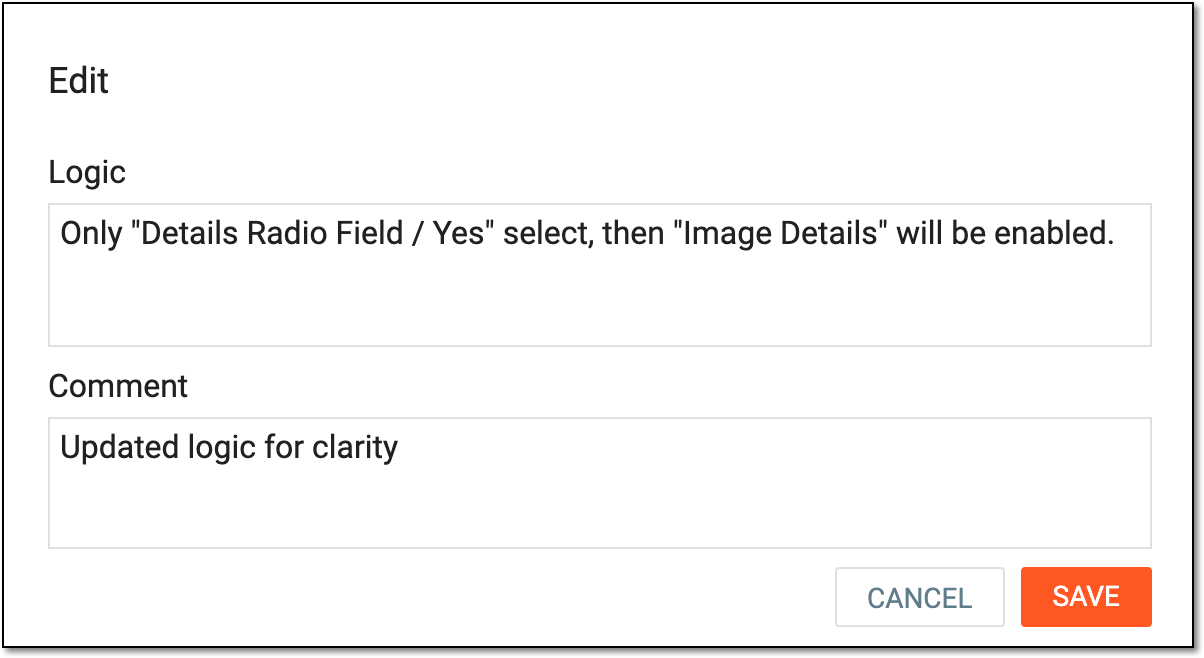 Figure 4. Updating test case logic
Comment
Represents a comment added by the user upon marking the test case as passed or failed or when updating the test case logic.
Expression
Represents the expression designed in SD to execute the logic of the CRF item according to the established rule.
Query Text
Represents the text of the query that is to be triggered by the system according to the field completion logic.
For instance, if the field is mandatory for completion and the user attempts to submit it empty, the system triggers a query "Data required." The "Data required" query text you can see in this column.
Type class
Represents the type of rule that must be executed for the CRF or its item, such as:
Condition
Represents one of the following:
-
New: the rule execution is tested for the first data entry to the CRF or its item.
-
Updated: the rule execution is tested for the data amendment in the CRF or its item.
For instance, when the date of SAE occurrence is first entered (new), no specific rule is applied to the CRF field. However, if the date is updated, the field "Date change reason" is triggered and becomes mandatory.
Test Subject
Represents the unique identification number of the subject for whose CRF the logic verification test case is run.
Test Value
Represents the value that is selected as an answer to a question to trigger the rule execution.
For instance, the expression is: " Screening / Demographics / Sex / Femail" is selected.
In this example, the system tested what happens if for the "Screening" visit, in the "Demographics" form, the answer to the question "Sex" is "Female". So here, "Female" is the tested value.
Another example of a tested value can be "BLANK". Then, the system tested what happens if the answer to the question is not given—the field remains blank.
Query Fired
Represents one of the following:
-
Enabled: the failure to execute the established logic triggers the system query.
-
Disabled: the failure to execute the established logic does not trigger the system query.
P / F
Represents the user-selected value as follows:
Tested By
Represents the name of the user who performed the review of the CRF version test case results.
Tested Date
Represents the date when the review of the CRF version test case results was performed.
-
-
Once the details are viewed, confirm the test case in one of the following ways:
-
To review the individual test case within the related CRF, from the Action column next to that test case, select Go to CRF
 . On the form page that opens, see how the established logic is executed. Then in the Test Case Checklist table, select Confirm
  .
.For instance, you want to check the logic that the "Image Details" form only appears if the "Details Radio Field" field is selected as "Yes". Then, you go to the CRF page, answer the respective question as "Yes", and see if the rule is executed correctly. Based on the outcome, you can confirm whether your test case passed or failed.
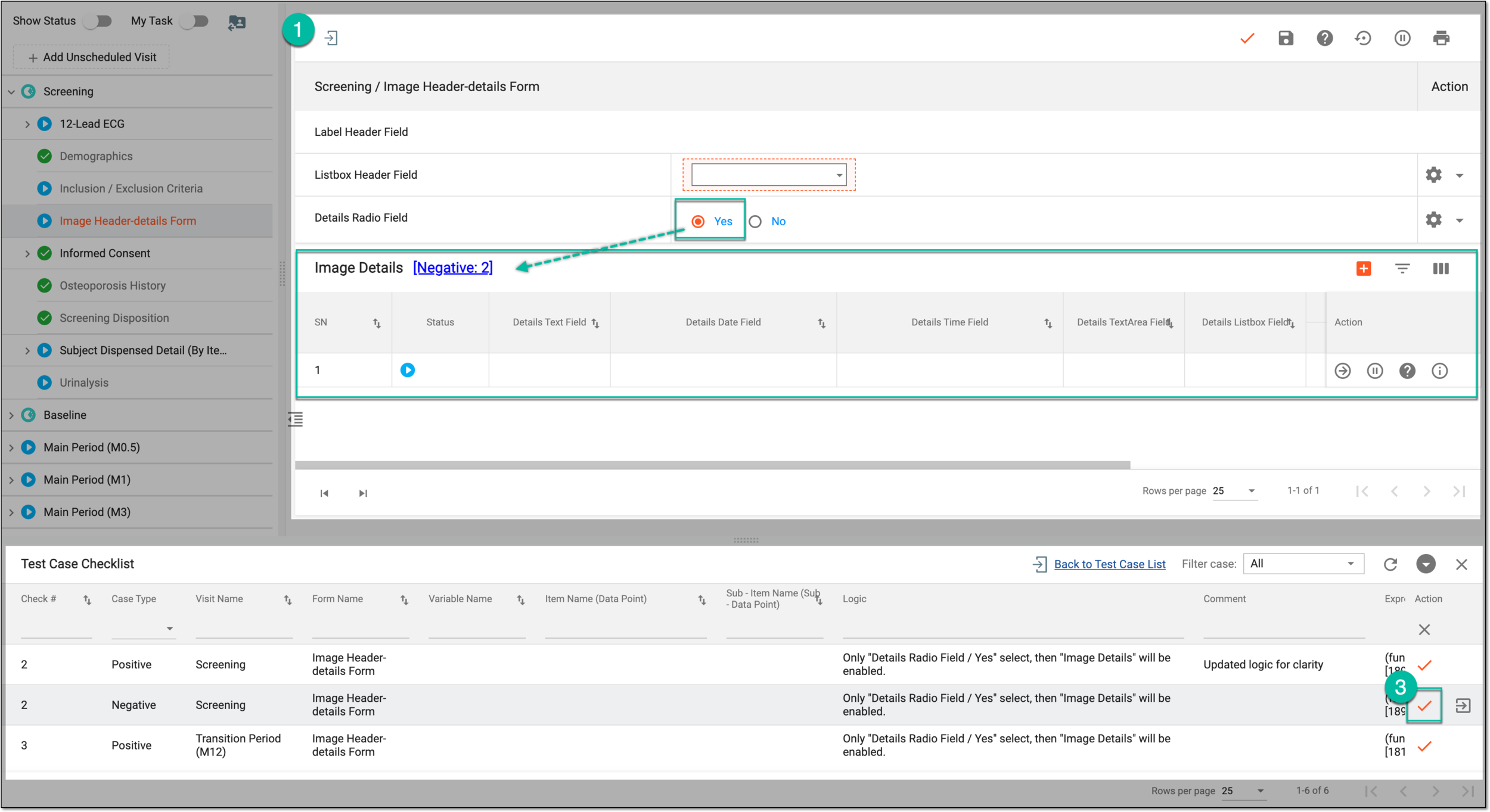 Figure 5. Testing case confirmation in CRF
Tip
You can use the Test Case Checklist table to navigate between test cases without returning to the Test Case List page. However, you can select Back to Test Case List to return to the comprehensive test case result table.
-
To review individual or multiple test cases from the Testing Case List table directly, select the checkboxes next to the test case results that you want to review. Then from the workspace toolbar, select Confirm
.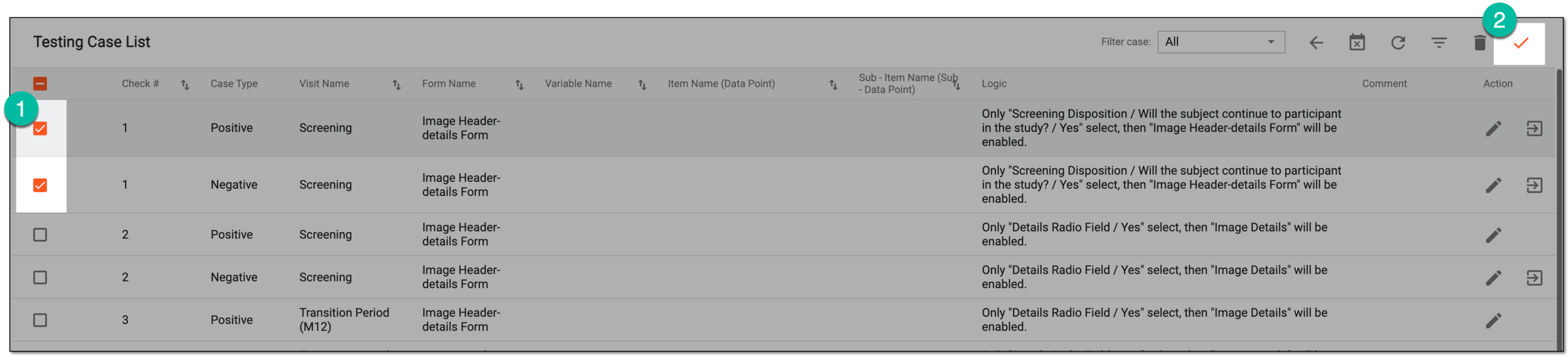 Figure 6. Accessing CRF version test case result confirmation
-
-
In the dialog that opens, confirm the test as passed or failed as explained in the following table.
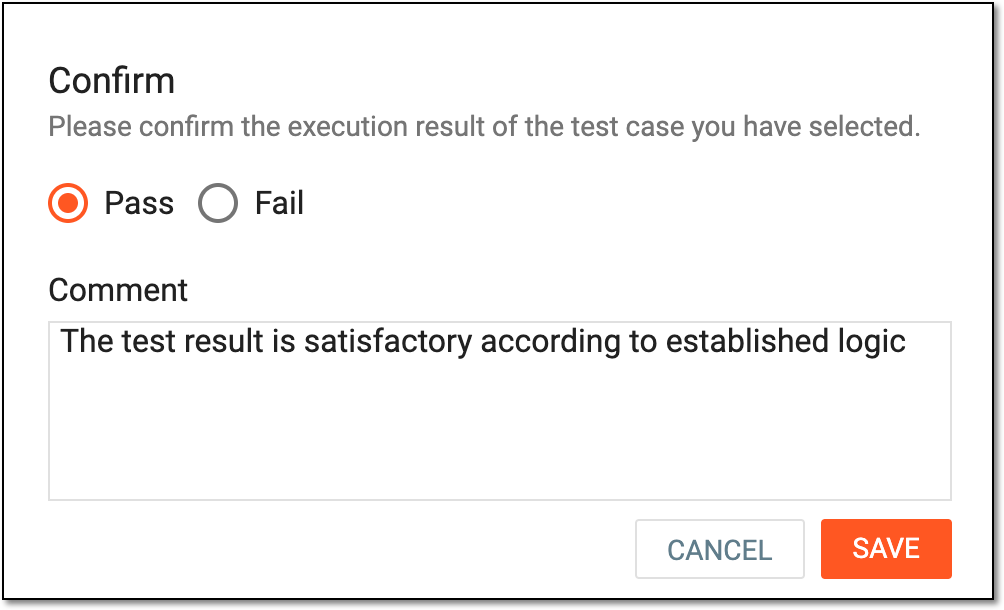 Figure 7. Marking test as passed
Element
Details
Pass
Select this option if the test result is successful and the CRF behavior rule is executed as expected.
Fail
Select this option if the test result is unsuccessful and the CRF behavior rule is not executed as expected.
Comment
Enter any auxiliary details you find useful to support your judgment.
SAVE
Select
 to implement the changes.
CANCEL
Select
 to discard the changes without saving and return to the testing case list.
Once saved, the CRF version test case results are reviewed and confirmed as passed or failed.