Add normal range category
In the EDC application, when subject lab results are entered in the respective forms of the DATA ENTRY tab, the system automatically compares the data against the normal ranges preset for those exact lab results.
For the system to know how to assess the entered lab data, you need to add normal ranges received from the respective laboratory. Usually, the site provides the data in a PDF file, so you need to enter the data manually into the XLSX template or the EDC system.
You can learn about all the available ways of adding new normal ranges for sites in the following sections.
For the EDC application to know how to assess the entered lab data against the normal ranges, you need to add the respective ranges received from the site or laboratory. Usually, the site provides data in a PDF file, so if you want to enter data into EDC via the file import, you need to first transfer all the numbers into the XLSX file. For your convenience, you can download the normal range template from EDC, fill it out, and import it back.
-
In the EDC application header, select the STUDY INFO tab.
-
In the left pane, select Lab > Site Normal Range.
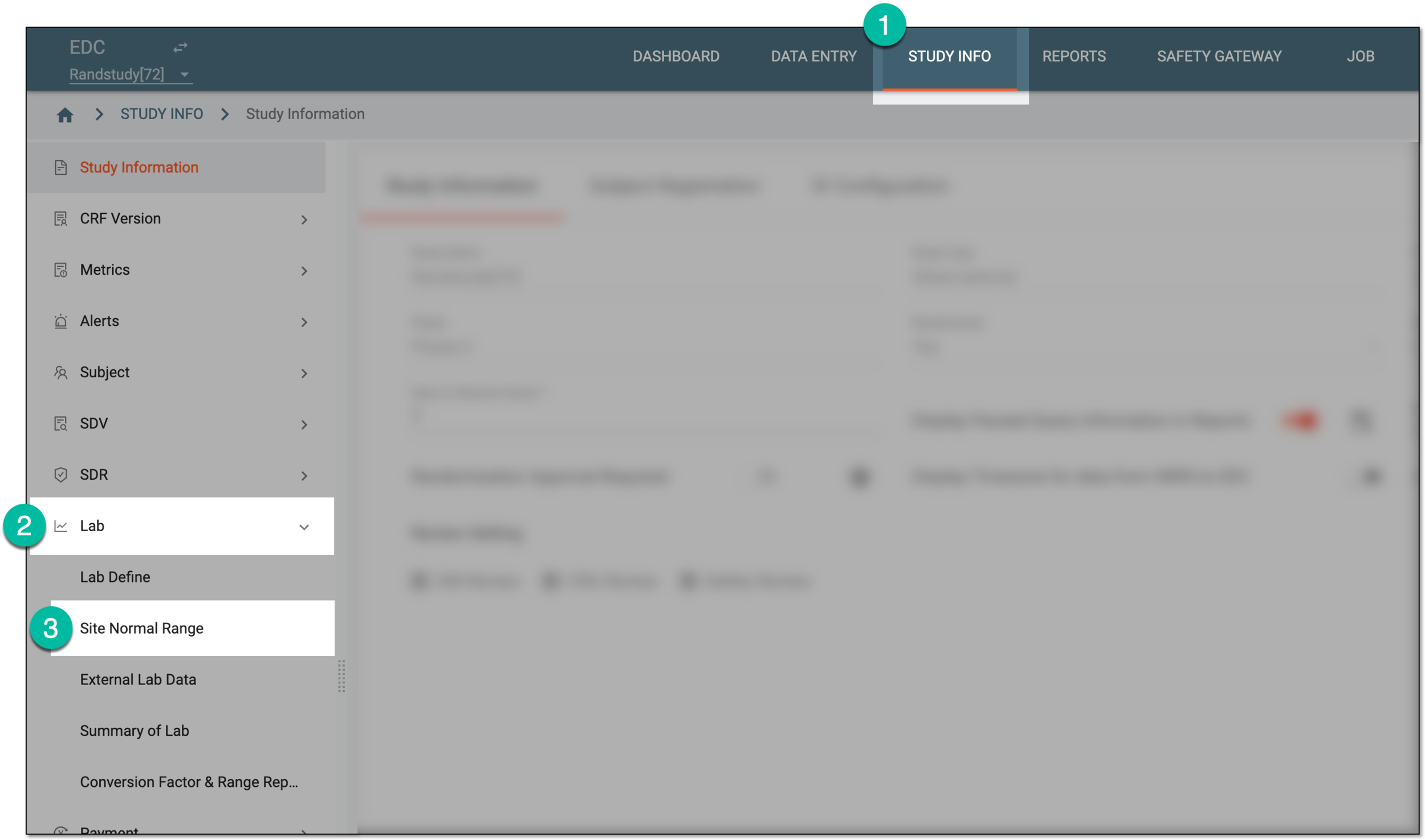 Figure 1. Accessing normal range list
-
On the Normal Range List page that opens, from the workspace toolbar, select Import
 .
. Figure 2. Importing normal range file
-
Follow the prompts to upload the normal range XLSX file into the system.
Upon upload, the imported normal range record appears in the Normal Range List table. You can now associate this normal range with sites and activate it to become effective.
For the EDC application to know how to assess the entered lab data against the normal ranges, you need to add the respective ranges received from the site or laboratory. Usually, the site provides data in a PDF file, so if you want to enter data into EDC via the file import, you need to first transfer all the numbers into the XLSX file. For your convenience, you can download the normal range template from EDC, fill it out, and import it back.
-
In the EDC application header, select the STUDY INFO tab.
-
In the left pane, select Lab > Site Normal Range.
Figure 1. Accessing normal range list
-
On the Normal Range List page that opens, from the workspace toolbar, select Export
 and then the Export Template option.
 Figure 2. Downloading normal range template
-
In the Download Template dialog, complete the normal range details for the file you want to download as explained in the following table.
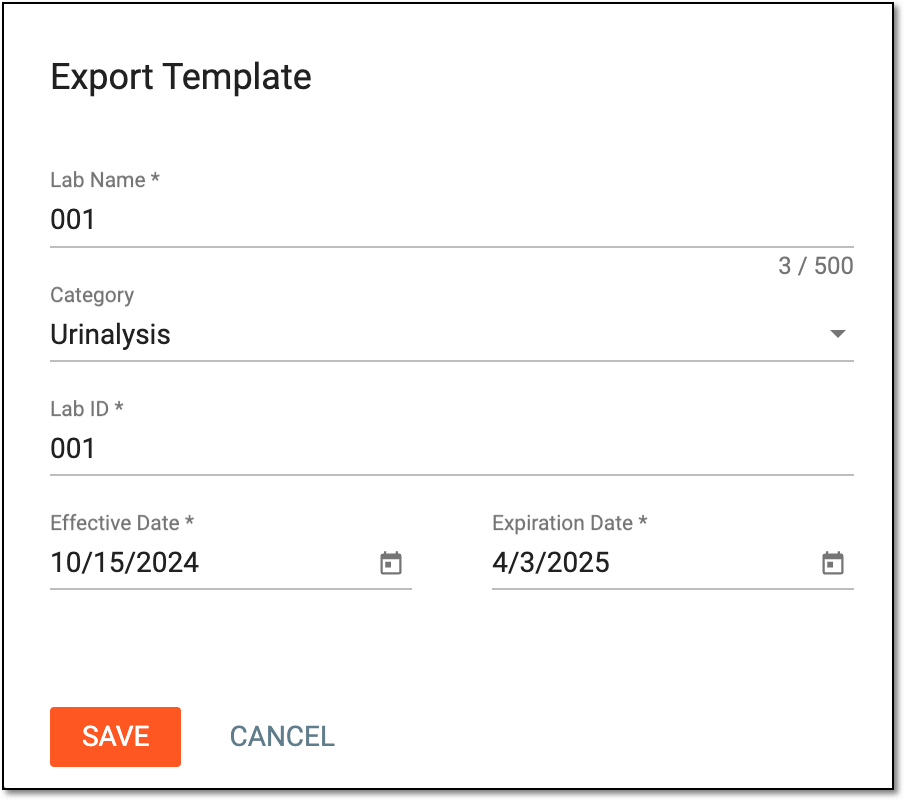 Figure 3. Completing normal range specifications for template download
Tip
In the following table, mandatory elements are marked with an asterisk (*).
Element
Details
Lab Name*
Enter the name of the laboratory that has provided the normal range data.
Site Code
From the dropdown list, select the code of the site for which you are setting up the normal range.
Category
From the dropdown list, select the category of lab test data. The categories are preset in the Study Designer application.
Lab ID*
Enter the ID number of the laboratory that has provided the normal range data.
Effective Date*
Select the normal range effective date. Keep in mind that it should always cover the lab data collection date.
Expiration Date*
Select the normal range expiration date.
SAVE
Select
 to save the changes and proceed with the file download.
CANCEL
Select
 to discard the changes and return to Normal Range List.
 -
Upon saving, the widget appears displaying your download progress. Select the widget to open the My Downloads dialog.
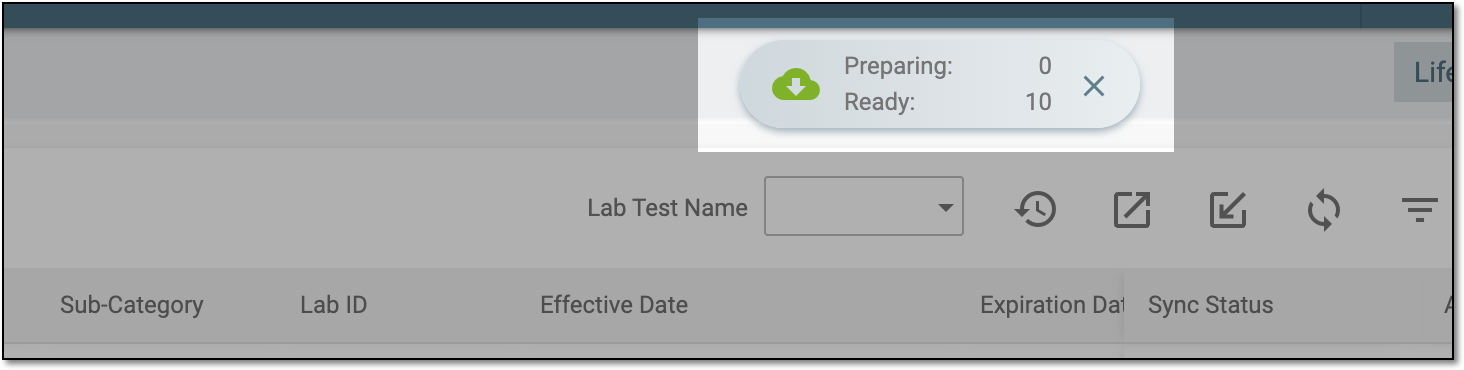 Figure 4. Downloads widget for normal range template
-
In the My Downloads dialog that opens, you can find the following tabs:
-
Preparing: under this tab, you can find all the files whose export is in progress, and they are not yet ready for download.
-
Download is Ready: under this tab, you can find all the files whose export is complete, and they can be downloaded to your computer.
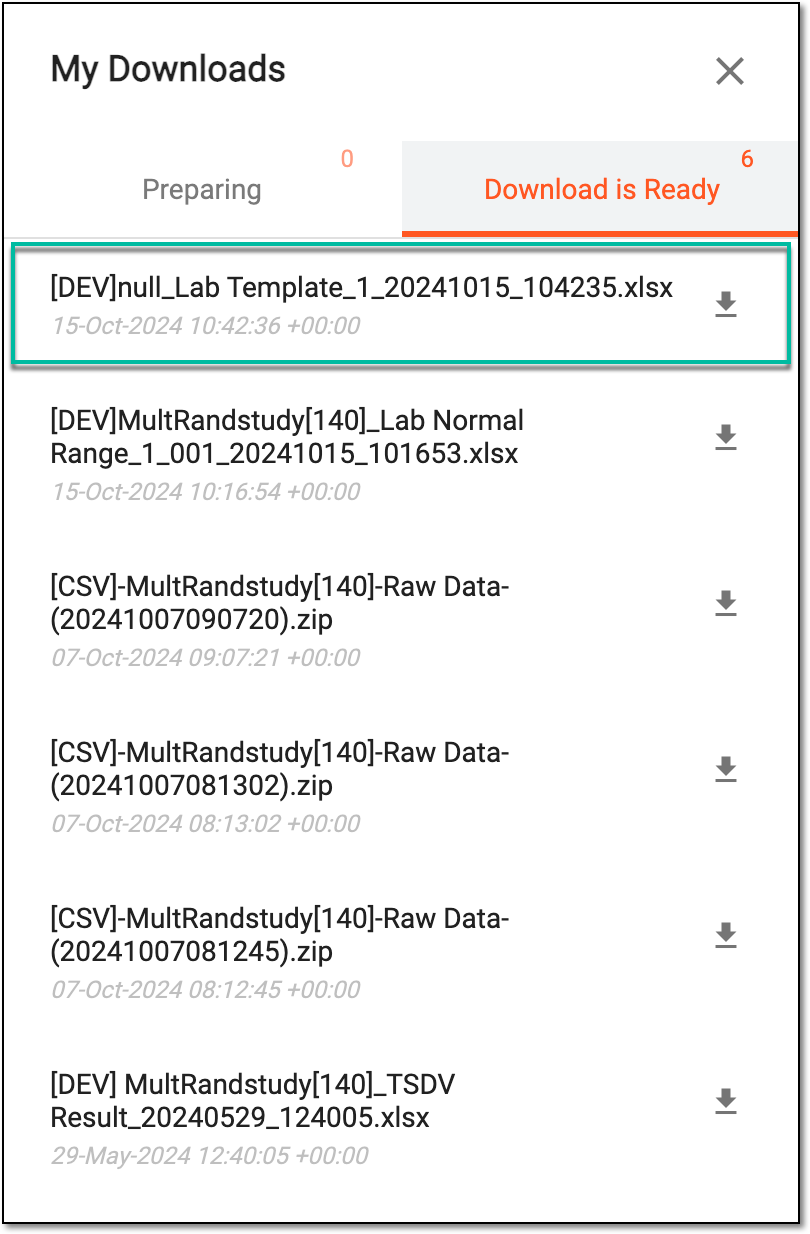 Figure 5. Locating downloaded normal range template
-
-
Under the Download is Ready tab, next to the file that you want to download, select
 .
. -
Open the downloaded XLSX template file and complete the three tabs (sheets) with the lab and normal range data as follows:
-
Lab ID: the fields of this tab are automatically populated with the data specified in the preceding step.
-
Lab Normal Range: complete these fields with the normal range data. The fields are identical to the ones explained in the respective table of the Add normal range category manually section.
-
Lab Define: the fields of this tab are automatically populated based on the selected lab. You can check all the lab definitions in the list of labs under the Lab Define subtab.
-
Once the template is completed, import the file into the EDC application and the normal ranges will appear in the Normal Range List table. You can then associate the normal range with sites and activate it to become effective.
For the EDC application to know how to assess the entered lab data against the normal ranges, you need to add the respective ranges received from the site or laboratory. Usually, the site provides data in a PDF file, so you need to manually enter it into the EDC system.
-
In the EDC application header, select the STUDY INFO tab.
-
In the left pane, select Lab > Site Normal Range.
Figure 1. Accessing normal range list
-
On the Normal Range List page that opens, from the workspace toolbar, select New Item
 .
. Figure 2. Selecting option to add normal range category
-
In the New Version dialog that opens, fill in the fields as explained in the following table.
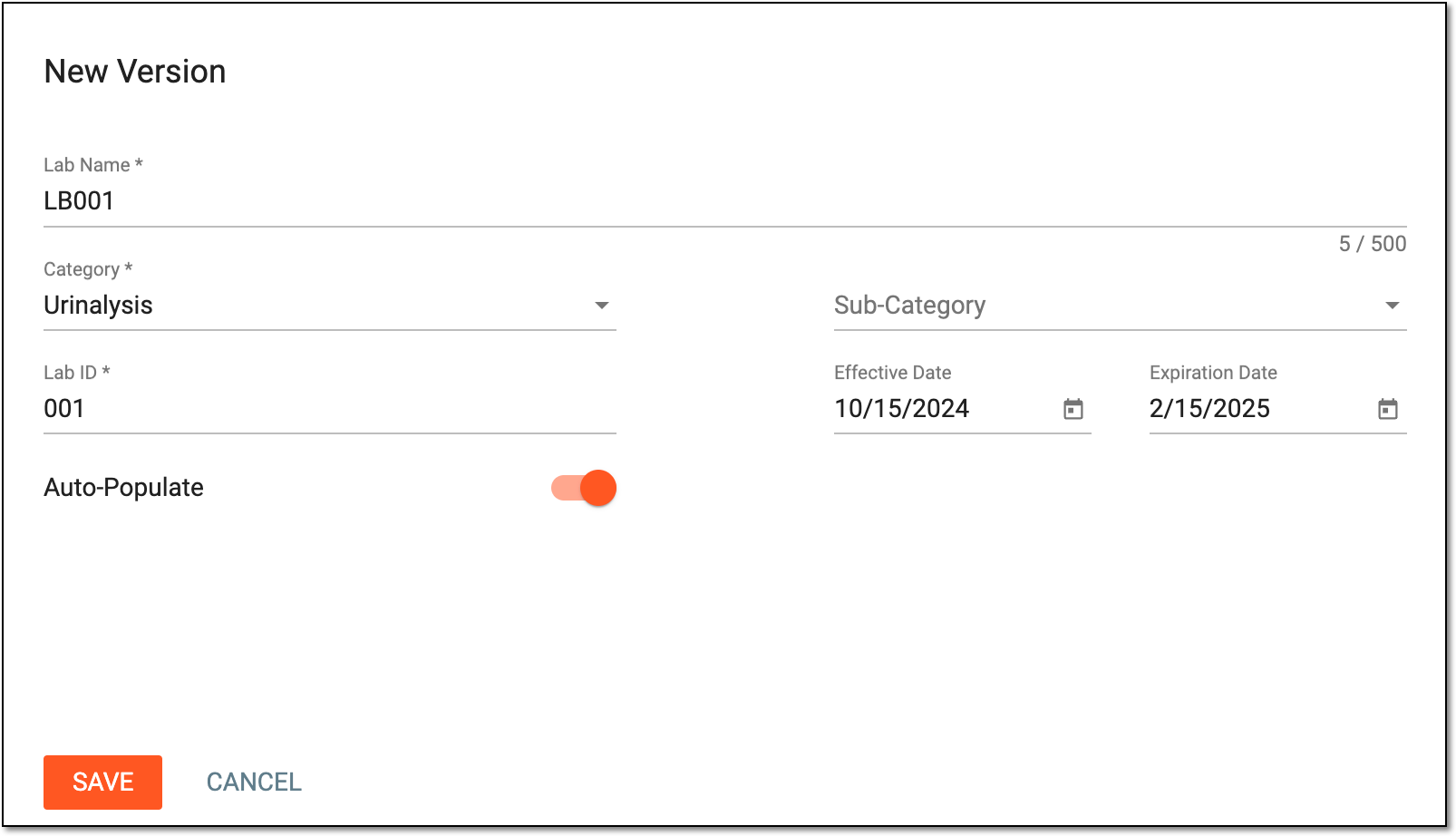 Figure 3. Configuring new normal range version
Tip
In the following table, mandatory elements are marked with an asterisk (*).
Element
Details
Lab Name*
Enter the name of the laboratory that has provided the normal range data.
Category*
From the dropdown list, select the category of lab test data, for instance, Hematology or Urinalysis.
The categories available for selection are preset in the Study Designer application.Sub Category
For now, leave this field blank unless told otherwise by the lab data provider or other authority.
Currently, in the EDC application, the sub-category value is not used. This value is preset for studies that use the domain name (LB, DM, and so on) as a category, then the subcategory is Hematology, Urinalysis, and so on.Lab ID*
Enter the ID number of the laboratory that has provided the normal range data.
Effective Date*
Select the normal range effective date. Keep in mind, that it should always cover the lab data collection date.
Expiration Date*
Select the normal range expiration date.
Auto-Populate
-
Turn this toggle on to automatically populate the lab tests from all the CRFs of the selected category in the normal range that you are creating.
-
Turn this toggle off to have the Copy From field appear, giving you the option to select the lab and site from which you can copy the normal range data. Then only the lab tests of the CRF(s) related to the selected lab and site are populated in the normal range that you are creating.
Copy From
From the dropdown list, select the lab and site code the normal ranges of which you want to copy. The lab code is given first, and the site code follows in brackets.
The field is only available if the Auto-Populate toggle is turned off.SAVE
Select
to save the implemented changes and open the Lab Data page.CANCEL
Select
to discard the changes and return to the normal range list. -
-
On the Lab Data page that opens upon saving, the rows appear representing the lab tests based on the selected CRF. Complete the fields with the normal range data as explained in the following table.
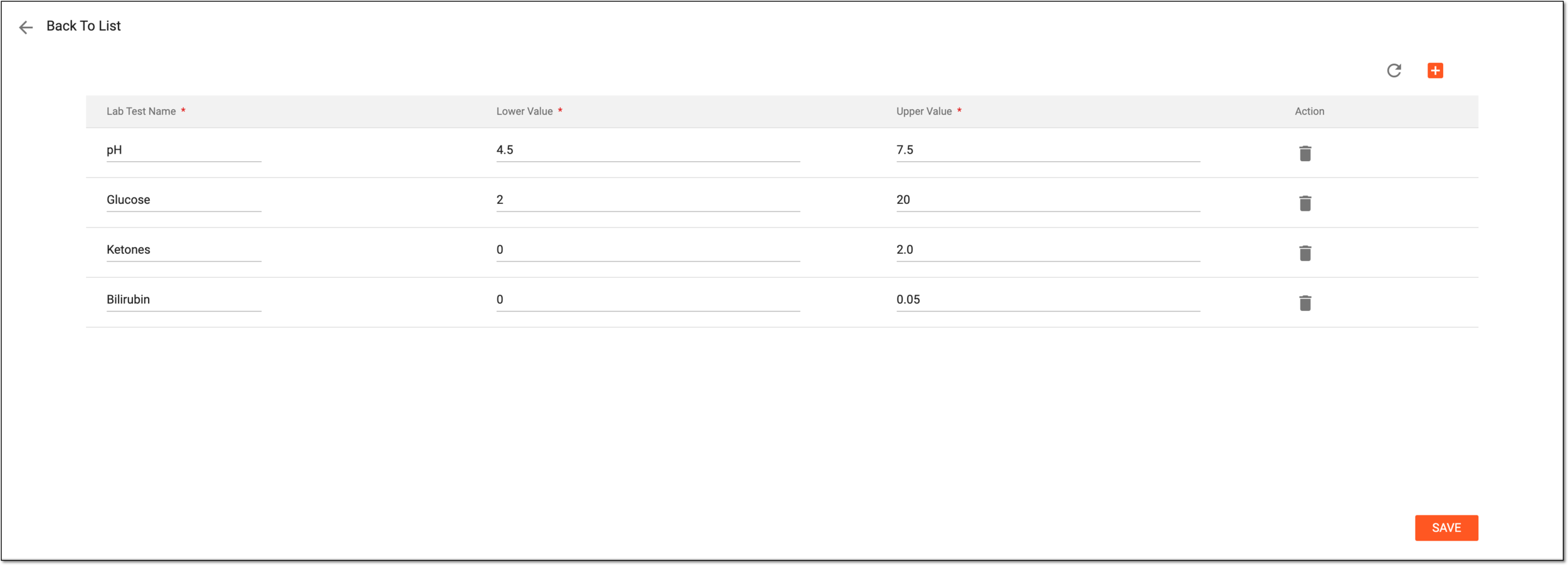 Figure 4. Adding normal range values
Tip
In the following table, mandatory elements are marked with an asterisk (*).
Element
Details
New Item
Select
to add more rows to the table.Lab Test Name*
Enter the name of the laboratory test for which you are setting up the upper and lower values of the normal range.
Lower Value*
Enter the lower acceptable value of the laboratory test result.
Upper Value*
Enter the upper acceptable value of the laboratory test result
Delete
Select
 to delete extra rows that you do not need to fill with data.
SAVE
Select
to save the implemented changes. -
Once saved, on the Normal Range List page that opens, in the Site Code column, select the editing symbol
 .
. Figure 5. Associating normal range with sites
-
In the Associated site(s) dialog that opens, select the sites to which the normal range must be applied. You can either apply the setting to all sites or choose specific ones from the list and select
.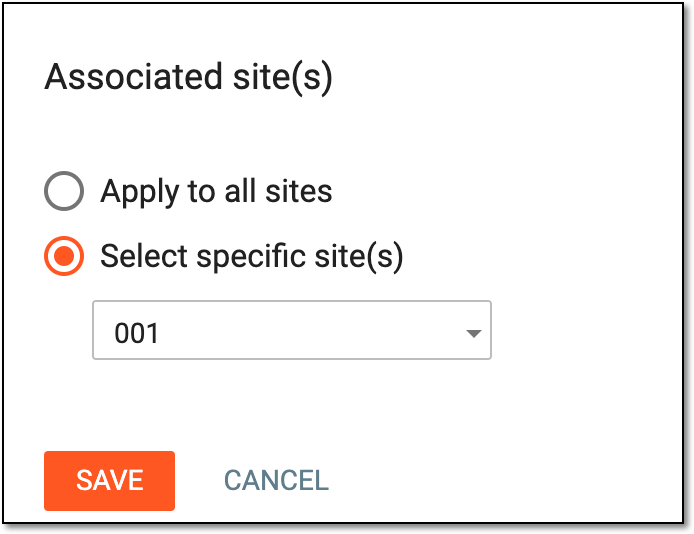 Figure 6. Associating sites with normal range
Upon saving, the new normal range is added to the system and becomes available for the associated sites. For the configurations to become effective, activate the normal range.
For the EDC application to know how to assess the entered lab data against the normal ranges, you need to add the respective ranges received from the site or laboratory. Usually, the site provides data in a PDF file, so you need to manually enter it into the EDC system. For your convenience, there is an option to copy an existing normal range and then implement some modifications to it if needed. Thus, it saves you time entering all the data from scratch.
-
In the EDC application header, select the STUDY INFO tab.
-
In the left pane, select Lab > Site Normal Range.
Figure 1. Accessing normal range list
-
On the Normal Range List page that opens, from the workspace toolbar, select New Item
.Figure 2. Selecting option to add normal range category
-
In the New Version dialog that opens, fill in the fields as explained in the following table.
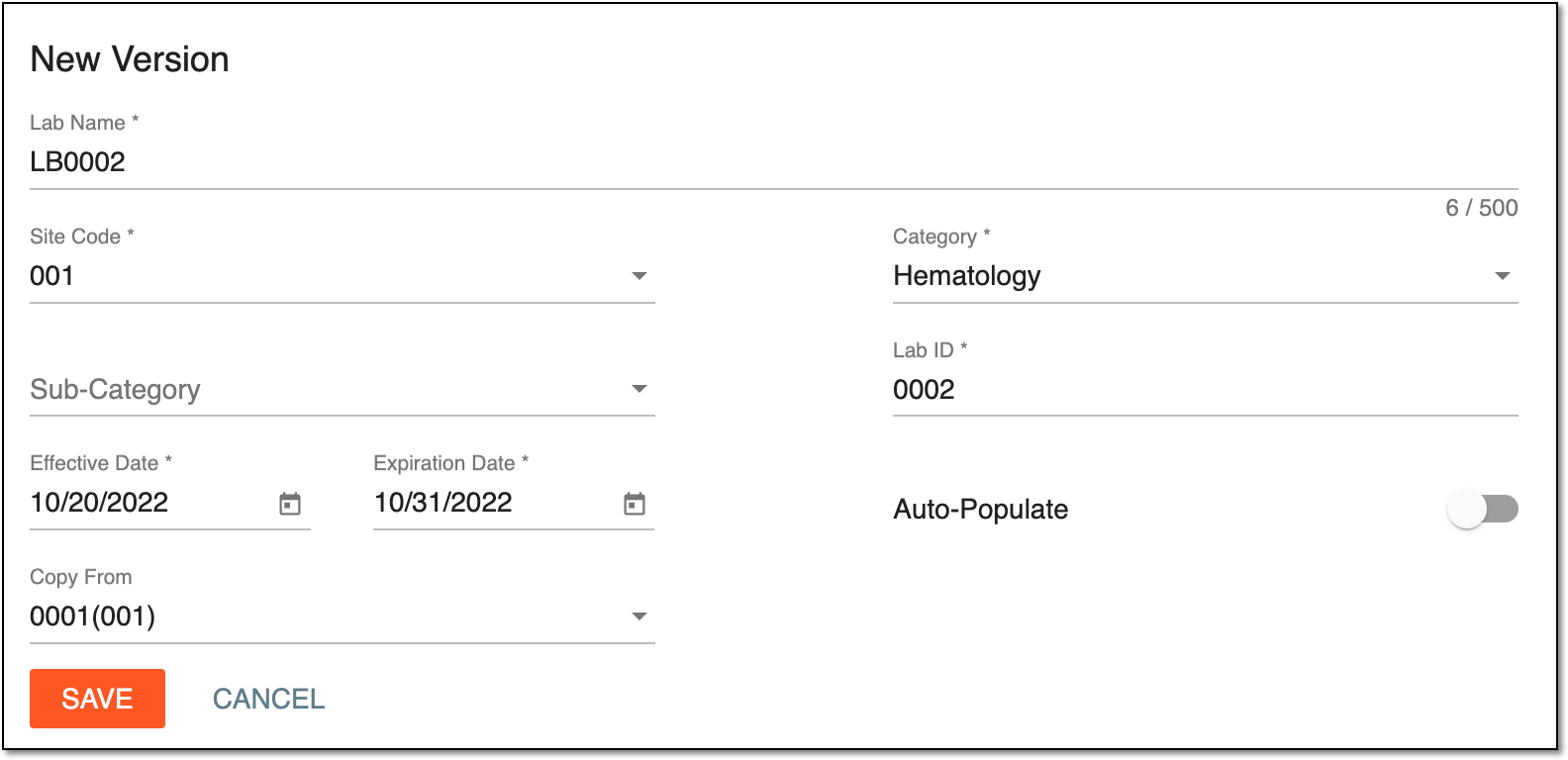 Figure 3. Adding new normal range version by copying from existing
Tip
In the following table, mandatory elements are marked with an asterisk (*).
Element
Details
Lab Name*
Enter the name of the laboratory that has provided the normal range data.
Category*
From the dropdown list, select the category of lab test data. The categories are preset in the Study Designer application.
Sub Category
For now, leave this field blank unless told otherwise by the lab data provider or other authority.
Currently, in the EDC application, the sub-category value is not used. This value is preset for studies that use the domain name (LB, DM, and so on) as a category, then the subcategory is Hematology, Urinalysis, and so on.Lab ID*
Enter the ID number of the laboratory that has provided the normal range data.
Effective Date*
Select the normal range effective date. Keep in mind, that it should always cover the lab data collection date.
Expiration Date*
Select the normal range expiration date.
Auto-Populate
-
Turn this toggle off to have the Copy From field appear, giving you the option to select the lab and site from which you can copy the normal range data. Then, only the lab tests of the CRF(s) related to the selected lab and site are populated in the normal range that you are creating.
-
Turn this toggle on to automatically populate the lab tests from all the CRFs of the selected category in the normal range that you are creating.
Copy From
The field is only available if the Auto-Populate toggle is turned off.From the dropdown list, select the lab and site code the normal ranges of which you want to copy. The lab code is given first, and the site code follows in brackets.
SAVE
Select
to save the implemented changes and return to Normal Range List.CANCEL
Select
to discard the changes and return to Normal Range List. -
-
In the Normal Range List table, locate the normal range you have just copied and select Info
 next to it to edit the values if needed.
 -
Once all the needed configurations are done, you return to the Normal Range List page. Now in the Site Code column, select the editing symbol
.Figure 4. Associating normal range with sites
-
In the Associated site(s) dialog that opens, select the sites to which the normal range must be applied. You can either apply the setting to all sites or choose specific ones from the list and select
.Figure 5. Associating sites with normal range
Upon saving, the new normal range is added to the system and becomes available for the associated site(s). For the configurations to become effective, activate the normal range.