Edit normal range category details
For the EDC application to know how to assess the entered lab data against the normal ranges, you need to add the respective ranges received from the site or laboratory. With time, you might need to edit the normal range details. For instance, when the lab calibrates its equipment and sends the updated normal range values, you also need to update the effective date of that range.
-
In the EDC application header, select the STUDY INFO tab.
-
In the left pane, select Lab > Site Normal Range.
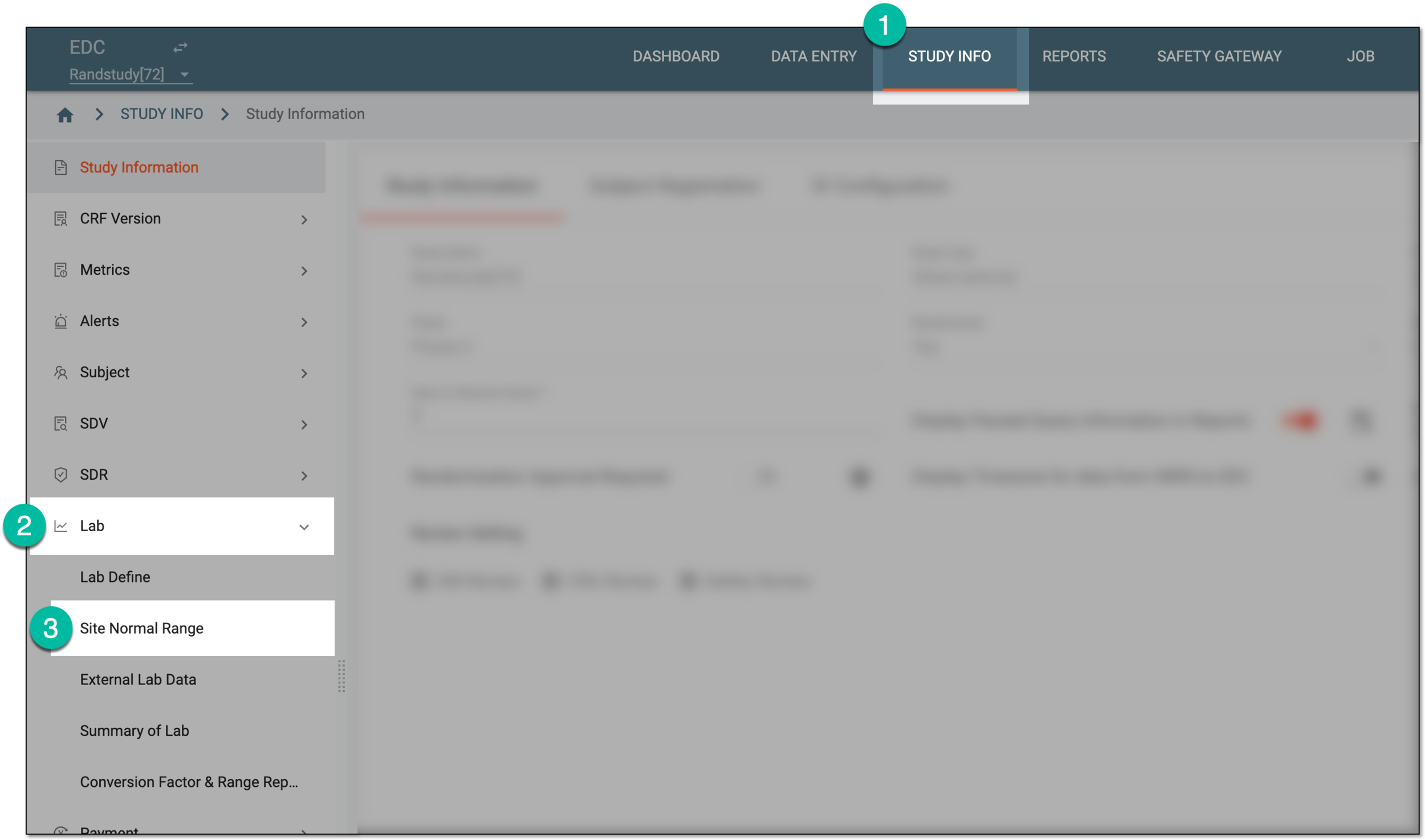 Figure 1. Accessing normal range list
-
On the Normal Range List page that opens, locate the normal range whose details you want to update, and next to it, select Edit
 .
. Figure 2. Selecting option to edit normal range details
-
In the Edit Version dialog that opens, update the values as explained in the following table.
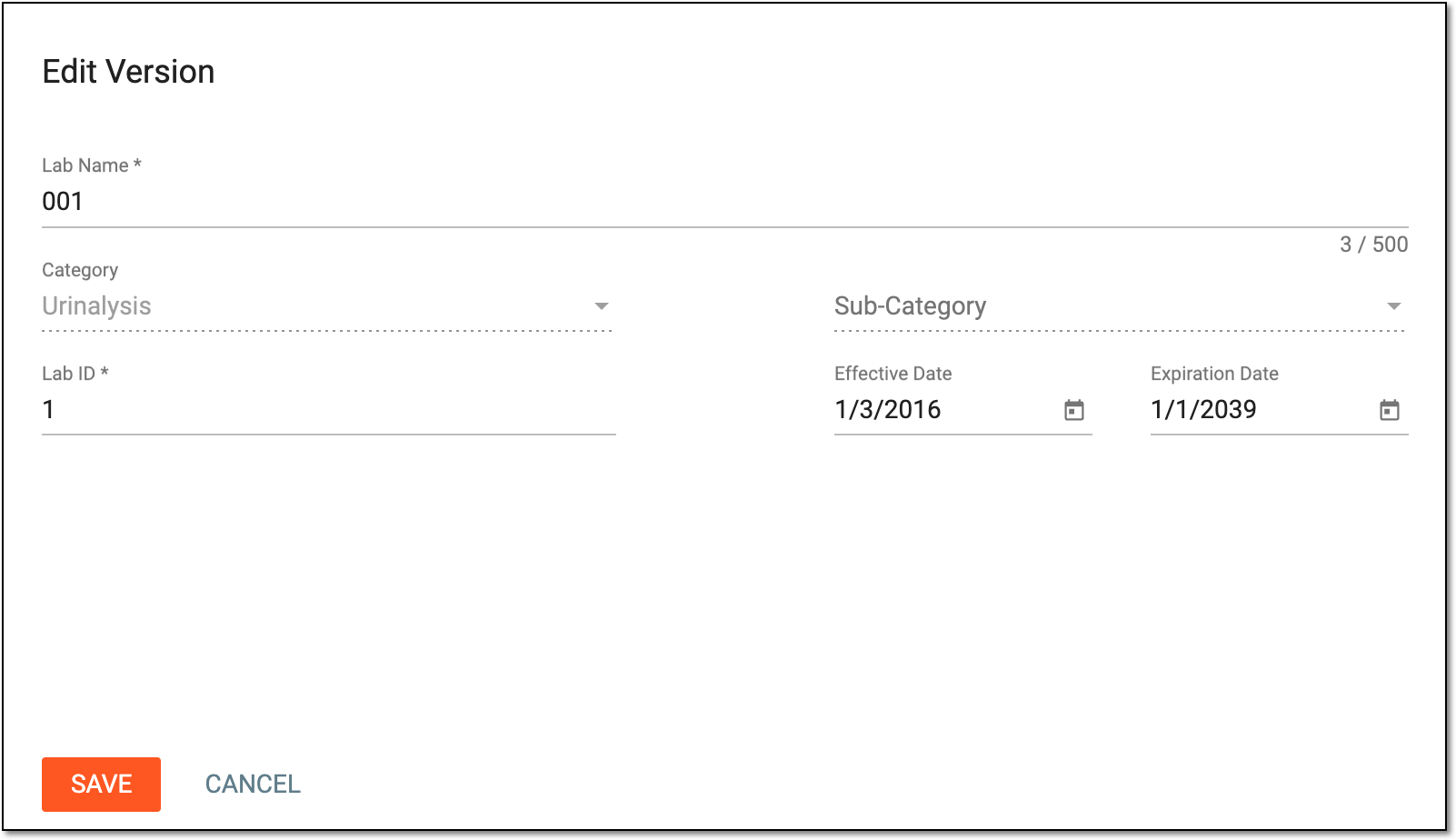 Figure 3. Editing normal range details
Element
Details
Lab Name*
Enter the name of the laboratory that has provided the normal range data.
Category*
Represents the category of lab test data, for instance, Hematology or Urinalysis. This value is set upon creation of the normal range and then becomes read-only—it cannot be amended.
Sub Category
Represents the subcategory of the selected category. This value is set upon creation of the normal range and then becomes read-only—it cannot be amended.
Currently, in the EDC application, the sub-category value is not used. This value is preset for studies that use the domain name (LB, DM, and so on) as a category, then the subcategory is Hematology, Urinalysis, and so on.Lab ID*
Enter the ID number of the laboratory that has provided the normal range data.
Effective Date*
Select the normal range effective date. Keep in mind, that it should always cover the lab data collection date.
Expiration Date*
Select the normal range expiration date.
SAVE
Select
 to save the implemented changes and open the Lab Data page.
CANCEL
Select
 to discard the changes and return to the normal range list.
Upon saving, the normal range details are updated.