Adding new normal range values
In EDC, when adding the normal range categories for laboratory test results you can add multiple normal range values for various tests within the category. These tests can be quantitative, qualitative, and semiquantitative.
A quantitative test is a laboratory test that measures the exact amount or concentration of a substance in a sample, with the result being expressed as a precise numeric value, often with units of measurement, such as milligrams per deciliter, parts per million, and so on.
For quantitative tests, the normal ranges are set in precise numeric values with upper and lower limits of normality.
-
In the EDC application header, select the STUDY INFO tab.
-
In the left pane, select Lab > Site Normal Range.
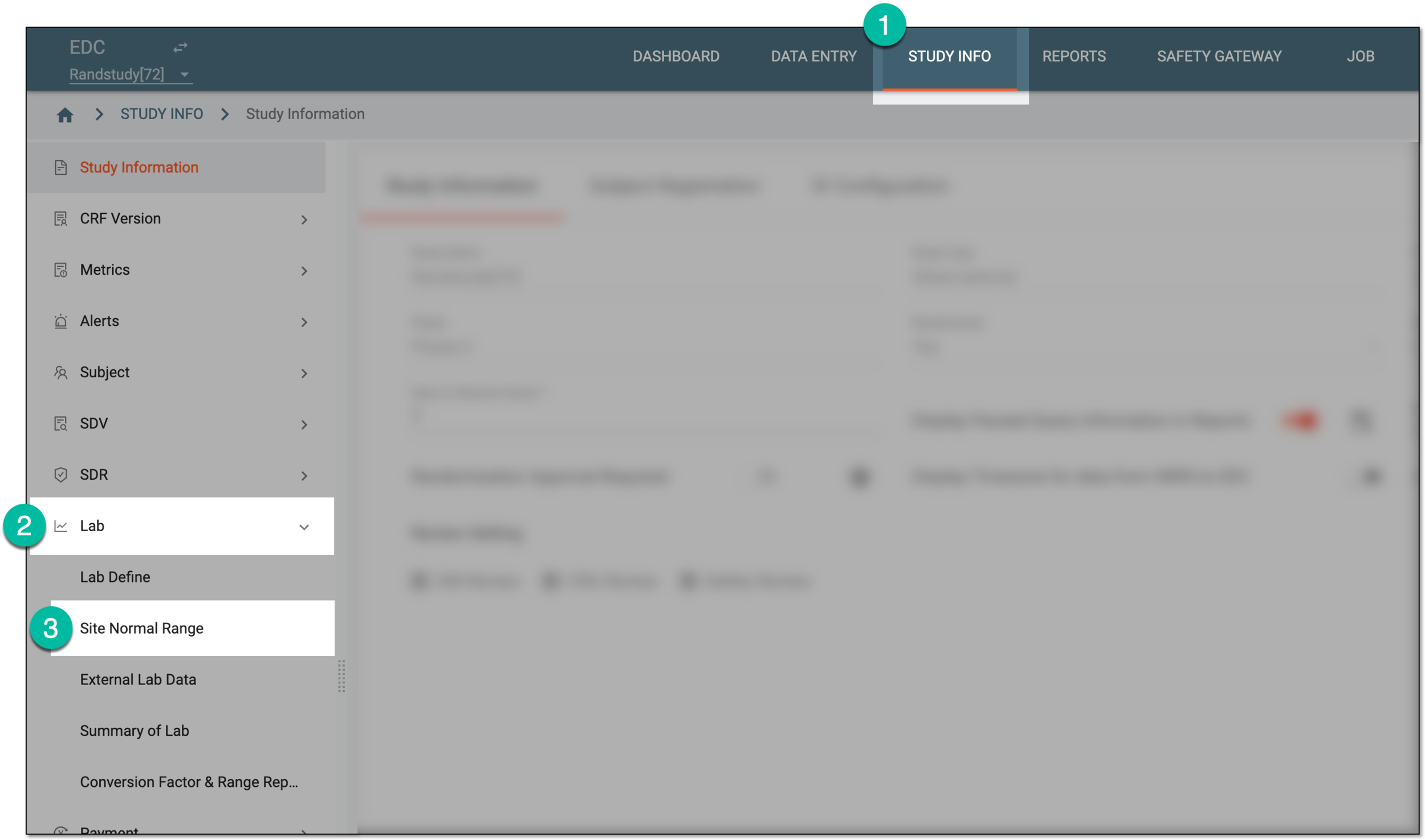 Figure 1. Accessing normal range list
-
In the Normal Range List table that appears, for the needed lab name, select Info
 .
. Figure 2. Accessing site normal range details
-
On the Lab Data page that opens, select the Quantitative Test tab and from the workspace toolbar, select New Item
 .
. Figure 3. Selecting option to add quantitative test normal range value
-
In the Add Detail Entry dialog, update the fields as explained in the following table.
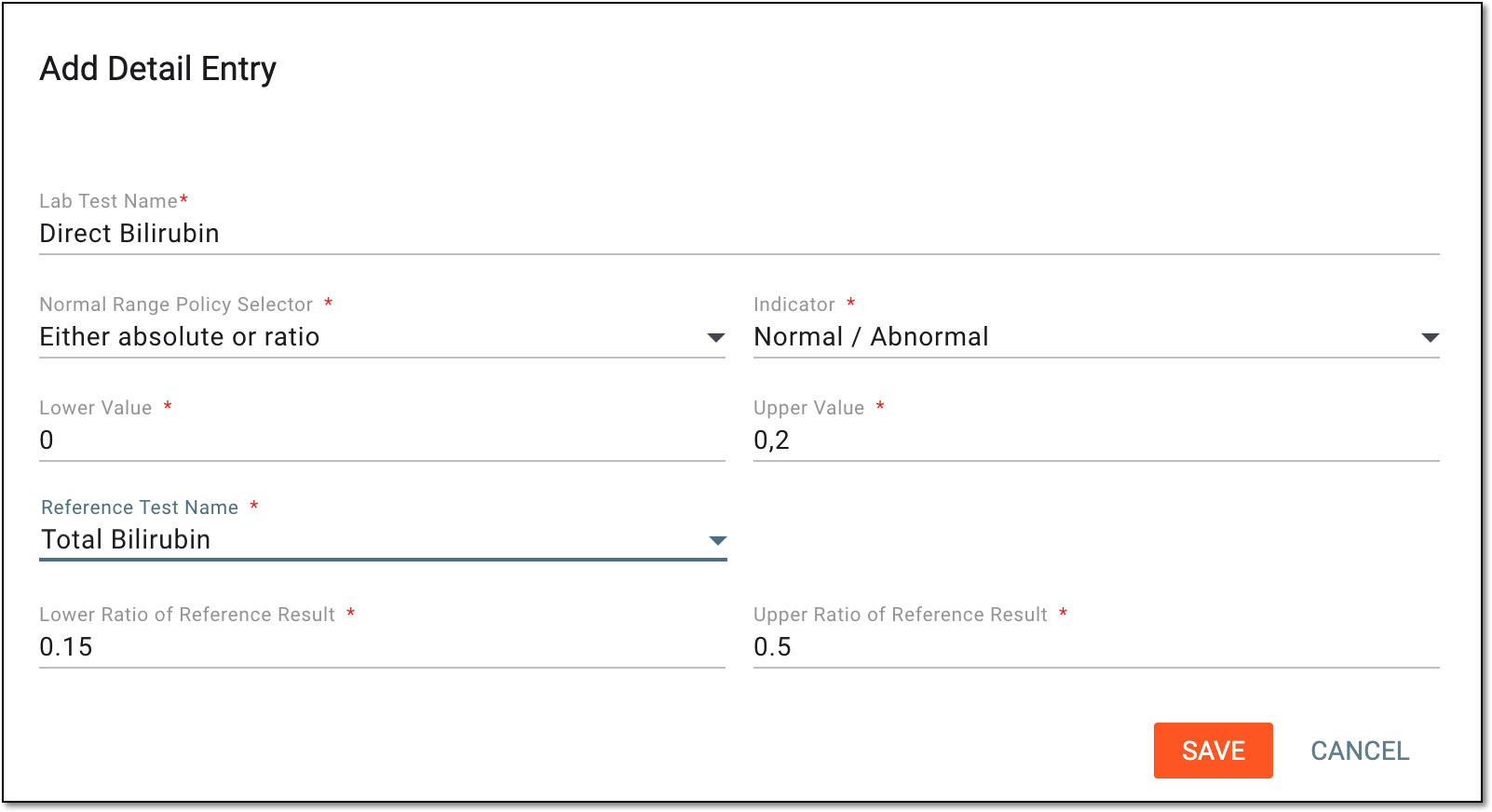 Figure 4. Adding quantitative test normal ranges
Tip
In the following table, mandatory elements are marked with an asterisk (*).
Element
Details
Lab Test Name*
Enter the name of the laboratory test for which the range of normal values is being configured, for instance, Bilirubin, Glucose, pH, and so on.
Normal Range Policy Selector*
Select one of the following:
Indicator*
Select one of the following:
The Indicator field is missing from the dialog if in the Normal Range Policy Selector field, Absolute-only is selected.Lover Value*
Enter the lowest value of the test result that is considered normal for a patient, and any value lower than this is considered abnormal.
This option is only available if in the Normal Range Policy Selector field, Absolute-only, Either absolute or ratio, or Both absolute and ratio is selected.Upper Value*
Enter the highest value of the test result that is considered normal for a patient, and any value higher than this is considered abnormal.
This option is only available if in the Normal Range Policy Selector field, Absolute-only, Either absolute or ratio, or Both absolute and ratio is selected.Reference Test Name*
Select the name of the lab test the result of which should be used as comparison (reference) for the current test result assessment.
Only the tests with Normal Range Policy Selector set to Absolute-only can be referenced by other tests.
For instance, there are two indicators—Direct Bilirubin and Total Bilirubin. The norm is when the result of the Direct Bilirubin test is less than 15% of the Total Bilirubin results for both lower and upper limits. Thus, when configuring the normal ranges for Direct Bilirubin, you select the Total Bilirubin test as reference.
This option is only available if in the Normal Range Policy Selector field, Ratio-only, Either absolute or ratio, or Both absolute and ratio is selected.Lower Ratio of Reference Result*
Enter the ratio of the reference test's result to outline the lower limit of normality for the current test. The ratio is set as a numeric value with up to six decimal places.
For instance, if you need to set Direct Bilirubin's lower ratio to Total Bilirubin as 15%, you enter "0,15" here.
Upper Ratio of Reference Result*
Enter the ratio of the reference test's result to outline the upper limit of normality for the current test. The ratio is set as a numeric value with up to six decimal places.
For instance, if you need to set Direct Bilirubin's upper ratio to Total Bilirubin as 50%, you enter "0,5" here.
SAVE
Select
 to save the implemented changes.
CANCEL
Select
 to discard the changes, close the dialog, and return to the Lab Data page.
Once saved, the new quantitative test normal range value is added to the category.
A qualitative test is a laboratory test that provides the assessment or measurement that produces categorical or descriptive results, for instance, symptom assessment—evaluation of the presence, severity, or characteristics of a patient's symptoms using categorical scales, such as mild, moderate, and severe.
A semiquantitative test is a test that provides approximate measurements of a substance, often yielding results in categories or numerical ranges that are not highly precise, for instance, urine protein tests, bilirubin levels, and so on, which can be normal or abnormal.
For qualitative and semiquantitative tests, you can configure how the interpretation of the actual result is reflected in the CRF:
-
Manual entry: configure the system to allow site personnel—for instance, data managers (DMs)—to input the evaluation manually.
-
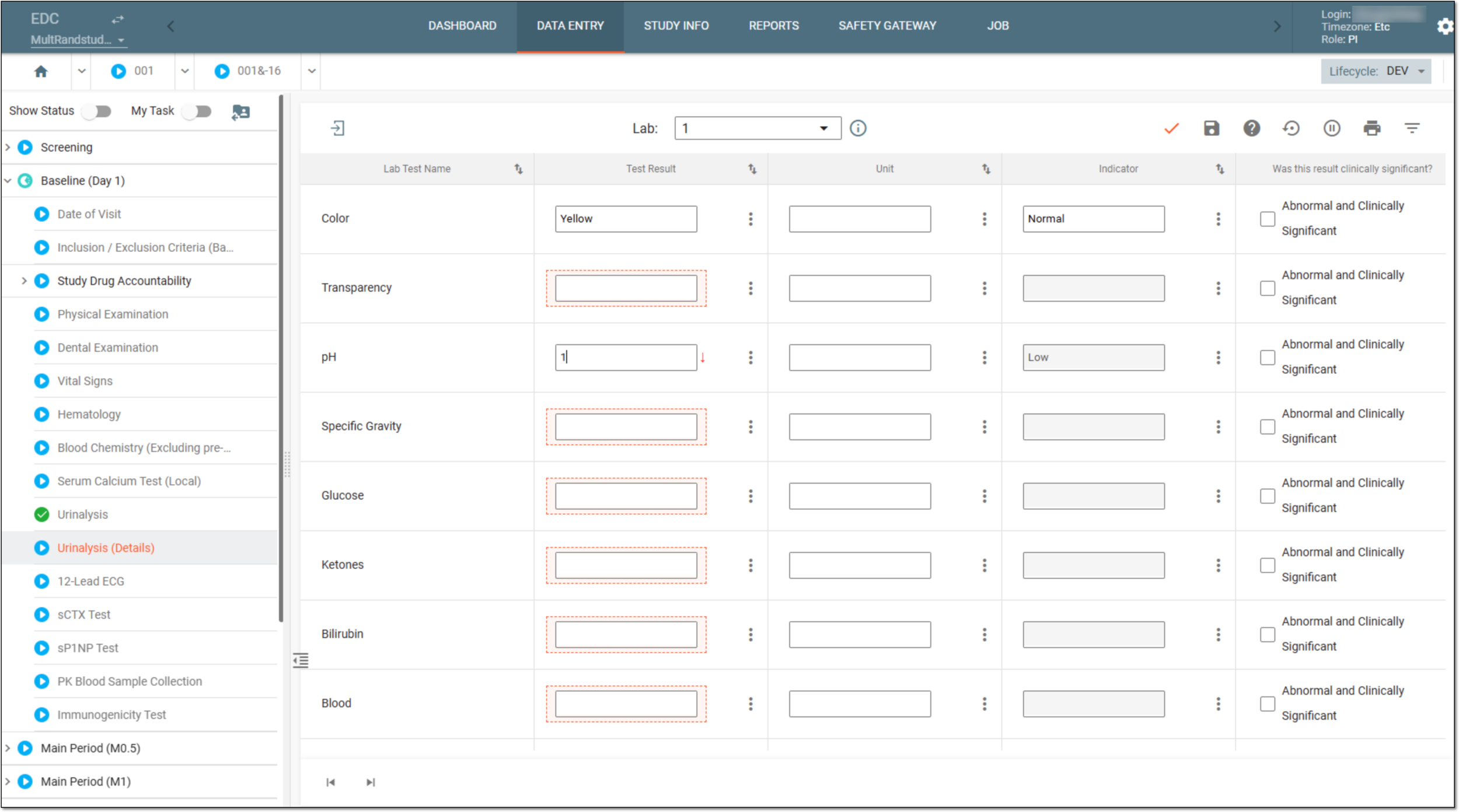
System autofill: configure the system to autoinput the result as normal or abnormal based on the preconfigured assessment of actual values versus set normal ranges. The autofill feature is beneficial due to the automation that reduces site personnel workload by automatically classifying lab test results as either normal or abnormal.
For instance, the norm for Total Bilirubin levels semiquantitative test is between 0.2 and 1.3 mg/dL.
The result for Subject A is 0,9 and the result for Subject B is 1,5.
If you have configured the autofill for the result interpretation, then in the chemistry CRF, for Subject A the system populates the "Normal" value and for Subject B it populates "Abnormal."
However, if you configured the manual entry of the test result interpretation, then the user responsible for chemistry form data entry reviews the Bilirubin level results and then manually selects the "Normal" or "Abnormal" value based on their observations.
-
In the EDC application header, select the STUDY INFO tab.
-
In the left pane, select Lab > Site Normal Range.
Figure 2. Accessing normal range list
-
In the Normal Range List table that appears, for the needed lab name, select Info
.Figure 3. Accessing site normal range details
-
On the Lab Data page that opens, select the Qualitative and Semiquantitative Test tab and from the workspace toolbar, select New Item
. Figure 4. Selecting option to add qualitative and semiquantitative test normal range value
-
In the Add Text dialog, update the fields as explained in the following table.
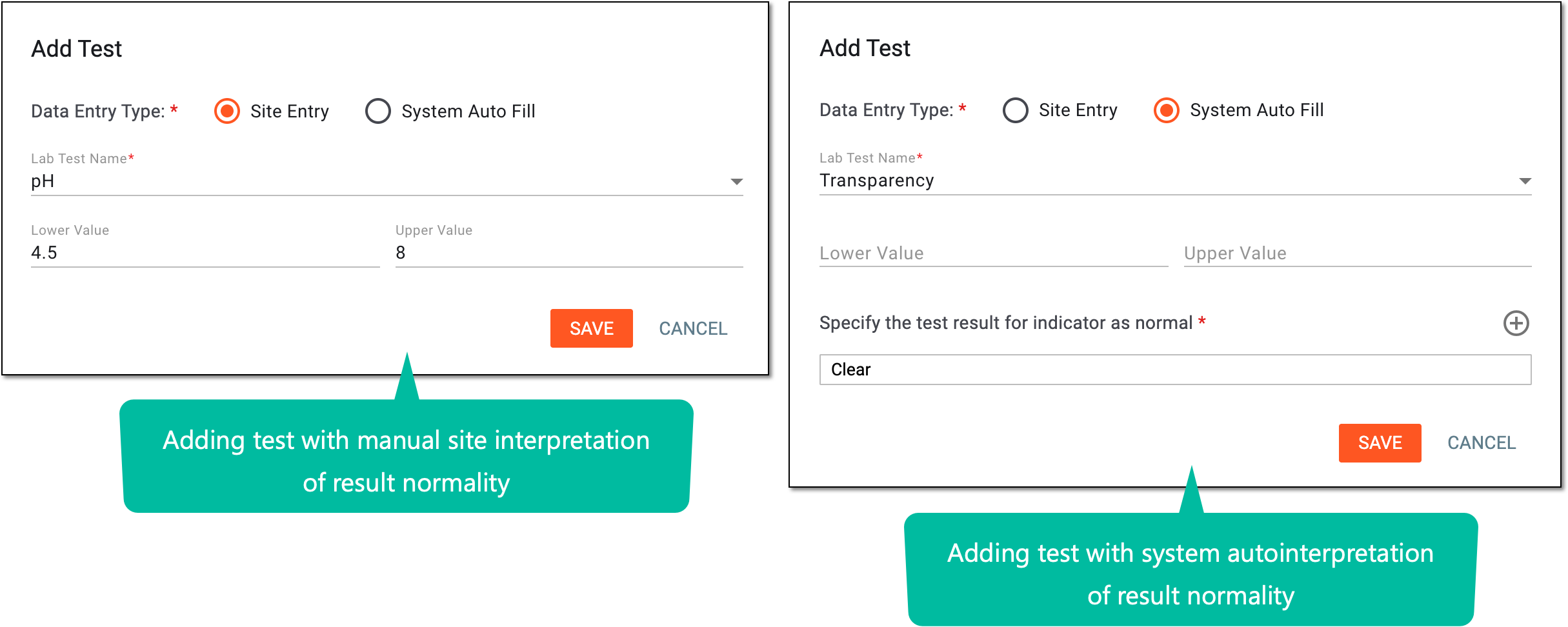 Figure 5. Adding qualitative and semiquantitative test normal ranges
Tip
In the following table, mandatory elements are marked with an asterisk (*).
Element
Details
Data Entry Type*
Select one of the following options:
-
Site Entry: to configure the lab test that allows manual input of the test result interpretation.
-
System Auto Fill: to configure lab tests for which the system autopopulates the test result interpretation.
Lab Test Name
Expand the dropdown menu and select the laboratory test for which you want to enable the manual input of result interpretation. You can select multiple tests here.
This field is available when the Site Entry data entry type is
                                        selected.
Lab Test Name*
Expand the dropdown menu and select the laboratory test for which you want to enable the autofill of result interpretation. You can only select one test name.
This field is available when the System Auto Fill data entry type is
                                        selected.
Lower Value
Enter the lowest value of the test result that is considered normal for a patient, and any value lower than this is considered abnormal.
For Site Entry, this value is to be displayed in the lab data form to help the site personnel assess the normality of the
                                        actual test result. For System Auto Fill, this value will determine the lower limit of the range for the system to assess the test result normality.
Upper Value
Enter the highest value of the test result that is considered normal for a patient, and any value higher than this is considered abnormal.
For Site Entry, this value is to be displayed in the lab data form to help the site personnel assess the normality of the
                                        actual test result. For System Auto Fill, this value will determine the upper limit of the range for the system to assess the test result normality.
Specify the test result for indicator as normal*
Enter the test result value that is to be considered normal by the system. Test result indicators other than those specified here are to be considered abnormal by the system.

Select the plus symbol to add more fields and specify multiple test result values that are to be considered normal by the system.
SAVE
Select
to implement the changes.CANCEL
Select
to discard the changes, close the dialog, and return to the Lab Data page. -
Once saved, the new qualitative and semiquantitative test normal range value is added to the category.