Edit normal range values
For the EDC application to know how to assess the entered lab data against the normal ranges, you need to add the respective ranges received from the site or laboratory. Usually, the data comes in a PDF file, so you need to enter it into the EDC system manually. With time, you might also need to edit the normal range values.
For instance, the original normal range values from the lab are entered into the EDC system. When the lab calibrates its equipment and sends the updated normal range values, you must manually update them in EDC.
-
In the EDC application header, select the STUDY INFO tab.
-
In the left pane, select Lab > Site Normal Range.
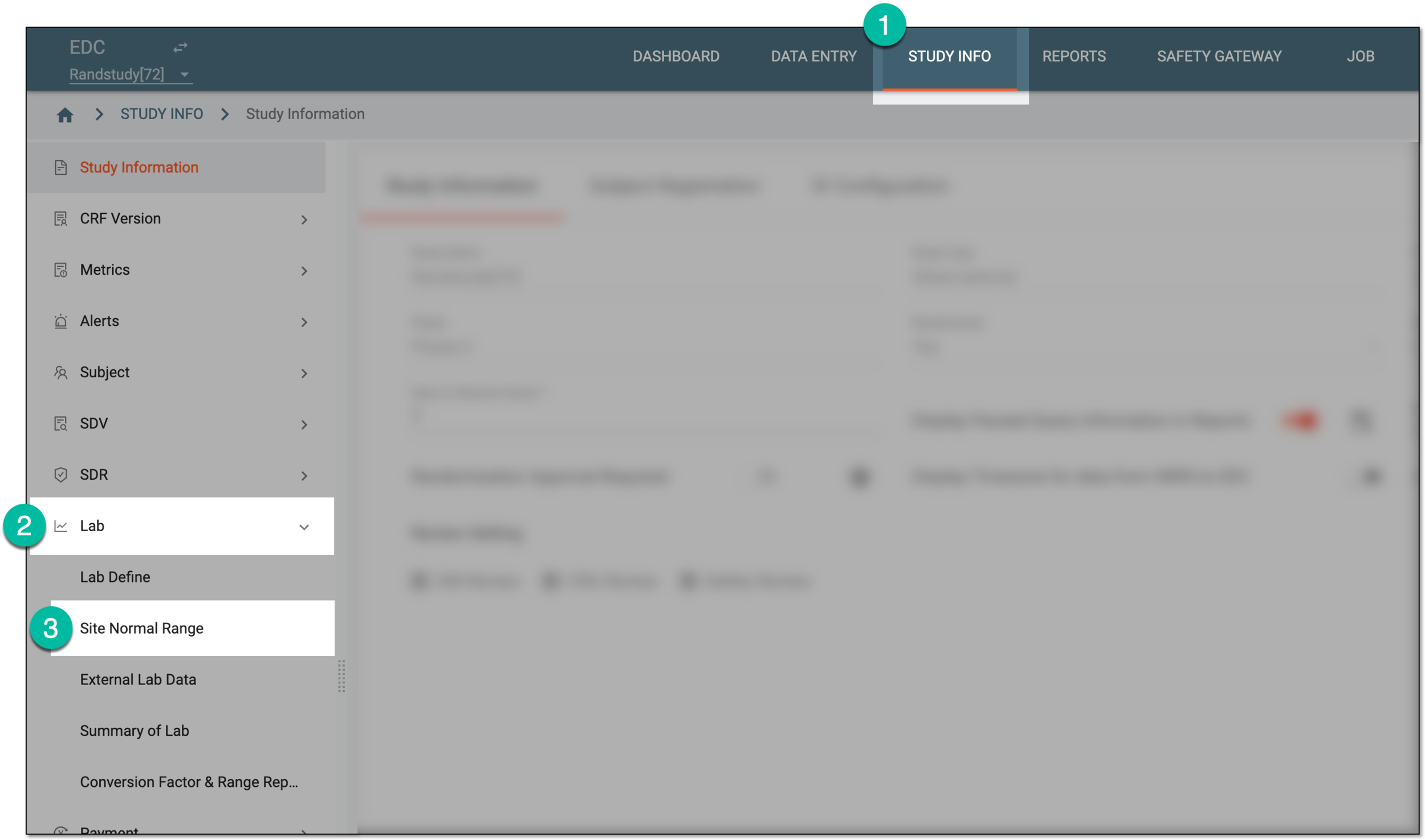 Figure 1. Accessing normal range list
-
In the Normal Range List table that appears, for the needed lab name, select Info
 .
. Figure 2. Accessing site normal range details
-
On the Lab Data page that opens, select one of the tabs:
-
Quantitative Test: to access the list of quantitative test normal ranges.
-
Qualitative and Semiquantitative Test: to access the list of qualitative and semiquantitative test normal ranges.
-
-
In the table that opens, locate the test normal range whose values you want to update. Then in the Action column, select Edit
 .
. Figure 3. Selecting option to edit normal range values
-
In the resulting dialog, update the values as follows:
-
For the quantitative test normal range, update the details as explained in the table of the Add quantitative test normal range value section.
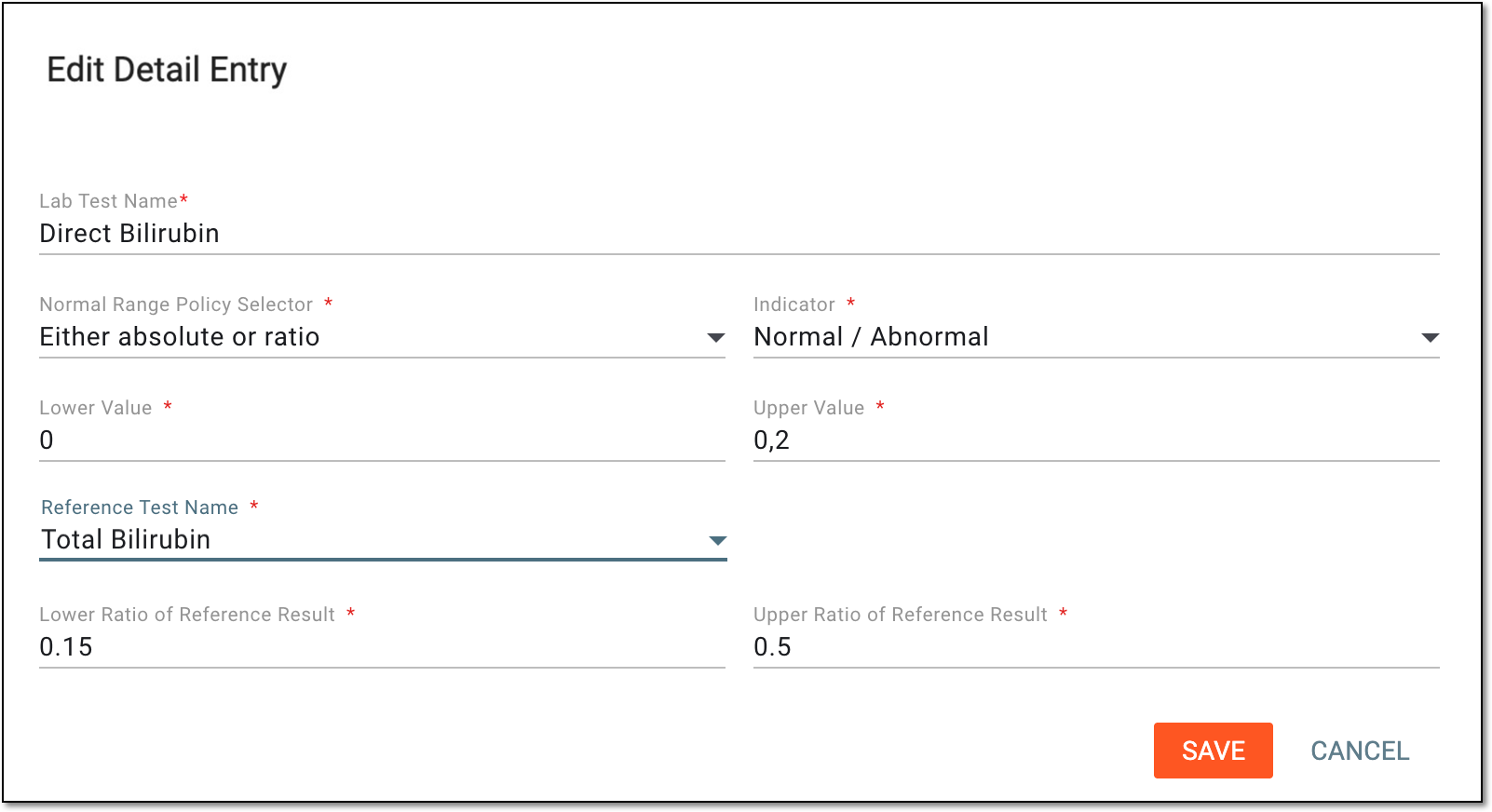 Figure 4. Editing quantitative test normal ranges
-
For the qualitative and semiquantitative test normal ranges, update the details as explained in the table of the Add qualitative and semiquantitative test normal ranges section.
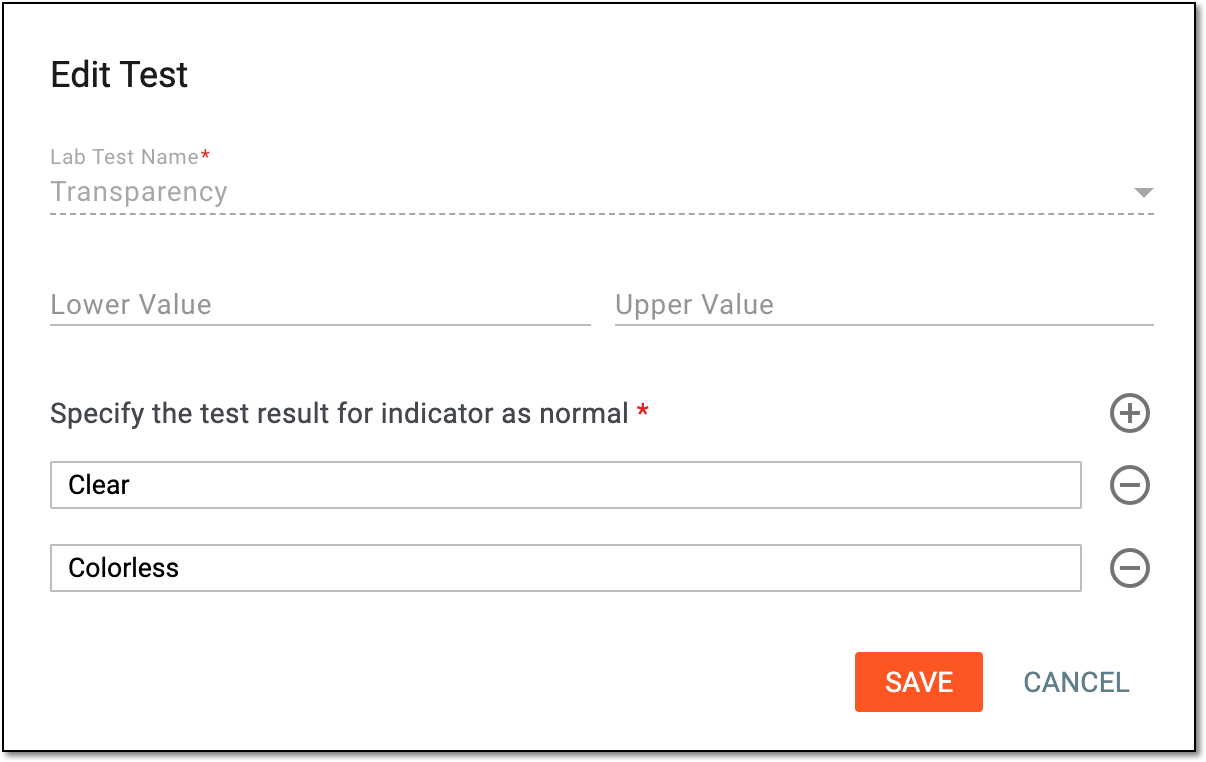 Figure 5. Editing qualitative and semiquantitative test normal ranges
-
-
Select
 to save the implemented changes.
Upon saving, the values of the normal range are updated. Select Back  to return to the Normal
Range List page.
to return to the Normal
Range List page.
Important
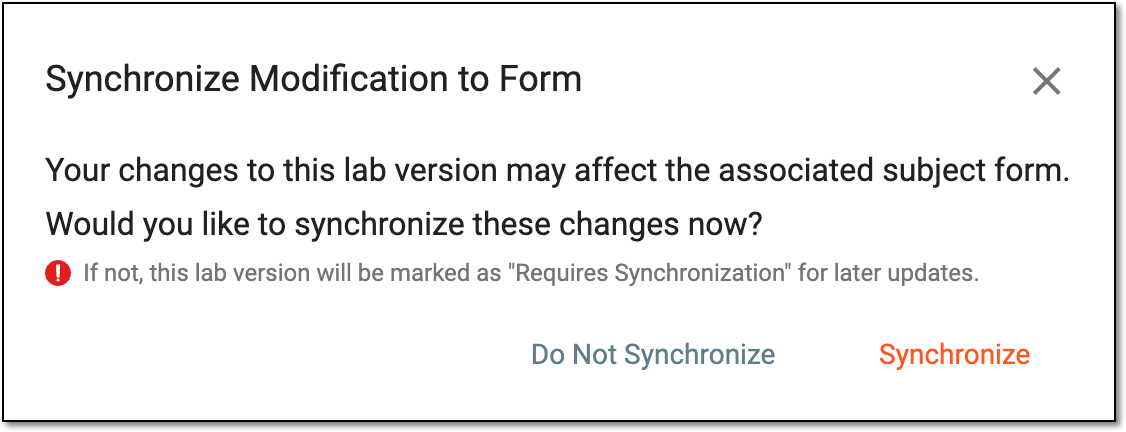
The system prompts you to sync the implemented changes to the forms upon leaving the normal range values page. Sync them right away or opt for syncing later if needed.
 |