Sync normal ranges to forms
In the EDC application, when subject lab results are entered in the respective forms of the DATA ENTRY tab, the system automatically compares the data against the normal ranges preset for those exact lab results.
For the system to know how to assess the entered lab data, you need to add normal ranges received from the respective laboratory and then sync them to the respective forms. For your convenience, you can sync every normal range version individually or sync them all at once.
Important
Note the following logic for lab normal range version sync:
-
If a lab version associated with a form is not synchronized, you cannot soft-lock the form.
-
If your study configurations prohibit editing of soft-locked forms or editing of signed forms, the sync logic is as follows:
-
The associated forms in all statuses except Softlocked and Signed are synced to the latest lab version.
-
The forms in the Softlocked and Signed statuses are skipped and not synced to the latest lab version.
-
The lab version status remains Require Synchronization because not all the associated forms are synced.
-
-
In the EDC application header, select the STUDY INFO tab.
-
In the left pane, select Lab > Site Normal Range.
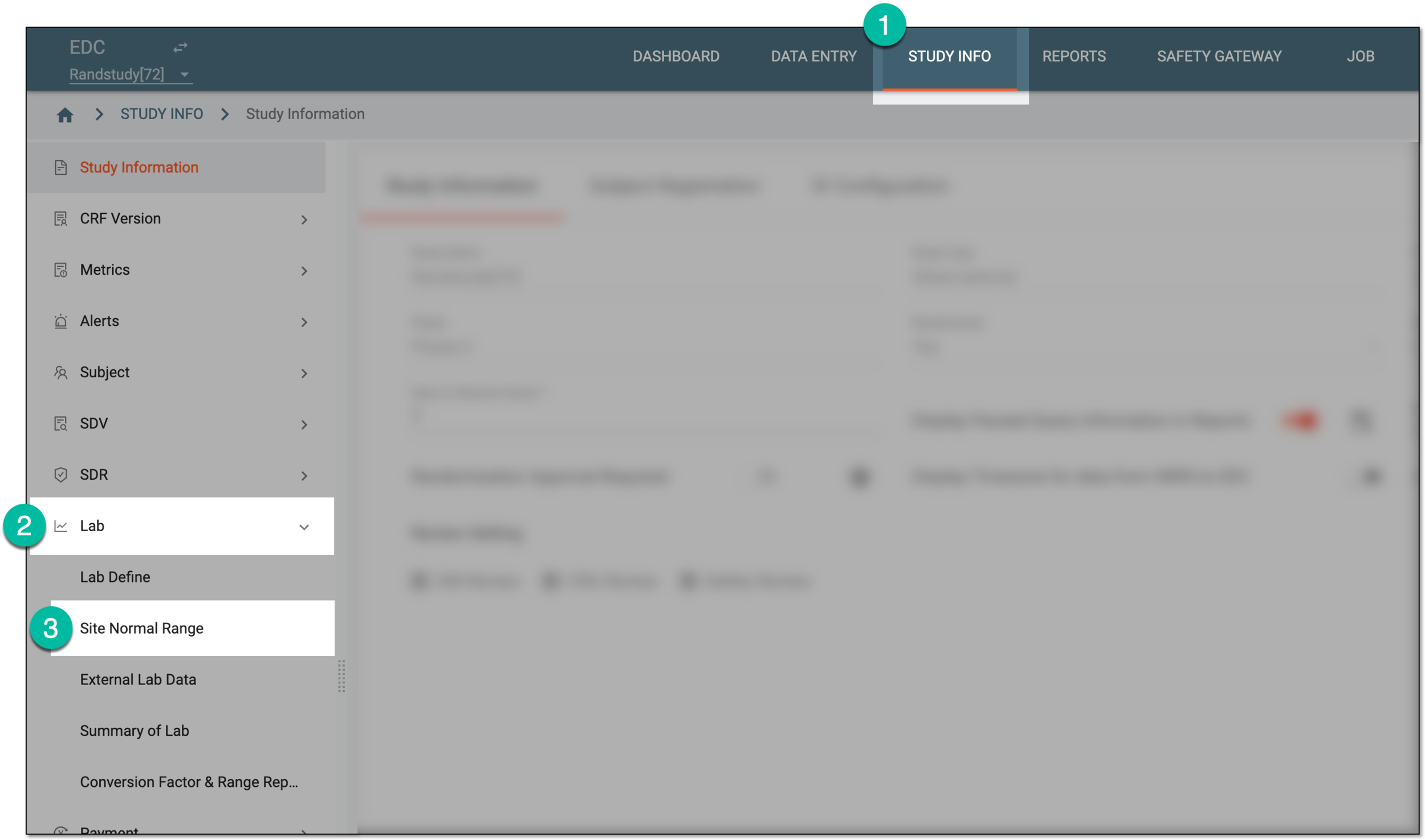 Figure 1. Accessing normal range list
-
On the Normal Range List page that appears, sync your normal range data in one of the following ways.


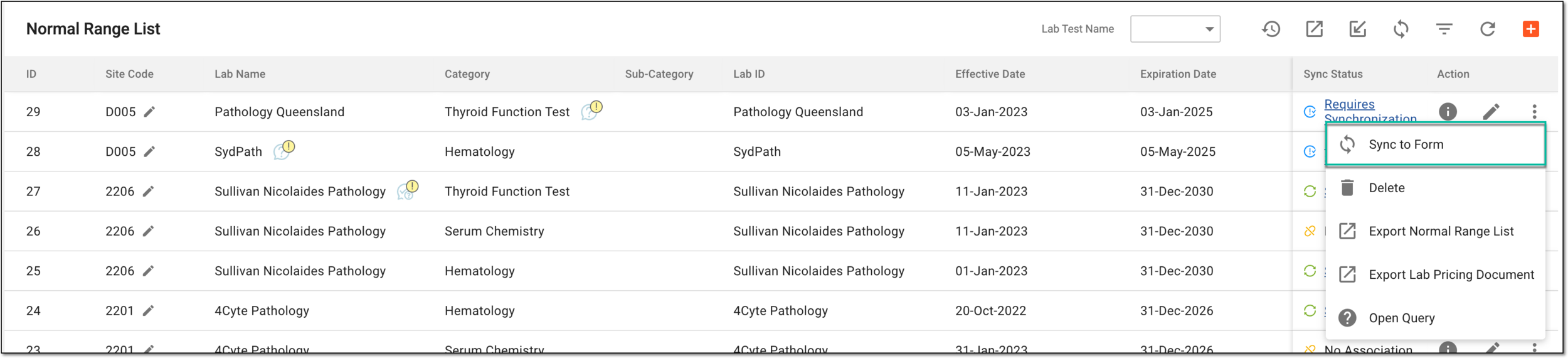

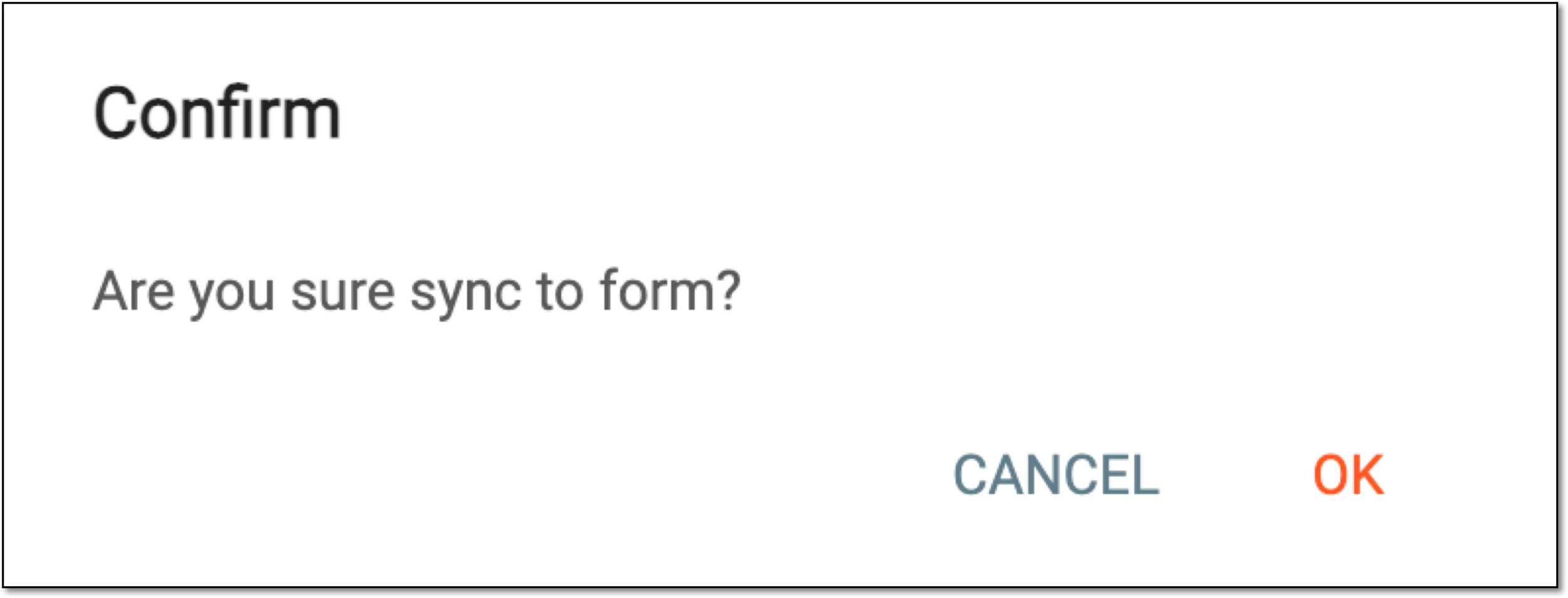


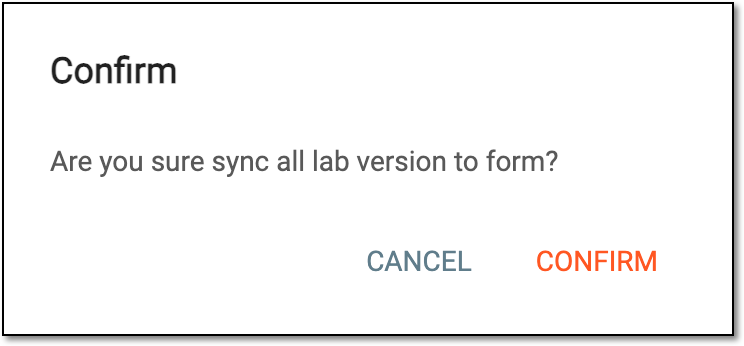
Once confirmed, the normal ranges are synchronized to the respective forms.